This Daycare Overtime Tracker is an Excel workbook for weekly staff-hours review. Childcare-center operators can record each employee’s scheduled and actual hours, calculate variances, and identify potential overtime against a configurable weekly threshold.
The XLSX includes a filterable Time Log, an operational Summary, and an Assumptions sheet for thresholds, date limits, rooms, review statuses, and the staff roster. Its flags direct attention to records that need investigation; they do not determine overtime eligibility, compensation, or final payroll treatment.
How this workbook can help
- Compare planned staffing hours with actual weekly hours before payroll is finalized.
- Focus review time on potential overtime, hours above plan, duplicate records, and unrecognized staff IDs.
- Document review statuses and notes so payroll questions have a visible follow-up record.
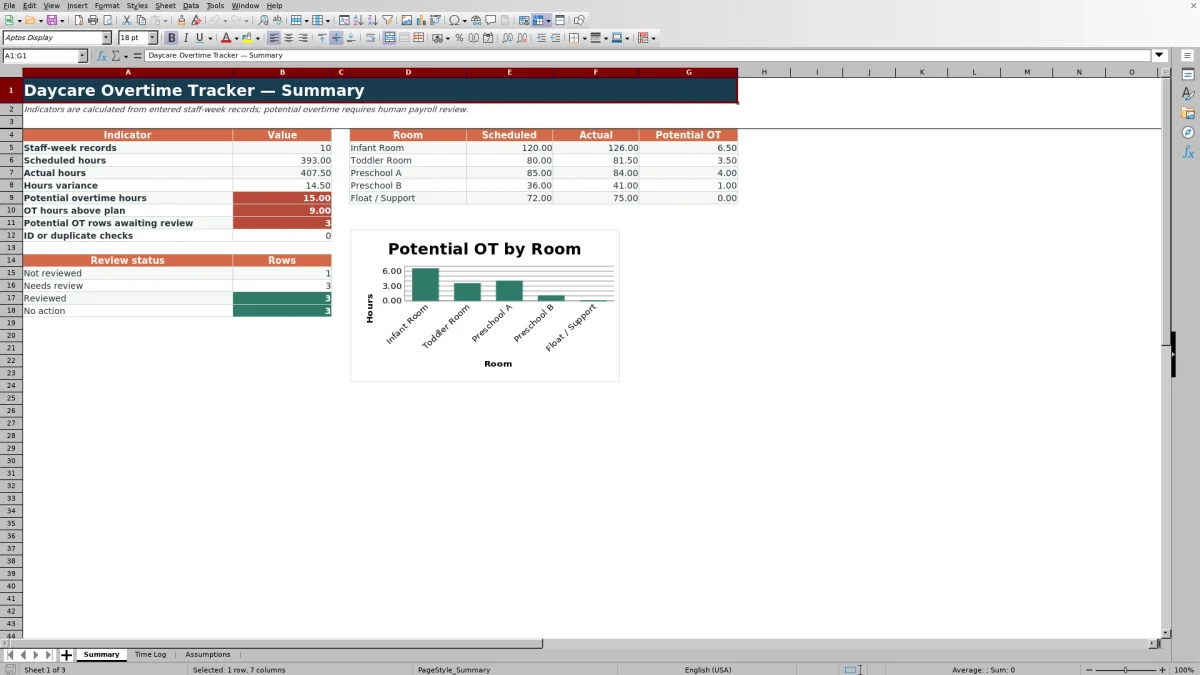
- Monitor scheduled hours, actual hours, and potential overtime across daycare rooms from one summary.
What is in the file
How to get started
1. Set the planning assumptions
Open the Assumptions sheet and review the yellow planning inputs. The supplied settings use a 40-hour weekly review threshold, an 80-hour maximum per weekly entry, and Monday week-start dates from January 5 through December 28, 2026. Update these inputs, the room choices, review statuses, or fictional staff roster when appropriate for your center.
2. Enter one staff-week record
On the Time Log, use rows 6 through 125 to enter a Monday week-start date, staff ID, room, scheduled hours, and actual hours. The staff name is retrieved from the roster. Select a listed ID and room, and keep hour entries within the configured limit.
3. Read the calculations and flags
Review Scheduled OT, Potential OT, Hours Variance, and OT Variance. The Review Flag can identify overtime above plan, overtime at or below plan, hours above plan, an unknown staff ID, or a duplicate staff-and-week record.
4. Resolve and document the review
Investigate flagged records, select a review status, and add a note of up to 250 characters. Then use the Summary sheet to check overall totals, pending reviews, ID or duplicate checks, and potential overtime by room before making the next payroll decision.
How the daycare overtime tracker works
The workbook uses one row per staff member and week. After an operator enters the week, staff ID, room, scheduled hours, and actual hours, formulas compare both hour totals with the weekly review threshold. The result distinguishes scheduled overtime from potential overtime and shows whether actual hours differed from the staffing plan.
The operational method combines entry, calculation, exception flagging, follow-up status, notes, and summary reporting. This structure helps a director move from a staffing variance to a documented review without treating a spreadsheet formula as a payroll ruling.
Weekly review workflow for a childcare center
The situation begins with the published schedule and the hours actually worked during the same week. The operator’s action is to record both values against the correct staff member and room. The workbook’s result is a set of hour and overtime variances with a review flag. The operator then interprets whether the variance reflects approved coverage, a time-entry error, or another circumstance. The next decision is to correct the source information, document the review, or send the record to the person responsible for payroll treatment.
Practical example: extended infant-room coverage
Situation: a fictional infant-room employee was scheduled for 40 hours and recorded 42.5 actual hours while the review threshold was 40. Action: the operator entered those values on one weekly row. Result: Scheduled OT is 0, Potential OT is 2.5 potential overtime hours, Hours Variance is 2.5, OT Variance is 2.5, and the flag is “OT above plan.” Interpretation: the employee worked 2.5 hours beyond both the schedule and the review threshold, but the formula does not establish how those hours must be paid. Next decision: confirm the extended coverage and underlying time record, set the appropriate review status, add a note, and route the entry for payroll review.
Common entry errors and solutions
An invalid week-start entry can occur when the date is not a Monday or falls outside the configured range; select a valid Monday or revise the Assumptions dates when the operating period legitimately changes. “Staff ID not found” means the ID does not match the roster; verify the entry or add the correct employee to the roster. “Check duplicate staff/week” means the same staff ID and week appear more than once; retain one accurate weekly record unless the source process requires the entries to be reconciled first. Rejected hour values may be negative or above the configured maximum; verify the source record rather than bypassing the control. If calculations or flags remain blank, complete the required week, staff, room, scheduled-hour, and actual-hour cells. In each case, correct the source entry and then recheck the calculated result.
Comparison with paper logs, blank spreadsheets, and childcare software
The workbook should be compared as a complete method—structured entry, calculations, flags, review status, notes, and summary reporting—rather than as a collection of individual worksheets.
| Method | How the review works | More suitable when |
|---|---|---|
| Daycare Overtime Tracker Excel workbook | Uses a controlled weekly log, roster lookup, automatic variances, exception flags, follow-up statuses, notes, and room-level summaries. | More suitable when a center wants a transparent spreadsheet process and staff can maintain the assumptions and roster. |
| Paper or manual log | Staff record hours by hand, and an operator manually calculates differences and compiles follow-up items. | More suitable when the operation is very small, the process is temporary, or digital access is unavailable. |
| Blank spreadsheet | The operator designs and maintains columns, formulas, lists, error checks, summaries, and review conventions. | More suitable when an organization needs a highly customized layout and has a spreadsheet specialist responsible for controls and maintenance. |
| Dedicated childcare or workforce software | Depending on the product, it may connect timekeeping, scheduling, permissions, and payroll workflows in one managed system. | More suitable when a center needs integrated operational systems and can support software licensing, configuration, training, and administration. |
The Excel method provides visible formulas and editable planning inputs, but it still depends on accurate entry and human review. It does not replace a time clock, payroll system, policy analysis, or legal determination.
Assumptions, lists, and input controls
The Assumptions sheet centralizes the weekly threshold, maximum hours per entry, earliest and latest allowed week starts, five room choices, four review statuses, and a staff roster with space for 100 IDs and display names. The supplied threshold is 40 hours and the maximum weekly entry is 80 hours. These are planning inputs, not statements of employment law. Validation also checks Monday dates, roster ID uniqueness, listed values, hour ranges, and review-note length.
From a review flag to the next payroll decision
A flag is the start of human payroll review, not its conclusion. Operators can use “Not reviewed” or “Needs review” to keep unresolved records visible, then change the status to “Reviewed” or “No action” after investigation. Notes can capture what was checked, while the Summary reports pending rows and data-quality issues. The next decision should rely on the confirmed time record, center policy, payroll rules, and applicable law rather than on the workbook’s label alone.
Frequently asked questions
What does the Daycare Overtime Tracker calculate?
It calculates scheduled overtime, potential overtime, total-hours variance, and overtime variance for each completed staff-week row. It also assigns a review flag based on the entered values and data-quality checks.
Can I change the weekly overtime review threshold?
Yes. The threshold is an editable planning input on the Assumptions sheet and is supplied as 40 hours. Changing it updates the weekly calculations, but the selected value should be reviewed against the center’s policies and applicable requirements.
How many weekly records can the Time Log hold?
The Time Log provides 120 entry rows, from row 6 through row 125. Each row is intended for one staff member and one week.
What happens if a staff ID is missing from the roster?
The staff-name formula displays “Staff ID not found,” and a completed record receives a “Check staff ID” review flag. Correct the ID or update the staff roster before relying on the totals.
Does a potential overtime flag determine how an employee is paid?
No. Potential overtime and other flags identify records for investigation. Final payroll treatment requires review of the confirmed time record, center policy, payroll rules, and applicable law.
Editorial responsibility

Lena MoralesEnrollment and classroom workflows

Jordan LeeWorkbook QA and center operations