This daycare maintenance calendar is an Excel workbook for scheduling recurring facility and equipment maintenance across classrooms, outdoor areas, shared spaces, and individual assets. It provides space for 100 tasks, with editable fields for frequency, starting and completion dates, assigned role, schedule status, estimated hours, estimated cost, and notes.
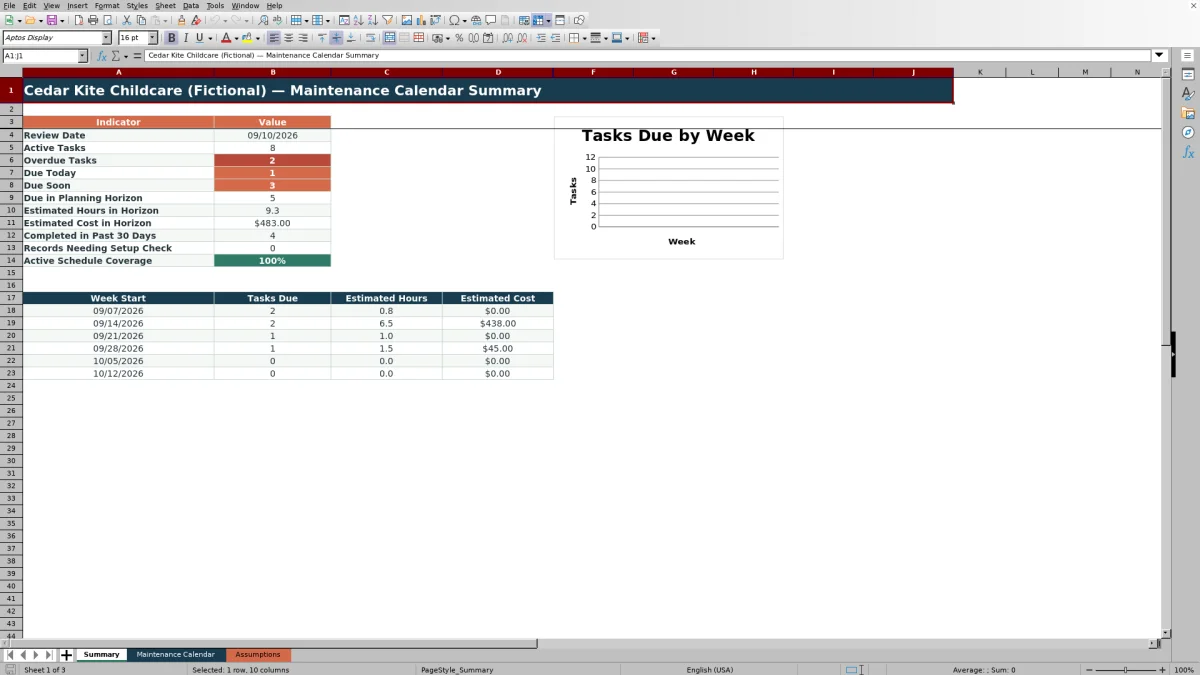
Calculated columns determine the next due date, days remaining, and a check label for each record. A separate Summary sheet reports active tasks, timing concerns, recent completions, schedule coverage, and work expected during the planning horizon, while the Assumptions sheet controls the review date, alert windows, and fixed recurrence intervals.
How this workbook can help
- Keep recurring and one-time facility maintenance records in one organized schedule.
- Identify overdue, due-today, due-soon, incomplete, paused, and retired records without reviewing every date manually.
- Estimate upcoming workload and costs over an adjustable planning horizon.
- Improve schedule consistency by validating task IDs, frequencies, statuses, hours, and cost entries.
What is in the file
How to get started
1. Set the planning controls
Open the Assumptions sheet and confirm the review date, due-soon window, planning horizon, and editable planning assumptions for each frequency. The supplied intervals are 7 days for weekly, 14 for biweekly, 30 for monthly, 90 for quarterly, 182 for semiannual, and 365 for annual tasks.
2. Enter or update maintenance records
Use the yellow cells on the Maintenance Calendar sheet to record the task ID, maintenance activity, area, asset, frequency, starting due date, assigned role, schedule status, estimated hours, estimated cost, and notes. Choose frequency and status values from their validated lists.
3. Record completed work
Enter the Last Completed date after a recurring task is finished. For an active recurring task, the workbook adds the selected interval to that date; when no completion date exists, it uses the Starting Due Date. Retire a completed one-time task if no further due date is needed.
4. Review results and choose the next work
Filter the calendar by role, status, area, or check label. Then use the Summary sheet to review overdue and upcoming work, estimated hours and costs in the planning horizon, recent completions, setup concerns, and the six-week workload outlook.
Build a Recurring Daycare Maintenance Schedule
Each row connects a maintenance activity to an area or asset, an assigned role, a frequency, and a schedule status. Active recurring tasks use the Last Completed date when available and otherwise use the Starting Due Date. Selecting Paused or Retired removes the task from active next-due-date calculations, allowing operators to preserve the record without including it in the current schedule.
Understand Due Dates and Check Labels
The workbook uses the Review Date on the Assumptions sheet rather than the computer’s current date. It compares each calculated Next Due Date with that review date and the editable due-soon window. Depending on the record, the Check column can identify overdue work, work due today or soon, a future completion date, a missing status or due date, or a paused or retired schedule.
Practical Example: Planning an HVAC Filter Check
Situation: An active monthly HVAC filter task was last completed on August 21, 2026, and the workbook review date is September 10. Action: The operator records the completion date and keeps the supplied 30-day monthly interval, 14-day due-soon window, 30-day planning horizon, 0.5 estimated hours, and $18 estimated cost. Result: The next due date calculates as September 20, leaving 10 days, so the task falls within both the due-soon window and planning horizon. Interpretation: The task is not overdue, but its labor and estimated cost should be included in near-term planning. Next decision: The facilities coordinator can schedule the half-hour check before September 20 or revise the planning assumptions if the center follows a different approved maintenance interval.
Common Errors and Solutions
If an active recurring task has no Next Due Date, confirm that Frequency contains a listed value and that either Starting Due Date or Last Completed has been entered. If the Check column reports “Future completion — check,” correct an accidental future Last Completed date or update the Review Date if the review period intentionally changed. For “Missing status — check,” select Active, Paused, or Retired. If a completed one-time task reports a missing due date, change its status to Retired when no additional occurrence is planned. A duplicate Task ID should be replaced with a unique identifier so records can be distinguished reliably.
Comparison With Paper, Blank Spreadsheets, and Childcare Software
Use this table to compare the workbook as one complete operational method with realistic alternatives. The choice depends on task volume, collaboration needs, available systems, and whether automatic notifications or work-order records are required.
| Method | Scheduling and controls | More suitable when |
|---|---|---|
| This Excel workbook | Combines task records, fixed recurrence assumptions, calculated due dates, check labels, validation, filters, summary indicators, workload estimates, and a weekly chart. | More suitable when a center wants a structured local schedule in Excel and staff can review the file regularly. |
| Paper calendar or checklist | Provides a visible manual record but requires staff to calculate repeat dates, total workload, and spot missing information themselves. | More suitable when the task list is very small, computer access is limited, and one person maintains the schedule. |
| Blank spreadsheet | Allows unrestricted customization but does not initially include recurrence formulas, validated entries, issue labels, or a planning summary. | More suitable when an experienced spreadsheet user needs a custom structure that differs substantially from this workbook. |
| Dedicated childcare or maintenance software | May provide shared access, notifications, work orders, attachments, permissions, or audit history, depending on the product. | More suitable when multiple users need real-time coordination, automated alerts, mobile updates, or formal service records. |
Plan Upcoming Labor and Estimated Cost
The Summary sheet counts active tasks due from the Review Date through the editable planning horizon and totals their estimated hours and costs. Its six weekly rows show tasks, hours, and costs by week. These figures support staffing and purchasing discussions, but they remain estimates based on the values entered for each active task.
Apply the Calendar With Appropriate Oversight
The workbook organizes maintenance planning but does not send notifications, create work orders, or establish regulatory requirements. Its frequency values are editable day-based assumptions, so a monthly interval means 30 days rather than the same date in the following calendar month. Center operators should verify each task and interval against equipment instructions, service agreements, childcare requirements, building rules, and local operating policies.
Frequently asked questions
How does the Excel workbook calculate the next due date?
For an active recurring task, it adds the selected frequency interval to Last Completed. If Last Completed is blank, it uses Starting Due Date. A completed one-time task has no new due date, and paused or retired records are excluded from active due-date calculations.
Can I change the maintenance frequency intervals?
Yes. The interval values on the Assumptions sheet are editable. Changes affect next-due-date calculations after Excel recalculates the workbook, so confirm that revised intervals align with the center’s approved procedures and applicable requirements.
What controls the overdue and due-soon labels?
The Review Date controls the date comparison, and the Due-Soon Window determines how many days ahead receive a due-soon label. Both settings are on the Assumptions sheet.
Does the workbook send maintenance reminders?
No. It displays due-date information, check labels, summary counts, and a weekly chart, but staff must open and review the workbook. Use dedicated software when automated alerts or shared work-order routing are required.
Why is a task missing from the planning-horizon totals?
Confirm that the task is marked Active and has a calculated Next Due Date between the Review Date and the end of the planning horizon. Also check the frequency, starting date, completion date, estimated hours, and estimated cost fields for missing or incorrect entries.
Editorial responsibility

Lena MoralesEnrollment and classroom workflows

Jordan LeeWorkbook QA and center operations