This Excel daycare staff schedule organizes a weekly staff schedule by employee, date, room, role, time, status, and duty. The Schedule sheet provides 120 shift-entry rows and calculates the day, staff name, paid hours, hourly rate, and estimated labor cost from entered schedule and roster data.
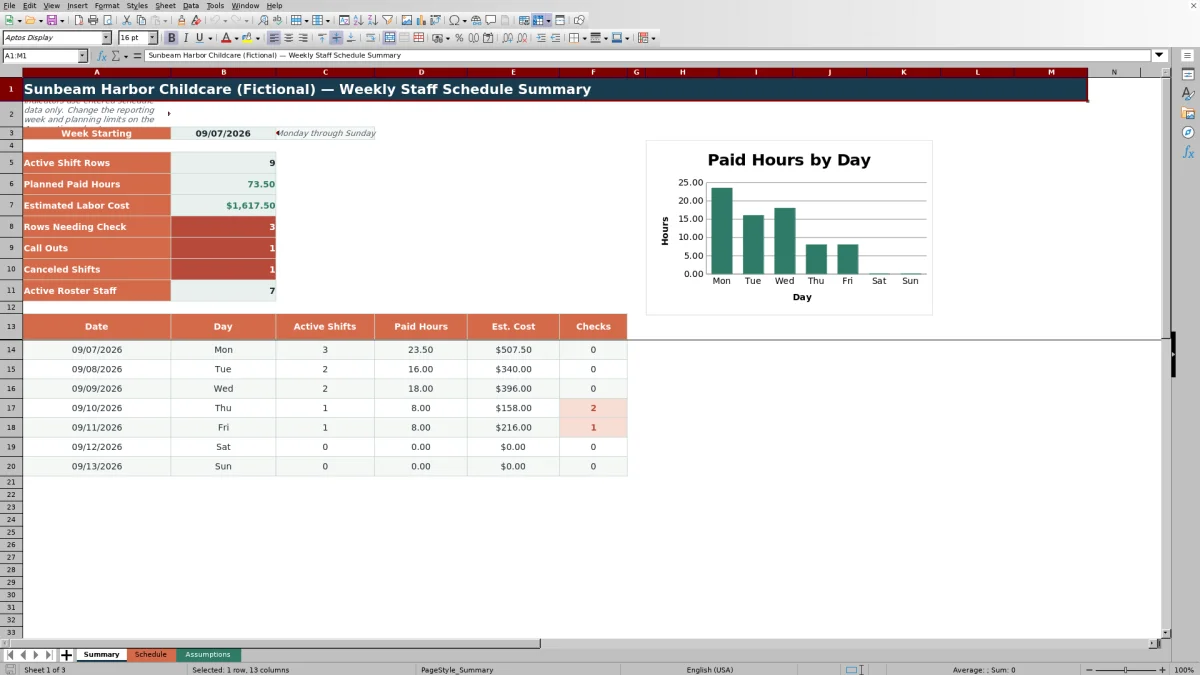
The Summary sheet reports active shifts, planned paid hours, estimated labor cost, review checks, call outs, cancellations, and active roster staff for a Monday-through-Sunday week. The workbook supports scheduling decisions, but planning prompts require human review and do not verify childcare ratios, qualifications, attendance-based coverage, overtime, payroll, or licensing compliance.
How this workbook can help
- Keeps employee shifts, room assignments, roles, times, statuses, and daily duties in one weekly scheduling structure.
- Reduces repeated entry by retrieving staff names and hourly rates from the roster and calculating paid hours and estimated labor cost.
- Provides weekly and daily visibility into active shifts, paid hours, estimated cost, call outs, cancellations, and rows needing review.
- Supports consistent data entry with validations for shift IDs, dates, rooms, roles, times, break hours, statuses, roster fields, rates, and planning limits.
What is in the file
How to get started
1. Prepare the staff roster and lists
Replace the fictional roster on the Assumptions sheet with unique staff IDs, employee names, default roles, hourly rates, and active statuses. Update the available rooms, roles, and statuses to match the childcare center’s terminology.
2. Set the reporting period and limits
Set the reporting week by entering its Monday start date. Review the center open and close times, permitted schedule dates, maximum hourly rate, and break-hour limit before entering shifts.
3. Build the weekly schedule
Enter one row per shift on the Schedule sheet. Supply a unique Shift ID, date, Staff ID, room, role, start and end times, break hours, status, and duty. The sheet calculates the day, staff name, paid hours, hourly rate, and estimated labor cost.
4. Review and finalize the week
Resolve checks before sharing the schedule. Filter rows by employee, date, room, role, or status, and then use the Summary sheet to review weekly totals, daily paid hours, call outs, cancellations, and any remaining check messages.
How the Excel Daycare Staff Schedule Works
The workbook uses a single shift-entry workflow across three connected sheets. Assumptions stores the staff roster, rates, reporting settings, planning limits, rooms, roles, and statuses. Schedule records individual assignments and performs calculations. Summary aggregates qualifying rows for the selected seven-day reporting period.
Planned and Confirmed rows count as active shifts and contribute to planned paid hours. Estimated labor cost is calculated for those statuses by multiplying paid hours by the roster rate. Call Out and Canceled rows remain visible for tracking but do not contribute to active-shift hours or estimated labor cost.
Set Up the Roster and Planning Assumptions
Begin on the Assumptions sheet, where the roster supports up to 100 staff rows. Each roster entry can include a unique Staff ID, staff name, default role, hourly rate, and Yes or No active status. The active-status count feeds the Summary sheet, while Staff ID matches provide names and rates to scheduled rows.
The same sheet contains the reporting week start, center open and close times, planning limits, and selectable lists for rooms, roles, and statuses. Review these inputs before scheduling because they affect date validation, check messages, dropdown selections, and the period shown on the Summary sheet.
Enter, Filter, and Review Weekly Assignments
The Schedule sheet provides 120 shift rows, with one row intended for each assignment. Enter the Shift ID, date, Staff ID, room, role, start time, end time, break hours, status, and duty. Formula columns produce the weekday, staff name, paid hours, hourly rate, estimated labor cost, and review message.
The header filter can narrow the schedule by employee, date, room, role, status, or other columns. Review every populated Checks cell and confirm that the schedule reflects actual availability, classroom needs, breaks, credentials, and center policies before distributing it.
Practical Example: Interpreting Two Infant Room Shifts
Situation: On Monday, September 7, 2026, the sample schedule assigns ST-101 to the Infant Room from 7:00 AM to 3:30 PM and ST-102 from 8:00 AM to 4:30 PM, with a 0.50-hour break for each employee.
Action: Keep both rows Confirmed and verify that their Staff IDs match the roster. The workbook calculates 8.00 paid hours for each employee. Using the sample hourly rates of $24.50 and $19.25, it calculates costs of $196.00 and $154.00.
Result: The two rows contribute 16 paid hours and $350.00 in estimated labor cost to that reporting week.
Interpretation: These results describe two entered assignments and their estimated hourly labor cost. They do not establish that the Infant Room meets required child-to-staff ratios throughout the day, because the workbook does not contain child attendance or regulatory ratio data.
Next decision: Compare the assignments with expected child attendance, applicable ratio rules, staff qualifications, break coverage, and the remaining room schedule. Adjust the shift rows if additional or differently timed coverage is required.
Common Scheduling Errors and Solutions
Error: A Shift ID is missing or duplicated. Solution: Enter a unique identifier for every populated shift row and address the validation warning or check message before finalizing the schedule.
Error: The Staff Name or Hourly Rate remains blank. Solution: Confirm that the entered Staff ID exactly matches a roster ID on the Assumptions sheet and that the corresponding roster fields are complete.
Error: Paid Hours remains blank. Solution: Enter valid start and end times, make the end time later than the start time, and use a numeric break value within the configured limit. The formula does not calculate an overnight shift whose end time is earlier than its start time; enter separate date-based rows and review the resulting hours when overnight work must be represented.
Error: A shift does not appear in active-shift or planned-hours totals. Solution: Check its date and status. Only Planned and Confirmed shifts within the selected reporting week contribute to those totals.
Error: A date is rejected or produces a date-limit message. Solution: Confirm that it falls between the minimum and maximum dates configured on the Assumptions sheet, and verify that the intended reporting week is selected.
Comparison With Other Scheduling Methods
Treat the Excel workbook as one complete operational method: configure the roster and planning inputs, enter assignments on Schedule, review checks, and interpret the weekly Summary. The following comparison places that full method alongside realistic external alternatives.
| Method | More suitable when | Key tradeoff |
|---|---|---|
| This complete Excel workbook | More suitable when the center needs structured shift entry, roster-based rates, paid-hours calculations, estimated labor cost, status tracking, checks, and a weekly summary in one XLSX. | Requires disciplined data entry and separate review of ratios, attendance, qualifications, overtime, payroll, and compliance. |
| Paper schedule or manual whiteboard | More suitable when a very small team needs an immediately visible schedule and does not require automated totals or reusable row-level records. | Changes, calculations, historical review, and exception tracking are largely manual. |
| Blank spreadsheet | More suitable when the center needs a temporary or highly customized layout and is prepared to create its own formulas, validation, checks, and summaries. | Setup and testing take additional time, and inconsistent formulas or entries can be harder to detect. |
| Dedicated childcare scheduling software | More suitable when the center requires capabilities offered by a selected system, such as employee messaging, live availability, attendance integration, automated ratio tools, or payroll connections. | May involve subscription costs, implementation work, training, and vendor-specific workflows. |
The appropriate method depends on team size, update frequency, compliance workflow, integration needs, and who maintains the schedule.
Limits, Review Responsibilities, and the Next Decision
The workbook calculates from entered data only. It does not determine child-to-staff ratios, classroom capacity, employee credentials, live attendance coverage, overtime, payroll deductions, taxes, benefits, or total employment cost. Estimated labor cost includes calculated paid hours multiplied by the roster hourly rate for Planned and Confirmed shifts.
After reviewing the Summary and resolving row-level messages, decide whether the schedule can proceed to a separate operational and compliance review. If the center needs live attendance, ratio monitoring, employee communication, approvals, or payroll integration, evaluate dedicated software that specifically provides those functions.
Frequently asked questions
What information does the Excel daycare staff schedule track?
It tracks Shift ID, date, weekday, Staff ID, staff name, room, role, start and end times, break hours, paid hours, status, duty, hourly rate, estimated labor cost, and row-level checks.
How many shifts can be entered in the workbook?
The Schedule sheet contains 120 shift-entry rows, running from row 4 through row 123.
How are weekly hours and estimated labor cost calculated?
Paid hours are calculated from the start time, end time, and entered break hours. For Planned and Confirmed shifts within the reporting week, the Summary totals those hours. Estimated labor cost multiplies paid hours by the hourly rate retrieved from the staff roster.
Can the workbook track call outs and canceled shifts?
Yes. Call Out and Canceled are supported statuses, and the Summary sheet counts each for the selected week. Those statuses do not contribute to active-shift hours or estimated labor cost.
Does the workbook verify childcare staffing ratios or licensing compliance?
No. It does not contain child attendance, age-group ratio rules, classroom capacity, or staff qualification requirements. Operators must compare the schedule with applicable regulations, expected attendance, employee credentials, break coverage, and center policies.
Editorial responsibility

Lena MoralesEnrollment and classroom workflows

Jordan LeeWorkbook QA and center operations