This daycare field trip schedule is an Excel workbook for coordinating trip dates, participating rooms or groups, child and staff counts, transportation, departure and return times, costs, lead staff codes, and trip status in one operating schedule.
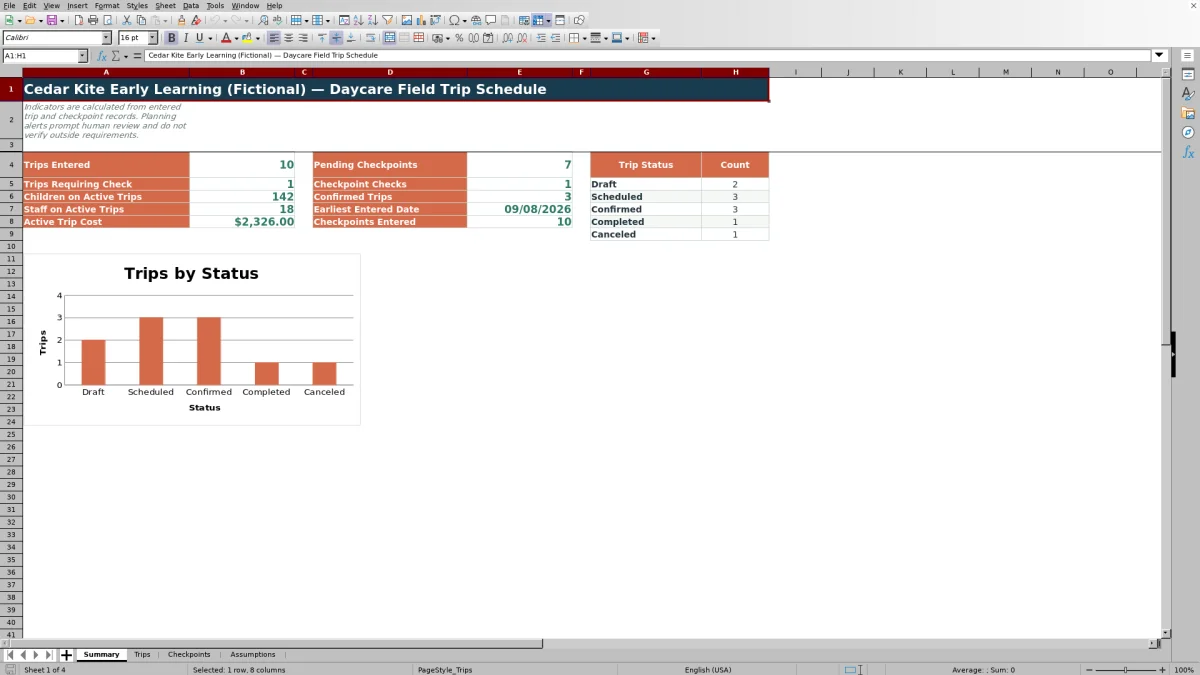
The linked checkpoint log adds planned reviews, headcounts, departures, arrivals, returns, and follow-up tasks. A summary dashboard reports trip totals, active-trip counts and costs, pending checkpoints, records requiring review, and status counts without treating the workbook as a substitute for current childcare, transportation, or safety requirements.
How this workbook can help
- Keep trip timing, group assignments, staffing, transportation, costs, and status in one structured schedule.
- Calculate a planning minimum for staff from the editable children-per-staff value assigned to each room or group.
- Link operational checkpoints to trip IDs so the corresponding trip date and name appear automatically.
- Use summary indicators and formula-generated alerts to focus human review on incomplete, duplicate, or inconsistent records.
What is in the file
How to get started
1. Configure the planning assumptions
Open the Assumptions sheet and replace the fictional room names, staff codes, children-per-staff values, transport modes, statuses, checkpoint types, date limits, and numeric limits with settings approved for your center’s internal planning. Confirm applicable requirements separately.
2. Enter each trip
On the Trips sheet, assign a unique trip ID and enter the date, trip name, destination, room or group, planned children, assigned staff, transportation information, departure and return times, planned cost, status, and lead staff code. Review the calculated minimum staff and Planning Alert columns before confirming the record.
3. Build the checkpoint timetable
On the Checkpoints sheet, create unique checkpoint IDs and link them to trip IDs. Enter the checkpoint type, planned time, assigned staff code, status, completed time, and notes. Verify that the automatically retrieved trip date and name match the intended outing.
4. Review results and decide what needs attention
Use the Summary sheet to review entered trips, active child and staff totals, active-trip cost, pending checkpoints, confirmed trips, status counts, and records requiring a check. Filter the Trips and Checkpoints sheets when preparing a daily itinerary or following up on open work.
Turn Separate Trip Details Into an Operating Schedule
Field trip information often begins in separate emails, calendars, permission workflows, transportation notes, and staff conversations. The Trips sheet provides a common record for the timetable and core assignments, with one row per trip and filters across all 100 entry rows.
Operators can record the trip date, destination, participating group, planned children, assigned staff, transportation mode, vehicle capacity, departure, return, cost, status, and lead staff code. Formula columns then add a room-based planning ratio, a calculated minimum staff count, and an alert for records that may require review.
Configure Assumptions Before Scheduling Trips
The Assumptions sheet controls the stable lists and limits used by the entry sheets. It contains room or group names, planning children-per-staff values, transportation modes, trip statuses, staff codes, checkpoint types, checkpoint statuses, permitted trip dates, and maximum values for children, staff, vehicle capacity, and planned cost.
These entries are center planning settings rather than verified legal ratios or transportation rules. Review them with the appropriate director or administrator before entering live trips, and revise them whenever the center’s approved planning approach changes.
Practical Example: Interpreting Staffing and Capacity
Situation: The fictional FT-002 trip schedules 16 children from the Moonbeam Room for a 9:00 AM departure and 12:30 PM return using a center van with capacity for 20. Two staff members are assigned, and the trip is marked Confirmed. Action: The workbook retrieves the Moonbeam Room planning value of eight children per staff member and divides 16 by eight. Result: The calculated minimum is two staff members, matching the assigned count, while the entered vehicle capacity is four seats above the planned child count. Interpretation: The entries align with the workbook’s current planning assumptions, but that calculation does not account for trip-specific supervision, driver seating, accessibility, or other requirements. Next decision: The operator can continue reviewing the linked checkpoints and external requirements, or revise staffing and transportation if the approved plan calls for additional coverage or capacity.
Common Entry Errors and Solutions
The formula-generated planning alerts are designed to direct attention rather than approve a trip. A duplicate trip ID calls for assigning a unique identifier. An incomplete-core-details message calls for entering the missing date, name, destination, group, transportation mode, status, or lead staff code. Missing child or staff counts should be completed before the staffing calculation is interpreted.
On the Checkpoints sheet, a missing trip ID should be entered, a trip-not-found message should be resolved by matching the ID to the Trips sheet, and an alert for a linked canceled trip should prompt review of whether the checkpoint is still needed. Duplicate checkpoint IDs should be replaced, while incomplete checkpoint details should be completed with the required type, planned time, staff code, and status.
Comparison With Paper, Blank Spreadsheets, and Childcare Software
The complete workbook method combines a trip schedule, linked checkpoint timetable, configurable assumptions, calculated planning fields, entry validation, alerts, summary indicators, and a status chart. Its suitability depends on the center’s trip volume, access needs, technical resources, and existing systems.
| Method | Operational approach | More suitable when | Main tradeoff |
|---|---|---|---|
| This Excel workbook | Uses connected trip and checkpoint records with formulas, dropdown lists, validations, alerts, filters, summary metrics, and a chart. | More suitable when a center works in Excel and wants a structured local schedule that can be configured without building the file from the beginning. | It still requires manual entry, review, file control, and separate confirmation of current requirements. |
| Paper or manual process | Records trip details, assignments, and checks on printed forms, calendars, or binders. | More suitable when device access is limited, trip volume is very low, or a printed day-of-trip record is operationally necessary. | Totals, duplicate checks, schedule changes, and cross-references must be handled manually. |
| Blank spreadsheet | Lets staff design columns, formulas, lists, and reports around a unique local workflow. | More suitable when the center has unusual requirements and someone has time to design, test, document, and maintain the spreadsheet. | It does not begin with the linked formulas, validation rules, alerts, checkpoint structure, or summary indicators included here. |
| Dedicated childcare software | May provide centralized permissions, multiuser workflows, notifications, and integrations, depending on the product. | More suitable when the center requires controlled multiuser access, automated communications, mobile workflows, or integration with existing childcare records. | It may involve subscription costs, implementation work, staff training, and product-specific limits. |
The workbook is a scheduling and coordination tool, not a child record system or evidence of regulatory compliance. Select the method that matches the center’s operational controls and retain any required records through approved systems.
Coordinate Checkpoints Before, During, and After a Trip
The Checkpoints sheet turns a trip into timed operational tasks. Available assumption-list examples include roster review, departure headcount, departing the center, arriving at the venue, return headcount, and cost receipt review. Each checkpoint can include a planned time, assigned staff code, status, completed time, and notes.
Because trip date and trip name are retrieved from the matching trip ID, operators can verify that each checkpoint belongs to the intended outing. Pending checkpoint counts and checkpoint alerts then appear on the Summary sheet, helping staff identify follow-up work without reviewing every row individually.
Use Results to Make the Next Scheduling Decision
The Summary sheet reports trips entered, trips requiring a check, children and staff on active trips, active-trip cost, pending checkpoints, checkpoint checks, confirmed trips, the earliest entered date, and counts by trip status. These indicators support a review conversation but do not determine whether a trip is ready to proceed.
After reviewing the results, the next decision may be to complete missing details, add staffing, change transportation, close a checkpoint, revise a status, or confirm the plan through the center’s established approval process. Keeping statuses and checkpoint records current makes the summary more useful for subsequent decisions.
Frequently asked questions
How many trips and checkpoints can the workbook hold?
The Trips sheet provides 100 entry rows, from rows 6 through 105. The Checkpoints sheet provides another 100 entry rows over the same row range.
Does the workbook calculate required daycare staffing?
It calculates a planning minimum by dividing planned children by the editable children-per-staff value for the selected room or group and rounding up. That result is an internal planning aid, not a determination of licensing, safety, transportation, or trip-specific staffing requirements.
Can checkpoint records be linked to a scheduled trip?
Yes. Enter a Trip ID in a checkpoint row, and the workbook uses lookup formulas to retrieve the corresponding trip date and trip name. An alert can identify a trip ID that is missing, not found, or linked to a canceled trip.
What information appears on the Summary sheet?
The Summary sheet includes trip and checkpoint counts, active child and staff totals, active-trip cost, confirmed trips, the earliest entered trip date, records requiring review, and status counts for Draft, Scheduled, Confirmed, Completed, and Canceled trips. It also includes a chart of those status counts.
Does this Excel workbook replace permission, emergency, or compliance records?
No. The workbook has no dedicated fields for individual child names, guardian permissions, emergency contacts, medication details, dietary needs, or attendance at each headcount. Continue using the center’s approved systems and procedures for those records and confirm current requirements separately.
Editorial responsibility

Lena MoralesEnrollment and classroom workflows

Jordan LeeWorkbook QA and center operations