This Daycare Staff Leave Calendar Excel workbook helps childcare-center operators coordinate requested, approved, and taken leave with scheduled staffing. Record each leave event, then use date-and-room coverage rows to account for planned leave, confirmed backfill, projected available staff, and variance from the room’s minimum planned staffing level.
The XLSX includes a Summary dashboard, 100 leave-record rows, 100 daily coverage rows, editable assumptions, dropdown lists, input validation, and automatic data checks. Each coverage warning is a planning alert, not compliance confirmation; operators still need to consider shift timing, child attendance, staff qualifications, and applicable staffing requirements.
How this workbook can help
- Keeps leave IDs, staff IDs, dates, rooms, leave types, statuses, hours, and coverage notes in one structured calendar.
- Connects approved and taken leave to daily room staffing so operators can see projected availability after backfill.
- Surfaces incomplete entries, duplicate records, unusual leave hours, missing staffing inputs, and projected coverage gaps for human review.
- Summarizes leave counts, leave hours, staff equivalents, coverage gaps, upcoming approved records, and entries that need attention.
What is in the file
How to get started
1. Review the assumptions
Start on the Assumptions sheet. Confirm the room list and minimum planned staff values, then review the standard planning day hours, leave-hour review limit, and planning horizon. The included defaults are editable planning inputs rather than verified regulatory ratios.
2. Replace the fictional leave records
On Leave Calendar, replace the yellow sample cells with center records. Enter a unique leave ID, staff ID, room, leave date, leave type, status, scheduled hours, and leave hours. Add a coverage note when it will help the person reviewing the request or staffing plan.
3. Enter daily staffing coverage
Add one row per date and room on Daily Coverage. Enter Scheduled Staff and any confirmed Backfill Staff Eq. The workbook looks up the room minimum, converts approved and taken leave hours into staff equivalents, and calculates projected availability and coverage variance.
4. Review alerts and make the staffing decision
Check the Data Check and Coverage Check columns before using the Summary sheet. Treat negative variance as a prompt to investigate, correct data where necessary, and decide whether to arrange backfill, revise the schedule, or continue the leave review.
Coordinate Leave and Daily Room Coverage
The workbook uses two connected operational records. Leave Calendar captures who is away, the room, date, leave type, status, scheduled hours, leave hours, and a coverage note. Daily Coverage captures the date, room, scheduled staff, and backfill staff equivalents. Formulas then connect approved and taken leave to the matching date-and-room row, giving the operator a consistent path from a leave record to a staffing review.
Status matters to the calculation. Requested leave is summarized separately but does not reduce projected staffing. Approved and Taken hours are included in the planned leave staff-equivalent deduction, while Taken hours are also reported in their own column. Denied and Cancelled records remain available for administrative history without reducing projected coverage.
Practical Example: An Approved Full-Day Absence
Situation: The fictional sample includes eight hours of approved leave for Preschool A on September 12, 2026. Scheduled Staff is 2, the default minimum is 2, and no backfill is initially entered. With an eight-hour planning day, the absence equals 1 staff equivalent, so initial projected availability is 1 and variance is -1. Action: After confirming that a substitute will cover the day, the operator enters 1 in Backfill Staff Eq. Result: Projected Available becomes 2 − 1 + 1 = 2, Coverage Variance becomes 0, and Coverage Check returns OK. Interpretation: The day-level plan now meets the workbook’s entered minimum for that room; it does not establish that every shift segment or regulatory condition is covered. Next decision: Verify the substitute’s actual hours and qualifications and compare the plan with expected attendance before relying on the updated result.
Common Errors and Their Solutions
Error-to-solution review: “Complete required fields” means one or more required leave fields from Leave ID through Leave Hours is blank; complete the missing entry. “Check duplicate ID” means a leave ID appears more than once; correct or replace the duplicate. “Review hours” appears when leave hours are negative, exceed scheduled hours, or exceed the assumption for review-limit hours per leave day; verify the values and the applicable assumption.
- For “Complete date and room,” enter both values on the Daily Coverage row.
- For “Check duplicate date/room,” consolidate the duplicate rows or correct the date or room so each planning combination appears once.
- For “Check room minimum,” confirm that the room matches an Assumptions entry and that its minimum is populated.
- For “Enter scheduled staff,” add the planned staffing value for that date and room.
- For “Review coverage,” inspect the negative variance and determine whether confirmed backfill or a schedule change is needed.
Date validation accepts dates from 365 days before TODAY() through 730 days after TODAY(). If Excel rejects a date, confirm that it is a real Excel date within that rolling range rather than text.
Comparison: Excel Workbook, Manual Tracking, and Childcare Software
The workbook is one complete operational method: structured leave entry, linked daily coverage calculations, row-level checks, assumptions, and summary indicators. The most suitable method depends on record volume, workflow complexity, available systems, and the amount of automation the center needs.
| Method | More suitable when | Considerations |
|---|---|---|
| This Excel workbook | A center already uses Excel and needs a structured leave-and-day-level coverage process for up to 100 leave records and 100 coverage rows. | Provides linked calculations and checks, but operators must enter records, maintain assumptions, and perform the final staffing review. |
| Paper or manual log | A very small center has minimal leave volume, needs an offline process, and accepts manual calculations. | Easy to start, but duplicate checks, status totals, leave conversions, and coverage comparisons must be performed by hand. |
| Blank spreadsheet | A center needs a highly customized layout and has someone able to build and maintain formulas, validations, and reporting. | Offers design flexibility, but it does not begin with this workbook’s connected fields, checks, assumptions, or summary formulas. |
| Dedicated childcare software | An organization needs multi-site access, role-based workflows, notifications, shift-level scheduling, or integration with other operating systems. | May support broader workflows, but setup, subscription cost, data migration, and vendor-specific processes should be evaluated. |
For a center that plans by date and room and wants a locally maintained Excel process, this workbook may be more suitable when its row capacity and day-level model match the center’s actual workflow.
How the Staffing Calculations Work
The standard planning day is set to 8 hours by default. An eight-hour approved or taken absence therefore equals 1 staff equivalent, while four hours equals 0.5. Daily Coverage totals matching Approved and Taken leave hours for the same date and room and divides those hours by the planning-day setting. Taken leave is also calculated separately for reporting.
Projected Available equals Scheduled Staff minus Approved/Taken Leave Staff Eq. plus Backfill Staff Eq., with the displayed result prevented from falling below zero. Coverage Variance then subtracts Minimum Planned Staff from Projected Available. A negative variance triggers “Review coverage”; zero or a positive value returns “OK” when the other required inputs and checks are satisfied.
Use the Summary to Prioritize Reviews
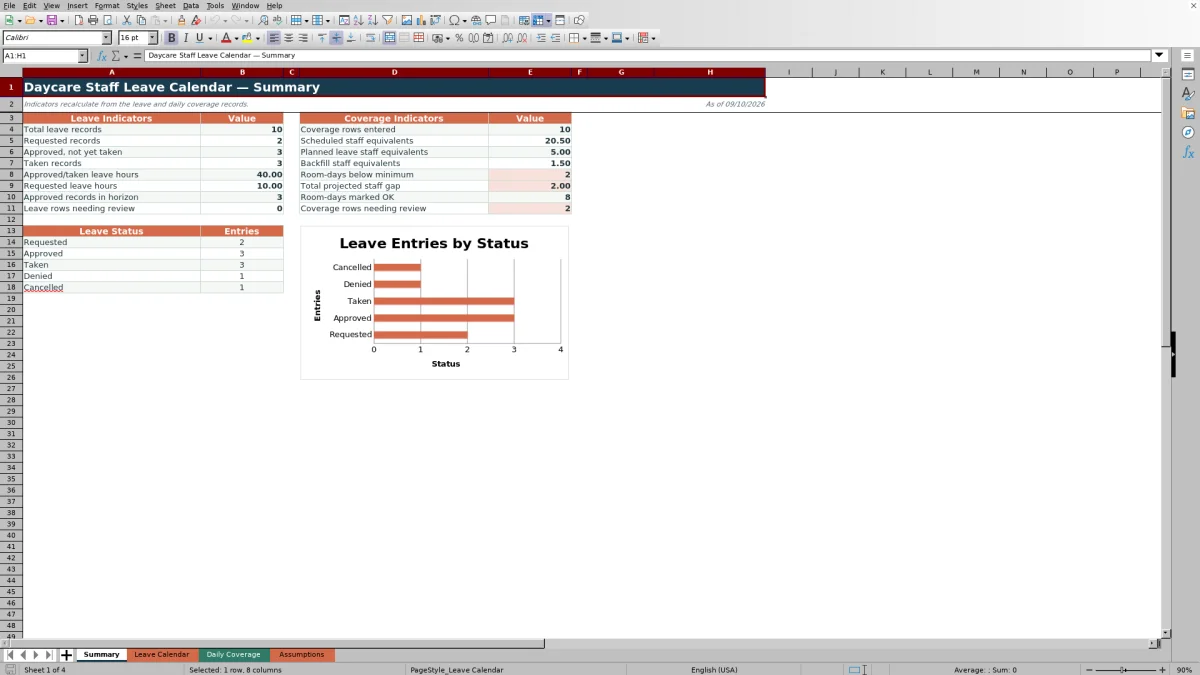
The Summary sheet recalculates total leave records, Requested records, Approved records not yet taken, Taken records, approved and taken leave hours, and requested leave hours. It also counts Approved records dated from TODAY() through the number of days entered as the planning horizon, which is 90 days by default.
Coverage indicators total entered date-and-room rows, scheduled staff equivalents, planned leave staff equivalents, backfill staff equivalents, room-days below minimum, total projected staff gap, room-days marked OK, and rows needing review. The leave-status chart provides a quick count of Requested, Approved, Taken, Denied, and Cancelled entries, while the underlying rows provide the detail needed for action.
Operational Boundaries and the Next Decision
This calendar plans coverage at the date-and-room level. It does not model start and end times, breaks, staff credentials, child attendance, classroom ratios by time of day, or jurisdiction-specific rules. Minimum Planned Staff values are editable assumptions and should not be treated as verified licensing requirements.
After resolving data errors, use the calculated variance as one input to a human decision. Confirm whether backfill is actually available, whether its timing covers the absence, and whether the assigned person is appropriate for the room. If those conditions are not confirmed, continue the staffing review even when the day-level arithmetic appears acceptable.
Frequently asked questions
What leave statuses does the Excel calendar support?
The selectable statuses are Requested, Approved, Taken, Denied, and Cancelled. Requested records are tracked separately, Approved and Taken hours affect planned leave staff equivalents, and Taken hours are also reported in a separate coverage column.
How does the workbook convert leave hours into staff equivalents?
It divides matching leave hours by the Standard planning day hours setting on the Assumptions sheet. The default is 8 hours, so 8 leave hours equal 1 staff equivalent and 4 leave hours equal 0.5.
What does a negative Coverage Variance mean?
It means Projected Available is below the room’s entered Minimum Planned Staff for that date. Review the scheduled count, approved or taken leave, and confirmed backfill, then decide whether the schedule or coverage plan needs to change.
Can I change room minimums and planning settings?
Yes. The Assumptions sheet contains editable room minimums, standard planning day hours, the leave-hour review limit, and the planning horizon. Use center-approved values, recognizing that these are planning assumptions rather than verified legal staffing standards.
How many records can the workbook hold?
The configured ranges provide 100 leave rows and 100 daily coverage rows, from row 5 through row 104 on each operational sheet. Using additional rows would require extending the relevant formulas, validation rules, helper ranges, filters, conditional formatting, and Summary references.
Editorial responsibility

Lena MoralesEnrollment and classroom workflows

Jordan LeeWorkbook QA and center operations