This Excel daycare schedule template creates a center-wide timetable for rooms, shared spaces, recurring activities, staff assignments, and expected attendance. The XLSX provides 100 schedule rows with validated inputs for dates, times, locations, categories, staff, attendance, and status.
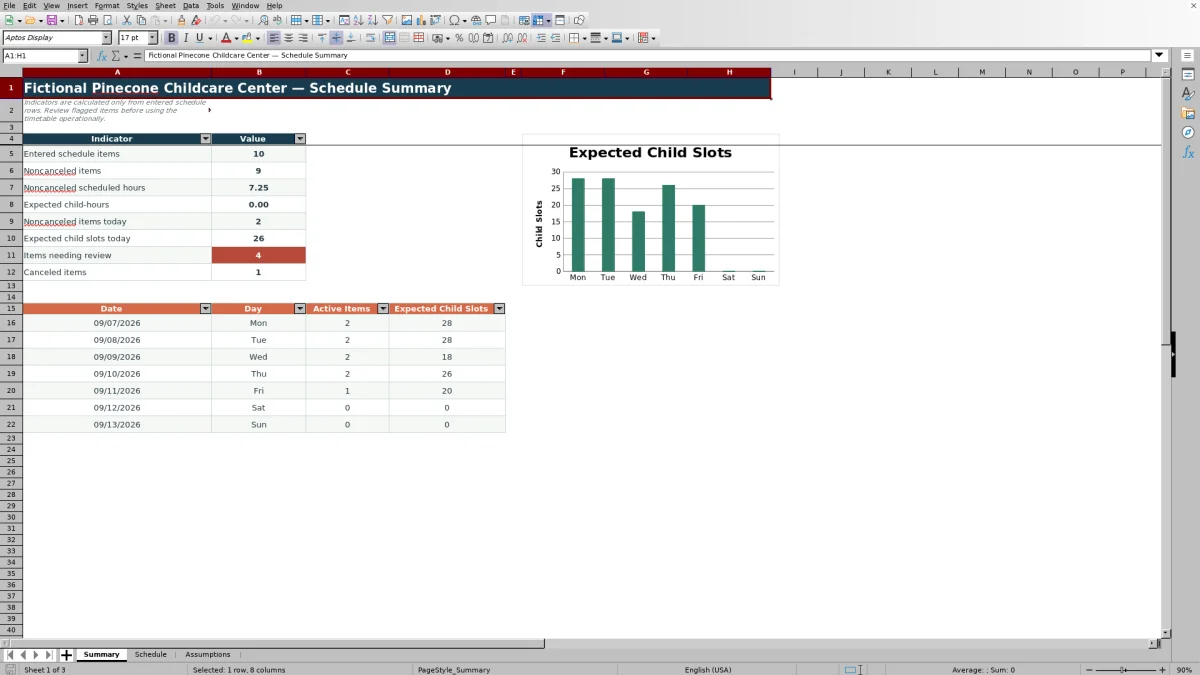
Use the Schedule sheet for daily entries, the Assumptions sheet for editable planning settings, and the Summary sheet for operational indicators and a seven-day chart. Calculated columns show duration, staffing count, and children per staff, while review messages identify details that need human attention.
How this workbook can help
- Coordinate classrooms, shared spaces, activities, staff assignments, and expected attendance in one operating timetable.
- Calculate each item's duration, staffing count, and children-per-staff value from entered schedule details.
- Identify missing information, invalid time order, out-of-window dates, and operating-hour conflicts before using the timetable.
- Review active items, scheduled hours, expected child-hours, canceled items, and seven days of expected child slots from the Summary sheet.
What is in the file
How to get started
Step 1: Configure the planning settings
Open the Assumptions sheet and replace the fictional room names, capacities, staff choices, statuses, and categories. Set the editable assumptions for opening and closing times, planning-window dates, maximum expected children per item, and the internal review-ratio threshold.
Step 2: Enter each scheduled item
On the Schedule sheet, use one row for each activity or task. Enter its date, start and end times, room or shared space, activity, category, lead and support staff, expected children, status, and any useful notes.
Step 3: Correct flagged entries
Read the calculated duration, staffing count, and children-per-staff columns. Resolve each Review message by completing missing fields, correcting dates or times, or checking the applicable room, capacity, staffing, and planning settings.
Step 4: Review results and make the next decision
Use Schedule filters to inspect a date, location, category, employee, or status. Then open Summary to review active items, hours, expected child demand, canceled entries, flagged items, and the seven-day expected-child-slots chart before confirming or revising the timetable.
Situation: Coordinating the Entire Center
A childcare center may need to coordinate classroom routines, playground use, movement sessions, staff coverage, and expected attendance across the same day. Separate notes can obscure timing or space conflicts. This workbook creates a single operating view in which each activity has a date, time range, location, category, staff assignment, attendance estimate, status, and notes.
Action: Configure Rooms, People, and Planning Limits
The Assumptions sheet supplies the Schedule sheet's room, staff, status, and category choices. Its controlled inputs also include planned room capacities, opening and closing times, planning-window dates, a maximum expected-children value, and an internal review-ratio threshold. These values are internal planning inputs rather than external childcare standards, so operators should replace the fictional examples with approved center information.
Action: Build and Check the Operating Timetable
Enter one row per item on the Schedule sheet, whether the item is a classroom activity, shared-space booking, arrival period, or staff task. Date and time validation uses the configured planning window and operating hours, while lists help keep room, category, staff, and status labels consistent. The table can then be filtered by the fields most relevant to the day's operational review.
Result: Read the Calculated Schedule Summary
The workbook's calculated fields turn entered start and end times into duration hours, count distinct lead and support assignments, and divide expected children by staffing count. Summary indicators report entered items, noncanceled items, noncanceled scheduled hours, expected child-hours, today's noncanceled items, today's expected child slots, items needing review, and canceled items. A separate seven-day table and chart begin with the configured planning-window start date.
Interpretation: Practical Daycare Scheduling Example
In the sample schedule, Morning Circle runs in the Sunflower Room from 8:15 AM to 8:45 AM with 16 expected children and two different assigned educators. The formulas produce a 0.5-hour duration, a staffing count of two, and 8 children per staff member. Because the editable planned capacity for that room is also 16, the entry reaches the configured room capacity. The operator should interpret this as a planning signal, compare the calculated ratio with the center's approved threshold and applicable requirements, and decide whether the activity, location, attendance estimate, or staffing assignment needs revision.
Errors and Solutions Before Operational Use
“Check missing details” means a required scheduling field is blank; complete the start time, end time, location, activity, category, lead staff, or status as applicable. “Check planning window” calls for changing the schedule date or revising the configured start and end dates. “Check time order” requires an end time later than the start time, while “Check operating hours” requires adjusting the item or the center's opening and closing settings. A canceled item appears as “Not active” and is excluded from active summary calculations. If a room, capacity, or staffing concern remains, verify the selected room, expected children, assigned staff, planned capacity, and internal ratio threshold rather than treating the workbook as a regulatory determination.
Comparison and the Next Scheduling Decision
The complete workbook method combines assumptions, validated schedule entry, row-level calculations, review messages, filters, summary indicators, and a seven-day chart. The comparison below shows when this method or an external alternative is more suitable.
| Method | Operational approach | More suitable when |
|---|---|---|
| This Excel workbook | Uses editable assumptions, validated schedule rows, calculated staffing measures, review messages, summary indicators, and a seven-day chart in one XLSX. | More suitable when a center wants a structured file-based process and staff already work comfortably in Excel. |
| Paper or manual board | Provides a visible schedule but requires people to calculate totals, monitor changes, and copy information manually. | More suitable when the schedule is very small, the team needs an immediate wall display, and electronic calculation or reporting is not required. |
| Blank spreadsheet | Allows a custom grid without the workbook's existing validation, assumptions, review formulas, or summary design. | More suitable when operators need only a basic list and prefer to build all controls and calculations themselves. |
| Dedicated childcare software | May connect scheduling with enrollment, attendance, family communication, billing, permissions, or mobile workflows, depending on the product. | More suitable when the center needs integrated records, multiuser updates, automated communication, or real-time attendance functions beyond this workbook. |
The next decision is whether a controlled standalone Excel process meets the center's coordination needs or whether the operation requires a simpler physical display or a broader connected system.
Frequently asked questions
How many schedule items can the Excel template hold?
The Schedule sheet provides 100 entry rows, covering rows 5 through 104.
Can the workbook schedule shared spaces as well as classrooms?
Yes. The location field is labeled Room / Shared Space, and its editable choices can represent classrooms, studios, playgrounds, multipurpose rooms, or other center locations.
How are canceled schedule items handled?
A canceled row receives a “Not active” review result. Summary calculations for active items, scheduled hours, expected child-hours, and daily expected child slots exclude items with a Canceled status.
Does the workbook verify childcare staffing compliance?
No. It calculates children per staff from the expected-children value and distinct lead and support assignments, then uses an editable internal threshold for planning review. Operators must confirm applicable licensing requirements and approved center policies independently.
What should I change before using the example schedule?
Replace the fictional room names, capacities, staff choices, statuses, and categories on the Assumptions sheet. Also review the opening and closing times, planning-window dates, maximum expected children per item, and internal review-ratio threshold before entering operational schedule data.
Editorial responsibility

Lena MoralesEnrollment and classroom workflows

Jordan LeeWorkbook QA and center operations