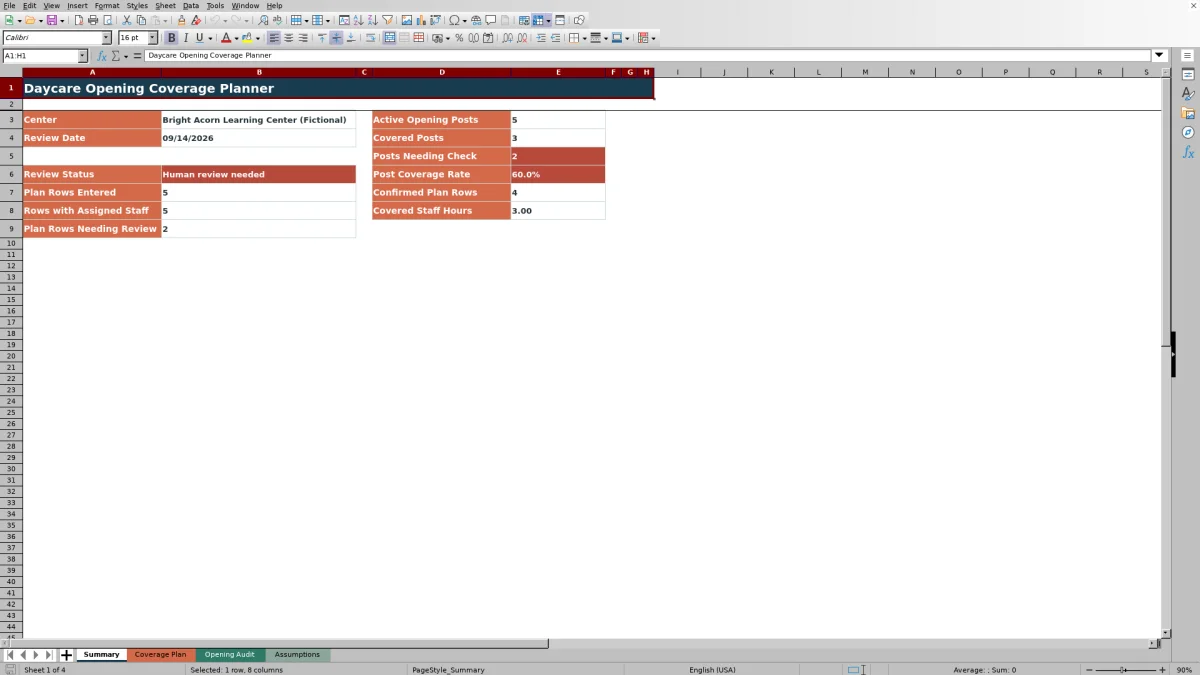
This Daycare Opening Coverage Planner is an Excel workbook for assigning early-opening duties and checking whether every active opening post has coverage on a selected date. It connects center-defined posts and required times with assigned staff, scheduled hours, and assignment statuses.
The XLSX includes Summary, Coverage Plan, Opening Audit, and Assumptions worksheets. Together, they calculate required, covered, and gap hours; flag rows that need attention; and provide a date-specific audit for up to 100 opening posts and 100 plan entries.
How this workbook can help
- Organizes date-specific opening assignments in one structured plan instead of relying on separate notes or verbal updates.
- Distinguishes active required posts from posts that the center has marked as not required.
- Shows covered hours and gap hours so operators can identify where entered schedules do not cover required opening periods.
- Provides a repeatable review process using editable center settings, post lists, staff entries, and assignment statuses.
What is in the file
How to get started
1. Configure the center assumptions
Open Assumptions and replace the fictional center name, planning dates, maximum entered shift hours, opening posts, required times, active flags, staff entries, roles, and assignment statuses with local information.
2. Enter the opening assignments
In Coverage Plan, use one row for each required post and opening date. Select the opening post and assigned staff, enter scheduled start and end times, choose the assignment status, and add notes when useful.
3. Resolve row-level checks
Review required hours, covered hours, gap hours, and the Opening Check result. Correct duplicate posts, incomplete schedules, missing staff, unconfirmed assignments, inactive or unknown posts, and other flagged conditions before relying on the row.
4. Audit the selected date
Choose the review date in Opening Audit, inspect every active post, and use Summary to assess covered posts, posts needing review, the coverage rate, and the overall review status. Revise the plan until the remaining results reflect the center's operational decision.
Situation: Define the opening coverage question
A childcare center may have several arrival posts that begin at different times, such as the front entry, infant room, toddler room, and preschool room. The operational question is not merely whether someone appears on a schedule; it is whether every active post has an acceptable assignment for the selected date. The workbook establishes that situation through the center-defined post catalog, required opening periods, and review date.
Action: Build the date-specific plan
Operators enter one Coverage Plan row for each post and date, select a staff member, add scheduled start and end times, and choose an assignment status. Room names and required times come from Assumptions, reducing repeated entry. A row marked Confirmed is still evaluated against the other workbook checks, so the status alone does not establish coverage.
Result: Review calculated coverage
The workbook calculates required hours, the overlap between required and scheduled times, and any remaining gap hours. A plan row that passes the workbook's checks returns Covered; other conditions produce a review prompt. Opening Audit then counts covered assignments for each center-defined post, while Summary presents the coverage rate and outstanding review count.
Interpretation: Practical opening example
On the fictional September 14, 2026 plan, the Toddler Room Welcome post requires coverage from 7:00 AM to 8:00 AM. The entered staff schedule runs from 7:00 AM to 9:00 AM, so the required period is within the scheduled period, but the assignment status is Draft. The resulting audit condition is interpreted as CHECK: review plan, not as completed coverage. The practical meaning is that time overlap is present, but the assignment has not reached the confirmed status used by the workbook. The next action is to verify the assignment with the responsible person and change the status only if confirmation is appropriate; if the other checks also pass, the row can then be recognized as covered.
Next decision: Clear or revise the opening plan
If all active posts are covered, the Summary review status indicates that the date's active posts have passed the workbook's coverage checks. If one or more posts need review, the operator should return to the flagged plan rows, correct the underlying condition, and recheck the audit. This result supports a staffing decision, but it does not replace review of licensing ratios, qualifications, absences, labor requirements, or other local operating rules.
Common errors and solutions
Results beginning with CHECK identify conditions requiring human attention. For a duplicate post, keep one valid row for that post and date or correct the post selection. For an inactive or unknown post, update the Assumptions catalog or select a listed active post. For missing staff, canceled work, or an unconfirmed assignment, verify the staffing decision and update the appropriate field. For gap hours, adjust the scheduled times or assign suitable coverage. If a date is rejected, confirm that it falls between the earliest and latest planning dates stored in Assumptions.
Comparison with other opening-planning methods
The workbook functions as one complete operational method: operators define local posts, enter assignments, calculate time coverage, audit every active post for a date, and review summary results in the same XLSX. The comparison below shows when this method or an external alternative may be more suitable.
| Method | How coverage is checked | More suitable when | Trade-off |
|---|---|---|---|
| Daycare Opening Coverage Planner Excel workbook | Uses center-defined posts, assignment rows, overlap calculations, row checks, a date-specific audit, and summary metrics. | More suitable when the center wants a transparent, reusable file-based process with structured checks and editable local lists. | Requires accurate manual entry and human review, and it does not validate childcare regulations or connect to live workforce systems. |
| Paper opening checklist | Staff manually initial or annotate each opening duty. | More suitable when a small center needs a simple one-day record at the point of use without access to a computer. | Does not automatically calculate time overlap, gap hours, duplicates, or date-level coverage rates. |
| Blank spreadsheet | Coverage is reviewed manually using columns created by the operator. | More suitable when the center needs an informal layout for a short-lived or highly unusual scheduling task. | Requires the operator to build and maintain formulas, validation, audit logic, and status conventions. |
| Dedicated childcare or workforce software | May combine scheduling with employee records, attendance, notifications, or other connected functions, depending on the product. | More suitable when the organization needs multi-site access, live integrations, permission controls, or broader workforce administration. | May involve subscription costs, implementation work, vendor-specific configuration, and features outside the opening-post review task. |
The choice depends on operating scale, access needs, review requirements, and whether the center needs a standalone file or an integrated system.
Frequently asked questions
What makes an opening post count as covered?
Opening Audit counts a matching plan row only when its Opening Check result is Covered. A matching date and post are necessary, but any unresolved row condition can prevent the assignment from being counted.
Why does a Draft assignment fail the coverage audit even when its times are sufficient?
The workbook distinguishes entered schedule overlap from confirmed coverage. A Draft status signals that the assignment still needs review, so the operator should verify it before changing the status to Confirmed.
Can the opening posts, staff names, and statuses be changed?
Yes. Assumptions contains editable catalogs for opening posts, staff entries, and assignment statuses. The included center, people, and schedules are fictional examples that should be replaced with local information.
How many entries does the workbook support?
The Coverage Plan provides 100 planning rows, and the Opening Audit evaluates up to 100 catalog positions. The editable opening-post, staff, and status catalogs also extend through their displayed 100-row ranges.
Does the workbook verify childcare licensing and staffing compliance?
No. It checks entered opening-post assignments and time coverage based on center-defined assumptions. Operators must separately review applicable ratios, credentials, room capacity, employee availability, labor rules, and licensing requirements.
Editorial responsibility

Lena MoralesEnrollment and classroom workflows

Jordan LeeWorkbook QA and center operations