This daycare outdoor play schedule Excel workbook helps childcare-center operators assign rooms, lead teams, playground zones, and time slots in one coordinated schedule. The Schedule sheet supports up to 100 entries and calculates session duration, zone capacity, and a review alert for each row.
Use the workbook as a planning and review tool, not as a replacement for staff supervision or center safety procedures. Editable assumptions establish the operating window, planning dates, approved rooms, teams, statuses, zones, and capacities, while the Summary sheet reports schedule activity and expected capacity use.
How this workbook can help
- Coordinate outdoor play dates, times, rooms, playground zones, and lead teams in one schedule.
- Use validated entry fields to keep room, zone, team, status, date, time, and attendance information consistent.
- Review calculated session duration, playground capacity, and row-level alerts before confirming assignments.
- Monitor active sessions, scheduled hours, expected child-spaces, completion share, and expected capacity use from the Summary sheet.
What is in the file
How to get started
1. Review the planning assumptions
Open the Assumptions sheet and update the earliest start, latest end, maximum session hours, planning date range, room names, lead teams, statuses, playground zones, and zone capacities. Keep the status positions consistent because workbook formulas use those entries.
2. Enter each outdoor play session
Add one assignment per row on the Schedule sheet. Complete the date, start and end times, room, playground zone, lead team, expected children, session status, and activity note in the entry cells.
3. Check calculations and alerts
Review the calculated duration, zone capacity, and Review Alert columns. Investigate every non-Ready alert and confirm that the assigned time and location are operationally appropriate.
4. Use the summary to make the next decision
Check overall indicators and active-session counts by playground zone. If a zone appears heavily used or a row requires review, adjust the relevant Schedule entry and confirm that the updated plan works for staff and children.
Coordinate Rooms, Times, and Playground Zones
The workbook brings each room's outdoor assignment into a common schedule instead of leaving time and location decisions in separate notes. Operators can filter the Schedule sheet by date, room, zone, team, or status and review the complete assignment before children transition outdoors. Calculated duration and capacity fields add context without requiring those values to be entered repeatedly.
Interpreted Practical Example
Situation: The sample schedule assigns the Acorn Room to the North Yard from 9:00 to 9:45 with 16 expected children and the Bluebird Room to the same zone from 9:15 to 10:00 with 14 expected children. Action: The operator compares both entries with the North Yard capacity of 18 and reviews the overlapping times. Result: The sessions overlap for 30 minutes and represent 30 expected child-spaces during that period. Interpretation: The two rows should not be treated as independent assignments because their combined expected attendance exceeds the listed capacity while both use the same zone. Next decision: Move one room to another suitable zone or time, revise attendance if appropriate, and then confirm the updated entry through human review.
Common Schedule Errors and Solutions
Resolve the cause rather than clearing the alert without review. If required fields are missing, complete the date, times, room, zone, team, expected children, and status. If numeric inputs are rejected, use valid Excel date, time, and whole-number values within the limits on the Assumptions sheet. If an end time is not later than its start time, correct the time range. When expected children exceed the retrieved zone capacity or assignments appear to compete for a zone, adjust the location, timing, or attendance plan and confirm the change with responsible staff.
Comparison with Paper, Blank Spreadsheets, and Childcare Software
This workbook is one complete operational method that combines controlled schedule entry, editable planning assumptions, calculated checks, summary indicators, and a zone activity chart. The alternatives below may be more suitable when a center has different operating conditions, staffing resources, or system requirements.
| Method | What it provides | More suitable when |
|---|---|---|
| This Excel workbook | A 100-row schedule, validated inputs, assumptions, calculated duration and capacity, review alerts, summary indicators, and a zone chart. | More suitable when a center already uses Excel and wants a structured, locally maintained planning and review process. |
| Paper schedule | A visible handwritten plan that can be posted near classrooms or exits but has no automatic calculations or validation. | More suitable when the schedule is very small, staff need an immediate wall display, and manual checking is acceptable. |
| Blank spreadsheet | A flexible grid that staff can design without preset fields, formulas, lists, capacities, or indicators. | More suitable when the center needs a custom structure and has someone available to build and maintain its controls. |
| Dedicated childcare software | A broader system that may connect scheduling with attendance, family communication, staffing, or administrative records, depending on the product. | More suitable when the center needs multiuser workflows, permissions, integrations, notifications, or centralized records beyond this workbook's scope. |
Use Capacity as a Planning Signal
The selected playground zone retrieves its configured capacity from the Assumptions sheet, allowing expected attendance and available space to be reviewed together. The Summary sheet also calculates expected capacity use for active sessions. These values support planning, but staff should still consider supervision, age groups, equipment, weather, accessibility, and center policy before approving an assignment.
Track Planned, Completed, and Canceled Sessions
The configured statuses are Planned, Completed, and Canceled. Summary formulas count Planned and Completed entries as active sessions, report Completed sessions separately, and exclude Canceled sessions from active totals. This structure helps operators distinguish upcoming work from completed activity while preserving canceled entries as part of the schedule record.
Interpret Alerts and Summary Indicators Carefully
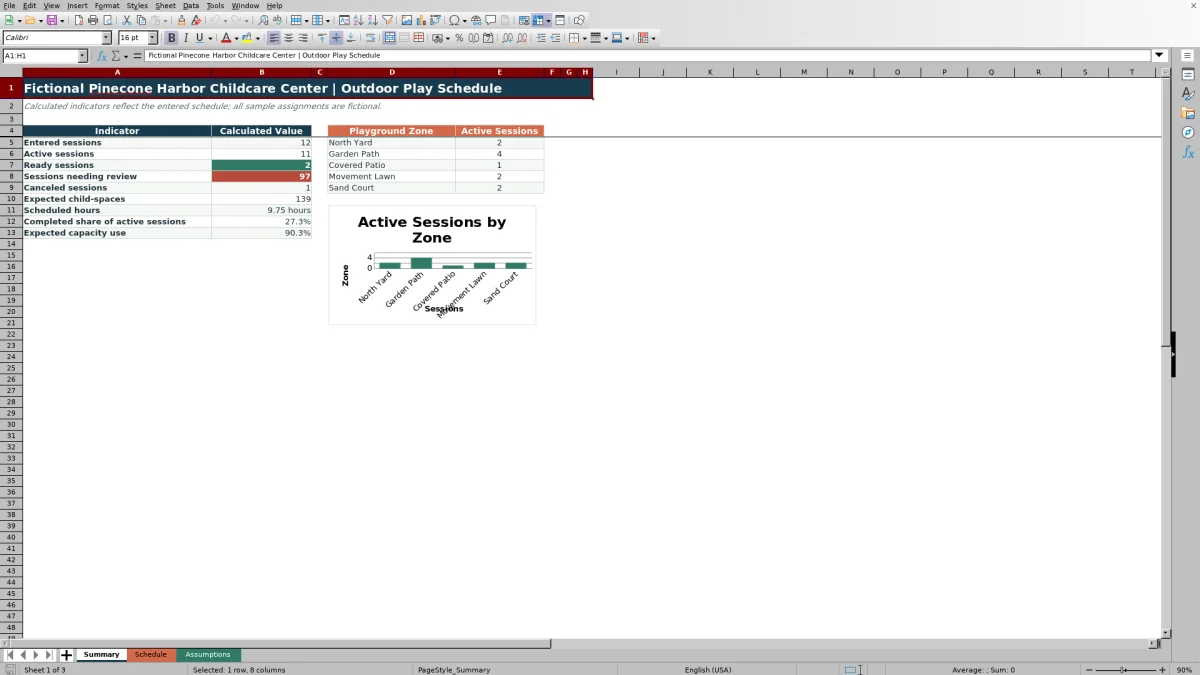
Review alerts identify entries that need human confirmation; they do not establish that every possible scheduling or safety conflict has been detected. The Summary sheet shows entered, active, ready, review, and canceled session counts along with expected child-spaces, scheduled hours, completion share, expected capacity use, and active sessions by zone. Use those indicators to locate areas requiring attention, then return to the underlying rows before changing the plan.
Frequently asked questions
What information can I enter for each outdoor play session?
You can enter the date, start time, end time, room, playground zone, lead team, expected number of children, session status, and an activity note. Duration, zone capacity, and the review alert are calculated.
How many schedule entries does the workbook support?
The Schedule sheet provides 100 entry rows, from row 5 through row 104.
Can I change the rooms, teams, playground zones, and capacities?
Yes. The Assumptions sheet contains the room, lead-team, status, playground-zone, and capacity lists used by the Schedule sheet. Review related formulas and status positions carefully when editing those values.
Does the workbook automatically prevent every playground conflict?
No. It provides validation, calculations, and review alerts to support staff review, but operators must still confirm timing, capacity, supervision, safety, weather, accessibility, and center-policy requirements.
What does the Summary sheet show?
It reports entered, active, ready, review, and canceled session counts; expected child-spaces; scheduled hours; completed share; expected capacity use; and active-session counts by playground zone. It also includes one zone activity chart.
Editorial responsibility

Lena MoralesEnrollment and classroom workflows

Jordan LeeWorkbook QA and center operations