This Excel workbook provides a structured daycare cleaning rotation schedule for assigning routine tasks by date, room or area, frequency, shift, and staff team. Operators can record status, completion dates, planned minutes, and actual minutes for each entered task.
Calculated fields show the next rotation date and flag entries that need review. A separate summary reports entered, open, completed, and upcoming work, while an assumptions sheet lets the center maintain its own rooms, teams, frequencies, shifts, statuses, and planning limits.
How this workbook can help
- Assign routine cleaning work to a room or area, shift, and staff team in one schedule.
- Standardize recurring entries with editable dropdown lists for areas, teams, frequencies, shifts, and statuses.
- Identify missing or inconsistent task information before relying on the schedule.
- Review completed work, upcoming rotations, actual hours, and open workload from a calculated summary.
What is in the file
How to get started
1. Configure the operating lists
Open the Assumptions sheet and update the room or area names, staff teams, frequencies, interval days, shifts, statuses, and planning limits. Keep each frequency aligned with the interval that the center intends to use for planning.
2. Enter and assign cleaning tasks
Use rows 5 through 124 on the Cleaning Schedule sheet. Enter a task ID, scheduled date, room or area, task description, frequency, shift, assigned staff team, status, and planned minutes.
3. Record completion details
As work progresses, update the status. For completed tasks, enter the completed date and actual minutes so the workbook can calculate the next rotation and include the time in summary results.
4. Review alerts and make the next assignment
Check the Review Alert column for missing or inconsistent information, then use the Summary sheet to assess open work by shift, completed entries, upcoming rotations, and tasks requiring attention.
Build a consistent daycare cleaning rotation
The Cleaning Schedule provides 120 task rows for routine assignments. Each row can hold a task ID, scheduled date, room or area, cleaning task, frequency, shift, assigned staff team, status, completed date, planned minutes, and actual minutes. Filters and frozen headers support day-to-day review without changing the schedule structure.
The assigned staff team acts as the operational owner recorded in this workbook. There is no separate field for an individual employee, so centers that need person-level accountability should establish a local naming convention or use another approved record alongside the workbook.
Understand the calculated rotation date
The next rotation date is calculated only when a task is marked Completed and has a completed date. The formula looks up the selected frequency on the Assumptions sheet and adds its interval days to the completed date. The included examples map Daily to 1 day, Weekly to 7 days, Biweekly to 14 days, Monthly to 30 days, and Quarterly to 90 days.
A blank calculated date can indicate that the task is not completed, the completed date is missing, the frequency does not match the assumptions list, or the corresponding interval is zero. The calculation proposes a planning date; it does not automatically create a new task row.
Practical example: interpret a completed daily task
Situation: the fictional CLN-0001 entry assigns cleaning door handles and switch plates in the Sunrise Room to Opening Team A on September 7, 2026. It is a Daily task with 20 planned minutes. Action: the operator marks it Completed, enters September 7 as the completed date, and records 18 actual minutes. Result: with the Daily interval set to one day, the workbook calculates September 8, 2026, as the next rotation date; the completed count also includes the task, and the actual-hours calculation includes 0.3 hour.
Interpretation: the interpreted result shows that the task was recorded two minutes under its plan and that another daily rotation is due the following day. Next decision: the operator should create or confirm the next dated schedule entry, assign the appropriate team, and verify that the one-day interval matches the center's procedures.
Common errors and solutions
The review alert helps identify entries that should receive a human check. If a task has an ID but lacks a scheduled date, area, description, frequency, shift, assigned team, status, or planned minutes, complete the missing editable field. If a task is marked Completed without a completed date, either enter the date or correct the status.
If the next rotation remains blank after completion, confirm that the completed date is present and that the frequency exactly matches an entry with a usable interval on the Assumptions sheet. If a date or minute value is rejected, compare it with the editable earliest date, latest date, and maximum-minutes settings. Resolve alerts before using summary totals for staffing decisions.
Comparison with paper, blank spreadsheets, and childcare software
This comparison treats the complete workbook method as the schedule, controlled lists, calculated rotation dates, review alerts, and summary working together—not as separate worksheet options.
| Operational method | What it provides | Practical limitation | More suitable when |
|---|---|---|---|
| This Excel workbook | A structured 120-row schedule, editable lists, assignment fields, rotation calculations, review alerts, summary indicators, and a shift chart. | It is file-based and the validated workbook does not show mobile notifications, user permissions, or automatic creation of future task rows. | More suitable when a center wants a locally managed recurring schedule with formula-based follow-up and already works in Excel. |
| Paper checklist | A simple physical record that staff can mark without opening a device. | Rotation dates, review checks, totals, and workload summaries must be calculated manually. | More suitable when device access is unavailable or a very small, fixed checklist is used for a short period. |
| Blank spreadsheet | A flexible grid that can be designed around a custom process. | The operator must build and maintain validations, formulas, alerts, and summary logic. | More suitable when the center needs a one-time list or has specialized spreadsheet expertise and requirements outside this workbook's structure. |
| Dedicated childcare software | Depending on the product, it may provide shared mobile updates, notifications, permissions, audit history, or multi-site administration. | It can require licensing, configuration, staff training, and review of vendor privacy and retention practices. | More suitable when real-time multiuser coordination, automated notifications, detailed audit controls, or system integrations are required. |
The appropriate choice depends on staffing, device access, reporting expectations, privacy requirements, and whether the center needs automation beyond the features present in the XLSX.
Use the summary to guide daily decisions
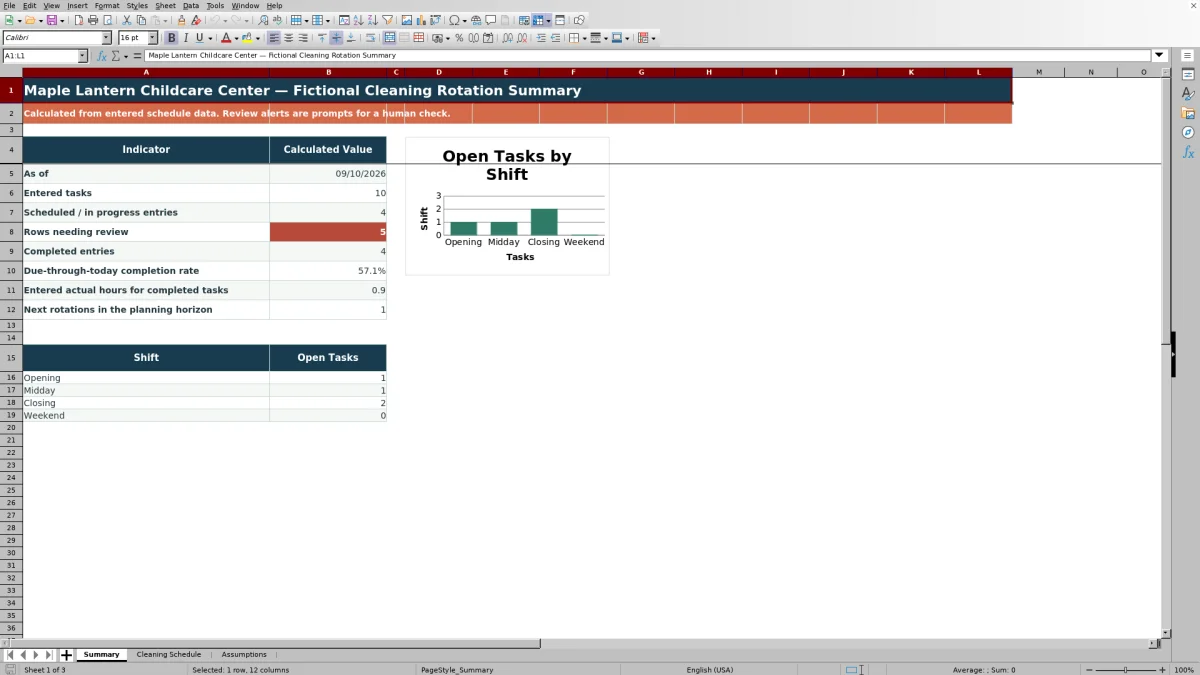
The Summary sheet reports the current date, entered tasks, scheduled or in-progress entries, rows needing review, completed entries, the due-through-today completion rate, actual hours entered for completed tasks, and rotations falling within the configured planning horizon. It also calculates open tasks by shift for up to four shift values from the Assumptions sheet and presents those counts in a chart.
Use these values as review prompts rather than as proof that cleaning was performed correctly. A high completion count can show that entries were marked complete, but supervisors should still verify records and actual practices when deciding where follow-up is needed.
Adapt assumptions to center procedures
The Assumptions sheet contains editable lists for rooms or areas, staff teams, frequencies, interval days, shifts, and statuses. It also holds the earliest and latest schedule dates, maximum minutes per task, and upcoming-horizon days used by schedule validation and summary calculations.
Review these settings against local operating rules, licensing requirements, product instructions, and applicable health guidance. The frequency intervals are planning assumptions, and the workbook does not determine which cleaning method, product, or legally required frequency applies to a particular childcare setting.
Frequently asked questions
What is the daycare cleaning rotation schedule used for?
It is used to assign routine cleaning tasks by date, room or area, frequency, shift, and staff team, then record status, completion dates, planned minutes, and actual minutes.
How does the Excel workbook calculate the next rotation date?
For a task marked Completed with a completed date, the workbook looks up the selected frequency's interval days on the Assumptions sheet and adds that interval to the completed date. It does not automatically create the next task entry.
What does a review alert mean?
A review alert indicates that an entered task may be missing required schedule information or has a completion-related inconsistency. The operator should inspect the row, correct the editable fields, and confirm the entry before relying on summary results.
Can the rooms, teams, frequencies, shifts, and statuses be changed?
Yes. These dropdown sources are maintained in editable cells on the Assumptions sheet. Frequency interval changes affect future next-rotation calculations that use those list entries.
Does the workbook record an individual completion owner?
The schedule includes an Assigned Staff Team field rather than a separate field for an individual completion owner. A center needing person-level attribution should define an approved naming process or maintain that detail in another appropriate system.
Editorial responsibility

Lena MoralesEnrollment and classroom workflows

Jordan LeeWorkbook QA and center operations