This Excel workbook provides a central administrative register for guardian-reported allergy alert information, including the child identifier, room, reported concern, alert status, documentation status, and relevant dates.
The XLSX also calculates review dates and record-check flags from editable scheduling assumptions. These outputs support human review only; they do not diagnose a condition, recommend treatment, send notifications, or replace the childcare center’s procedures and guardian-provided records.
How this workbook can help
- Centralizes guardian-reported allergy and sensitivity concerns with room, status, documentation, and review information in one register.
- Helps administrators identify past-due, due-soon, missing, or manually reviewed records without turning those flags into medical guidance.
- Supports consistent data entry through validated room, alert-status, documentation-status, and date fields.
- Provides summary counts that help staff plan administrative record checks and documentation follow-up.
What is in the file
How to get started
1. Confirm the workbook assumptions
Review the as-of date, 180-day default review interval, 30-day due-soon threshold, accepted date range, room list, default room leads, and status choices. Replace fictional staff placeholders with appropriate center values.
2. Enter guardian-reported information
Use one row for each reported allergy or sensitivity concern. Complete the yellow entry cells for the record ID, child identifier, room, guardian-reported details, alert status, dates, documentation status, and administrative notes.
3. Review the calculated fields
Check Next Review Due, Days Until Review, Review Flag, Room Lead, and Record Check. Preserve these formula columns so that the administrative checks continue to update.
4. Decide on administrative follow-up
Use the Summary sheet and highlighted register entries to locate missing fields, approaching reviews, unresolved documentation, or other records requiring verification under the center’s procedures.
Administrative Scope of the Register
The workbook is designed for enrollment and administrative recordkeeping in a childcare center. Each row connects a center-defined record ID and child identifier with a room, guardian-reported allergen or concern, guardian description, alert status, report date, guardian review date, documentation status, and administrative notes.
The wording intentionally distinguishes guardian-reported information from a diagnosis. Calculated warnings identify records for staff review, but they do not determine a medical response, contact a guardian, or update another system.
How the Register Supports Room-Level Review
Staff can filter the Allergy Register by room, alert status, documentation status, review flag, or record check. Selecting a configured room also returns its default room lead from the Assumptions sheet, helping administrators identify the room associated with a record.
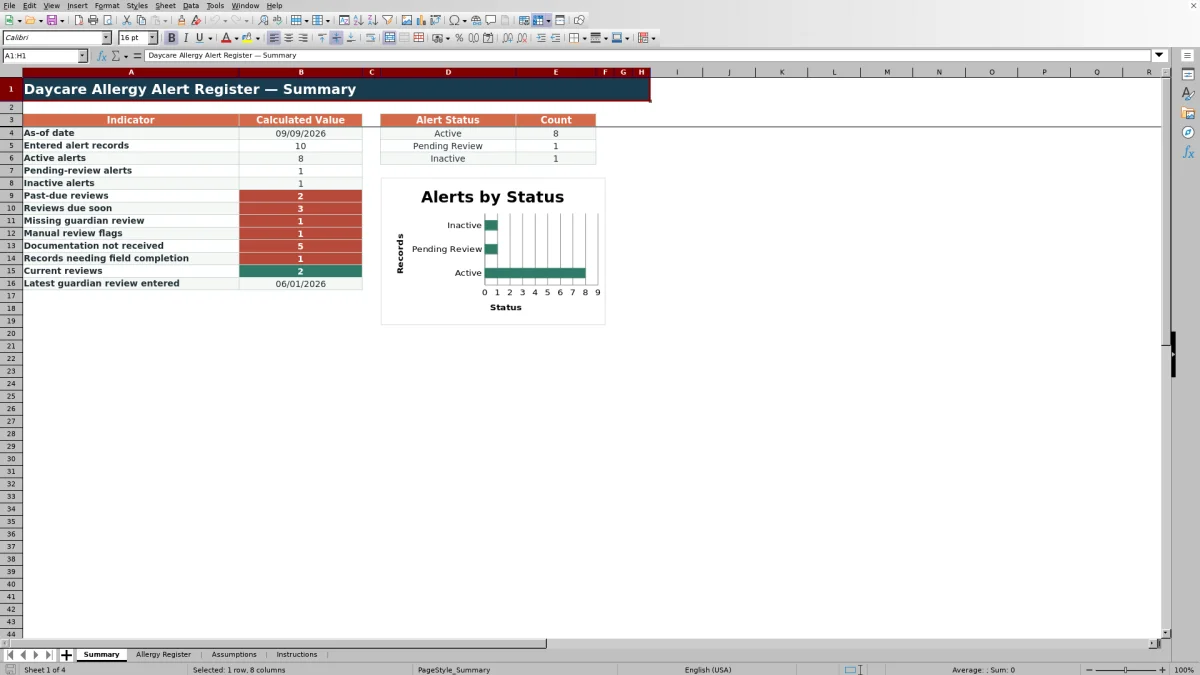
The Summary sheet counts entered records and Active, Pending Review, and Inactive alerts. It also shows past-due, due-soon, missing-review, manual-review, documentation, completion, and current-review indicators so staff can determine where an administrative check is needed.
Interpreted Practical Example
Situation: Fictional sample record ALR-002 is Active, has a last guardian review date of April 2, 2026, and has documentation marked Pending. Action: The workbook adds the configured 180-day interval and compares the resulting September 29, 2026 review date with the September 9, 2026 as-of date. Result: The record has 20 days until review and is classified as Due soon because it falls within the 30-day threshold. It is also included in the Summary count for documentation not received. Interpretation: These results indicate two administrative follow-up points—an approaching review date and documentation that is not marked Received—not a change in diagnosis, treatment, or emergency handling. Next decision: Staff can verify the source record and follow the center’s process for guardian review and documentation follow-up.
Common Errors and Solutions
If a selected room is not present in the Assumptions mapping, the Room Lead result can display Check room; correct the room entry or update the mapping. If required fields such as Record ID, Room, Concern, Alert Status, Date Reported, or Guardian Documentation are blank, Record Check displays Complete required fields; compare the row with the center’s source record and enter the missing administrative information.
An Active record without a Last Guardian Review date displays Missing review and Add guardian review. A date outside January 1, 2016 through December 31, 2028 can be rejected by validation, so confirm the date or revise the accepted range deliberately. If a calculated result disappears after editing, restore the formula in Next Review Due, Days Until Review, Review Flag, Room Lead, or Record Check. Duplicate record ID highlighting should be resolved by checking whether the identifier was repeated or whether two separate concerns need distinct IDs.
Comparison with Other Tracking Methods
The Excel workbook serves as one complete local operational method: staff enter guardian-reported records, use controlled status choices, review calculated dates and flags, filter the register, and consult summary indicators. The appropriate alternative depends on the center’s access, workflow, and system requirements.
| Method | More suitable when | Operational consideration |
|---|---|---|
| Daycare Allergy Alert Register Excel workbook | A center wants a structured, local XLSX with prepared fields, dropdowns, formulas, filters, summary counts, and room-lead lookups. | Staff still need to enter data, review flags, protect the file, and complete follow-up outside the workbook. |
| Paper register | A center needs a temporary offline record or operates where computer access is unavailable. | Review-date calculations, filtering, status totals, and duplicate checks require manual work. |
| Blank spreadsheet | A center needs highly customized fields and has staff who can build and maintain its own validation, formulas, and controls. | It does not initially provide the prepared workflow, status lists, calculations, or summary indicators included here. |
| Dedicated childcare software | A center requires role-based access, system integrations, automated messages, or records connected to a broader childcare platform. | Available functions, configuration, cost, and privacy controls depend on the selected software; this workbook does not provide those connected-system functions. |
The workbook is more suitable when the center accepts a staff-managed Excel process. Dedicated software may be more suitable when automated communication, integrated records, or managed user permissions are operational requirements.
Configurable Review Logic
The Assumptions sheet stores the September 9, 2026 as-of date, a 180-day review interval, a 30-day due-soon threshold, and an accepted input-date range from January 1, 2016 through December 31, 2028. These values are editable and affect workbook calculations or validation.
For an applicable record, Next Review Due adds the interval to the Last Guardian Review date. Review Flag then compares that date with the as-of date and can return Current, Due soon, or Past due. It can also identify Missing review, Manual review, Inactive, and date or status issues. These are administrative scheduling categories rather than clinical intervals.
Responsible Operational Use
Replace or remove the fictional child identifiers, descriptions, dates, and staff labels before operational use. Store the completed workbook according to the center’s privacy, access, retention, and record-handling procedures.
Staff should verify calculated flags against source records and preserve the formula columns. Any response to an allergy concern should follow the center’s policies and guardian-provided records because the workbook does not supply treatment, notification, or emergency instructions.
Frequently asked questions
What is the Daycare Allergy Alert Register used for?
It centralizes guardian-reported allergy or sensitivity concerns with child identifiers, rooms, alert statuses, documentation statuses, administrative notes, and review dates.
Does the Excel workbook provide medical guidance?
No. It is an administrative recordkeeping workbook and does not provide diagnosis, treatment, emergency instructions, or clinical recommendations.
How many records can the Allergy Register hold?
The sheet contains 100 prepared data rows, covering rows 4 through 103. Each row is intended for one guardian-reported allergy or sensitivity concern.
How does the workbook calculate review status?
For applicable records, it adds the configurable review interval to the Last Guardian Review date and compares the result with the configurable as-of date and due-soon threshold. Pending Review and Inactive statuses follow separate flag logic.
Does the workbook notify staff or guardians automatically?
No. Summary counts, conditional formatting, and calculated flags only prompt a person to review a record. The XLSX does not send messages or update external systems.
Editorial responsibility

Lena MoralesEnrollment and classroom workflows

Jordan LeeWorkbook QA and center operations