This daycare closing coverage planner is an Excel workbook for assigning closing duties and final-room coverage through the last pickup window. Operators can schedule each duty by date, room, staff member, start time, end time, and status while retaining notes for the closing team.
The XLSX connects the closing plan with staff availability, latest available times, active status, and weekly assignment limits. Calculated fields and the Summary sheet provide a human-review signal, helping operators identify incomplete or questionable assignments before confirming the schedule.
How this workbook can help
- Organizes final-room coverage and other closing duties in one dated schedule through the last pickup window.
- Surfaces assignments that need attention because of missing staff, invalid times, inactive staff, weekday availability, or other built-in planning checks.
- Helps distribute closing work by showing weekly assignments against staff-specific or default planning limits.
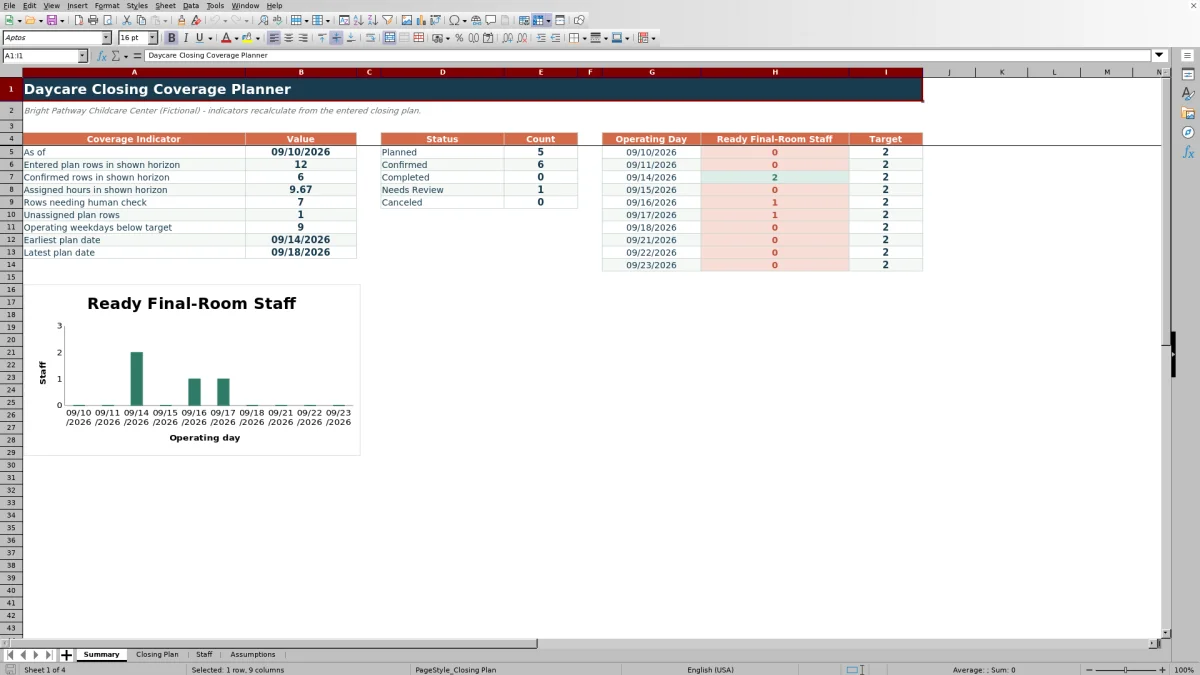
- Shows ready final-room staffing against the minimum target across a rolling 10-operating-day horizon.
What is in the file
How to get started
1. Verify the planning assumptions
Open Assumptions and confirm the center closing time, minimum final-room staffing target, default weekly assignment limit, status choices, duties, and room or area list. These values drive dropdowns and several review formulas.
2. Update the staff records
Replace the fictional sample records on Staff. Enter a unique staff ID, name, primary room, Monday-through-Friday availability, latest available time, weekly closing limit, and active status for each employee.
3. Enter the closing assignments
On Closing Plan, add the date, room or area, closing duty, staff ID, start and end times, status, and notes. The workbook calculates the day, staff name, hours, availability result, daily final-room count, weekly assignment count, and Human Check result.
4. Resolve checks and make the staffing decision
Review every populated row, correct results that are not Ready or Canceled, and then open Summary. Compare ready final-room staffing with the target for each displayed operating day before confirming the closing schedule with staff.
The Closing-Coverage Situation
Late-day staffing can change as children are consolidated into final rooms and employees complete front-desk, walkthrough, supply-reset, or checklist duties. The planner gives operators a dated record of who is assigned, where each person should be, and how long the assignment lasts. It supports coordination, but it does not determine legal ratios, qualifications, overtime eligibility, or room-specific compliance.
Turn Staffing Information Into an Actionable Plan
Begin with the center-level assumptions and staff records, then enter each assignment on Closing Plan. Selecting a staff ID fills the staff name through a lookup, while formulas calculate hours, check weekday availability, count final-room assignments, and count the employee’s assignments for the applicable week. Status options in the sample workbook include Planned, Confirmed, Completed, Needs Review, and Canceled.
Read the Coverage Result
Human Check is the row-level result operators should review before relying on an assignment. The Summary sheet separately counts ready final-room staff for 10 operating weekdays and compares each daily count with the minimum target from Assumptions. Because the displayed dates use WORKDAY without a holiday list, weekends are skipped but center holidays and exceptional closure dates still need manual review.
Interpreted Practical Example
Situation: The sample plan has two confirmed final-room assignments on September 14, 2026: F-001 in Preschool A from 5:00 PM to 6:00 PM and F-002 in Infants from 5:15 PM to 6:00 PM. The sample closing time is 6:00 PM and the minimum final-room target is two. Action: The operator reviews both staff records, their Monday availability, active status, latest available times, weekly loads, and Human Check results. Result: If both rows evaluate as Ready, the daily final-room count is two; the Summary count will also show two when that date falls within its rolling horizon. Interpretation: The entered plan meets the workbook’s numeric target for that date, but the result does not by itself verify child ratios, credentials, or other center requirements. Next decision: The operator can confirm the two final-room assignments, review the separate planned front-desk close, and document any operational changes before the last pickup window.
Use Results to Make the Next Staffing Decision
A day below target calls for another qualified assignment, a corrected time window, or a change to an existing duty. A staff member above an entered weekly limit may need work redistributed. Once the spreadsheet checks are resolved, the operator should confirm the schedule directly with employees and apply current center policies, licensing rules, supervision requirements, and late-pickup procedures.
Common Errors and Solutions
Fix flagged rows before relying on totals. If Human Check says Assign staff, select a valid staff ID from Staff. For Add times or Check time order, enter valid start and end times with the end later than the start. For inactive staff, weekday unavailability, or an assignment beyond the employee’s latest available time, correct the staff record only if the underlying information is wrong; otherwise reassign the duty. If a staff member exceeds the applicable weekly limit, redistribute assignments or document a reviewed exception. If a holiday appears in the rolling view, handle it manually because the workbook has no holiday calendar.
Comparison: Excel Workbook vs. Other Closing-Coverage Methods
This comparison treats the workbook as one complete operational method rather than comparing its individual worksheets. The appropriate choice depends on schedule size, available systems, communication needs, and the level of automation the center requires.
| Method | Planning structure | Review support | More suitable when |
|---|---|---|---|
| Daycare Closing Coverage Planner Excel workbook | Uses connected assumptions, staff records, assignment rows, formulas, dropdowns, and a summary view. | Checks entered availability and workload data, produces Human Check results, and compares ready final-room staffing with a target. | More suitable when a center uses Excel and wants a reusable local process without implementing a separate scheduling platform. |
| Paper schedule or manual checklist | Records assignments by hand and can be posted where closing staff see it. | Depends entirely on the operator to verify availability, time order, workload, and coverage counts. | More suitable when the closing schedule is very small, changes are infrequent, and a physical posted copy is the primary working record. |
| Blank spreadsheet | Allows a custom layout but starts without the workbook’s connected formulas, validation lists, or review columns. | Provides only the checks and summaries the operator builds and maintains. | More suitable when a center needs a highly customized format and has someone available to design, test, and maintain its spreadsheet logic. |
| Dedicated childcare scheduling software | May combine scheduling with staff communication, attendance, payroll, or center-management functions, depending on the product. | Automation and compliance capabilities vary by platform and configuration. | More suitable when a center needs multiuser updates, notifications, integrations, or broader workforce management and can support the platform’s cost and administration. |
The Excel method offers structured local planning and transparent formulas, while the alternatives may be more suitable when physical simplicity, unrestricted customization, or system-wide integration is the deciding condition.
Frequently asked questions
What does the daycare closing coverage planner track?
It tracks the date, room or area, closing duty, assigned staff ID, calculated staff name, start and end times, hours, status, notes, weekday availability, daily final-room staffing, weekly assignments, and a Human Check result.
How does the workbook check staff availability?
Closing Plan compares the assignment date’s weekday with the Yes or No availability fields on Staff. Its review logic also uses the selected employee’s active status and latest available time. Operators still need to verify absences, schedule conflicts, qualifications, and changes not entered in the workbook.
How is the final-room staffing target set?
Enter the planning threshold in Minimum final-room staff on Assumptions. The Summary sheet uses that value as the target for each of the 10 displayed operating weekdays.
Does the Excel planner account for holidays and childcare staffing regulations?
No. The rolling date formulas skip weekends but do not reference a holiday calendar. The workbook also does not establish legal ratios, credentials, overtime rules, or regulatory compliance, so operators must apply current requirements separately.
Can the planner hold more than 100 closing assignments or staff records?
The supplied formulas, validation ranges, filters, and lookups are configured through row 103, providing 100 entry rows on Closing Plan and 100 staff rows on Staff. To use additional rows, extend all related formulas, validation rules, filters, conditional formatting, and referenced ranges consistently.
Editorial responsibility

Lena MoralesEnrollment and classroom workflows

Jordan LeeWorkbook QA and center operations