This daycare tour appointment schedule Excel workbook helps childcare-center operators assign prospective families to dates, time slots, rooms, and available staff hosts. Its Appointments sheet provides 120 scheduling rows with fields for the prospect, age-group interest, party size, tour type, status, and notes.
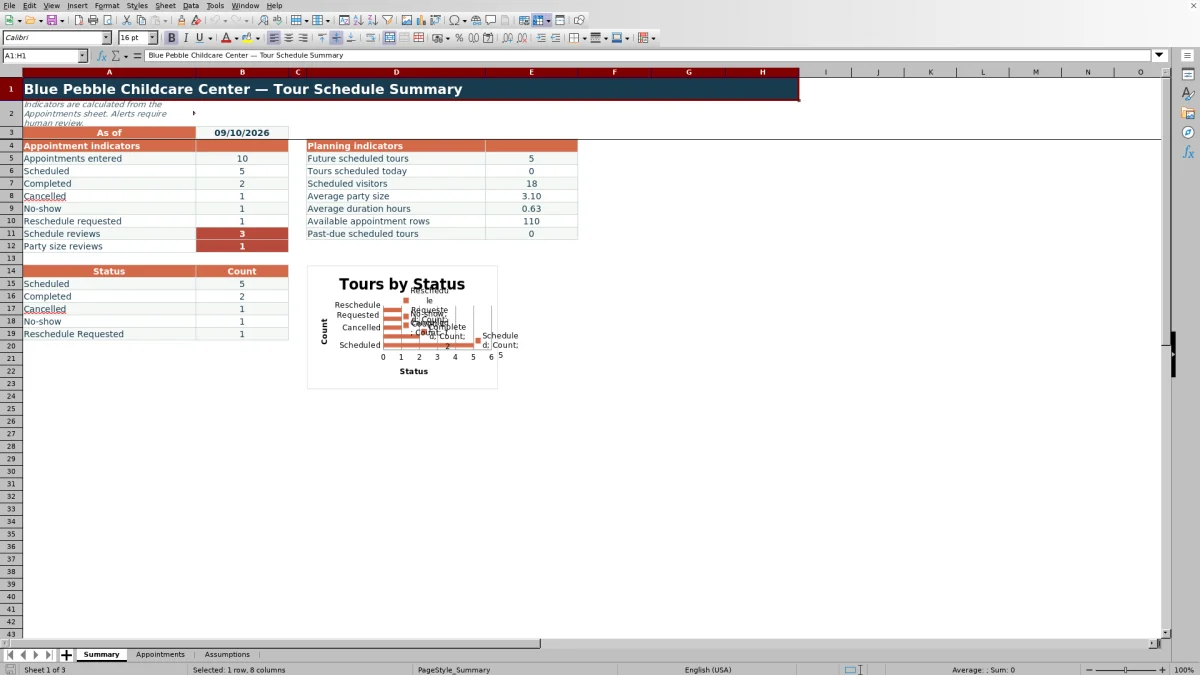
The XLSX also calculates end times, applies controlled entry rules, and presents schedule and party-size review prompts. A Summary sheet reports upcoming tours, scheduled visitors, status counts, available rows, and past-due scheduled appointments, while an Assumptions sheet stores operating hours, duration limits, date limits, and selectable scheduling choices.
How this workbook can help
- Keeps tour dates, times, rooms, hosts, prospect identifiers, party sizes, statuses, and notes in one operational schedule.
- Calculates appointment end times and provides prompts for tours outside configured hours or with potential host overlaps.
- Uses validated choices for age groups, tour types, rooms, hosts, and statuses to support consistent entries.
- Summarizes upcoming tours, scheduled visitors, status totals, review counts, average duration, average party size, and remaining appointment rows.
What is in the file
How to get started
1. Situation: Review the scheduling limits
Start with the Assumptions sheet. Check the situation against the configured operating hours, allowable dates, tour-duration limits, party-size thresholds, host IDs, rooms, tour types, age groups, and statuses.
2. Action: Enter and allocate the tour
On the Appointments sheet, take action by entering a tour ID, date, start time, duration, prospect ID, age-group interest, party size, tour type, room, host, status, and any useful notes.
3. Result: Check the calculated fields
Review the result: the End Time column calculates the finish time, while Schedule Check and Party Size Check evaluate the entered details against the workbook assumptions.
4. Interpretation: Investigate review prompts
Use interpretation rather than treating a prompt as an automatic rejection. Check operating hours, overlapping non-cancelled appointments for the assigned host, and party sizes above the configured group review limit.
5. Next decision: Confirm, revise, or update
Make the next decision after human review: keep the allocation, change the time, select another host or room, address the visitor count, or update the status to Completed, Cancelled, No-show, or Reschedule Requested as appropriate.
Organize Tour Allocation in One Schedule
The Appointments sheet combines the information needed to allocate a tour: date, start time, duration, room, and host. It also records the prospect ID, age-group interest, party size, tour type, status, and notes, allowing the scheduling team to see both the appointment slot and the operational context without maintaining separate logs.
Move from Request to Scheduling Decision
The workflow follows a practical sequence. The situation is a family requesting a tour; the action is entering the request and assigning resources; the result is a calculated end time and review output; the interpretation is whether the allocation fits current limits; and the next decision is to confirm the entry, revise it, or update its status. The workbook supplies information for that decision but does not replace staff judgment.
Interpreted Practical Example
Suppose a family of two requests an in-person infant tour on a date within the configured scheduling range. The operator assigns a 9:00 AM start, a 0.5-hour duration, the Welcome Room, HOST-ALDER, and Scheduled status. The calculated end time is 9:30 AM. Because the appointment falls between the configured 8:00 AM opening and 6:00 PM closing times, and the party size of two is below the review limit of eight, those entries do not create an hours or size reason for review. If HOST-ALDER has no overlapping non-cancelled tour on that date, the interpreted result is that the allocation can proceed to human confirmation. If an overlap exists, the next decision is to change the time or host before confirming the tour.
Common Scheduling Errors and Solutions
A blank Schedule Check can result when the tour ID, date, start time, duration, room, host, or status is missing; complete those fields before evaluating the appointment. An hours review prompt calls for checking whether the start or calculated end falls outside the configured day. A potential host overlap calls for moving the appointment or assigning another host. A party above the review limit of eight should be assessed even though the entry validation permits values up to the ceiling of 25. A scheduled tour left in the past should be reviewed and updated to the appropriate status.
Comparison with Paper, Blank Spreadsheets, and Childcare Software
This workbook is one complete operational method: it combines data entry, controlled choices, calculated end times, review prompts, status tracking, assumptions, and summary reporting. The alternatives below may be more suitable when their stated conditions apply.
| Method | Controls and visibility | More suitable when |
|---|---|---|
| This Excel workbook | Provides 120 structured appointment rows, validated inputs, calculated end times, review prompts, configurable assumptions, summary indicators, and a status chart. | More suitable when a center wants a locally managed Excel process and staff can maintain assumptions and review alerts. |
| Paper calendar or appointment book | Supports quick handwritten entries but does not calculate end times, validate choices, or summarize status and review counts. | More suitable when appointment volume is very low, a device is unavailable, and staff accept manual reconciliation. |
| Blank spreadsheet | Offers an open grid but requires the operator to build validation, formulas, review logic, assumptions, and reporting. | More suitable when the center needs a one-off layout or has spreadsheet expertise to design and maintain custom controls. |
| Dedicated childcare software | May provide messaging, customer relationship management, enrollment workflows, permissions, or multi-site integrations, depending on the product and subscription. | More suitable when the organization needs integrated communications, multi-user automation, or connections to broader childcare operations. |
The choice depends on tour volume, integration needs, staff workflow, budget, and the level of manual review the center can support.
Configure Assumptions for Center Operations
The Assumptions sheet contains editable minimum, suggested, and maximum tour durations; a tour group review limit; a party-size entry ceiling; opening and closing times; and earliest and latest scheduling dates. It also supplies the status, tour type, host, room, and age-group choices used by the Appointments sheet. Formula checks indicate inconsistent limits so operators can correct the assumptions before relying on appointment reviews.
Interpret Summary Indicators Before the Next Decision
The Summary sheet counts appointments entered and breaks out Scheduled, Completed, Cancelled, No-show, and Reschedule Requested records. Planning indicators show future scheduled tours, tours scheduled today, scheduled visitors, average party size, average duration, available appointment rows, and past-due tours still marked Scheduled. Operators can use these indicators to identify workload and records needing attention, then return to the Appointments sheet to make the next scheduling or status decision.
Frequently asked questions
What information does the daycare tour appointment schedule track?
It tracks tour ID, date, start and end times, duration, prospect ID, age-group interest, party size, tour type, room, host, status, notes, schedule review output, and party-size review output.
How many tour appointments can the workbook hold?
The Appointments sheet provides 120 scheduling rows, running from row 5 through row 124. The Summary sheet reports how many of those rows remain available based on whether a tour ID has been entered.
Does the Excel workbook prevent every scheduling conflict?
No. It uses validation and formula-based prompts to identify issues such as operating-hours exceptions and potential overlapping non-cancelled tours for the same host. Staff should review the full appointment details before confirming a tour.
Can the operating hours and tour limits be changed?
Yes. The Assumptions sheet contains editable opening and closing times, duration limits, scheduling dates, a group review limit, and a party-size entry ceiling. Its check formulas help identify inconsistent assumptions.
What happens after a tour is completed, cancelled, missed, or needs rescheduling?
Update the Status field to Completed, Cancelled, No-show, or Reschedule Requested. The Summary sheet recalculates the corresponding status counts, and cancelled appointments are marked as not checked by the schedule and party-size review formulas.
Editorial responsibility

Lena MoralesEnrollment and classroom workflows

Jordan LeeWorkbook QA and center operations