This daycare photo release tracker is an Excel workbook for recording each family’s decision about image use, the approved channels, relevant dates, and any family-stated limits. It gives childcare-center staff one place to document family-stated permission for internal displays, private family communications, the center website, social media, and printed materials.
The XLSX combines a 100-row Photo Releases sheet with a calculated Summary and an editable Assumptions sheet. Dropdowns, scope summaries, review-day calculations, and human-check prompts support administrative review; they do not verify consent independently or determine legal and center policy requirements.
How this workbook can help
- Keeps each child’s decision status, permitted image-use channels, dates, limits, and recorder in one row.
- Distinguishes internal displays and private family communications from website, social media, and printed-material permissions.
- Uses review and withdrawal dates to help staff identify records that may need follow-up.
- Provides calculated counts and human-check prompts without treating automated results as outside verification.
What is in the file
How to get started
1. Review the workbook settings
Open the Assumptions sheet and confirm the 30-day review alert window, accepted date range, room names, and recorder options. The decision and scope lists are referenced by formulas, so review their effects before changing those entries.
2. Enter the family’s decision
On Photo Releases, add the child ID, display name, room, decision status, decision-received date, and the applicable effective, review, or withdrawal dates. Use a unique child ID for each record.
3. Record scope and stated limits
Select Yes, No, or Not stated for each image-use channel. Enter the family’s wording or restrictions in Family-stated scope or limits, then identify the staff member who recorded the information.
4. Review calculated results
Read Scope summary, Days to review, and the Human check column before relying on a row operationally. Use the Summary sheet to review decision counts, active channel approvals, upcoming or passed review dates, withdrawal dates, and the overall number of records requiring attention.
What the Tracker Records
Each Photo Releases row connects a child ID and display name with a room, one of five decision statuses, relevant dates, five separate image-use choices, family-stated limits, and the staff recorder. This structure preserves the distinction between a broad decision and the specific channels the family selected.
Decision Status and Image-Use Scope
The available decision statuses are Granted, Limited, Declined, Pending, and Withdrawn. Scope choices are recorded separately as Yes, No, or Not stated for internal displays, private family communications, the center website, center social media, and printed materials. The calculated Scope summary translates those selections into a readable operational summary while retaining the original entries.
Interpreted Practical Example
Situation: the fictional Aster record shows Granted, with Yes for internal displays, private family communications, and printed materials, and No for the website and social media. Action: staff enter the received, effective, and review dates, record the five channel choices, and preserve the note “Printed classroom keepsake only.” Result: while there is no withdrawal date, the Summary formulas count the three Yes selections as active approvals and do not count the two No selections. Interpretation: the structured choices appear broader than the note because internal displays and private communications are marked Yes even though the wording mentions only a printed classroom keepsake. Next decision: staff should confirm the family’s intended scope and correct either the channel selections or the note before using an image outside the clearly stated keepsake context.
Common Entry Errors and Solutions
A repeated child ID can produce a duplicate-ID prompt; assign and retain one unique identifier per record. A blank decision status or received date should be resolved by checking the source documentation and completing the missing field. If a received date is in the future, or an effective date falls after a review date, verify the dates against the family’s record and correct the entry rather than dismissing the message. Granted or Limited records without any Yes scope may show that no approved scope is listed; confirm whether the family intended a specific channel or whether the status needs revision. Treat every formula-generated message as a request for staff review, not as proof that the underlying authorization is valid.
Comparison With Other Tracking Methods
Treating Summary, Photo Releases, and Assumptions as one operational method, this Excel workbook is more suitable when a center wants structured local tracking with predefined fields, calculations, and configurable lists. Other methods can be more suitable when different staffing, integration, or recordkeeping conditions apply.
| Method | Record structure and follow-up | More suitable when |
|---|---|---|
| This complete Excel workbook | Uses 100 structured rows, dropdowns, date controls, calculated scope summaries, review timing, human-check prompts, dashboard counts, and a chart. | A center manages a defined record list in Excel and staff can maintain the workbook consistently. |
| Paper forms and a manual log | Keeps signed or written information in physical files, but counts, review timing, and cross-record checks require manual work. | The center relies on paper records, has limited spreadsheet access, or requires staff to work from physical files. |
| Blank spreadsheet | Allows custom columns but does not include this workbook’s predefined validation, formulas, alerts, summary indicators, or chart. | The center has a substantially different process and has staff available to design, test, and maintain its own controls. |
| Dedicated childcare software | Capabilities vary by product and may include permissions within broader enrollment, communication, or child-record workflows. | The center needs multiuser access, system integrations, role-based workflows, or other capabilities provided by its selected platform. |
Reading the Summary Indicators
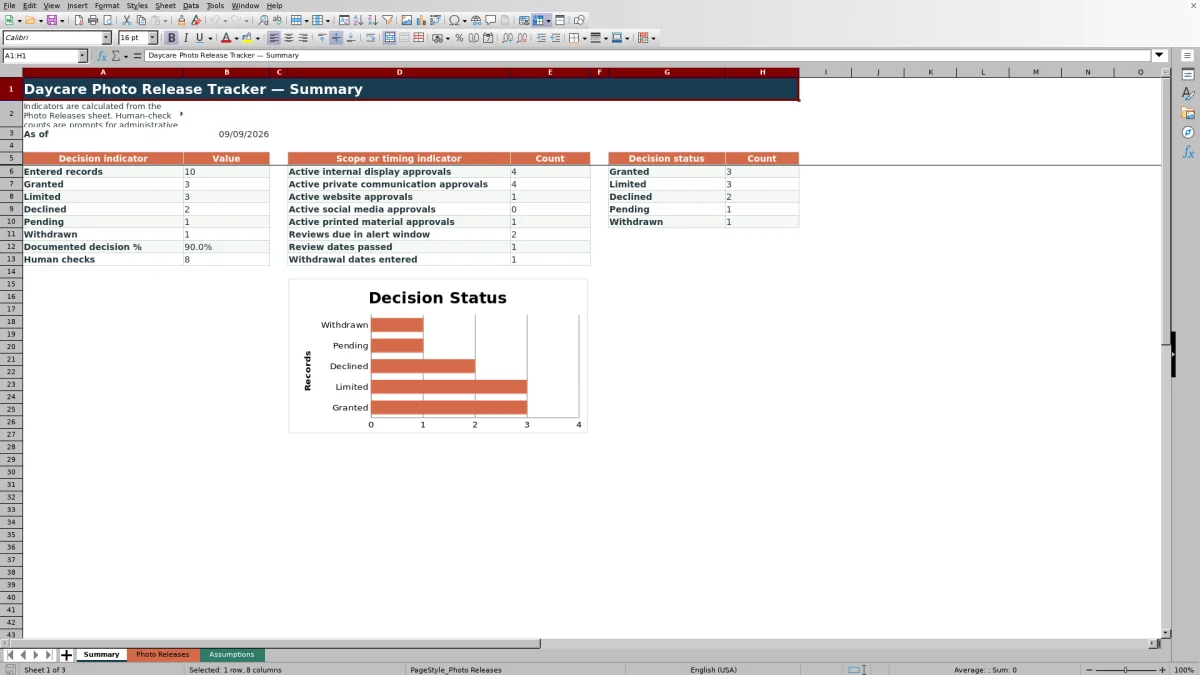
The Summary reports entered records and counts for Granted, Limited, Declined, Pending, and Withdrawn. It also calculates documented-decision percentage, active approvals by image-use channel, reviews within the configured alert window, passed review dates, entered withdrawal dates, and records with human-check messages. Staff should interpret these figures as workload and record-review indicators rather than confirmation that an image may be used.
Review and Withdrawal Follow-Up
The Review date feeds the Days to review calculation unless the row is Declined or Withdrawn or lacks a review date. The Summary uses the alert-window setting from Assumptions to identify approaching reviews and separately counts passed review dates. When a family withdraws permission, record the Withdrawn status and withdrawal date, review all channel entries and stated limits, and follow the center’s procedures for stopping future use and handling existing materials.
Frequently asked questions
Does this Excel tracker determine whether a photo release is legally valid?
No. It records the status, scope, dates, and limits entered by staff. Its formulas and alerts support administrative review but do not provide legal advice, verify authorization, or establish center policy.
How many photo-release records can the workbook hold?
The Photo Releases sheet provides 100 entry rows, from row 6 through row 105. The formulas, dropdowns, filters, and Summary calculations reference that range.
Can a family approve some image uses and decline others?
Yes. Staff can record Yes, No, or Not stated separately for internal displays, private family communications, the center website, center social media, and printed materials. Additional wording belongs in the Family-stated scope or limits field.
How does the workbook identify records that need review?
It calculates days remaining until a review date and displays human-check messages for issues such as duplicate child IDs, missing statuses or dates, future received dates, inconsistent date order, and records without an approved scope. The Summary also counts approaching reviews, passed review dates, and human checks.
Can the room names and recorder options be changed?
Yes. The Assumptions sheet contains the room and recorder lists used by the Photo Releases dropdowns. Keep replacement entries within the existing validation source ranges so the dropdowns continue to reference them.
Editorial responsibility

Lena MoralesEnrollment and classroom workflows

Jordan LeeWorkbook QA and center operations