This Excel workbook groups siblings under a shared Household ID while retaining a separate enrollment record for each child. Childcare-center staff can coordinate household contacts, billing responsibility, default pickup arrangements, room assignments, enrollment statuses, and child-specific pickup exceptions.
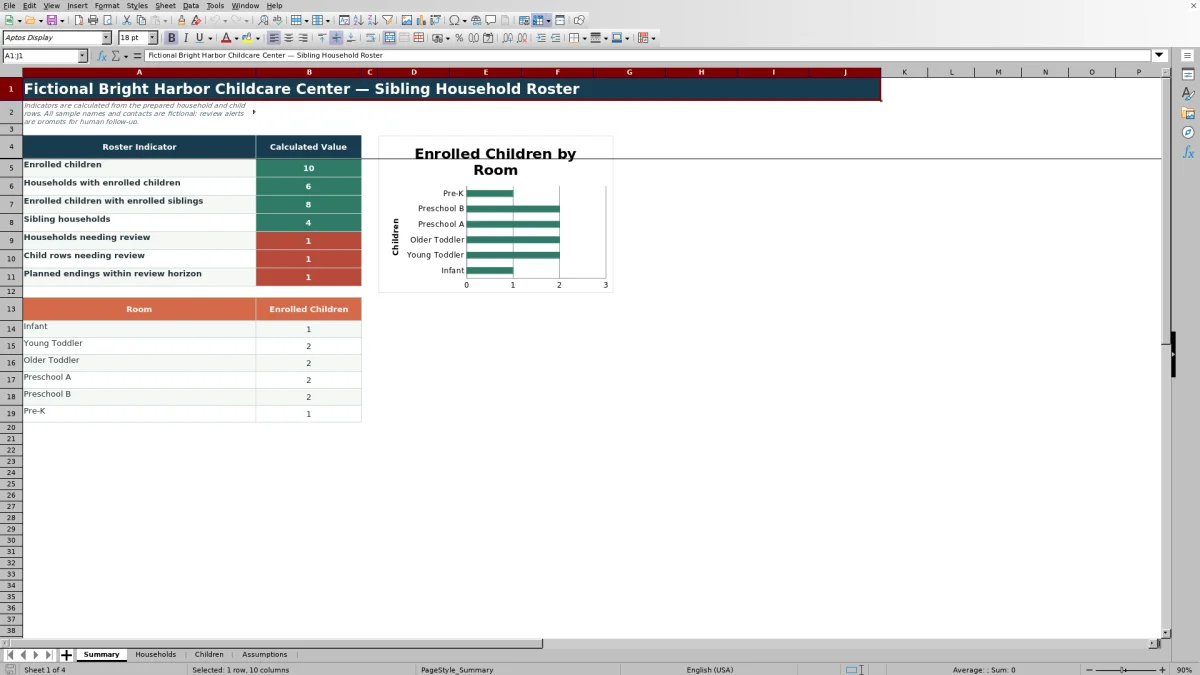
The linked household and child sheets calculate enrolled sibling counts, retrieve shared coordination details, and produce calculated review prompts. A summary sheet reports key roster indicators and room totals, while an assumptions sheet holds the editable lists and review limits used by validations and formulas.
How this workbook can help
- Maintain one shared contact, billing coordinator, and default pickup plan for each household instead of repeating those details manually for every sibling.
- See which households have multiple enrolled children and how many other enrolled siblings are associated with each child.
- Coordinate household-level pickup planning while recording exceptions that apply to an individual child.
- Surface incomplete records, duplicate IDs, unmatched household links, date conflicts, upcoming planned endings, and households above the editable review threshold.
What is in the file
How to get started
Step 1: Review the operating choices
Open the Assumptions sheet and confirm the room choices, enrollment statuses, account statuses, pickup-plan choices, upcoming-end review period, and enrolled-child review threshold. These values support the workbook’s lists, formulas, and alerts.
Step 2: Create the household records
Enter the household record first on the Households sheet. Assign a unique Household ID and complete the household label, primary contact, phone, email, billing coordinator, default pickup plan, account status, and any coordination notes.
Step 3: Link each child to a household
Enter one child per row on the Children sheet. Supply a unique Child ID, select the matching Household ID, and complete the child’s name, start date, room, enrollment status, pickup exception, and optional planned end date.
Step 4: Review calculated results
Use the Summary sheet, filters, sibling counts, and Check alerts to identify records requiring follow-up. Treat lookup, count, and alert columns as fields to review rather than overwrite. If records are added beyond row 104, extend the relevant formulas, validations, filters, formatting, and summary ranges.
Situation: Siblings Share Coordination Details
A childcare center may enroll two or more children from the same family while placing them in different rooms or assigning different enrollment dates. The roster handles this by keeping one row per household for shared contacts, billing coordination, and the default pickup plan, then linking each child through the Household ID.
Action: Connect Household and Child Records
Staff first create the household record and then enter each child separately. The child row retains child-specific facts, including room, enrollment status, start date, planned end date, and pickup-plan exception. Formulas use the Household ID to retrieve the household contact, billing coordinator, and default pickup plan without requiring repeated manual entry.
Result: Interpreted Practical Example
Situation: The fictional Acorn Rocket Household has two children, CH-001 and CH-002, and both are marked Enrolled under Household ID HH-001. Action: Staff enter the shared contact, billing coordinator, and pickup plan once on the household row, then assign HH-001 to both child rows. Result: the household’s enrolled-child count is 2, its sibling-household indicator is Yes, and each enrolled child has 1 other enrolled sibling. Interpretation: the shared values displayed on both child rows come from the household record, while each child keeps an independent room and start date. Next decision: staff can verify whether either child needs a pickup exception or other follow-up before relying on the household’s default plan.
Interpretation: Use Counts and Alerts as Review Cues
The Summary sheet counts enrolled children, households with enrolled children, enrolled children who have enrolled siblings, sibling households, household and child rows marked Check, and enrolled children with planned endings inside the editable review horizon. It also reports enrolled-child totals for the six room choices on the Assumptions sheet. These outputs describe the entered records; they do not confirm pickup authorization, billing accuracy, enrollment approval, or compliance with outside requirements.
Common Errors and Solutions
A child linked to a Household ID that is absent from the Households sheet can display “Household not found” and receive a Check alert; correct the Household ID or create the missing household record. Duplicate Household IDs or Child IDs also trigger review, so replace the duplicate with a unique identifier. Complete missing required fields, add a room for an enrolled child, and make sure a planned end date is not earlier than the start date. If a valid local room, status, or pickup option is unavailable, update the visible list on the Assumptions sheet before using it. A household can also be marked Check when its enrolled-child count exceeds the threshold in Assumptions; review the linked child rows and adjust the threshold only when that reflects the center’s intended process.
Comparison With Other Roster Methods
The complete Excel workbook method combines household records, child records, editable assumptions, calculated alerts, summary indicators, and a room chart. The appropriate method depends on roster size, workflow complexity, available systems, and the need for integrated operations.
| Method | How coordination works | More suitable when | Trade-off |
|---|---|---|---|
| Complete linked Excel workbook | Uses Household IDs to connect shared contact, billing, and pickup details with separate child enrollment records, calculations, alerts, and summary reporting. | More suitable when a center wants a structured XLSX process using familiar spreadsheet tools without requiring a larger software implementation. | Prepared formulas and controls end at row 104 and may require careful extension; alerts still require human review. |
| Paper or manual roster | Staff copy household details into handwritten or separately maintained records. | More suitable when a short-term list is needed during a system outage or for a very small temporary task. | Shared details and sibling relationships must be reconciled manually, and there are no calculated alerts or summaries. |
| Blank spreadsheet | Staff design columns and maintain links, checks, and totals themselves. | More suitable when the center needs an ad hoc layout with fields that differ substantially from this workbook. | It does not provide this workbook’s prepared household-child formulas, validations, review logic, or room summary unless staff build them. |
| Dedicated childcare software | Household, enrollment, attendance, billing, communication, and authorization functions may be managed in an integrated application, depending on the product. | More suitable when the center requires integrated transactions, permissions, communications, and multi-user administration and has the resources to configure and maintain the system. | It may require subscription costs, implementation work, training, and migration from existing records. |
The workbook is a roster and coordination method, not a substitute for attendance systems, payment processing, identity verification, or formal pickup authorization procedures.
Next Decision: Maintain or Extend the Roster
After resolving Check alerts, staff can decide whether to keep each household’s default pickup plan, document a child-level exception, update an account status, or follow up on an approaching planned end date. The prepared roster supports 100 household rows and 100 child rows. Before entering records below row 104, decide who will extend and verify the formulas, validation rules, filters, conditional formatting, and summary references so new rows remain included in the operating method.
Frequently asked questions
How does the Excel roster group siblings?
Each household receives a unique Household ID on the Households sheet. Staff place that same ID on every related child row, allowing formulas to count enrolled siblings and retrieve shared household details.
Which fields are calculated automatically?
The workbook calculates household enrolled-child counts, sibling-household indicators, each enrolled child’s number of other enrolled siblings, household contact and billing lookups, household pickup-plan lookups, review alerts, summary indicators, and room enrollment totals.
Can the roster record different pickup plans for siblings?
Yes. The household record contains a default pickup plan, and each child row includes a pickup-plan exception field. These fields support coordination notes but do not verify that a person is authorized to pick up a child.
What does a Check alert mean?
A Check alert is a prompt for staff review. Depending on the row, it can indicate missing information, a duplicate ID, an unmatched household, an invalid date sequence, an approaching planned ending, an account marked Review, or a household above the editable enrolled-child threshold.
How many records does the workbook support as prepared?
The Households sheet has 100 prepared household rows and the Children sheet has 100 prepared child rows, covering rows 5 through 104. Additional rows may require formulas, validations, filters, formatting, and summary references to be extended.
Editorial responsibility

Lena MoralesEnrollment and classroom workflows

Jordan LeeWorkbook QA and center operations