This Excel workbook tracks administrative authorization records for medication or related items at a childcare center. Staff can enter record and child IDs, room, item description, authorization dates, receipt of guardian authorization and written instructions, on-site availability, assigned staff ID, and review notes.
The XLSX calculates a review status and days remaining for each record, then summarizes current and non-current records overall and by room. These results support human review; they do not determine treatment, establish compliance, or provide dosage recommendations.
How this workbook can help
- Keeps key medication authorization record details together in a structured 100-row tracker.
- Helps staff prioritize records that are expiring, expired, incomplete, missing documentation, not yet active, or associated with an item that is not on site.
- Provides center-wide indicators and room-level counts without requiring staff to calculate totals manually.
- Allows the center to adjust the as-of date, alert window, accepted date range, room choices, and staff ID choices.
What is in the file
How to get started
1. Assess the current review situation
Identify the date on which the center is reviewing its authorization records and confirm which rooms and staff IDs should be available for entry.
2. Configure the workbook and enter records
On Assumptions, review the editable settings: As-of Date, Alert Window (Days), Earliest Entry Date, and Latest Entry Date. Update the room and staff ID lists, then enter administrative details in Authorizations using the available dropdowns.
3. Review the calculated results
Read each row's Review Status and Days Remaining. Use filters and conditional formatting to focus on a particular room, date, status, child ID, or assigned staff ID. Treat every calculated result as a prompt to verify the underlying center record.
4. Interpret the result and make the next decision
Use Summary to see overall and room-level counts. For a non-current record, check the source documentation, correct data-entry errors where applicable, record follow-up in Human Check Notes, and decide who should review the record next. Do not use the workbook to make medication or dosage decisions.
From Situation to Next Decision
The operating sequence begins with the situation: staff need to know whether entered center authorization records appear current as of a selected date. The action is to confirm the assumptions and enter each record. The result is a status and, when an end date is valid, a days-remaining value. Staff then interpret that result against the source record rather than treating it as a medical or compliance decision. The next decision is whether to leave the record as current, correct an entry, look for updated documentation, verify that the item is on site, or assign follow-up.
What the Summary Indicators Show
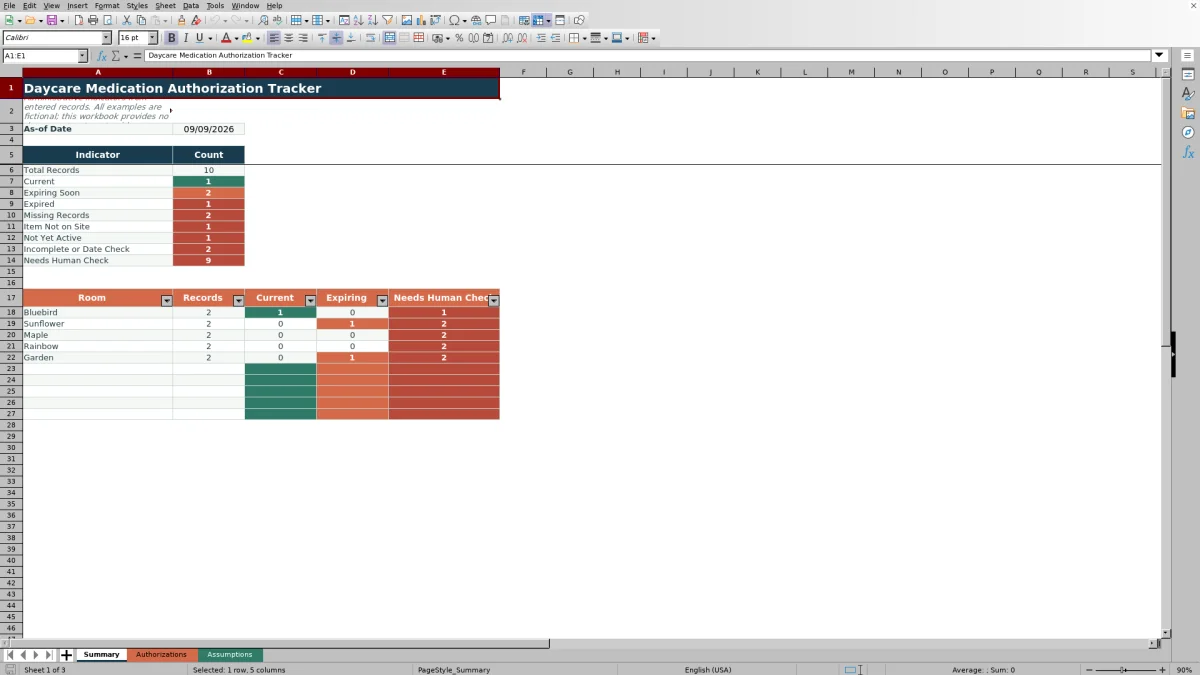
Summary reports Total Records, Current, Expiring Soon, Expired, Missing Records, Item Not on Site, Not Yet Active, Incomplete or Date Check, and Needs Human Check. Its room section shows Records, Current, Expiring, and Needs Human Check for room choices entered on Assumptions. The human-check total includes entered records whose status is not Current, so it is a review queue rather than a finding that every listed record has the same problem.
Interpreted Practical Example
Assume the workbook's as-of date is September 9, 2026, and its alert window is 30 days. The fictional record FIC-MED-002 ends on September 16, 2026, has complete entered fields, shows guardian authorization and written instructions as Received, and indicates that the item is on site. The calculated difference is seven days, so the result is Expiring Soon. The interpretation is that the entered authorization has not yet reached its end date but falls inside the center's selected alert window. The next decision is to check whether updated authorization documentation is expected or already available before the entered end date.
Common Entry Errors and Solutions
A blank required field can produce Incomplete; review columns A through J and supply only information supported by the center's records. A start date later than the end date can produce Check Dates; compare both entries with the source document and correct the mistaken value. A pasted value outside a dropdown's expected choices can require an entry check; replace it with an allowed choice or update the relevant Assumptions list. If Guardian Authorization or Written Instructions is marked Missing, verify whether the record exists before changing it to Received. If Item On Site is No, confirm the physical situation and record follow-up without using the tracker to decide treatment. Date validation errors can be addressed by entering real Excel dates within the editable earliest and latest date limits.
Comparison with Paper, Blank Spreadsheets, and Childcare Software
This workbook is one complete operational method: configure the center's review settings, enter authorization records, receive calculated statuses, inspect summary counts, interpret exceptions, and decide on follow-up. The alternatives below may be more suitable when their stated conditions apply.
| Method | How review is handled | Most suitable when |
|---|---|---|
| This Excel workbook | Uses defined fields, dropdown validation, date checks, calculated statuses, days remaining, summary indicators, and room-level counts for up to 100 records. | More suitable when a center wants a structured XLSX-based administrative review process and can manage the file according to its own access and privacy procedures. |
| Paper binder or manual checklist | Staff inspect documents and calculate timing or follow-up lists manually. | More suitable when original paper records drive the center's process and electronic tracking is not practical, provided staff maintain a dependable manual review routine. |
| Blank spreadsheet | Staff design fields, formulas, validations, and summaries themselves. | More suitable when the center needs a substantially different data structure and has someone who can build, test, and maintain the spreadsheet logic. |
| Dedicated childcare software | Available workflows vary by product and may connect record review with broader administrative functions. | More suitable when the organization needs integrated user permissions, audit history, communication, or multi-site workflows and has verified that the selected system supports its requirements. |
No method replaces review of the actual authorization documents or the center's applicable policies and professional guidance.
Configuring Dates, Rooms, and Staff Choices
Assumptions contains the editable controls used elsewhere in the workbook. As-of Date establishes the review date, while Alert Window (Days) determines how far ahead the workbook flags approaching end dates and accepts values from 0 through 365. Earliest Entry Date and Latest Entry Date establish the permitted date-entry range. Room Choices feed the Room dropdown, and Staff ID Choices feed the Assigned Staff ID dropdown. Updating these lists before routine entry helps keep room and staff values consistent in filters and summary counts.
Administrative Scope and Responsible Review
The tracker records whether guardian authorization and written instructions are received, missing, or, for written instructions, marked Not Required. It also records whether an item is on site. These are administrative entries, not clinical judgments. Review Status depends on the information entered and the selected assumptions, so incorrect, incomplete, or outdated inputs can lead to a misleading result. Staff should verify exceptions against source documentation, follow center procedures, protect child information, and seek appropriate qualified guidance for medication administration questions.
Frequently asked questions
Does this Excel tracker provide medication dosage recommendations?
No. It tracks administrative authorization details, entered dates, documentation status, item availability, staff assignment, and review notes. It does not recommend a dose, schedule, treatment, or administration decision.
How many authorization records can the workbook track?
The prepared Authorizations area contains 100 record rows, from row 5 through row 104. Each row includes formulas for Review Status and Days Remaining.
How does the workbook identify a record as Expiring Soon?
For a sufficiently complete record that passes the workbook's other checks, the formulas compare the authorization end date with the editable as-of date and alert window. A near-term end date within that window can be shown as Expiring Soon. Staff should still verify the entered dates and source documentation.
Can a center change the room and staff ID choices?
Yes. Room Choices and Staff ID Choices are editable on the Assumptions sheet. Those lists supply the dropdowns used in the Authorizations sheet, and room values also support the room-level Summary counts.
What does Needs Human Check mean on the Summary sheet?
It counts entered records whose calculated status is not Current. The total can include different situations, such as an approaching or passed end date, missing records, an item not being on site, a future start date, incomplete entries, or dates that need checking. It is a follow-up queue, not a medical or compliance conclusion.
Editorial responsibility

Lena MoralesEnrollment and classroom workflows

Jordan LeeWorkbook QA and center operations