The Childcare Health Form Renewal Tracker is an Excel workbook for recording each child's form type, received date, renewal review date, receipt status, responsible staff member, follow-up dates, and administrative notes.
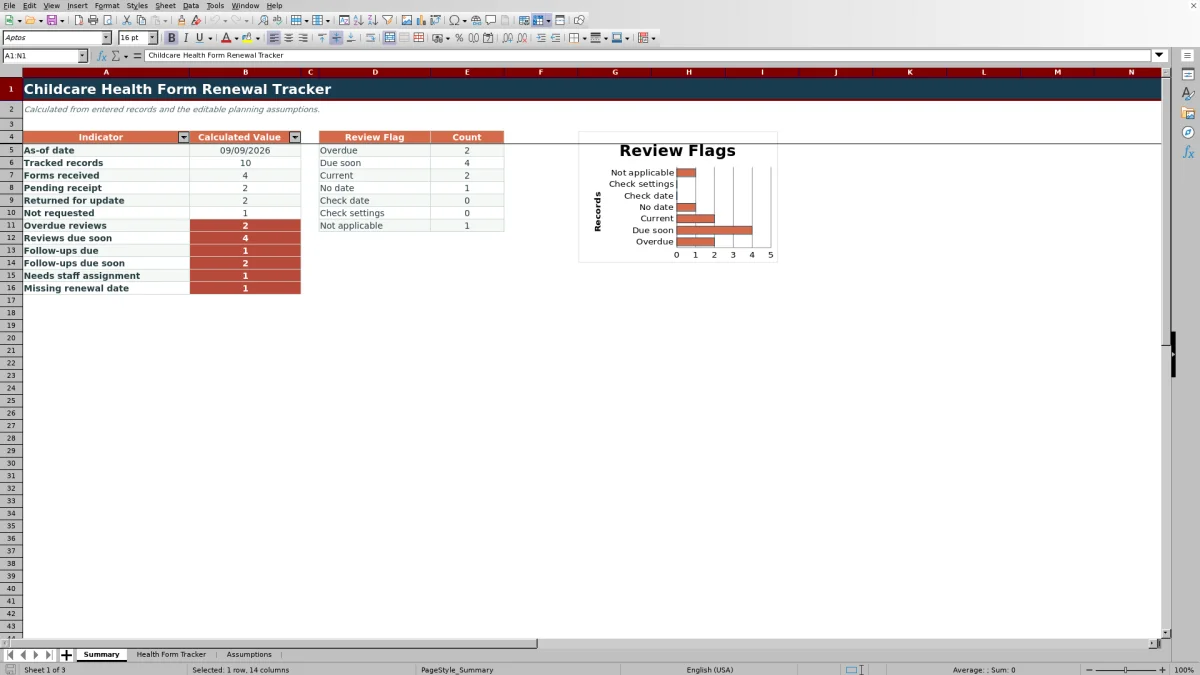
Calculated review and follow-up flags help staff identify records that may need attention, while the Summary sheet presents key counts and a review-status chart. The alerts support human review; staff should confirm dates and requirements against source documents and center policy.
How this workbook can help
- Keeps health-form review dates, receipt status, staff ownership, and follow-up details in one administrative record.
- Helps staff prioritize overdue reviews, upcoming reviews, due follow-ups, and records without an assigned staff member.
- Summarizes tracked records and common work queues without requiring staff to count rows manually.
- Allows the center to edit its as-of date, due-soon windows, accepted date range, and dropdown choices.
What is in the file
How to get started
1. Review the planning settings
Open the Assumptions sheet and confirm the planning settings: as-of date, review due-soon window, follow-up due-soon window, and earliest and latest accepted dates. Edit the room, form type, receipt status, and responsible staff lists to reflect the center's process.
2. Replace the fictional records
On Health Form Tracker, replace the examples in rows 4 through 103. Enter a record ID, child identifier, room, form type, applicable dates, receipt status, responsible staff member, and administrative notes. Use the provided dropdowns where available.
3. Review calculated alerts
Check the calculated columns for Days Until Review, Review Flag, and Follow-Up Flag. Investigate entries labeled Overdue review, Due soon, No due date, Check date, Follow-up due, Follow-up soon, Assign staff, or Set follow-up.
4. Act and update the record
Use the Summary sheet to see overall counts and the review-status chart. After staff verify a source form or complete follow-up work, update the relevant dates, status, staff assignment, and notes so the formulas reflect the current administrative record.
Situation: Health-Form Renewal Work
Childcare centers may need to coordinate form receipt, renewal review dates, staff ownership, and guardian follow-up without treating the tracker as a medical record or a source of medical guidance. This workbook places those administrative details in one operational view. Each record can identify the child, room, form type, receipt status, responsible staff member, relevant dates, and next administrative action.
Action: Build a Consistent Review Routine
Begin by setting the workbook's as-of date and planning windows on the Assumptions sheet. Staff can then enter or update records on Health Form Tracker, select standardized values from the available dropdowns, and record the last and next follow-up dates. Because the as-of date is editable rather than automatically tied to the current day, the operator should confirm it whenever the workbook is used for a new review cycle.
Result: Turn Dates Into Work Queues
The workbook subtracts the as-of date from each renewal review date to calculate Days Until Review. It also classifies records with review flags such as Overdue review, Due soon, Current, No due date, Check date, Check settings, and Not applicable. Follow-up formulas use receipt status, staff assignment, next follow-up date, and the selected planning window to identify work such as Follow-up due, Follow-up soon, Assign staff, or Set follow-up. The Summary sheet counts these conditions so operators can move from individual rows to a center-level workload view.
Interpretation: A Practical Example
Consider the fictional HF-003 example. The situation is a Pending immunization record assigned to Fictional Staff C, with a renewal review date of September 7, 2026, a next follow-up date of September 8, 2026, and an as-of date of September 9, 2026. The action is to review the calculated fields and the source record. The result is negative two Days Until Review, an Overdue review flag, and a Follow-up due flag. The interpretation is that both the review date and scheduled follow-up have passed; it does not establish whether the form satisfies any external requirement. The next decision is for the assigned staff member to verify the source document, complete the appropriate center follow-up, and update the status, dates, and notes.
Errors and Solutions
A blank Record ID leaves the calculated fields blank, so the solution is to add the identifier before relying on the alerts. A Check settings result calls for confirming that the as-of date is a valid Excel date and that the due-soon windows contain valid numbers; the workbook accepts whole numbers from 0 through 365 for those windows. Check date indicates that the renewal value is not being recognized as a date, so reenter it as a valid Excel date within the accepted range. No due date means the renewal review date is blank; verify the source form and enter the date when applicable, or use Not Applicable only when that status accurately reflects the center's administrative process. Assign staff indicates that a nonreceived record lacks an active staff assignment, while Set follow-up indicates that an applicable next follow-up date has not been entered.
Comparison With Other Tracking Methods
The appropriate tracking method depends on record volume, workflow complexity, available systems, and the amount of configuration the center can support.
| Method | More suitable when | Operational trade-off |
|---|---|---|
| This Excel workbook | More suitable when a center wants one file for up to 100 records, editable planning assumptions, standardized entry choices, calculated flags, summary counts, and a chart. | Staff still need to maintain the as-of date, verify source documents, update records, and carry out follow-up outside the workbook. |
| Paper or manual log | More suitable when there are very few records, staff work primarily from physical files, and calculated summaries are unnecessary. | Due dates, totals, ownership, and follow-up priorities must be checked and counted manually. |
| Blank spreadsheet | More suitable when the center needs entirely custom fields and has someone available to build and test formulas, validation, formatting, and summaries. | Setup takes additional work, and inconsistent entries are more likely if validation and controlled lists are not added. |
| Dedicated childcare software | More suitable when the center needs integrated family communication, user permissions, broader enrollment workflows, or multi-site administration. | It may require subscription costs, implementation, staff training, and configuration beyond a standalone tracking file. |
The workbook is an administrative tracking method, not a substitute for official records, center policy, medical judgment, or verification of current requirements.
Next Decision: Choose the Follow-Up Response
After reviewing the Summary and record-level flags, the next decision is which administrative issue to address first. Operators can prioritize overdue reviews and follow-ups, assign staff to unowned records, schedule missing follow-ups, investigate invalid or missing dates, and confirm forms marked Not Applicable. Once action is taken, update the tracker so the next review reflects the center's latest information.
Frequently asked questions
What information can the childcare health form renewal tracker record?
It records a record ID, child identifier, room, form type, received date, renewal review date, receipt status, responsible staff member, last and next follow-up dates, and administrative notes. It also calculates days until review and two alert fields.
How does the Excel workbook determine that a review is due soon?
It compares the renewal review date with the editable as-of date and review due-soon window on the Assumptions sheet. The supplied window is 30 days, but the center can change it to a whole number from 0 through 365.
Does a Received status always mean the renewal review is current?
No. Receipt status and renewal timing are separate fields. A record marked Received can still show Overdue review or Due soon if its renewal review date falls into one of those periods.
What should staff do when the tracker shows Check date or Check settings?
For Check date, confirm that the renewal review value is a valid Excel date within the accepted range. For Check settings, verify the as-of date and the applicable due-soon window on the Assumptions sheet.
Does this workbook provide medical or compliance guidance?
No. It organizes guardian-supplied and center-entered administrative information. Staff should verify renewal requirements, dates, and decisions against current source documents, applicable rules, and center policy.
Editorial responsibility

Lena MoralesEnrollment and classroom workflows

Jordan LeeWorkbook QA and center operations