This Excel workbook organizes guardian-provided meal-planning details for up to 100 daycare enrollment records. Staff can record dietary preferences, restrictions or avoid items, substitution needs, confirmation dates, record status, and assigned staff.
The XLSX calculates next-review dates, flags review timing, checks whether required fields are complete, and summarizes active records by room. These prompts support human review; they are not medical guidance or automated notifications.
How this workbook can help
- Keeps guardian-provided dietary preferences, avoid items, and substitution instructions together in a structured enrollment tracker.
- Calculates each next-review date and identifies active records with past-due, due-soon, or current review timing.
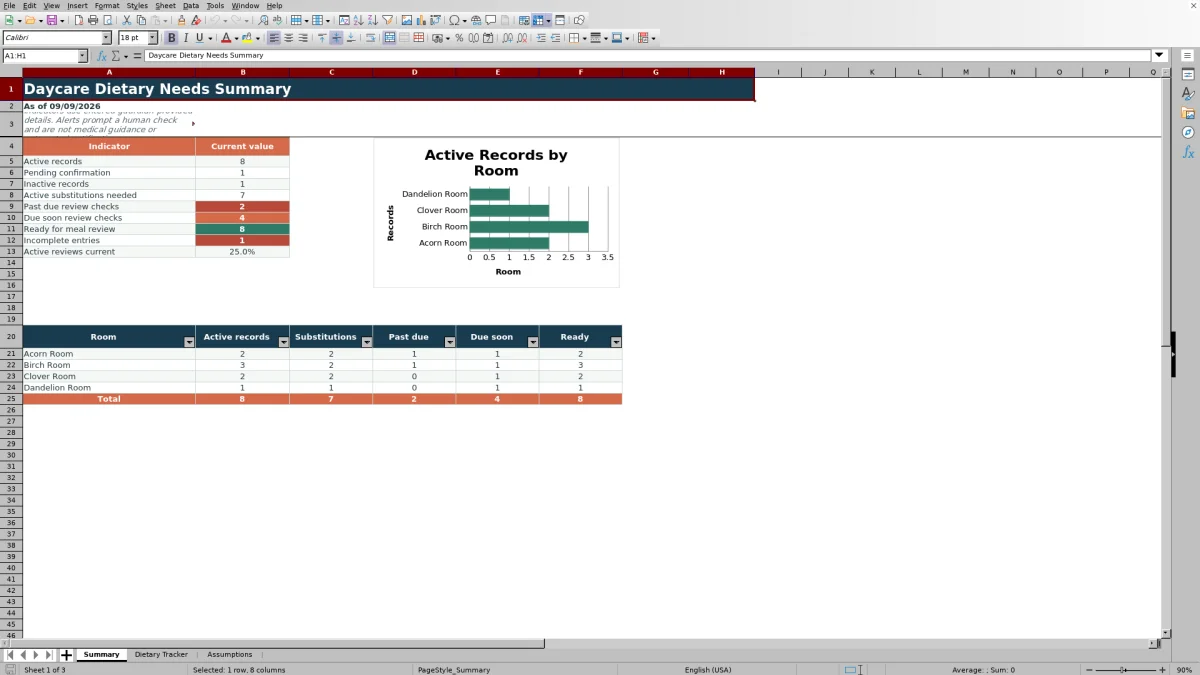
- Provides overall and room-level counts for active records, substitutions, review status, readiness, and incomplete entries.
- Uses editable lists and data validation to support consistent room, preference, status, substitution, staff, and date entries.
What is in the file
How to get started
1. Configure the planning settings
Open the Assumptions sheet and update the yellow input cells. The default review reminder window is 30 days, and the default standard review interval is 180 days. Adjust the displayed room, preference, status, and staff lists while keeping every displayed list cell populated.
2. Enter guardian-provided records
On the Dietary Tracker sheet, replace the fictional examples with local records. Complete the child ID, record-start date, room, dietary preference, restrictions or avoid items, substitution requirement, last guardian confirmation, record status, and assigned staff. Add substitution notes whenever Meal Substitution Needed is Yes.
3. Review the calculated checks
Check Next Review, Review Alert and Entry Check for each row. The formulas identify missing information, missing substitution notes, inactive records, and active records whose review is current, due soon, or past due.
4. Decide and document follow-up
Use filters and the Summary sheet to identify records requiring attention by room. Confirm uncertain information with the guardian, update the record, and use center procedures and staff judgment before making meal-planning decisions.
What the Daycare Dietary Needs Tracker Records
The main worksheet provides 100 record rows, from row 5 through row 104. Each record includes a child ID, record-start date, room, dietary preference, guardian-provided restrictions or avoid items, substitution decision and notes, last guardian confirmation, record status, and assigned staff. Next Review, Review Alert, and Entry Check are calculated fields rather than additional manual logs.
How the Review Workflow Operates
Staff enter the last guardian-confirmation date, and the tracker adds the review interval set on the Assumptions sheet to calculate Next Review. For an active record, the Review Alert compares that date with TODAY() and the configured reminder window. It returns Past due, Due soon, or Current as appropriate; it can also indicate that a status or review date needs attention. The Summary sheet then counts these results for operational review.
Summary and Room-Level Oversight
The Summary sheet reports active, pending-confirmation, and inactive records. It also counts active substitutions, past-due and due-soon reviews, records ready for meal review, and incomplete entries. A room-level area reports active records, substitutions, review timing, and readiness for the four rooms listed on the Assumptions sheet, while a chart displays active records by room.
Interpreted Practical Example
Situation: Fictional child 002 is an active Birch Room record with peanuts and tree nuts listed as avoid items, a required substitution, substitution notes, a March 12, 2026 guardian confirmation, and an assigned staff member. Action: With the default 180-day interval, the workbook adds 180 days to the confirmation date. Result: Next Review becomes September 8, 2026, and Entry Check reports Ready for meal review because the required fields and substitution notes are present. Interpretation: Review Alert remains dynamic: it changes according to TODAY() and the default 30-day reminder window rather than sending a notification. Next decision: Staff should use the displayed timing to decide when to contact the guardian, verify the restriction details, and update the record before applying center meal-planning procedures.
Common Entry Errors and Solutions
If Entry Check says Complete fields, review the required child ID, record-start date, room, dietary preference, substitution choice, guardian-confirmation date, status, and assigned staff fields. If it says Add substitution notes, enter the guardian-provided planning instruction in Substitution Notes or reconsider whether Yes is the correct substitution selection. If Review Alert says Add review date, supply the last guardian-confirmation date so Next Review can calculate. If a drop-down is unavailable, restore any blank cell in the corresponding displayed list on the Assumptions sheet. Dates must also fall within the worksheet's accepted range, from January 1 five years before the current year through TODAY().
Comparison With Paper and Childcare Software
The workbook is one complete Excel-based method for recording details, applying consistent lists, calculating review timing, checking entries, and reviewing summary counts. The comparison below distinguishes that method from realistic external alternatives.
| Criterion | Excel tracker workbook | Paper or manual log | Dedicated childcare software |
|---|---|---|---|
| Record structure | Uses 13 defined fields and space for 100 records. | Structure depends on the form or notes created by staff. | Structure depends on the selected product and its configuration. |
| Consistency controls | Provides drop-down lists and date validation for designated fields. | Relies on staff following written conventions. | May provide configured forms and required fields. |
| Review support | Calculates next-review dates, alerts, entry checks, totals, and room-level results. | Requires staff to calculate dates and compile counts manually. | May provide reminders, workflows, and reporting, depending on the system. |
| Access model | Operates as an XLSX file whose storage and access must be managed by the center. | Requires secure physical storage and controlled handling. | May provide accounts and role-based access, depending on the product. |
| More suitable when | A center wants a local Excel workflow for no more than 100 records and can manage file access. | A small operation has limited device access and accepts manual calculations and summaries. | A center needs multi-user or multi-site workflows and the chosen platform supports its required controls. |
The Excel workbook is more suitable when staff need a structured local file without relying on a separate childcare platform. Paper is more suitable when reliable computer access is unavailable. Dedicated software is more suitable when centralized accounts, broader integrations, or multi-site administration are required and verified in the selected system.
Operational Boundaries and Record Handling
The workbook records guardian-provided information for meal planning, but it does not diagnose dietary conditions, determine treatment, or replace center procedures. Its alerts are visible spreadsheet results rather than messages sent to staff. Because the file can contain child identifiers and dietary details, the center should manage access, storage, retention, guardian confirmation, and follow-up under its own policies.
Frequently asked questions
How many child records can the Excel tracker hold?
The Dietary Tracker provides 100 entry rows, covering rows 5 through 104. Its formulas for Next Review, Review Alert, and Entry Check are present across those rows.
How does the workbook calculate the next review date?
Next Review adds the standard review interval from the Assumptions sheet to the Last Guardian Confirmation date. The supplied default interval is 180 days and can be changed to a whole number from 1 through 730.
What makes an entry ready for meal review?
The Entry Check requires the record-start date, room, dietary preference, substitution choice, last guardian confirmation, record status, assigned staff, and child ID. If substitution is Yes, Substitution Notes must also contain information.
Can the rooms, preferences, statuses, and staff choices be changed?
Yes. The Assumptions sheet contains editable lists for rooms, dietary preferences, Yes or No choices, record statuses, and staff assignments. Keep each displayed list cell populated so the corresponding tracker drop-down remains available.
Does the tracker provide medical advice or automated alerts?
No. It organizes guardian-provided information and displays formula-based review prompts inside the workbook. Staff must still confirm details with guardians and follow applicable childcare-center procedures.
Editorial responsibility

Lena MoralesEnrollment and classroom workflows

Jordan LeeWorkbook QA and center operations