This daycare enrollment pipeline Excel workbook helps childcare-center operators track prospective families from inquiry through tour, offered place, paperwork, enrollment, or closure. Its 150 prepared pipeline rows capture dates, assigned roles, follow-up needs, close reasons, and notes.
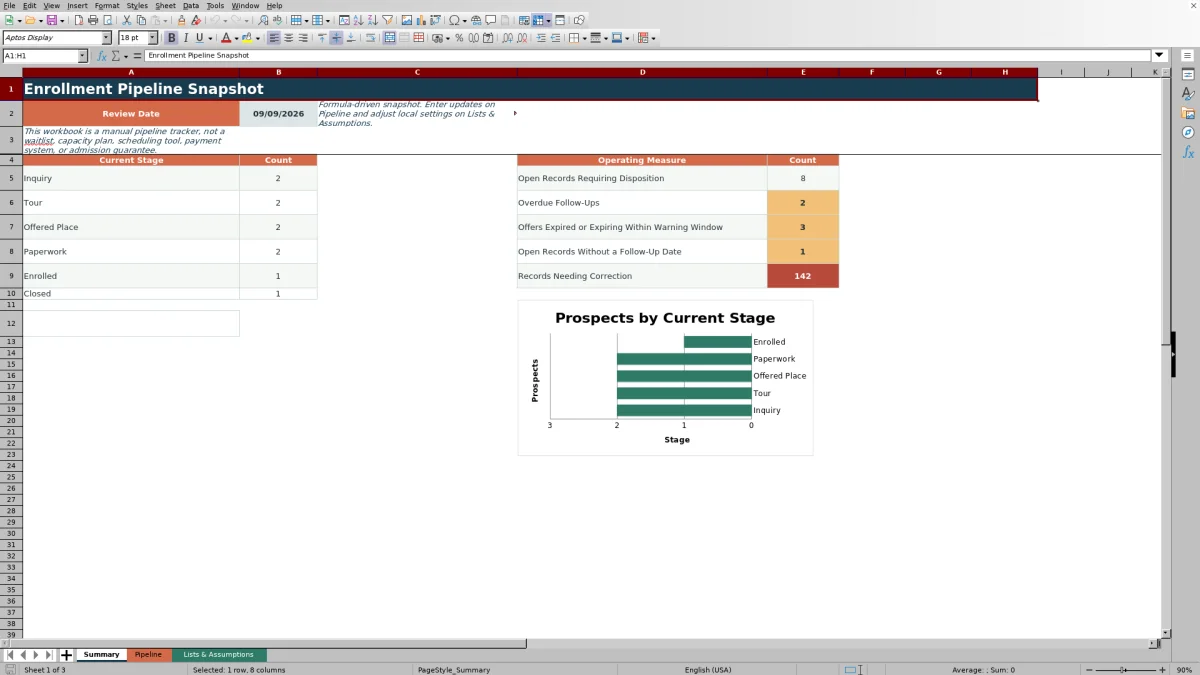
A formula-driven Summary counts prospects by stage and identifies overdue follow-ups, offers near or past expiration, missing follow-up dates, and records needing correction. It is a manual operating tracker, not a waitlist, capacity plan, scheduling system, payment system, or admission promise.
How this workbook can help
- Keeps inquiry, tour, offer, paperwork, enrollment, and closure details in one structured prospect list.
- Gives operators a current snapshot of stage counts and open records requiring disposition.
- Surfaces overdue follow-ups, approaching offer expirations, missing follow-up dates, and data-quality issues.
- Lets centers adjust the review date and warning thresholds to match local operating routines.
What is in the file
How to get started
1. Set the review assumptions
Open Lists & Assumptions and update the Review Date. Adjust the follow-up warning window, stale-stage threshold, and offer-expiration warning window if your center uses different review periods. Keep the listed stage terms unchanged because the formulas depend on their exact text.
2. Prepare and enter prospect records
Clear the supplied SAMPLE input values from columns A through R without removing the formulas in columns S through U. Give each family a unique Prospect ID, use a family alias as appropriate, and complete the required inquiry, age-group, source, stage, date, and assigned-role fields.
3. Update each prospect as work progresses
Change Current Stage and Stage Updated Date when a family advances. Add the applicable tour, offer, expiration, paperwork, enrollment, expected-start, follow-up, or closure information rather than relying on notes alone.
4. Review alerts and decide the next action
Use the Action Alert and Record Check columns to find records needing attention or correction. Then review the Summary sheet for stage totals, overdue follow-ups, offer deadlines, open records without follow-up dates, and the next records to assign or resolve.
What the Daycare Enrollment Pipeline Tracks
The Pipeline sheet creates a single operating view of each prospect's progress. It includes Prospect ID, Family Alias, Inquiry Date, Age Group Sought, Desired Start Date, Inquiry Source, Current Stage, Stage Updated Date, milestone dates, Follow-Up Due, Assigned Role, Close Reason, Notes, Days in Stage, Action Alert, and Record Check.
How the Summary Supports Daily Review
The Summary counts records in Inquiry, Tour, Offered Place, Paperwork, Enrolled, and Closed. Its operating measures identify open records requiring disposition, overdue follow-ups, offers that are expired or fall within the configured warning window, open records without a follow-up date, and records needing correction. The included chart visualizes stage counts from Inquiry through Enrolled.
Interpreted Practical Example
Situation: the supplied Sample Birch Family record is at Offered Place on the September 9, 2026 review date, and its offer expires September 11. Action: the enrollment coordinator reviews the offer and follow-up dates, contacts the family, and records the outcome. Result: because the expiration is within the seven-day warning window, the record contributes to the Summary measure for expired or soon-expiring offers. Interpretation: this is a near-term decision item rather than a routine future follow-up. Next decision: move the prospect to Paperwork if the family accepts, retain and update the follow-up details if a response is pending, or close the record with an applicable reason if the offer is declined.
Common Errors and Solutions
Error: entering a custom stage label such as “Offer Sent” causes the record to fall outside the workbook's defined stage counts. Solution: select Inquiry, Tour, Offered Place, Paperwork, Enrolled, or Closed from the validated list.
Error: a duplicate Prospect ID, blank required field, or inconsistent inquiry or stage date produces a Record Check message. Solution: assign a unique ID, complete the required fields, and correct the dates before relying on the Summary.
Error: deleting or typing over columns S through U removes the row calculations. Solution: Protect the formula columns during data entry and make routine updates in columns A through R. If the Review Date is blank, set it on Lists & Assumptions so date-dependent measures can evaluate records.
Comparison With Other Enrollment Tracking Methods
The appropriate tracking method depends on record volume, staffing, workflow complexity, and whether the center needs integrations beyond a manual enrollment pipeline.
| Method | Operational approach | More suitable when | Consideration |
|---|---|---|---|
| This Excel workbook | Uses a structured 150-row pipeline, fixed stages, date-based formulas, validation, alerts, record checks, and a summary snapshot. | More suitable when a center wants a transparent manual process in Excel without implementing a separate platform. | Staff must enter updates consistently, preserve formulas, and maintain the review date. |
| Paper or whiteboard process | Records prospect status through handwritten notes, cards, or a visual board. | More suitable when the prospect list is very small and one on-site person manages every update. | Searching, date calculations, correction checks, and controlled access are limited. |
| Blank spreadsheet | Lets the center design columns, formulas, stages, and review rules from the beginning. | More suitable when the organization has specialized terminology or reporting requirements and can maintain its own spreadsheet logic. | Validation, alerts, checks, and summary formulas must be designed and tested locally. |
| Dedicated childcare software | May combine enrollment workflows with portals, communications, capacity, billing, scheduling, or other system functions, depending on the product. | More suitable when multiple users need integrated workflows, permissions, automation, or links to broader center operations. | Implementation, subscription cost, configuration, and vendor-specific processes may be required. |
The workbook operates as one complete manual method: staff enter prospects on Pipeline, use calculated alerts and checks, review aggregate measures on Summary, and control timing assumptions on Lists & Assumptions.
Review Cadence and Data Quality
Set a regular cadence for checking overdue follow-ups, missing follow-up dates, stale records, and offer deadlines. When a stage changes, update both Current Stage and Stage Updated Date, then enter the relevant milestone date. Resolve Record Check messages before using the counts for staffing discussions or follow-up assignments.
Scope and Responsible Use
The workbook summarizes prospect movement and follow-up work; it does not calculate classroom capacity, manage a waitlist, schedule attendance, collect payments, determine compliance, or decide admission. Use family aliases and store the XLSX with access controls appropriate for the center's privacy practices.
Frequently asked questions
What enrollment stages are included in the workbook?
The validated stages are Inquiry, Tour, Offered Place, Paperwork, Enrolled, and Closed. These exact terms should remain unchanged because the Summary and Pipeline formulas rely on them.
How many prospect records are prepared in the Pipeline sheet?
The Pipeline table has 150 prepared data rows, from row 2 through row 151. The Days in Stage, Action Alert, and Record Check formulas are filled across those rows.
Does this Excel workbook manage classroom capacity or a waitlist?
No. It is a manual prospect pipeline for enrollment follow-up and stage tracking. It does not function as a capacity plan, waitlist, scheduling tool, payment system, or admission decision system.
What happens if the Review Date is blank?
The Summary displays a warning to set the Review Date on Lists & Assumptions. Date-dependent calculations and alerts may remain blank or direct the operator to set the date until it is supplied.
Which Pipeline fields have drop-down lists?
Drop-down validation is included for Age Group Sought, Inquiry Source, Current Stage, Assigned Role, and Close Reason. Prospect IDs also have a uniqueness check, date fields have date validation, and Notes are limited to 250 characters.
Editorial responsibility

Lena MoralesEnrollment and classroom workflows

Jordan LeeWorkbook QA and center operations