This daycare emergency contact sheet is an Excel workbook for maintaining a quick center roster of each child’s emergency contacts, relationship details, phone numbers, classroom, primary staff member, record status, and last review date. The roster provides 100 entry rows and space for two contacts per child.
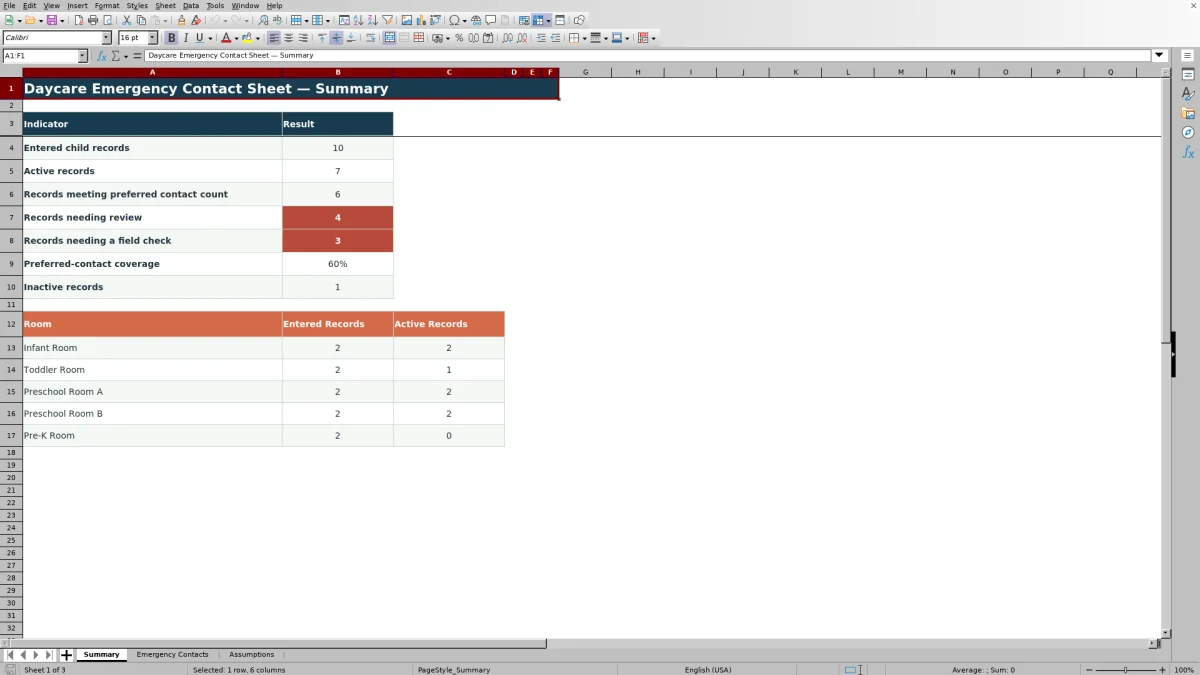
Three connected worksheets organize the process: Emergency Contacts holds the roster, Assumptions stores editable choices and operating settings, and Summary reports record counts and contact coverage. Calculated alerts are prompts for human review; they do not verify a person’s identity, authorization, or phone number.
How this workbook can help
- Keeps child, classroom, staff, contact, relationship, phone, status, and review information together in a filterable roster.
- Uses editable room, staff, relationship, status, and review settings so the workbook can reflect center procedures.
- Flags duplicate child IDs, incomplete child details, missing or partial contact entries, and records that may need review.
- Summarizes entered, active, inactive, review-due, and contact-coverage counts, including room-level totals.
What is in the file
How to get started
Step 1: Configure the center lists
Open Assumptions and replace the fictional room, staff, and relationship choices with options that match center procedures. Confirm the record statuses, review-reminder period, preferred contact count, and earliest accepted review date.
Step 2: Enter the child records
On Emergency Contacts, replace the fictional sample records with actual entries. Give every child a unique ID, then enter the display name, room, primary staff member, last-reviewed date, and record status.
Step 3: Add complete emergency contacts
Enter a name, relationship, and phone number for each contact. A contact counts as complete only when all three fields in that contact group contain values.
Step 4: Review the results and resolve alerts
Use Complete Contacts, Review Status, and Record Check to locate entries needing attention. Filter the roster as needed, then consult Summary for overall coverage and room-level counts.
Situation: A Contact Roster Needs Attention
Consider a center with four entered child records. Three records contain two complete contacts, while the fourth contains only one complete contact. The center can still see the child’s available contact, but the Summary sheet shows that not every entered record meets the preferred count of two.
Action: Complete and Review the Record
A staff member opens the affected row, confirms the child ID and child details, and enters the second contact’s name, relationship, and phone number. The staff member also checks the Last Reviewed date and selects the appropriate record status. Because the preferred setting is two complete contacts per child, all three second-contact fields must be present before that contact is counted.
Result: Read the Calculated Outputs
The Complete Contacts value for that row changes from one to two after the missing contact fields are completed. If there are no duplicate IDs, missing child details, or partial contact groups, Record Check no longer requests that related correction. Summary then includes the record among those meeting the preferred contact count.
Interpretation: Practical Example
With four entered records and three initially meeting the preferred count, the workbook reports 75% preferred-contact coverage. Completing the fourth record raises that calculation to 100%, assuming the other records remain unchanged. This result means the required contact fields are populated; it does not establish that the contacts are authorized, reachable, or current. The coverage formula also uses all entered child IDs rather than limiting the percentage to active records, so inactive entries should be considered when staff interpret the result.
Next Decision: Choose the Follow-Up
After clearing structural alerts, decide whether the record needs a direct confirmation with the family, an authorization review, a status change, or a new Last Reviewed date. If the workbook’s local roster and summary workflow meets the center’s needs, continue the scheduled review process. If the center needs simultaneous multiuser updates, integrated family communication, or system-managed access history, evaluate the alternatives in the comparison below.
Common Errors and Solutions
Fix the source entry rather than typing over the calculated columns. For a duplicate-ID alert, assign a unique child ID. For Check child details, complete the display name, room, and primary staff fields. For Add complete contact, enter one full name-relationship-phone group. For Check incomplete contact, complete or clear the partial group. For a review-date warning, enter a valid date within the allowed range and confirm the reminder setting on Assumptions. If formulas in columns M through O are overwritten, restore them from the original workbook or an unaffected corresponding row before relying on the summaries.
Comparison With Other Contact-Roster Methods
The workbook should be evaluated as one complete operational method: configure choices on Assumptions, maintain records on Emergency Contacts, and review alerts and counts on Summary. The alternatives below involve different tradeoffs rather than an internal comparison among worksheets.
| Method | Operating approach | Limitations to consider | More suitable when |
|---|---|---|---|
| This Excel workbook | Staff configure fixed choices, maintain up to 100 child rows, review formula-driven checks, and monitor summary counts. | Requires controlled file access, preserved formulas, periodic manual review, and a process for avoiding conflicting copies. | More suitable when a center wants a structured, locally managed XLSX roster with validation and summary reporting. |
| Paper roster | Staff handwrite contacts and replace or annotate printed pages when details change. | Updates can produce outdated copies, calculations are manual, filtering is unavailable, and physical privacy controls are necessary. | More suitable when staff need a carefully secured physical reference and electronic access may be unavailable. |
| Blank spreadsheet | Staff design their own columns, lists, formulas, alerts, and review process. | Setup and testing require more staff time, and inconsistent formulas or fields can weaken the process. | More suitable when the center’s required fields differ substantially and qualified staff can design and test the workbook. |
| Dedicated childcare software | Contacts are maintained in a broader enrollment or center-management platform, with capabilities depending on the product. | May involve subscription costs, implementation work, vendor controls, training, and features that vary by system. | More suitable when the center already uses a supported platform and needs integrated permissions, multiuser updates, communications, or audit features. |
Whichever method is selected, the center still needs procedures for confirming authorization, checking phone accuracy, controlling access, retaining records, and making contact information available during an emergency.
Frequently asked questions
How many child records does the Excel emergency contact sheet hold?
The Emergency Contacts sheet provides 100 roster rows, from row 5 through row 104.
When does an emergency contact count as complete?
A contact counts as complete when its name, relationship, and phone fields all contain values. Each child row can count up to two complete contacts.
Does the workbook verify that a contact is authorized or reachable?
No. The formulas check whether specified fields are populated and whether certain record conditions need attention. Staff must separately confirm identity, authorization, phone accuracy, and current availability.
Can the room, staff, relationship, and status choices be changed?
Yes. The Assumptions sheet contains the choices used by the roster dropdowns. Replace the existing entries within the provided choice ranges and confirm that the operational settings match center procedures.
How should a childcare center protect the contact information?
Limit access to authorized staff, store the file in an approved location, control printed copies, avoid conflicting versions, and follow the center’s privacy, retention, backup, and secure-disposal procedures.
Editorial responsibility

Lena MoralesEnrollment and classroom workflows

Jordan LeeWorkbook QA and center operations