This Excel workbook provides a structured daycare family contact directory for connecting each child with guardians, family members, and emergency contacts. Staff can record household and child IDs, room, relationship, primary-contact status, phone, email, preferred communication channel, preferred language, record status, verification date, and contact notes.
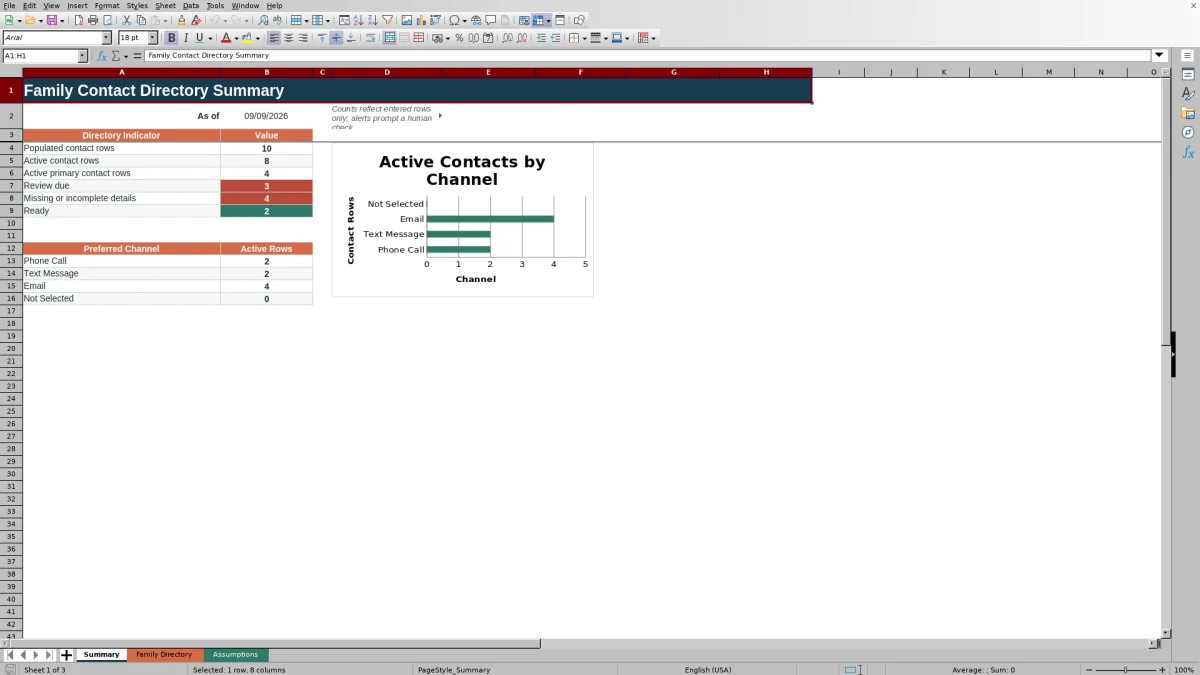
The XLSX combines a 120-row Family Directory with editable lists and review settings on the Assumptions sheet. Calculated fields show days since verification and provide staff-review prompts, while the Summary sheet reports populated, active, primary, review-due, incomplete, and ready rows alongside a chart of preferred channels.
How this workbook can help
- Keeps guardian contact channels, communication preferences, household links, and child links in one filterable directory.
- Helps staff distinguish primary, alternate, emergency, active, inactive, and review-needed contact records.
- Surfaces missing details, aging verification dates, and household primary-contact issues for staff review.
- Summarizes active contacts and preferred communication channels without requiring staff to count records manually.
What is in the file
How to get started
1. Configure the center’s lists and review interval
Open the Assumptions sheet and review the yellow cells for rooms, relationships, preferred channels, languages, statuses, Yes or No choices, and the verification review interval. Keep the interval between the displayed minimum and maximum values.
2. Replace the fictional sample records
Enter authorized family information in the yellow cells on the Family Directory sheet. Use a consistent Household ID for contacts in the same household and the correct Child Record ID for each child-contact link.
3. Record communication and verification details
Select the room, relationship, primary-contact flag, preferred channel, language, and status from the dropdowns. Add the available phone number or email address, enter a valid Last Verified date, and use Contact Notes for concise operational details.
4. Review prompts and decide on follow-up
Read the Days Since Verified and Directory Check results, then use the Summary sheet to identify active records, review-due rows, incomplete details, and channel preferences. Do not overwrite the formulas in the calculated columns.
What the Directory Organizes
Each directory row links a contact to a household and child record. The layout captures the child’s display name and room alongside the contact’s name, relationship, primary-contact designation, phone, email, preferred channel, preferred language, status, Last Verified date, and notes. Reusing an exact Household ID keeps related records together when staff filter or sort the Excel table.
Setting Up Lists and Review Rules
The Assumptions sheet supplies the dropdown choices used by the directory. Included room options range from Infant Room through School-Age Room; relationship choices include Parent/Guardian, Emergency Contact, Family Contact, and Other Contact. Staff can also maintain channel, language, status, and Yes or No lists. The editable review interval starts at 365 days and is constrained by the displayed minimum and maximum settings, while the earliest accepted verification date is also configurable.
Using the Workbook as an Operational Routine
Begin with approved enrollment information, create consistent household and child identifiers, and enter one row for each relevant child-contact connection. Mark the appropriate status and identify the active primary contact after staff confirmation. During routine reviews, filter by room, status, household, or Directory Check result; correct the source entries rather than typing over calculated results. The Summary sheet then provides a center-level view of entered rows, active rows, active primary contacts, review needs, readiness, and preferred communication channels.
Practical Example: Resolving a Missing Preferred Channel Detail
Situation: an active guardian row lists Email as the preferred channel, but the Email field is blank. Action: a staff member follows the Directory Check prompt, confirms the address with the guardian through an available approved contact route, enters the email, and updates the Last Verified date. Result: the preferred channel now has its corresponding contact detail, and the verification age recalculates automatically. Interpretation: if the required fields, status, review timing, and household primary-contact count also pass their checks, the row can display Ready rather than an incomplete-data prompt. Next decision: staff can use the confirmed email for future communications or continue follow-up if another directory check remains.
Common Errors and Solutions
Common corrections: inconsistent Household IDs can split related contacts, so use the same exact ID for members of one household. More than one active row marked Yes for the same household can trigger a primary-count check, so confirm and retain one active primary contact. If Phone Call or Text Message is selected without a phone number, or Email is selected without an email address, add the confirmed detail or correct the channel selection. Enter Last Verified as a valid Excel date within the permitted range. If a calculated cell in Days Since Verified or Directory Check is overwritten, restore the formula from an approved intact workbook rather than treating the typed value as a valid result.
Comparison With Other Contact-Management Methods
The workbook functions as one complete operational method: staff configure controlled lists, enter linked contact records, review calculated prompts, filter the directory, and interpret summary counts. The alternatives below may be more suitable when different staffing, technology, or integration conditions apply.
| Method | Setup and routine | Review support | More suitable when |
|---|---|---|---|
| This Excel workbook | Configure lists and review settings, then maintain standardized rows in a filterable table. | Includes calculated verification age, directory prompts, summary counts, and a preferred-channel chart. | A center wants a local XLSX process with structured entry, review cues, and no need for a broader management platform. |
| Paper or manual list | Write and revise contacts by hand; staff must reconcile household connections manually. | Review dates, missing details, and channel totals require visual checks and manual counting. | A very small program has limited device access and accepts a fully manual review process. |
| Blank spreadsheet | Staff design columns, lists, formulas, and conventions from the beginning. | No standardized prompts or summary logic exists unless someone builds and maintains it. | The need is temporary or the center requires a substantially different data structure and has spreadsheet expertise. |
| Dedicated childcare software | Configuration may include family accounts, permissions, messaging, enrollment, billing, and integrations. | Review and communication tools depend on the selected system and subscription. | The center needs multi-user workflows, parent portals, integrated messaging, permissions, or other functions beyond this workbook. |
The Excel method provides defined controls within the workbook, but it does not replace staff confirmation, organizational privacy practices, or specialized childcare-system functions.
Review Interpretation, Privacy, and Next Decisions
A Directory Check result is a staff prompt based on entered values, not independent confirmation that a phone number, email address, relationship, or authorization is current. Use Ready to guide workflow only after reviewing the underlying record. Treat child and guardian information as sensitive, limit access according to center policy, and store the completed XLSX in an approved location. After each review cycle, decide whether to confirm aging records, correct incomplete entries, change a status, or archive information through the center’s established records process.
Frequently asked questions
How many contact rows does the Excel directory provide?
The Family Directory contains 120 data rows, running from row 5 through row 124 beneath the headers.
Can the directory connect several contacts to the same household or child?
Yes. Staff can repeat the same Household ID and Child Record ID across relevant rows while entering a separate contact name, relationship, communication preference, and status for each contact connection.
What does the Directory Check column do?
It evaluates entered information and returns a prompt such as a missing-detail check, review need, inactive status, or Ready result. It supports staff review but does not independently verify the accuracy or authorization of contact information.
Can a childcare center customize the dropdown choices?
Yes. The Assumptions sheet contains editable lists for rooms, relationships, preferred channels, preferred languages, statuses, and Yes or No choices. Changes should be made carefully because the Family Directory dropdowns reference those cells.
Does this workbook replace dedicated childcare management software?
No. It is more suitable when a center needs a structured local Excel directory with review prompts and summary reporting. Dedicated software may be more suitable when the center requires parent accounts, integrated messaging, billing, enrollment workflows, granular permissions, or multi-user system controls.
Editorial responsibility

Lena MoralesEnrollment and classroom workflows

Jordan LeeWorkbook QA and center operations