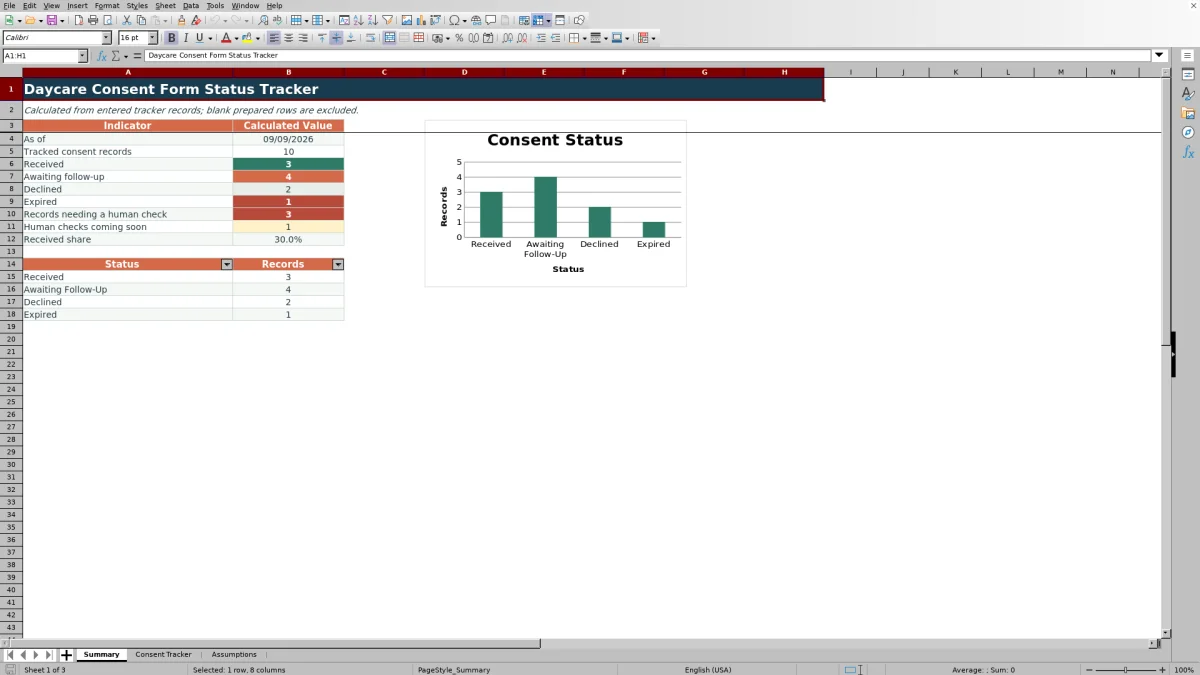
This Excel workbook gives childcare-center operators a status and follow-up view of guardian consent records. It tracks record and child IDs, rooms, form types, assigned staff, guardian responses, request dates, received dates, expiration dates, follow-up dates, notes, calculated statuses, and human-check prompts.
The XLSX includes a Summary dashboard, a Consent Tracker with 100 prepared rows, and an Assumptions sheet for editable lists and date settings. Populated rows in the supplied workbook are clearly labeled as fictional examples and should be removed or replaced before the tracker is used with center records.
How this workbook can help
- See counts for received, awaiting follow-up, declined, and expired consent records without manually totaling each category.
- Identify records that need staff review because of missing follow-up dates, inconsistent responses, questionable dates, or approaching action dates.
- Keep room, form type, staff assignment, and guardian response entries consistent through controlled dropdown lists.
- Adjust operational lists, warning days, and permitted date limits to match the center's local practices.
What is in the file
How to get started
1. Configure the center's lists
Open the Assumptions sheet and replace the fictional form types, rooms, and staff assignments with the center's own options. Review the follow-up warning setting and the earliest and latest permitted dates.
2. Replace the fictional examples
On Consent Tracker, remove or replace the sample entries. Use the yellow editable cells to enter a unique consent record ID, child record ID, room, form type, assigned staff member, dates, guardian response, and any useful notes.
3. Review each calculated outcome
Check the calculated columns for Status and Human Check. Do not type over those formulas. Investigate prompts such as Check entered dates, Check response entry, Set follow-up date, Human check due, or Human review needed.
4. Use the summary to choose the next action
Open Summary to review the tracked-record total, status counts, received share, human-check totals, and status chart. Filter the tracker when staff need to work through a specific status, room, form type, or assigned staff group.
A structured method for monitoring center consent records
The workbook organizes the situation first: each populated row represents one consent record associated with a child record, room, form type, and assigned staff member. Staff then record the request, response, receipt, expiration, and follow-up information. The formulas return an operational result, the Summary aggregates those results, and staff interpret the dashboard before deciding which records need contact, correction, renewal, or verification. Blank prepared rows are excluded from the Summary totals.
How the calculated consent statuses work
A row remains uncounted when its Consent Record ID is blank. Declined takes precedence when Guardian Response is set to Declined. If the response is not Declined and Received Date is blank, the status is Awaiting Follow-Up. If a Received Date exists and the entered Expiration Date is earlier than the current date, the status is Expired. Otherwise, the formula returns Received. Because the formulas use TODAY(), date-sensitive results can change when Excel recalculates the workbook.
Interpreted practical example
Situation: The fictional transportation-consent example has a request date of August 26, 2026, a Guardian Response of No Response, a follow-up date of September 7, 2026, and no Received Date. Action: Staff review the row rather than entering a status manually. Result: The formula returns Awaiting Follow-Up because no Received Date is present and the response is not Declined. Interpretation: The row documents an unresolved request, not a received consent, while the separate Human Check formula evaluates the response and follow-up details. Next decision: The assigned staff member should follow up with the guardian, verify the response, and then enter the received date or record a declined response as appropriate.
Common entry errors and practical solutions
A duplicate Consent Record ID should be replaced with a unique identifier because the ID column has uniqueness validation. If Received Date is earlier than Request Date, Expiration Date is earlier than Received Date, Follow-Up Due is earlier than Request Date, or Received Date is later than today, review the source document and correct the entered date when warranted. If No Response appears with a Received Date, verify and correct the response entry. If a row is awaiting follow-up but has no Follow-Up Due date, add an appropriate date under the center's operating procedure. An Expired result is not necessarily a data-entry error; verify the underlying form and decide whether renewal is needed.
Comparison with paper logs, blank spreadsheets, and childcare software
The workbook functions as one complete operational method: staff configure lists, enter records, receive calculated statuses and prompts, and review aggregate results in the same XLSX. The alternatives below may be more suitable when different operating conditions apply.
| Method | How it works | More suitable when | Main consideration |
|---|---|---|---|
| This Excel workbook | Combines controlled entry lists, date validation, 100 prepared records, calculated statuses, human-check prompts, filters, summary counts, and a chart. | More suitable when a center already uses Excel and wants a structured local tracker without implementing a separate system. | Staff still need to maintain the file, verify source forms, protect sensitive information, and avoid overwriting formulas. |
| Paper or manual log | Staff handwrite requests, responses, dates, and follow-up notes. | More suitable when device access is limited and the record volume is small enough for manual review. | Status totals, expiration checks, and follow-up reviews must be performed manually. |
| Blank spreadsheet | The center designs its own columns, formulas, validation, alerts, and reporting process. | More suitable when the center needs a substantially different data structure and has staff who can build and test it. | It requires additional setup and testing to reproduce the controls included here. |
| Dedicated childcare software | Consent tracking may be part of a broader enrollment, family communication, or records platform. | More suitable when the organization requires centralized multiuser workflows or integration with its existing childcare system. | Capabilities, implementation effort, access controls, and costs depend on the selected provider. |
The choice should reflect record volume, staff access, privacy procedures, reporting needs, and the center's existing systems.
Local configuration and responsible data handling
The Assumptions sheet allows operators to edit form types, rooms, staff assignments, guardian response options, warning days, and date-entry limits. These settings support local workflow but do not establish licensing, legal, retention, or compliance requirements. Because the tracker may contain child and guardian-related information, the center should store and share the XLSX according to its approved privacy, access, backup, and records-management procedures.
Turning summary results into the next decision
Start with records needing a human check, then review human checks coming soon and the Awaiting Follow-Up count. Use the tracker filters to isolate the relevant records and examine the entered dates, response, assigned staff member, and notes. Received share is calculated as Received records divided by all populated Consent Record IDs, so operators should interpret it alongside the declined, expired, and awaiting categories rather than treating it as a legal or compliance measure. After staff correct or complete a row, the formulas and Summary update when Excel recalculates.
Frequently asked questions
How does the Excel daycare consent tracker determine each status?
Declined is returned when Guardian Response is Declined. Awaiting Follow-Up is returned when the response is not Declined and no Received Date exists. Expired is returned when a Received Date exists and the entered Expiration Date is before today. Otherwise, the populated record is shown as Received.
Which cells should staff edit?
The workbook identifies yellow cells as editable. Staff can enter record details on Consent Tracker and update operational lists and settings on Assumptions. Status and Human Check are calculated columns and should not be overwritten.
Can the center change the dropdown options?
Yes. The Assumptions sheet contains editable lists for form types, rooms, staff assignments, and guardian responses. The tracker dropdowns reference those lists.
What should staff do when a Human Check prompt appears?
Review the underlying response and dates before changing the record. The workbook can flag conditions such as inconsistent dates, a missing follow-up date, a questionable response entry, a due or upcoming check, or another situation needing human review.
Does this workbook replace the signed consent form or the center's compliance process?
No. It tracks administrative details, calculated status, and follow-up activity. Staff should retain and verify the underlying consent documentation under the center's approved procedures and applicable requirements.
Editorial responsibility

Lena MoralesEnrollment and classroom workflows

Jordan LeeWorkbook QA and center operations