This daycare room placement planner is an Excel workbook for matching enrollment requests with center-defined rooms. Its four worksheets organize placement requests, room age bands, accepted schedules, capacities, planning assumptions, calculated checks, and summary indicators.
After an operator enters a child’s birth date, requested start date, schedule, assigned room, and placement status, the workbook calculates age at start and reviews possible room matches. Suggested rooms, room-fit results, capacity checks, and review notes are planning prompts; staff still make the final placement decision after considering center policy, licensing, staffing, and family needs.
How this workbook can help
- Keeps placement requests, room criteria, capacity figures, and review indicators in one workbook.
- Calculates age in completed months at each child’s requested start date, reducing manual date calculations.
- Shows placed counts and available places for active rooms based on records marked Placed.
- Surfaces incomplete inputs, duplicate identifiers, date issues, room mismatches, inactive rooms, and capacity concerns for staff review.
What is in the file
How to get started
1. Confirm the planning assumptions
Open the Assumptions worksheet and review the schedule choices, placement statuses, active-room choices, date limits, maximum age, and maximum room capacity. Replace the fictional values with approved center settings while staying within the worksheet’s validated limits.
2. Configure the rooms
Use the yellow input cells on the Rooms worksheet to enter each room code, description, minimum and maximum age in months, accepted schedule, capacity, and active status. Resolve any message in Setup Check before relying on that room in placement planning.
3. Enter enrollment requests
On the Placements worksheet, enter a unique request ID, birth date, requested start date, requested schedule, assigned room when applicable, and placement status. Use the available dropdown choices to keep schedule, room, and status entries consistent.
4. Review the result and make a decision
Read Age at Start, Suggested Room, Room Fit, Capacity Check, and Review Note together. Correct input problems first, confirm room eligibility and available places, and then assign a room or retain the appropriate pending, waitlist, or withdrawn status. Use the Summary worksheet to review updated totals and active-room occupancy.
Situation: Coordinating Requests With Room Rules
A childcare center may receive requests for children of different ages, start dates, and weekly schedules while each room has its own age band, accepted schedule, capacity, and active status. Reviewing those factors separately can make it difficult to see whether an assignment fits or whether an apparently suitable room still has space. This workbook brings those inputs into one controlled planning process without treating a formula result as a final enrollment decision.
Action: Enter Center and Enrollment Information
Operators first define room codes, descriptions, minimum and maximum ages in months, accepted schedules, capacities, and active status. They then enter each request’s identifier, birth date, requested start date, schedule, assigned room, and status. Dropdowns support the configured schedules, room codes, statuses, and active choices, while date and numeric validation helps keep entries within the planning limits stored on the Assumptions worksheet.
Result: Interpreted Placement Example
Consider fictional request FIC-1003, with a birth date of October 14, 2023, a requested start date of September 14, 2026, a Tue/Thu schedule, and Pending status. The calculated age at start is 35 completed months. Fictional room FIC-SPROUT-1 covers ages 18 through 35 months, accepts Any schedule, and is active, so the request qualifies on age, schedule, and activity. The conditional result is that this room can appear as the suggestion when it also has an available place; if current placements have used its capacity, the result can instead be No current match. Staff should interpret the suggestion as a candidate to verify, not an automatic assignment.
Interpretation: Reading Fit, Capacity, and Summary Outputs
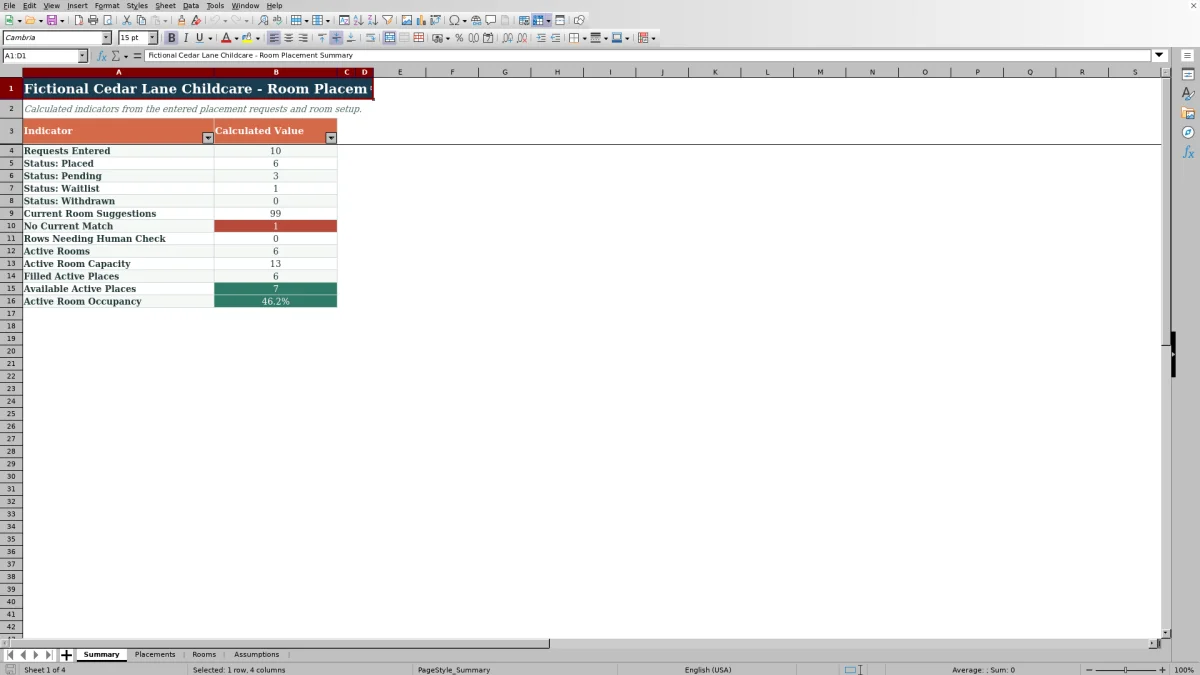
Room Fit evaluates the manually assigned room against the child’s calculated age, the room’s active status, its setup, and schedule compatibility. Capacity Check compares assignments marked Placed with the assigned room’s capacity. On the Rooms worksheet, Placed Count counts those placed assignments, and Places Available subtracts that count from capacity for active rooms without going below zero. The Summary worksheet consolidates status counts, suggestions, unmatched requests, review rows, active capacity, filled places, available places, and occupancy. These are current planning indicators rather than day-by-day attendance or staffing-ratio calculations.
Common Errors and Solutions
A duplicate request ID produces a duplicate-ID review message; assign a unique identifier. Missing birth date, start date, schedule, or status produces an input prompt; complete the required cells. A birth or start date outside the Assumptions limits, or a start date before the birth date, requires corrected dates or approved planning limits. No current match means no configured active room currently satisfies the formula’s age, schedule, setup, and availability conditions; review room configuration and capacity rather than forcing an assignment. An inactive-room, over-capacity, or setup warning should be resolved on the Rooms worksheet or by selecting another approved room.
Comparison With Other Placement Methods
The comparison below treats the workbook as one complete operational method: configure assumptions and rooms, enter requests, review calculated suggestions and checks, make a human placement decision, and monitor summary indicators.
| Method | More suitable when | Operational trade-off |
|---|---|---|
| This Excel workbook | More suitable when a center wants a transparent, self-contained process for up to 100 requests and 100 room records, with defined inputs and calculated review prompts. | Requires disciplined data entry and human review; it does not provide staffing ratios, attendance tracking, family portals, or automated final decisions. |
| Paper or manual checklist | More suitable when a center has only a few requests and needs a temporary process without spreadsheet access. | Age calculations, duplicate detection, room counts, and summary updates must be performed manually. |
| Blank spreadsheet | More suitable when the center needs a highly customized data structure and has staff who can build and maintain formulas, validation, and checks. | Provides flexibility but starts without the placement logic, input controls, room calculations, or summary indicators included here. |
| Dedicated childcare software | More suitable when an organization needs multi-site records, real-time attendance, staffing workflows, family communication, billing, or system integrations. | May require subscription costs, implementation, training, and configuration beyond a focused room-placement workbook. |
Next Decision: Confirm, Correct, or Hold the Request
After reviewing the calculated outputs, the next decision is operational: confirm an appropriate assigned room, correct inaccurate request or room data, leave the child Pending, move the request to Waitlist, or record it as Withdrawn. If capacity or room criteria need to change, update them only after the center approves the underlying operational change. Then review the refreshed Summary indicators to understand how the decision affects active-room capacity and occupancy.
Frequently asked questions
Does the Excel workbook assign children to rooms automatically?
No. It can display a suggested room and evaluate a manually entered assignment, but suggestions and alerts are planning prompts. Childcare-center staff remain responsible for the final placement decision.
How does the planner calculate a child’s age at the requested start date?
It calculates completed months between the birth date and requested start date. If either date or the request ID is missing, the calculated age remains blank.
Which placement records count toward room capacity?
Placed Count includes records whose Assigned Room matches the room code and whose Placement Status is Placed. Pending, Waitlist, and Withdrawn records do not increase that count.
What does No current match mean?
It means the current room setup does not provide a qualifying suggestion under the workbook’s age, schedule, active-room, setup, and available-place conditions. Review the child’s inputs and the room configuration before deciding what to do next.
Should the fictional Cedar Lane information be replaced?
Yes. The sample center name, request IDs, room codes, room descriptions, capacities, age bands, schedules, and planning limits are fictional. Replace them with approved center information before using the workbook for operational planning.
Editorial responsibility

Lena MoralesEnrollment and classroom workflows

Jordan LeeWorkbook QA and center operations