The daycare immunization expiry tracker is an Excel workbook for recording review or expiry dates copied from supplied immunization records. It organizes child references, record descriptions, rooms, record dates, received dates, assigned roles, last-checked dates, and administrative notes across 100 record rows.
The workbook compares each entered review date with configurable settings and displays administrative review prompts on the Records and Summary sheets. These indicators help staff decide what to check next; they do not interpret medical validity, immunization requirements, or regulatory compliance.
How this workbook can help
- Keeps entered record dates, assigned responsibilities, last-checked dates, and follow-up notes in one administrative workbook.
- Turns supplied review or expiry dates into consistent Date Missing, Past Date, Review Soon, On File, or Check Entry indicators.
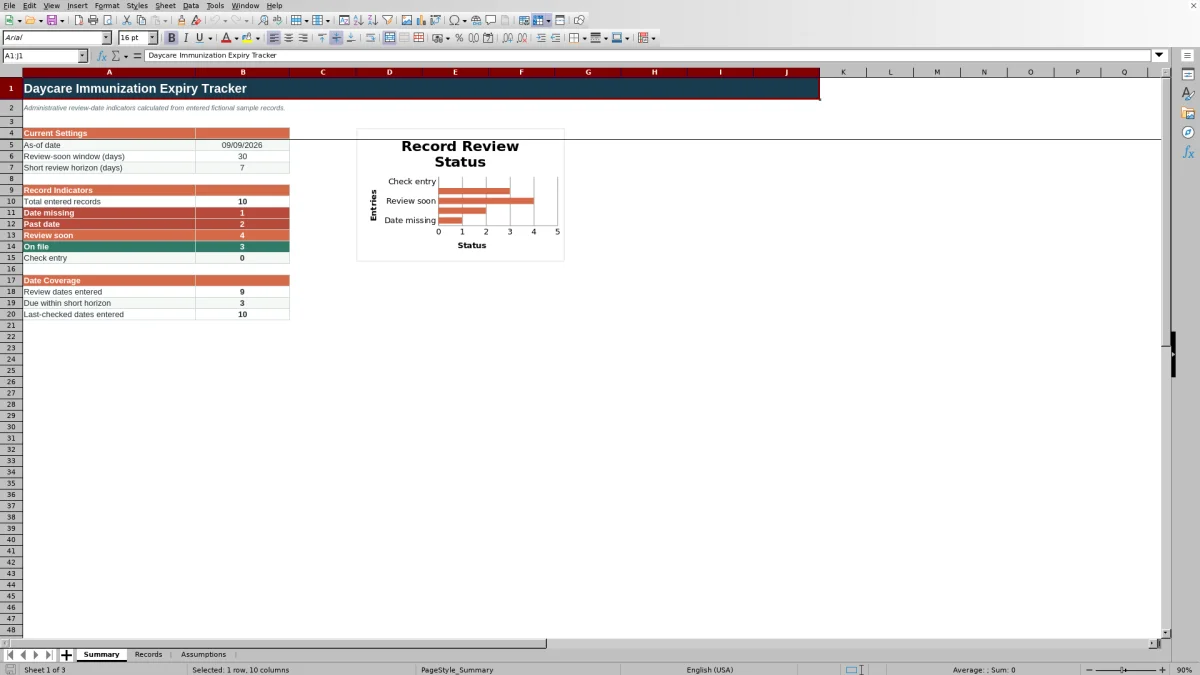
- Shows record totals, status counts, date coverage, and dates falling within a configurable short review horizon.
- Supports consistent data entry with dropdown choices, accepted date limits, filters, frozen headings, and clearly identified fictional samples.
What is in the file
How to get started
1. Configure the review settings
Open the Assumptions sheet and confirm the as-of date, review-soon window, and short review horizon. The supplied settings are September 9, 2026, 30 days, and 7 days. Review the earliest and latest accepted dates before entering information from source records.
2. Enter or replace record details
On the Records sheet, clear or replace the fictional sample entries and complete the editable fields. Copy dates exactly from the supplied records, select available room, record-description, and assigned-role choices, and add an administrative note when context is needed.
3. Review calculated indicators
Leave the Days to Review and Review Status formula columns intact. Check whether each populated Record ID produces Date Missing, Past Date, Review Soon, On File, or Check Entry, and investigate the source entry rather than treating the label as a medical conclusion.
4. Record and prioritize follow-up
Use the Summary counts, chart, short-horizon total, and Records filters to identify administrative work. After a human check, update Last Checked and Administrative Notes so the next reviewer can see what was examined and what decision remains.
Administrative scope and workbook structure
This tracker is designed for an enrollment or records workflow in which staff transcribe dates from documents already supplied to the childcare center. The Records sheet holds the source-based entries, the Assumptions sheet controls comparison dates and stable choices, and the Summary sheet presents current settings and aggregated indicators.
The workbook does not calculate a vaccine schedule, infer a required dose, or declare that a child is compliant. Its task is narrower: preserve entered administrative details, calculate timing relative to an as-of date, and direct a person to records that may need review.
How the review indicators work
Date Missing appears when a Record ID exists but the review or expiry date is blank. Past Date applies when the entered date is earlier than the as-of date. Review Soon covers dates from the as-of date through the final day of the configured warning window, while On File applies to later dates. Check Entry appears when a required date or setting is not recognized as a numeric Excel date or number.
Days to Review is the entered review date minus the as-of date. A negative number accompanies a past date, zero means the date equals the as-of date, and a positive number shows the remaining calendar days. The labels indicate timing only and still require human interpretation.
Practical example: a seven-day review decision
Situation: A fictional MMR record has an entered review date of September 16, 2026. The workbook as-of date is September 9, the review-soon window is 30 days, and the short review horizon is 7 days.
Action: Staff enter the supplied review date on the Records sheet while retaining the Record ID and other administrative details.
Result: Days to Review returns 7, Review Status returns Review Soon, and the record is included in the Summary count for dates due within the short horizon because September 16 is the inclusive seven-day boundary.
Interpretation: The result means the entered date is approaching under the center's selected timing settings. It does not mean the MMR record is medically valid, incomplete, or noncompliant.
Next decision: The assigned staff member can examine the supplied record, follow the center's administrative procedure, and then update Last Checked and Administrative Notes with the outcome or another follow-up date.
Common entry errors and solutions
Entry checks: When a populated row does not produce the expected indicator, review the Record ID, entered review date, and Assumptions settings before changing formulas.
Error: Date Missing appears. Solution: verify whether the source record contains a review or expiry date and enter that date if supplied; otherwise retain the indicator for administrative follow-up.
Error: Check Entry appears. Solution: confirm that the review date is stored as an Excel date and that the as-of date and review-soon window contain valid numeric values. Text pasted into a date cell may need to be re-entered as a date.
Error: a partially completed row has no status or is absent from totals. Solution: check the Record ID, because calculations and the entered-record count use that field to identify an active row. If date validation rejects an entry, compare it with the editable earliest and latest accepted dates and verify the source before changing those limits.
Comparison with paper logs, blank spreadsheets, and childcare software
The complete workbook method combines configurable settings, validated entry fields, calculated timing indicators, summary counts, a chart, filters, last-checked dates, and notes. The comparison below evaluates that full workflow against external alternatives rather than comparing its worksheets with one another.
| Method | Operational approach | More suitable when |
|---|---|---|
| This Excel workbook | Uses one structured file for source-based entries, configurable timing rules, automatic status calculations, summary review, and follow-up documentation. | More suitable when a center already uses Excel, needs up to 100 tracking rows, and wants an administrative method that leaves medical and compliance interpretation to people. |
| Paper log or manual calendar | Records dates by hand and relies on staff to calculate intervals, locate approaching dates, and total categories. | More suitable when record volume is very small, computer access is unreliable, and the center has a dependable manual review routine. |
| Blank spreadsheet | Allows unrestricted customization but does not include these formulas, status definitions, validations, settings, or summary measures unless staff build and test them. | More suitable when the center needs a substantially different structure and has staff who can design, verify, and maintain spreadsheet logic. |
| Dedicated childcare software | May provide centralized access, permissions, reminders, enrollment integration, or multi-location reporting, depending on the vendor and configuration. | More suitable when an organization needs integrated operations, multiple simultaneous users, vendor support, or broader controls and can evaluate the software's privacy, workflow, and reporting capabilities. |
No tracking method replaces review of the underlying record or the center's process for obtaining qualified medical or regulatory guidance.
Configurable settings and controlled choices
The Assumptions sheet supplies the as-of date used for every comparison, a review-soon window, and a shorter horizon displayed on the Summary sheet. The two horizons accept whole numbers from zero through the editable maximum warning window, which is initially 365 days.
The same sheet holds accepted date boundaries and lists for four rooms, three assigned roles, and nine record descriptions. Centers can update these visible choices to match their administrative terminology, while preserving the purpose of the tracker as a record-date monitoring tool.
Review routine and next administrative decisions
A practical routine is to confirm the as-of date, scan Summary totals, filter the Records sheet by status, and work through Date Missing, Past Date, Review Soon, and Check Entry rows. Staff can use the assigned role to direct work and the Last Checked and Administrative Notes fields to document completed review activity.
After examining a row, the next decision may be to correct a transcription error, locate a missing source date, contact the family under center procedures, or schedule another administrative check. The workbook supplies timing context, but the center's policies and qualified guidance determine the appropriate action.
Frequently asked questions
Does this Excel tracker determine immunization compliance?
No. It compares entered dates with configurable administrative settings and prompts human review. It does not determine medical validity, required immunizations, enrollment eligibility, or compliance with laws or center policies.
What do the five review statuses mean?
Date Missing means a populated Record ID has no entered review date; Past Date means the date precedes the as-of date; Review Soon means it falls within the configured warning window; On File means it is later than that window; and Check Entry means a required date or setting is not recognized correctly.
Can the as-of date and warning periods be changed?
Yes. The Assumptions sheet provides editable values for the as-of date, review-soon window, short review horizon, accepted date bounds, and maximum warning window. The Summary and Records formulas reference those settings.
How many records can the workbook track?
The Records sheet provides 100 formula-supported rows from row 5 through row 104. The workbook begins with fictional sample entries that should be cleared or replaced before the file is used for a center's own administrative records.
Why is a record blank or marked Check Entry?
A blank status usually means the Record ID is blank. Check Entry usually means the review date, as-of date, or review-soon window is not stored as a valid Excel date or number. Verify the source information and assumptions rather than overwriting the status formula.
Editorial responsibility

Lena MoralesEnrollment and classroom workflows

Jordan LeeWorkbook QA and center operations