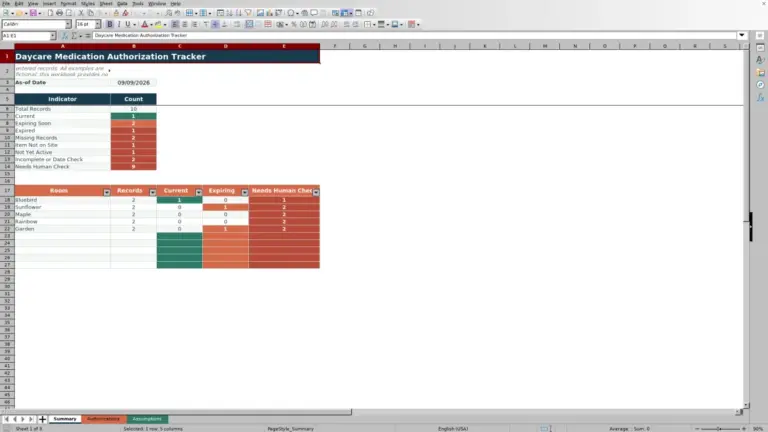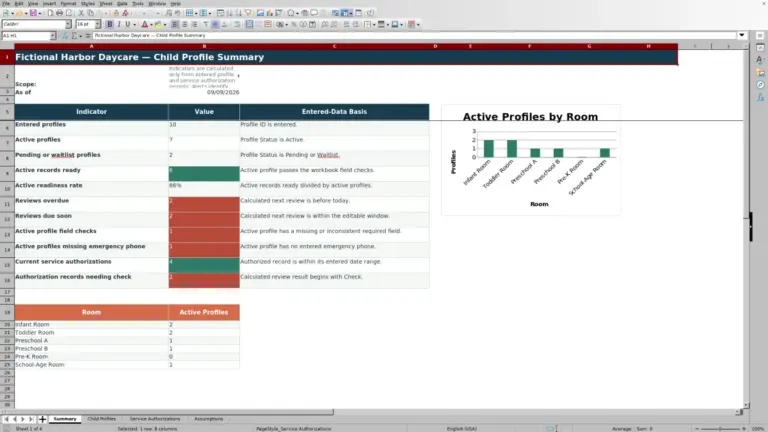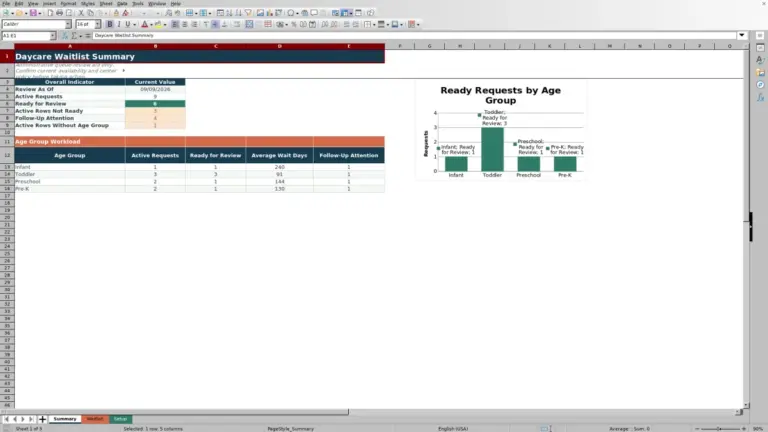
This daycare enrollment Excel workbook provides a structured way for childcare-center operators to track applications, requested and confirmed start dates, programs, schedules, room assignments, enrollment statuses, and onboarding requirements. The XLSX includes prepared space for 150 application records.
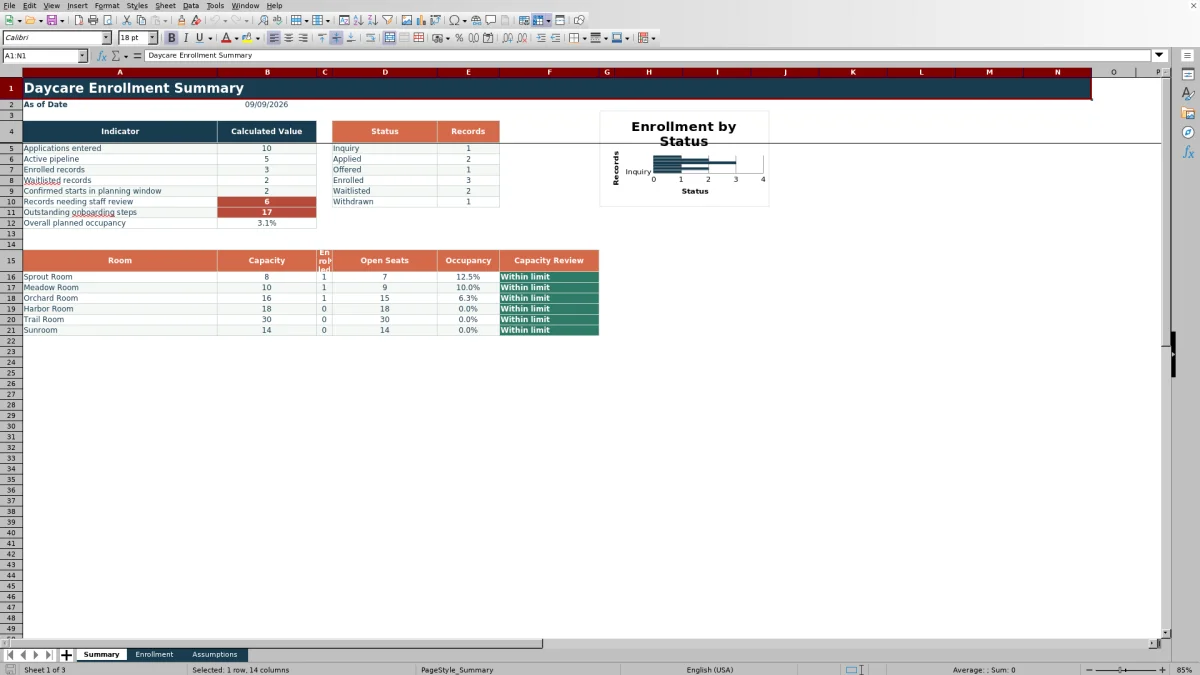
Formula-driven columns calculate outstanding steps and days to start while identifying missing information, date-order problems, unassigned rooms, and room-to-program mismatches. A separate summary turns those records into pipeline, onboarding, room-capacity, and occupancy indicators for staff review.
How this workbook can help
- Keep application details, placement information, start dates, and onboarding progress in one operational workbook.
- See which records require follow-up without manually reviewing every application field.
- Monitor enrolled counts, open seats, and planned occupancy across six configurable rooms.
- Standardize routine entries with dropdown lists for programs, schedules, rooms, statuses, and onboarding steps.
What is in the file
How to get started
1. Configure the planning lists
Review assumptions first by checking the six rooms, associated programs, capacities, enrollment statuses, programs, schedules, onboarding-step statuses, accepted date limits, and planning-window setting on the Assumptions sheet.
2. Enter or replace application records
Use the yellow entry cells on the Enrollment sheet. Replace the fictional examples and complete the application ID, child or family label, application date, requested start date, program, schedule, status, onboarding fields, notes, and last-reviewed date.
3. Record placement and start decisions
Select an assigned room when appropriate and enter a confirmed start date after placement is finalized. Use the dropdown values so the workbook can consistently evaluate statuses, room mappings, and onboarding progress.
4. Review calculated follow-up items
Resolve formula flags in Outstanding Step Count, Days to Start, Review Alert, and Room and Program Check. Then use the Summary sheet to assess pipeline volume, upcoming starts, onboarding workload, open seats, and occupancy.
Situation: Enrollment Information Is Spread Across the Process
A daycare application can move through several operational stages before a child starts. Staff may need to coordinate the original application date, requested start date, program, schedule, enrollment status, room, confirmed date, forms, emergency contacts, immunization records, and orientation. This workbook creates one operational view of those details instead of treating placement and onboarding as unrelated tasks.
Action: Configure the Workbook and Enter Consistent Records
Begin on the Assumptions sheet, where the center can edit room names, room-to-program mappings, capacities, status choices, programs, schedules, onboarding statuses, accepted entry dates, capacity limits, and the planning window. Staff can then enter applications on the Enrollment sheet and use its validated lists for repeatable values. Application IDs have a uniqueness check, while date fields are validated against the configured earliest and latest accepted dates.
Result: Turn Enrollment Entries into Operational Signals
Each populated record receives an outstanding-step count, a days-to-start calculation, a review alert, and a room-and-program check. The Summary sheet aggregates the entries into application totals, active-pipeline volume, enrolled and waitlisted records, confirmed starts within the planning window, records needing review, and outstanding onboarding steps. Its room section reports capacity, enrolled count, open seats, occupancy, and a capacity review, giving operators practical review cues rather than only a list of names and dates.
Interpretation: A Practical Application Example
Consider the fictional SAMPLE-001 record supplied in the workbook. The child or family label is associated with a Preschool application in Applied status, a requested start date of September 29, 2026, and no assigned room or confirmed start date. Enrollment forms and the immunization record are complete, while the emergency contact record and orientation are pending.
The action is to record those facts rather than mark every item complete prematurely. The result is two outstanding steps; Days to Start uses the requested date because the confirmed date is blank, and Room and Program Check reports Unassigned because no room has been selected. The interpretation is not that enrollment has failed, but that the application remains in the pipeline with two onboarding items and a placement decision unresolved. The next decision is to follow up on the pending items and determine whether a room assignment or status update is appropriate.
Next Decision: Prioritize Follow-Up and Capacity Review
Operators can use the calculated columns and Summary indicators to decide what requires attention next. A short time to start combined with outstanding steps suggests prompt document or orientation follow-up. An unassigned room calls for a placement review when the record's status makes placement appropriate. A room-and-program warning calls for checking the selected room against the mapping on the Assumptions sheet. Open-seat and occupancy figures can then inform the next placement discussion, subject to the center's own staffing, licensing, and operational requirements.
Common Errors and Solutions
A repeated application ID can make a record difficult to distinguish; Solution: use a unique ID that passes the workbook's custom validation check. Missing required fields or a requested or confirmed start date earlier than the application date can trigger a review alert; Solution: complete the missing entry or correct the date order after checking the source record. A room warning may mean that the room is blank, is not in the configured room list, or maps to another program; Solution: verify both the Enrollment entry and the room-to-program mapping on the Assumptions sheet rather than overwriting the formula result.
Comparison: Excel Workbook vs Other Enrollment Methods
The workbook should be evaluated as one complete operational method: configurable lists support data entry, the Enrollment sheet holds records and performs checks, and the Summary sheet supports monitoring. The alternatives below may still be appropriate depending on budget, workflow complexity, collaboration needs, and existing systems.
| Method | Setup and control | Checks and reporting | Practical trade-off |
|---|---|---|---|
| This Excel XLSX workbook | Uses editable room, capacity, program, schedule, status, onboarding, date, and planning assumptions. | Includes formula-driven alerts, onboarding counts, days-to-start calculations, status totals, room metrics, occupancy, and a status chart. | Offers a ready-made structure for 150 records but depends on consistent entry, controlled file access, and recalculation in compatible spreadsheet software. |
| Paper or a manual list | Can begin with little technical setup and can follow an existing office routine. | Does not automatically calculate outstanding steps, upcoming starts, open seats, or occupancy. | May suit a very small process, but filtering, consolidating updates, and finding incomplete records require manual review. |
| Blank spreadsheet | Provides maximum flexibility because staff design every field, list, formula, and rule. | Only supplies the checks and summaries that someone builds and maintains. | Can match a unique workflow, but requires more setup and creates additional formula-design and consistency work. |
| Dedicated childcare software | Configuration, permissions, workflows, and integrations vary by vendor and product. | Automation and reporting capabilities vary and may extend beyond spreadsheet-based tracking. | May better support larger or integrated operations, but requires evaluating subscription cost, migration, training, privacy controls, and vendor fit. |
For a center that wants a transparent, editable file without building formulas from scratch, the Excel workbook offers more structure than paper or a blank sheet. A center needing multiuser workflows or broader system integrations should compare its requirements with the verified capabilities of dedicated software.
Frequently asked questions
How many applications can the Excel daycare enrollment spreadsheet track?
The Enrollment sheet contains 150 prepared record rows, running from row 5 through row 154.
Can the workbook track requested and confirmed start dates?
Yes. It provides separate Requested Start Date and Confirmed Start Date fields. Days to Start uses the confirmed date when one is present and otherwise uses the requested date.
Which onboarding steps are included?
The workbook tracks enrollment forms, the emergency contact record, the immunization record, and orientation. It counts entries marked Pending as well as blank onboarding cells when calculating outstanding steps.
Can a childcare center customize the rooms and enrollment choices?
Yes. The Assumptions sheet contains editable rooms, room-to-program mappings, capacities, enrollment statuses, programs, schedules, onboarding-step statuses, accepted date limits, and planning settings used by the workbook.
What kinds of entry problems does the workbook identify?
The workbook checks for missing required fields, invalid date order, duplicate application IDs, unassigned or unrecognized rooms, and room-to-program mismatches. These checks support human review and do not replace the center's enrollment, licensing, health-record, or safeguarding procedures.
Editorial responsibility

Lena MoralesEnrollment and classroom workflows

Jordan LeeWorkbook QA and center operations