This daycare supply delivery calendar is an Excel workbook for coordinating expected supplier arrivals, receiving assignments, and storage destinations. Its expected delivery schedule gives childcare-center operators one place to record essential order details and follow each delivery through receipt or cancellation.
The XLSX includes a 120-row delivery register, controlled entry lists, calculated schedule alerts, and a summary of active, due, past-due, received, and incomplete records. It is designed as a filterable operational register rather than a traditional month-by-month calendar grid.
How this workbook can help
- Coordinates expected dates, suppliers, receiving owners, and storage destinations in one delivery register.
- Surfaces deliveries due today, due within the selected horizon, or past due for human review.
- Helps staff identify missing receiving-owner assignments and incomplete delivery records.
- Summarizes active estimated value and status counts without requiring staff to calculate them manually.
What is in the file
How to get started
1. Configure the operating lists
Open the Assumptions sheet and review the editable setup, including the summary horizon, due-soon threshold, date limits, maximum values, units, receiving owners, storage destinations, and statuses. Replace all fictional names and sample list entries with information approved for your center, and avoid blank rows inside the lists.
2. Enter expected deliveries
Use rows 5 through 124 on the Deliveries sheet. Add a delivery ID, expected date, supplier, description, quantity, unit, estimated amount, receiving owner, storage destination, and status. Leave the Days Until Due and Schedule Alert formulas in columns L and M intact.
3. Review timing and exceptions
Check the Schedule Alert column for records that need attention, then use the Summary sheet to review deliveries due today, due within the configured horizon, past due, or missing a receiving owner. Treat each alert as a prompt for staff review rather than confirmation of a supplier's actual arrival time.
4. Record the outcome
When supplies arrive, change the status to Received and enter the received date. If an order will not arrive, use Canceled when appropriate. Review the updated Summary before deciding which supplier, owner, or storage issue needs follow-up next.
What the Delivery Calendar Coordinates
The workbook connects scheduling information with the practical handoff that occurs when supplies reach a childcare center. Each record can identify the expected date, supplier, item, quantity, estimated amount, Receiving Owner, storage destination, status, and received date. This structure helps staff see not only what is coming, but also who is expected to accept it and where it should go.
Set Up Owners, Locations, and Timing Rules
The Assumptions sheet controls the lists used by the Deliveries sheet. The supplied workbook includes fictional owner names, example storage locations, seven unit choices, and five statuses: Scheduled, Confirmed, Delayed, Received, and Canceled. Operators should replace fictional names with authorized staff, confirm the storage list, and review the default 14-day summary horizon and 3-day due-soon threshold. The supplied date-validation range runs from September 10, 2025, through September 9, 2028.
Interpreted Practical Example
Situation: The fictional sample record SAMPLE-DLV-003 shows washable tempera paint expected on September 9, 2026, from Paper Moon Classroom Goods, with Casey Placeholder assigned to receive it, the Art Cabinet selected as its destination, and the status set to Delayed.
Action: A center operator reviews the expected date, verifies whether the assigned owner will be available, and checks that the Art Cabinet has space before contacting the supplier for an updated arrival estimate.
Result: The record keeps the supplier, owner, destination, and delay visible together while the workbook calculates Days Until Due from the current date.
Interpretation: Because Delayed is neither Received nor Canceled, the sample remains part of the active expected-delivery measures. A negative Days Until Due value indicates that the expected date has passed, but staff still need to confirm what happened.
Next decision: The operator can retain the delayed date while awaiting confirmation, revise the expected date when reliable information is available, reassign the receiving owner, or prepare another approved storage destination.
Common Entry Errors and Solutions
An empty Receiving Owner field reduces accountability and is counted on the Summary sheet; assign an owner from the maintained list. A Received status without a received date triggers a check in the Schedule Alert column; enter the actual receipt date after confirming delivery. Overwriting formulas in Days Until Due or Schedule Alert removes the calculated review prompt; restore the corresponding formula from an intact row. Entries below row 124 fall outside the configured formulas, validation, filter, and summary ranges; extend all related ranges deliberately before using additional rows. Blank lines inside an Assumptions list can also create confusing dropdown choices; keep each list compact and contiguous.
Comparison With Paper Logs, Blank Spreadsheets, and Childcare Software
The table compares this Excel workbook as one complete operational method—not merely its individual worksheets—with realistic alternatives. The appropriate choice depends on delivery volume, staff practices, connectivity, and integration requirements.
| Method | Operating approach | Controls and visibility | More suitable when |
|---|---|---|---|
| Daycare delivery calendar workbook | Staff maintain one structured register and review its calculated alerts and summary. | Includes dropdowns, date and number validation, due calculations, status counts, missing-owner monitoring, and a status chart for up to 120 configured entries. | More suitable when a center already uses Excel and wants a defined delivery process without implementing another system. |
| Paper delivery log | Staff write expected and completed deliveries in a physical book or printed form. | Works without a computer but provides no automatic due calculations, validation, filtering, or consolidated status counts. | More suitable when delivery volume is very low, computer access is limited, and staff can review every entry manually. |
| Blank spreadsheet | Staff design columns, formulas, lists, and review rules from the beginning. | Offers broad flexibility, but its controls and accuracy depend on the person building and maintaining it. | More suitable when an organization needs a highly customized structure and has someone responsible for spreadsheet design and testing. |
| Dedicated childcare or purchasing software | Deliveries may be managed within a broader hosted workflow with users, permissions, notifications, or purchasing integrations. | Capabilities vary by product, subscription, configuration, and available integrations. | More suitable when a multi-site organization needs shared live access, role-based processes, automated notifications, or integration with purchasing systems. |
The workbook does not independently contact suppliers, verify arrivals, assign staff availability, or enforce physical storage rules. Those decisions remain part of the center's operating process.
How to Read the Summary
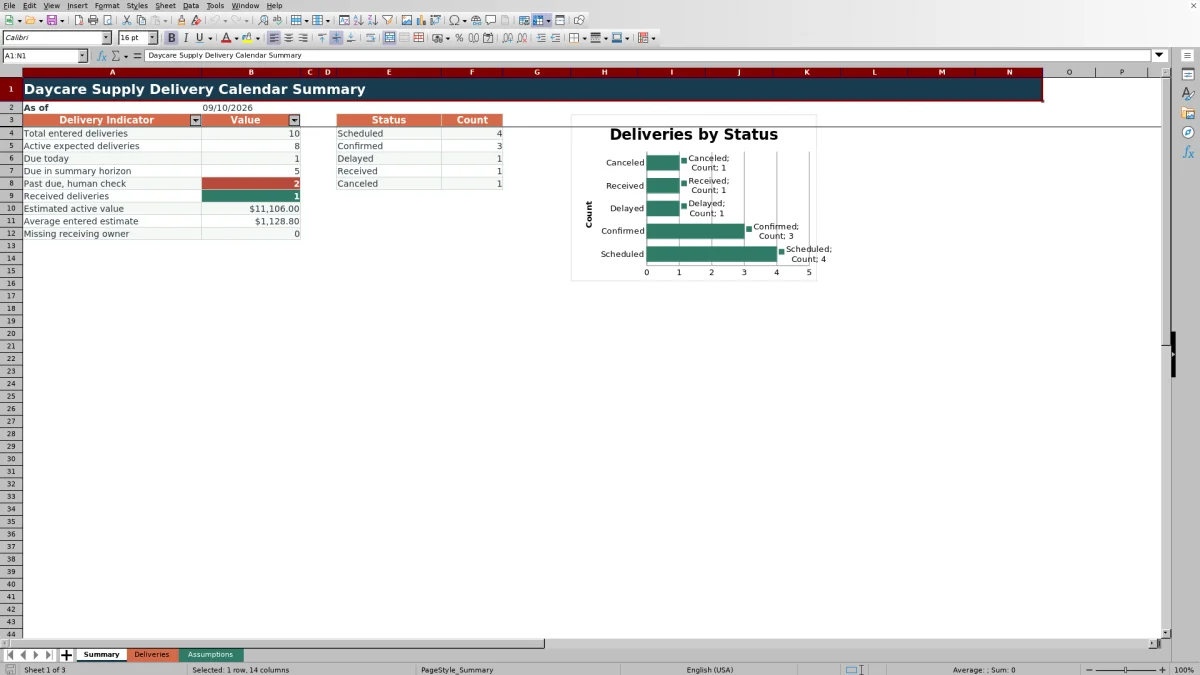
The Summary sheet uses the current system date to report total entered deliveries, active expected deliveries, items due today, items due within the selected horizon, and past-due records requiring review. Received and Canceled statuses are excluded from active timing measures. It also reports received deliveries, estimated active value, the average of numeric estimates entered in the register, and records missing a receiving owner. Status counts feed a single chart covering Scheduled, Confirmed, Delayed, Received, and Canceled records.
From Alert to the Next Operating Decision
A schedule alert is a prompt for a human check, not proof that an order is late or that a supplier changed its commitment. Staff should first confirm the record's date, status, owner, and destination; then verify the situation with the appropriate person or supplier. After the record is corrected, the resulting summary can guide the next decision, such as changing receiving coverage, preparing storage space, following up on a delay, or closing a received delivery.
Frequently asked questions
How many deliveries can the Excel workbook track?
The configured entry area contains 120 rows, from row 5 through row 124 on the Deliveries sheet. Adding records below that area requires deliberate extension of formulas, validation, filters, conditional formatting, and Summary references.
Can I change the receiving owners and storage destinations?
Yes. Edit the corresponding lists on the Assumptions sheet and replace the fictional owner names with authorized staff. Keep entries compact and avoid blank rows because the Deliveries dropdowns reference fixed helper ranges.
Which statuses are included in the delivery calendar?
The configured statuses are Scheduled, Confirmed, Delayed, Received, and Canceled. The Summary counts each status, while active timing measures exclude records marked Received or Canceled.
What should staff enter when a delivery arrives?
After confirming receipt, change the record's status to Received and enter the actual received date. The Schedule Alert formula checks for a missing received date when a record is marked Received.
Is this workbook a monthly calendar view?
No. It is a filterable delivery register with calculated timing fields, summary indicators, and a status chart. It is more suitable when staff need record-level coordination; a separate calendar view may be more suitable when the primary need is visual placement by day or week.
Editorial responsibility

Lena MoralesEnrollment and classroom workflows

Jordan LeeWorkbook QA and center operations