This daycare staff break coverage schedule is an Excel workbook for coordinating replacement coverage by room and time block. It records who is taking a break, when the break occurs, who will provide coverage, where that person is coming from, and the current schedule status.
The workbook provides 100 schedule-entry rows, editable assumptions, dropdown lists, calculated checks, room-level counts, and a summary chart. Its alerts help operators identify entries that need attention, but supervisors still need to confirm staffing ratios, staff qualifications, room conditions, break requirements, and center policies.
How this workbook can help
- Keeps break timing, classroom assignments, replacement staff, coverage sources, statuses, and notes in one schedule.
- Surfaces potential coverage-staff overlaps and excessive concurrent breaks before the schedule is finalized.
- Separates editable planning limits and validation lists from the main schedule-entry area.
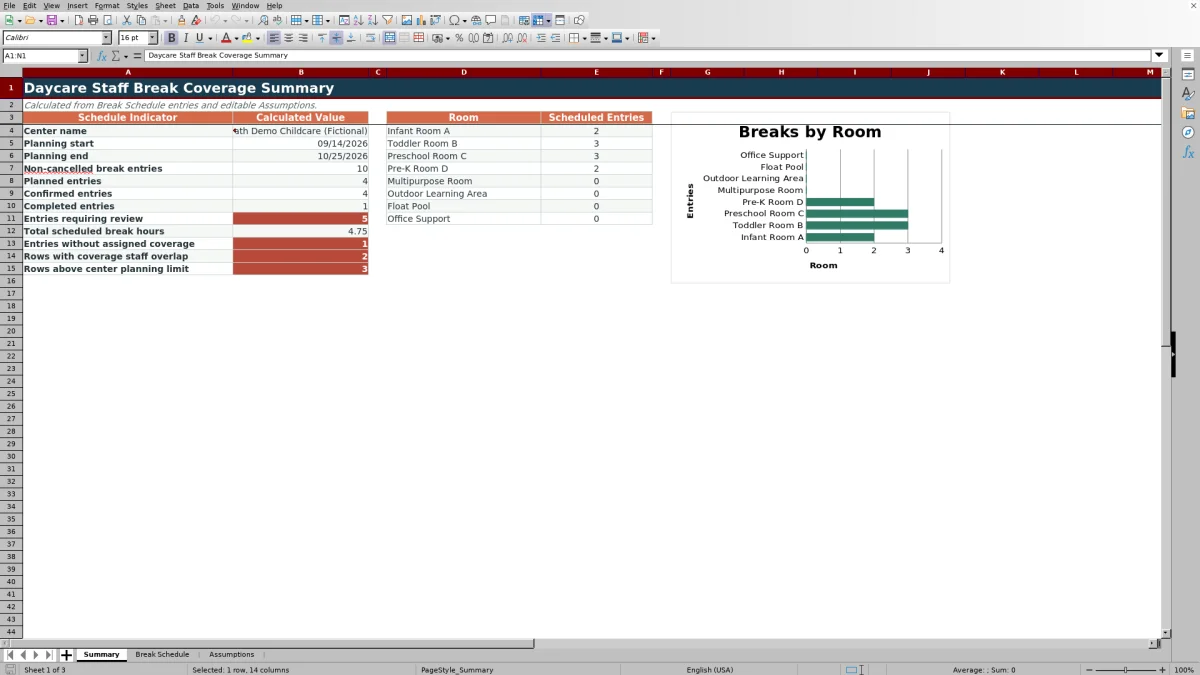
- Provides summary counts for schedule statuses, uncovered entries, break hours, overlaps, review items, and room activity.
What is in the file
How to get started
1. Set the planning assumptions
Open the Assumptions sheet and enter the center name, planning start and end dates, minimum and maximum break hours, and maximum simultaneous breaks. Treat these values as planning boundaries that require supervisor approval rather than as legal staffing standards.
2. Review the staff, room, and status lists
Replace the fictional choices in the editable validation lists with the center's staff names, classrooms, coverage sources, and approved statuses. The lists supply the dropdowns used on the Break Schedule sheet.
3. Enter and evaluate each break
Use one row for each break. Add a unique break ID, date, room, staff member, start and end times, coverage staff member, coverage source, status, and optional notes. Review the calculated break hours, coverage check, entry check, concurrent-break count, center-load check, and overall result.
4. Resolve alerts and confirm the plan
Investigate every row marked Review. Adjust the time, assign another qualified coverage person, complete missing information, or correct the assumptions when an authorized planning decision supports the change. Then use the Summary sheet to review totals and room-level activity before putting the schedule into operation.
The coverage situation this schedule organizes
A childcare center may have several educators due for breaks while classrooms still need appropriate staffing. The operational challenge is not merely listing break times; it is establishing coverage ownership for each room and time block. The Break Schedule records the staff member leaving the room, the replacement staff member, the coverage source, and the status of the plan.
Entries can be marked Planned, Confirmed, Completed, Needs Review, or Cancelled. Cancelled entries remain visible for context but are excluded from the workbook's active overlap and room-count calculations.
Action: Build a room-by-room break plan
Start with the Assumptions sheet so the workbook reflects the correct planning period and center preferences. The included settings allow operators to define minimum and maximum break hours and the maximum number of simultaneous breaks to plan. Staff, room, coverage-source, and status lists can also be edited there.
On the Break Schedule sheet, use one row per break and assign a unique break ID. Enter the date, classroom, staff member taking the break, start and end times, replacement staff member, source room or team, status, and any note that will help the supervisor understand the assignment.
Result: Understand the calculated checks
The workbook calculates break hours when valid start and end times are present. It also checks whether the same coverage staff member appears on another non-cancelled break that overlaps on the same date. A separate concurrent-break calculation counts all active breaks that intersect the row's time period and compares that count with the editable center limit.
The entry check can flag incomplete information, duplicate IDs, dates outside the planning period, the same person entered as both the staff member and coverage person, invalid times, or a duration outside the configured range. The Overall Check returns Review when the status itself needs review, coverage overlaps, the entry is not ready, or the center-load limit is exceeded.
Practical example: Overlapping coverage on September 14
Situation: The sample schedule places Avery Sample's break from 10:00 AM to 10:30 AM and Jordan Example's break from 10:15 AM to 10:45 AM on September 14, 2026. Both entries assign Cameron Sample as the coverage staff member. A third break for Morgan Fiction runs from 10:20 AM to 10:50 AM with Quinn Example providing coverage.
Action: The coordinator enters all three breaks and leaves them active. Result: the workbook identifies overlapping assignments for Cameron and counts three concurrent breaks during the shared period. Because the sample simultaneous-break limit is two, the center-load check also calls for review.
Interpretation: the issue is not only that three employees are on break at once. Cameron is also assigned to two rooms during intersecting times, creating a distinct coverage conflict. Next decision: the supervisor can move one break, assign another qualified replacement, or revise the broader plan after confirming classroom needs and applicable staffing requirements.
Common schedule errors and solutions
An Incomplete result means one or more required fields from the date through status area are blank; complete those inputs before confirming the row. A Duplicate ID result calls for a unique break ID. Outside planning dates means either the entry date should be corrected or an authorized user should update the planning period on the Assumptions sheet.
Check same staff means the person taking the break is also listed as the replacement, while Check times indicates that the end time is not later than the start time. A duration warning calls for checking the times against the configured minimum and maximum break hours. Overlap requires a time or coverage-assignment change, and Review load indicates that concurrent breaks exceed the current planning limit. Fix the input, not the formula; the calculated columns should remain in place so checks continue to work across all 100 rows.
Comparison: Excel workbook vs alternative coverage methods
The workbook is a complete file-based method that combines schedule entry, controlled lists, automated checks, and summary reporting. The alternatives below can still be more suitable when a center has different staffing, technology, or recordkeeping needs.
| Method | Structure and checks | Ongoing maintenance | More suitable when |
|---|---|---|---|
| This Excel break coverage workbook | Uses defined schedule fields, dropdowns, calculated overlap and load checks, status tracking, and a summary. | Requires operators to maintain assumptions and enter each break accurately while preserving formula columns. | More suitable when a center wants a reusable XLSX, already works in Excel, and can manage schedule files consistently. |
| Paper sheet or whiteboard | Offers an immediate visual plan but depends on staff to identify missing coverage, conflicts, and changes manually. | Requires handwritten updates and a separate process if historical records are needed. | More suitable when a very small team coordinates a short same-day plan and can verify every assignment in person. |
| Blank spreadsheet | Allows unrestricted formatting but starts without the workbook's validation lists, formulas, alerts, or summary metrics. | Requires someone to design, test, document, and maintain the logic. | More suitable when the center has unusual requirements and an experienced spreadsheet owner who can build and audit custom controls. |
| Dedicated childcare staffing software | May connect scheduling with broader staffing or center-management functions, depending on the product and configuration. | Can require subscriptions, user administration, setup, training, and vendor-specific workflows. | More suitable when a center needs multi-user access or integration with wider operational systems and has resources to administer the platform. |
No method removes the need for an authorized person to confirm that the final arrangement is safe, appropriately staffed, and consistent with current requirements.
Interpretation and the next staffing decision
The Summary sheet turns schedule rows into operational indicators, including non-cancelled entries, status counts, total scheduled break hours, entries without coverage, coverage-staff overlaps, rows above the planning limit, and scheduled entries by room. Its chart uses the room totals to show where activity is concentrated.
These totals indicate where to investigate; they do not decide whether coverage is acceptable. The next step is a supervisor decision: review flagged rows, confirm the replacement employee can cover the assigned room, verify required staffing and qualifications, communicate changes, and then update each entry's status as the plan progresses.
Frequently asked questions
What information does the daycare break schedule track?
Each row can record a break ID, date, room, staff member taking the break, start and end times, coverage staff member, coverage source, schedule status, and notes. Calculated columns add break hours and several review checks.
How does the workbook identify an overlapping coverage assignment?
It checks whether the same coverage staff member is assigned to another non-cancelled break on the same date with intersecting start and end times. A detected conflict appears as Overlap and causes the overall result to show Review.
Can the staff names, rooms, and schedule statuses be changed?
Yes. The Assumptions sheet contains editable lists beginning in row 13 for staff choices, rooms or coverage sources, and statuses. The Break Schedule dropdowns reference the available list area through row 112.
Does the Excel schedule verify childcare staffing ratios or legal compliance?
No. It checks its own schedule data against editable planning assumptions, but it does not determine legally required ratios, staff qualifications, room-specific rules, or break-law compliance. An authorized supervisor should verify those requirements independently.
What should an operator do when Overall Check shows Review?
Read the coverage, entry, and center-load checks on the same row to identify the cause. Complete missing fields, correct dates or times, replace duplicate IDs, change conflicting coverage assignments, or adjust the plan as appropriate before a supervisor confirms the entry.
Editorial responsibility

Lena MoralesEnrollment and classroom workflows

Jordan LeeWorkbook QA and center operations