This daycare activity planner Excel workbook organizes up to 100 activity records by date, age group, duration, setup, materials, cleanup, room, lead assignment, status, and planned children. It calculates total time and summarizes activity counts, workload, costs, upcoming plans, and status totals.
The XLSX also provides editable assumptions, controlled entry lists, and planning prompts that help childcare-center operators find records requiring review. These prompts support local planning and human judgment; they do not establish regulatory limits, staffing requirements, or official room capacities.
How this workbook can help
- Keeps activity details, preparation needs, cleanup time, materials, staffing assignments, and planned attendance in one organized record.
- Shows the complete time commitment for each activity rather than displaying activity minutes alone.
- Provides summary indicators for upcoming activities, status counts, estimated cost, planned child-spots, and entered activity hours.
- Helps operators identify incomplete, duplicate, or unusual entries for review without treating spreadsheet alerts as compliance decisions.
What is in the file
How to get started
1. Review the planning settings
Open the Assumptions sheet and check the age groups, suggested activity-minute levels, child-spot review levels, rooms, statuses, lead assignments, date range, and numeric limits. Edit the yellow assumption cells when local planning practices require different values.
2. Enter each planned activity
On the Activity Plan sheet, assign a unique activity ID and enter the date, age group, description, activity minutes, setup minutes, cleanup minutes, materials, quantity, estimated cost, room, lead assignment, status, and planned children.
3. Check calculated time and alerts
Review Total Time (hrs), which combines activity, setup, and cleanup minutes. Then inspect the Review Alert column for duplicate IDs, missing required information, invalid list entries, or values that need a person to verify them.
4. Use the summary to make the next decision
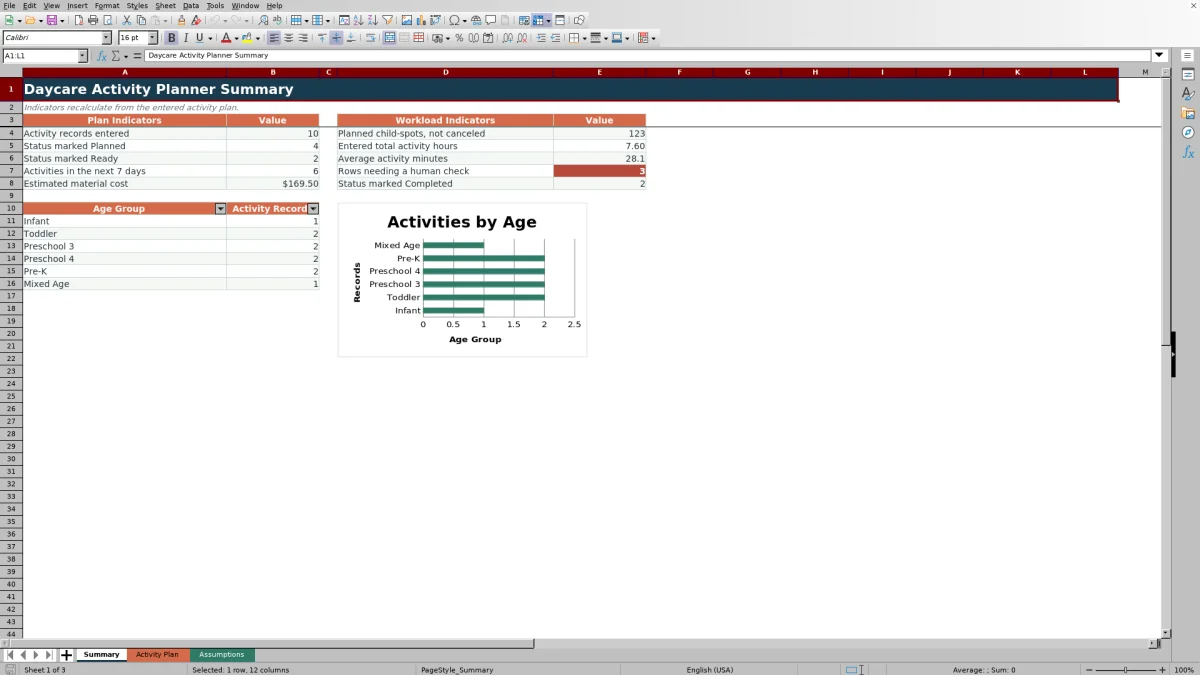
Check the Summary sheet for record counts, upcoming activities, status totals, planned child-spots, total activity hours, average activity minutes, estimated material cost, review counts, and activity distribution by age group. Use those indicators to decide which activities need preparation, correction, reassignment, or follow-up.
Build a Consistent Daycare Activity Schedule
Each single activity record brings together the operational details a childcare center needs to prepare an activity: its identifier, date, age group, description, timing, supplies, room, lead assignment, status, and planned attendance. Keeping these details in one row makes it easier to filter the plan by date, classroom, age group, assigned educator, or status without searching through separate notes.
The workbook supports 100 activity rows, from row 5 through row 104. Date and list validation help keep entries aligned with the editable values on the Assumptions sheet, while frozen headers and the worksheet filter keep the plan usable as the list grows.
Account for Activity, Setup, and Cleanup Time
The planner separates activity minutes from setup and cleanup minutes. Its Total Time (hrs) formula adds all three values and converts the result to hours, provided the activity row and required time fields have been entered. This gives operators a broader view of the work involved than the activity duration alone.
Materials, material quantity, and estimated cost are recorded beside the time fields. The Summary sheet then totals entered activity hours and estimated material cost, allowing the center to consider preparation time and supply needs together when reviewing the plan.
Use Review Alerts as Human Planning Prompts
The Review Alert column is designed to direct a human check, not to make a policy or compliance determination. Its formulas can flag concerns such as a duplicate activity ID, missing required fields, an entry that does not match an assumptions list, or a value that crosses an editable planning level.
Because the assumptions are described as fictional local planning prompts, an alert should lead to verification rather than an automatic conclusion. The operator can correct an accidental entry, confirm that an intentional value is appropriate, or revise the assumptions when authorized local practices differ.
Practical Example: Interpreting a Preschool Activity
This example follows a five-step decision sequence. Situation: a Preschool 3 color-mixing activity is scheduled for 25 activity minutes, with 12 setup minutes and 10 cleanup minutes, an estimated cost of $18.75, and 12 planned children. Action: the operator records those values along with the room, lead assignment, materials, and Ready status. Result: the time formula calculates 47 total minutes, or approximately 0.78 hours. Interpretation: the activity occupies less than half an hour for children, but preparation and cleanup increase the operational time commitment by 22 minutes. Next decision: the operator checks the Review Alert, confirms that supplies and the room will be ready, and decides whether the assigned educator has enough preparation time before the activity date.
Common Entry Errors and Solutions
A repeated Activity ID can trigger a duplicate-ID alert; assign a unique identifier to each record and correct both rows if an ID was copied accidentally. Missing dates, descriptions, time values, rooms, lead assignments, statuses, or planned-child counts can produce a required-fields alert; complete the omitted fields before relying on summary totals.
An age group, room, lead assignment, or status typed outside the assumptions lists may also require review. Select an existing list value, or update the editable Assumptions sheet intentionally if the center has adopted a new option. If a date or number falls outside the allowed validation range, check for a typing error first and then revise the applicable assumption only when the local plan genuinely calls for a different limit.
Comparison With Other Planning Methods
The Excel workbook functions as one complete operational method: staff enter structured activity records, formulas calculate total time and alerts, and the Summary sheet consolidates planning indicators. The alternatives below may be more suitable when their stated conditions apply.
| Method | More suitable when | Operational trade-off |
|---|---|---|
| Daycare activity planner Excel workbook | A center wants a reusable file with structured entries, editable local assumptions, calculations, filters, review prompts, and summary indicators. | Staff must maintain the workbook carefully and interpret alerts themselves; it does not provide regulatory determinations or a multiuser application workflow. |
| Paper planning log | A small classroom needs a simple offline record and does not require automatic totals, validation, filtering, or dashboard indicators. | Calculations, duplicate checks, schedule searches, and rollups must be completed manually. |
| Blank spreadsheet | The operator needs a highly customized layout and is prepared to build and test fields, formulas, validations, formatting, and summaries. | Initial setup and quality control require more spreadsheet work because the planning structure is not prebuilt. |
| Dedicated childcare software | A center requires shared access, permissions, integrated attendance or family communication, and vendor-supported workflows beyond activity planning. | It may involve subscription costs, implementation, account administration, and features outside the scope of this workbook. |
The appropriate choice depends on team size, collaboration requirements, reporting needs, budget, and whether the center wants a standalone planning file or a broader childcare-management system.
Turn Summary Indicators Into the Next Planning Decision
The Summary sheet reports records entered, Planned and Ready counts, activities occurring within the next seven days, estimated material cost, planned child-spots excluding canceled activities, entered activity hours, average activity minutes, rows needing review, and Completed activities. It also counts records across the six age groups listed in Assumptions and presents those counts in a chart.
Operators can interpret these measures together rather than in isolation. A high upcoming-activity count paired with several review alerts suggests that data correction and preparation checks should come first. A high total-hours figure with few Ready activities may point to assignments or materials that still need attention. After reviewing the underlying rows, the next decision may be to complete missing details, prepare supplies, change a status, reassign a lead, or adjust the schedule.
Frequently asked questions
How many activities can the Excel planner hold?
The Activity Plan provides 100 entry rows, covering rows 5 through 104. Each row represents one activity record.
How does the workbook calculate total activity time?
For a populated activity row, the formula adds activity, setup, and cleanup minutes and divides the total by 60 to show hours. If one of the three time fields is missing, the calculated time remains blank.
Can the age groups, rooms, statuses, and lead assignments be changed?
Yes. These lists are stored on the Assumptions sheet, where yellow cells indicate editable planning values. Changes should reflect the center's actual local workflow because the Activity Plan validations and review formulas refer to those lists.
Does a Review Alert mean an activity violates a childcare requirement?
No. Review alerts are planning prompts for a person to investigate. The workbook explicitly states that its assumptions are not regulatory limits, staffing determinations, official capacities, or program requirements.
What information appears on the Summary sheet?
The Summary sheet shows activity-record and status counts, activities in the next seven days, estimated material cost, planned child-spots excluding canceled entries, total activity hours, average activity minutes, completed activities, rows needing review, and activity counts by age group.
Editorial responsibility

Lena MoralesEnrollment and classroom workflows

Jordan LeeWorkbook QA and center operations