The Childcare Learning Center Rotation Excel workbook helps center operators schedule small groups by date and time block. Each rotation row can record a group, learning center, room, staff assignment, planned child count, status, and notes.
The linked Groups and Assumptions sheets supply group sizes, center limits, time blocks, rooms, and staff choices. Formula-driven capacity and conflict results are human review prompts, not substitutes for supervision, licensing, ratio, or room-capacity requirements.
How this workbook can help
- Keeps group-to-center assignments, rooms, staff members, planned child counts, statuses, and notes in one schedule.
- Uses validated date ranges and configured choice lists to make recurring schedule entry more consistent.
- Surfaces center-capacity concerns and duplicate group or staff assignments that need operator review.
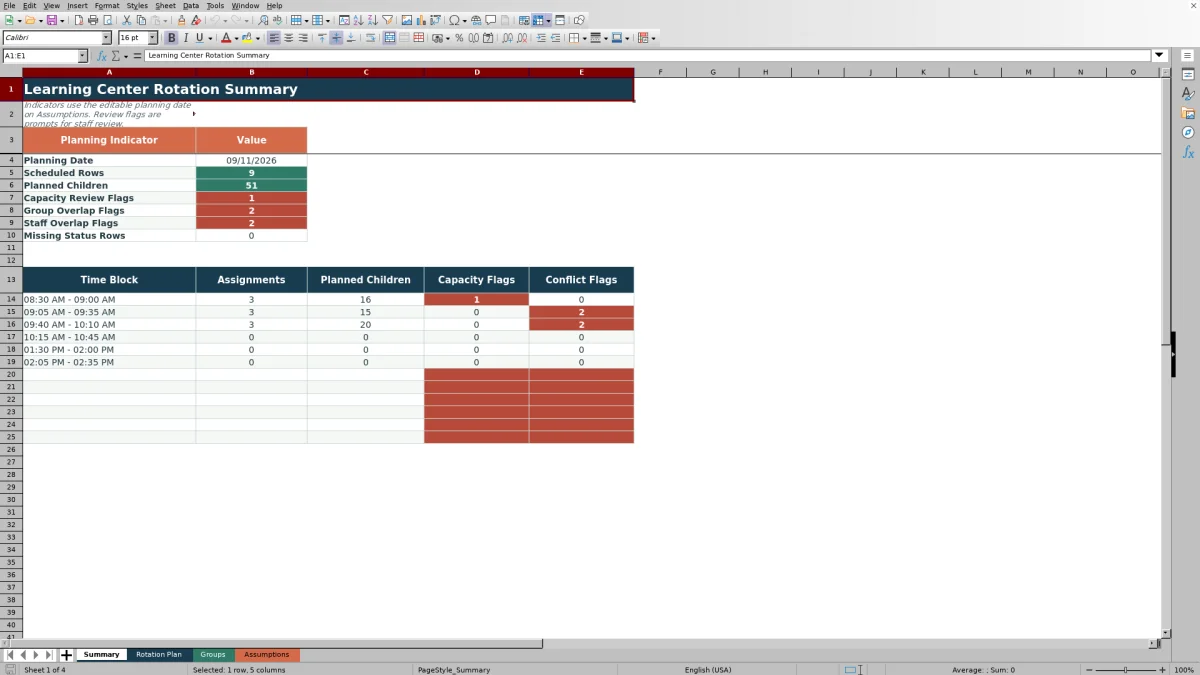
- Summarizes scheduled rows, planned children, review flags, conflicts, and missing statuses for the selected planning date.
What is in the file
How to get started
1. Configure the planning choices
Open Assumptions and confirm the planning date, allowed date range, maximum planned-child value, learning centers and limits, time blocks, rooms, and staff assignments.
2. Maintain the small-group list
On Groups, enter each group ID, label, planned size, home room, lead staff member, and active status. The Rotation Rows column counts references to each group in the schedule.
3. Build the rotation schedule
On Rotation Plan, create one row for each assignment. Enter a rotation ID and select the date, time block, group, center, room, staff member, planned children, and status. Add operational details in Notes.
4. Review and decide
Review every calculated prompt in the capacity, group-conflict, and staff-conflict columns. Correct missing inputs or scheduling issues, then use Summary to check totals and flags for the planning date.
The Scheduling Situation
A childcare center may need to move several small groups through art, literacy, science, sensory, or other learning areas during one day. A verbal plan or scattered notes can make it difficult to see whether a center is over its configured limit or whether the same group or staff member appears twice in one time block. This workbook places each assignment on a separate Rotation Plan row so operators can review the schedule as a coordinated daily plan.
Configure the Workbook Before Scheduling
Start on Assumptions because its values support the Rotation Plan validation lists and formulas. Set the planning date and allowed date range, then maintain center limits, time-block labels, rooms, and staff assignments. On Groups, enter the group IDs and planned sizes used by the Group Size lookup. After that setup, use one Rotation Plan row per group-to-center assignment and assign a meaningful status such as Draft, Ready, Completed, or Canceled.
Interpreted Practical Example
Situation: On September 11, 2026, three sample groups are assigned during 8:30 AM–9:00 AM. GRP-101 has 6 planned children at Art Table, GRP-102 has 5 at Early Literacy, and GRP-103 has 5 at Science Discovery. Action: The operator enters the assignments with Ready status, and the workbook looks up center limits of 6, 5, and 4. Result: Art Table and Early Literacy are within their configured limits, while Science Discovery receives a Review: over limit result. Interpretation: The science assignment has 5 planned children against a configured limit of 4; the flag identifies the row requiring review but does not decide how children should be supervised or reassigned. Next decision: The operator can move one child, split the group, select another suitable center, or revise the plan under local requirements, then update the row and confirm that the calculated result changes.
Read the Results in Context
Group Size is a lookup from the Groups sheet, while Planned Children is entered on each Rotation Plan row. The capacity formula compares Planned Children with the selected center's limit; it does not test whether Planned Children equals Group Size. Group and staff conflict formulas look for repeated assignments with the same date and exact time-block text. They do not evaluate partial overlaps between differently worded time ranges. Summary reports the date stored as Planning Date on Assumptions, so its totals may differ from the visible schedule if rows use another date.
Common Errors and Solutions
A blank status can produce Needs input and is counted by the Missing Status Rows indicator; select Draft, Ready, Completed, or Canceled as appropriate. Review: missing limit means the selected learning center does not have a retrievable limit in Assumptions; add or correct that center entry. A group-overlap or staff-overlap flag means the same value appears more than once on the same date and exact time block among noncanceled rows with statuses; change the assignment, time block, or status after verifying the plan. If Summary appears empty or incomplete, compare the Rotation Plan dates with the Planning Date on Assumptions. If Planned Children differs from the looked-up Group Size, review the values manually because that difference does not create its own formula flag.
Comparison With Other Scheduling Methods
This comparison treats the Excel workbook—including its schedule, setup lists, formulas, and summary—as one complete operational method and compares it with realistic external approaches.
| Method | More suitable when | Operational consideration |
|---|---|---|
| Childcare Learning Center Rotation Excel workbook | More suitable when a center wants a reusable file with up to 100 rotation rows, configured lists, formula checks, and a planning-date summary. | Operators still need to maintain assumptions, enter accurate statuses, interpret flags, and apply local requirements. |
| Paper or whiteboard schedule | More suitable when the schedule is very small, changes are handled face to face, and staff need an immediately visible room display. | Capacity and duplicate assignments must be checked manually, and preserving a clean history can require extra work. |
| Blank spreadsheet | More suitable when a center needs a highly customized layout and has someone who can build and maintain its formulas, validation, and review process. | It does not provide the workbook's existing rotation fields, lookups, status choices, or conflict formulas unless those elements are created. |
| Dedicated childcare software | More suitable when a program needs broader functions such as multiuser workflows, attendance integration, family communication, or organization-wide reporting. | Available functions, implementation effort, access controls, and cost depend on the selected system. |
The appropriate choice depends on schedule size, staff access, reporting needs, change frequency, and whether the center requires functions beyond rotation planning.
From Review Flag to Next Decision
Use the workbook's results as a decision queue. Address missing inputs first, then capacity concerns, group conflicts, and staff conflicts. After correcting a row, verify its formula result and review the Summary totals for the selected date. The next operational decision may be to approve the rotation, adjust a time block, reassign staff, move a group, revise a center limit after authorized review, or cancel an assignment. Keep the final decision consistent with the center's supervision practices and applicable requirements.
Frequently asked questions
What does the Childcare Learning Center Rotation Excel workbook track?
It tracks rotation IDs, dates, time blocks, group IDs, learning centers, rooms, staff assignments, planned children, calculated group sizes and center limits, capacity results, conflict results, statuses, and notes.
How does the capacity check work?
The workbook looks up the selected learning center's configured limit and compares it with Planned Children on the rotation row. It can return Within limit, Review: over limit, Review: missing limit, or Needs input.
Does the workbook detect partially overlapping time ranges?
No. Group and staff conflict checks compare the date and exact time-block text. Two differently labeled time blocks that overlap in practice are not automatically recognized as overlapping.
How are canceled rows handled?
Canceled rows are excluded from the Summary's scheduled-row and planned-child totals and from the duplicate group and staff counts used by the conflict formulas. Operators should still keep statuses complete and verify the schedule after any cancellation.
Can the fictional sample groups and staff names be replaced?
Yes. Group details can be edited on Groups, while staff choices, rooms, time blocks, learning centers, and center limits can be edited on Assumptions. Use local privacy and record-handling practices when entering operational information.
Editorial responsibility

Lena MoralesEnrollment and classroom workflows

Jordan LeeWorkbook QA and center operations