This daycare developmental observation log is an Excel workbook for creating a factual observation record of a child’s observable actions and words. Staff can enter the date, child ID, room, observer, context, development area, objective details, follow-up choice, and status for each observation.
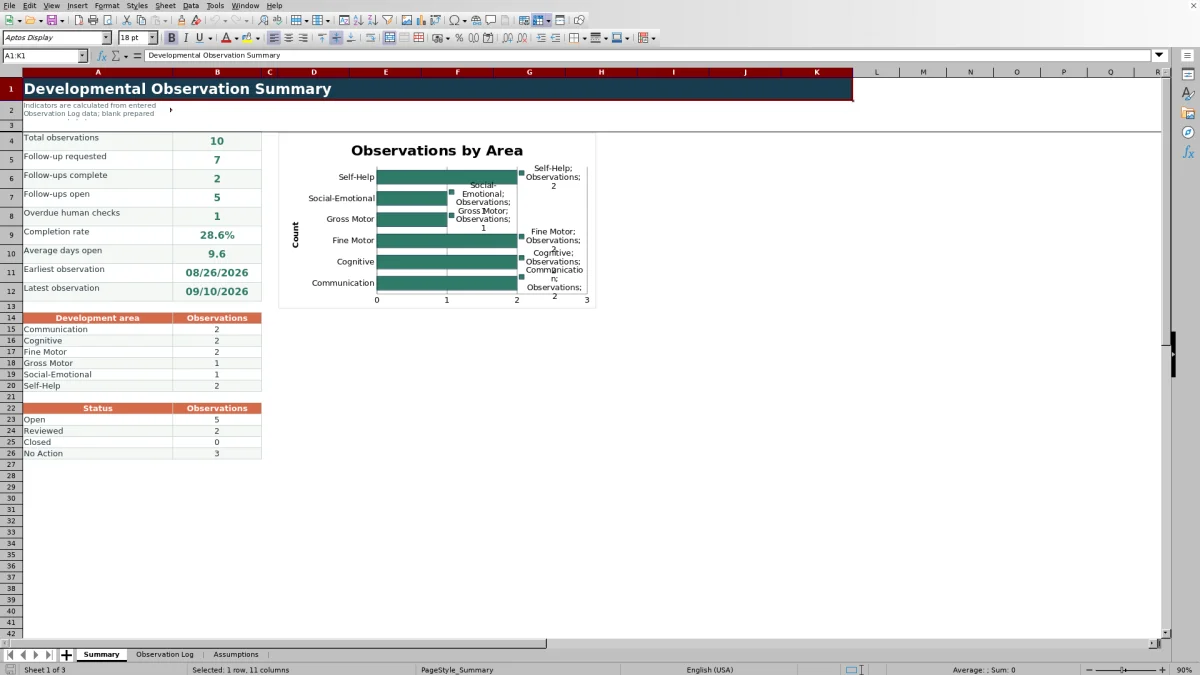
The XLSX combines a 120-row Observation Log with editable Assumptions and a calculated Summary. It supports administrative follow-up through suggested review dates, days-open calculations, human-check prompts, category counts, summary indicators, and a chart without providing diagnosis or clinical scoring.
How this workbook can help
- Promotes consistent documentation by giving staff dedicated fields for dates, context, development area, and directly observed actions or words.
- Keeps observation records and follow-up statuses together so staff can identify entries awaiting review.
- Lets center operators adjust rooms, observers, contexts, development areas, review intervals, date limits, and text limits on the Assumptions sheet.
- Provides calculated totals, completion measures, date ranges, category counts, and a chart for operational review without turning observations into clinical scores.
What is in the file
How to get started
1. Configure the Assumptions sheet
Review the allowed observation dates, maximum observation length, room names, observer names, contexts, development areas, review-day intervals, follow-up choices, and statuses. Replace the fictional choices with values approved by your center before staff begin entering records.
2. Enter each factual observation
Use one row per event in the Observation Log. Add an observation ID and complete the date, child ID, room, observer, context, development area, and objective observation fields. Describe only actions, gestures, and words that staff directly observed.
3. Record the follow-up decision
Select Yes or No under Follow-Up Needed and choose a compatible status. When follow-up is Yes and the date and development area are present, the workbook calculates a suggested Review By date. Check the Days Open and Human Check columns rather than typing over their formulas.
4. Review the result and decide what happens next
Use the Human Check message to find missing fields, inconsistent status choices, pending reviews, or overdue reviews. Then review the Summary sheet for totals and trends, make the required staff decision, and update the status to reflect the documented outcome.
What belongs in an objective observation
The log is designed for observable detail, such as what a child moved, pointed to, said, reached for, or completed during a named context. An entry such as “placed four foam blocks in a row and moved the last block twice” records visible actions. A statement such as “has advanced reasoning” would add an unsupported conclusion and does not match the workbook’s stated administrative purpose.
Each row connects the observation with its date, child ID, room, observer, context, and development area. Follow-up fields document the center’s workflow, not a diagnosis, developmental rating, or clinical score.
From situation to the next staff decision
The workbook supports a five-part sequence: situation → action → result → interpretation → next decision. The situation is the activity and setting recorded in Context. The action is the child’s directly observed behavior or words. The result is the generated review date, days-open value, or Human Check message after staff select the follow-up choice and status. Interpretation means reading that output as an administrative prompt rather than as a judgment about the child. The next decision belongs to an authorized staff member, who reviews the record and updates its status.
Interpreted practical example
Interpreted example: Situation: during block play on August 28, 2026, a staff member observes a child placing four foam blocks in a row, moving the last block twice, and saying, “This one goes here.” Action: the observer records those exact details, selects Cognitive, marks Follow-Up Needed as Yes, and sets the status to Open. Result: because Cognitive has a 14-day review interval in the supplied Assumptions, the Review By formula calculates September 11, 2026; the Human Check result is Pending review before that date or Review overdue after it. Interpretation: the message indicates that an administrative review is queued or late, not that the child has or lacks a developmental condition. Next decision: the designated staff member reviews the observation, documents any center-approved action, and changes the status to Reviewed or Closed when appropriate.
Common errors and practical solutions
Common errors and solutions begin with the wording of the observation. Error: entering a label, assumption, or diagnosis. Solution: replace it with a direct description of actions, gestures, counts, or quoted words. Error: receiving a date-validation warning. Solution: check whether the date falls between the earliest and latest dates on the Assumptions sheet.
Error: finding a blank Review By cell when follow-up is expected. Solution: confirm that Observation Date and Development Area are filled in, Follow-Up Needed is Yes, and the selected development area matches an Assumptions entry with a review interval. Error: seeing Check status. Solution: align the status with the follow-up choice; the formulas treat Reviewed or Closed as complete when follow-up is Yes and treat No Action or Closed as recorded when follow-up is No.
Error: seeing Complete required fields. Solution: complete columns B through I and select a status for any row with an Observation ID. Error: losing calculated prompts after editing formula cells. Solution: enter data only in the intended editable cells and restore the affected formulas from a clean workbook copy if they are overwritten.
Comparison with paper logs, blank spreadsheets, and childcare software
This workbook functions as one complete operational method: staff configure choices, enter standardized observations, receive formula-based review prompts, and examine a calculated summary in the same file. The appropriate alternative depends on staffing, technology access, reporting needs, and existing systems.
| Method | More suitable when | Operational trade-off |
|---|---|---|
| This Excel workbook | A center wants structured fields, configurable lists, review-date calculations, human-check prompts, and summary counts in a familiar file. | Staff must manage file access, protect records, preserve formulas, and make every review decision themselves. |
| Paper observation log | Paper is more suitable when staff lack reliable access to computers during classroom activities or center policy requires handwritten source notes. | Totals, overdue checks, and category summaries require manual consolidation, and handwriting may be difficult to search. |
| Blank spreadsheet | A blank spreadsheet is more suitable when the center needs a substantially different set of fields and has someone who can build and maintain validation, formulas, and summaries. | It starts with greater flexibility but does not initially provide this workbook’s prepared controls or follow-up logic. |
| Dedicated childcare software | Dedicated software is more suitable when the center needs integrated permissions, mobile workflows, family communication, attendance, or records shared across multiple sites. | It may involve subscription costs, training, migration, and workflows that extend beyond this administrative observation log. |
The workbook is most suitable when a center can govern an XLSX file responsibly and wants a focused observation-and-follow-up process without claiming broader childcare-management capabilities.
Reading the Summary without overinterpreting it
The Summary supports human review rather than automated conclusions. Total observations counts rows with an Observation ID. Follow-up requested counts Yes selections, while follow-ups complete counts those requests whose status is Reviewed or Closed. Follow-ups open counts requested follow-ups with Open status, and overdue human checks counts rows whose Human Check result is Review overdue.
The completion rate divides completed follow-ups by requested follow-ups. Average days open uses populated Days Open results, and the earliest and latest observation indicators show the entered date range. Counts and the chart organize records by development area, but a larger count can reflect classroom activity, documentation habits, or follow-up practices; it is not a developmental score.
Configuration, privacy, and record control
The Assumptions sheet provides local configuration for date limits, the maximum observation length, dropdown choices, and review-day intervals. The supplied workbook allows observation dates from January 1, 2026, through December 31, 2027, sets the initial text maximum to 600 characters, validates review intervals from 1 to 90 days, and allows the text limit to be adjusted from 100 to 2,000 characters.
Because the log contains child IDs and staff observations, center operators should apply their own access, retention, storage, backup, and confidentiality procedures. The manifest confirms spreadsheet validation and formulas, but it does not establish user permissions, encryption, regulatory compliance, or clinical suitability.
Frequently asked questions
Does this Excel observation log diagnose developmental conditions?
No. The workbook records observable actions and words and supports administrative follow-up. Its development-area categories, review dates, counts, and chart do not provide diagnosis, screening results, clinical scoring, or professional conclusions.
Can a childcare center change the rooms, observers, contexts, and development areas?
Yes. Those lists are stored on the Assumptions sheet and feed the Observation Log dropdowns. Review the associated review-day values after changing development areas so the Review By formula can find the selected category.
Why is the Review By cell blank?
The formula returns a date only when Observation Date and Development Area are present and Follow-Up Needed is Yes. If those fields are complete, verify that the development area exactly matches an entry in the Assumptions lookup range.
Which statuses work with the follow-up choice?
For a Yes follow-up, Open remains open while Reviewed or Closed counts as complete; No Action produces a Check status prompt. For a No follow-up, No Action or Closed produces Recorded, while Open or Reviewed produces Check status. Staff should still apply the center’s documented status policy.
How many observation rows are prepared in the workbook?
The Observation Log contains 120 prepared rows, from row 6 through row 125. The formulas, validation ranges, formatting, and AutoFilter described in the manifest apply to that prepared area.
Editorial responsibility

Lena MoralesEnrollment and classroom workflows

Jordan LeeWorkbook QA and center operations