This Excel daycare lesson plan spreadsheet organizes classroom sessions from preparation through reflection. Childcare-center staff can record a plan ID, date, room, lead staff member, age group, theme, learning objective, materials, session sequence, planned minutes, status, reflection, objective review, and follow-up choice.
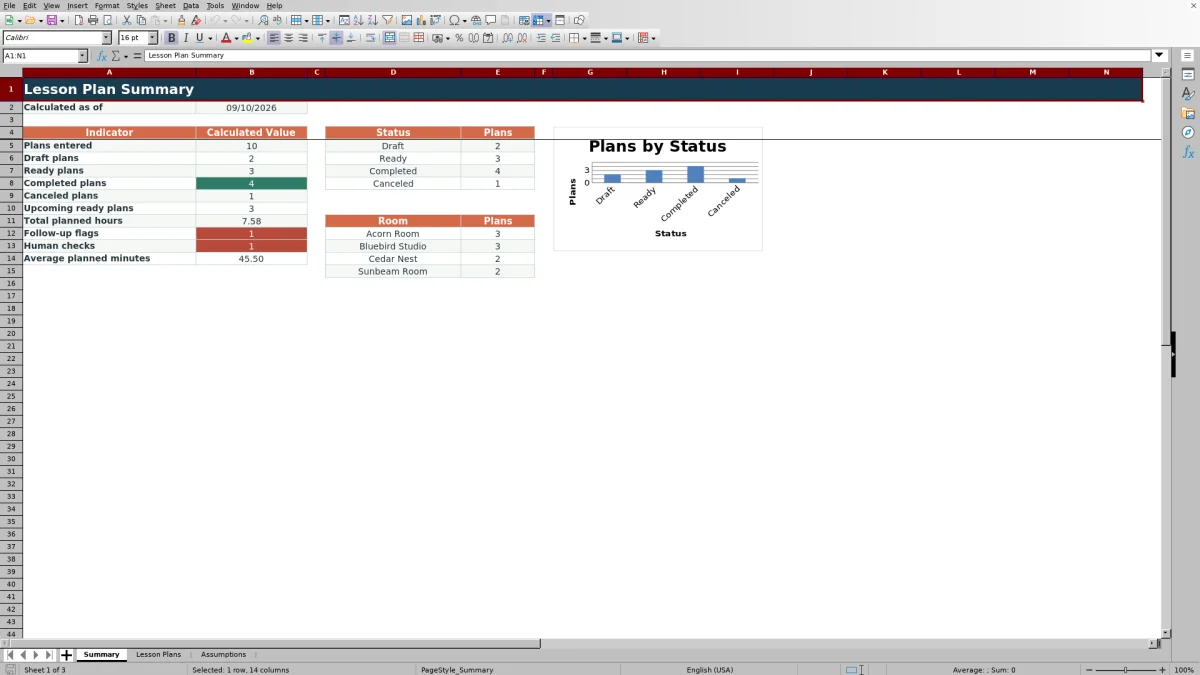
The XLSX combines a 100-row lesson-plan log with editable assumptions and a calculated overview of plan counts, statuses, planned time, follow-up flags, human checks, and room activity. Formulas convert minutes to hours and identify records that may require staff review.
How this workbook can help
- Keeps objectives, materials, activity sequences, timing, and post-session notes together for each classroom session.
- Promotes consistent entries through controlled choices for rooms, staff, age groups, statuses, objective reviews, and follow-up needs.
- Helps operators monitor scheduled work through status counts, room totals, planned hours, and average planned minutes.
- Supports follow-through by pairing reflection and objective-review fields with a clear Yes or No follow-up choice.
What is in the file
How to get started
1. Configure the planning choices
Start with Assumptions and replace the fictional room and staff labels with those used by your center. Review the age groups, statuses, objective-review choices, allowed date range, and duration limits.
2. Enter each classroom plan
On Lesson Plans, assign a unique plan ID and complete the session date, classroom details, theme, objective, materials, sequence, planned minutes, status, objective review, and follow-up fields. Add a reflection after the activity.
3. Review calculated fields
Confirm that Planned Hours converts the entered minutes as expected. Use Human Check as a review cue for possible missing details, duplicate IDs, or entries outside the configured planning limits.
4. Evaluate the overall schedule
Open Summary to review status totals, upcoming Ready plans, total planned hours, follow-up flags, human checks, average planned minutes, room counts, and the status chart. Use those results to decide which plans need preparation, correction, completion, or follow-up.
Planning Situation: One Record for Each Classroom Session
Situation: Objectives, supply lists, activity steps, timing, and reflections can become disconnected when staff record them in separate notes. This workbook establishes one lesson-plan record for each session while retaining the room, lead staff member, age group, theme, status, and follow-up context needed for operational review.
Action: Build and Review the Lesson Plan
Action: Staff enter the lesson details in the yellow input cells, using configured lists where available. Planned Minutes feeds the Planned Hours formula, while the status, reflection, objective review, and follow-up fields carry the record from preparation through post-session review. Filters on the Lesson Plans sheet allow operators to narrow the list by fields such as date, room, staff member, age group, or status.
Result: Interpreted Practical Example
Result: The fictional Color Mixing plan, LP-26001, is scheduled for September 14, 2026, in Acorn Room for toddlers. It lists a color-comparison objective, washable paint and related materials, a four-part sequence, 45 planned minutes, Ready status, Not Assessed objective review, and no follow-up need. The formula converts 45 minutes to 0.75 planned hours. Interpretation: the session has been prepared but its learning outcome has not yet been assessed, so the record should return to staff for reflection and objective review after delivery.
Interpretation: Read the Summary in Context
The Summary sheet counts entered plans and separates Draft, Ready, Completed, and Canceled records. It also reports upcoming Ready plans, total planned hours, follow-up flags, Human Check messages, average planned minutes, and room-level counts. Operators should interpret these figures together: a large Ready count represents prepared work, while Completed plans with follow-up marked Yes identify sessions that may require another activity, an adjustment, or additional observation.
Next Decision: Turn Review Results Into Follow-Up
Next decision: use status and Human Check results to determine what happens next. Complete missing details before moving a Draft plan to Ready, correct IDs or limits when a check appears, and update the reflection, objective review, follow-up choice, and status after the session. Room counts and planned hours can then inform scheduling and preparation discussions without replacing staff judgment.
Common Errors and Solutions
An empty or repeated plan ID can produce an Add plan ID or Check duplicate ID message; assign a unique identifier. Missing required planning details can trigger a check; complete the applicable cells from Plan ID through Follow-up Needed. A session date outside March 14, 2026, through September 10, 2027, can be rejected or flagged; correct the date or revise the limits on Assumptions. Planned Minutes outside the configured 5-to-120-minute range can also fail validation; correct the duration or update the center's planning limits. If a dropdown does not contain the needed room, staff member, or category, revise the corresponding fictional example on Assumptions before entering the plan.
Comparison: Excel Workbook, Paper, Blank Sheets, and Software
Treating the three-sheet Excel workbook as one complete operational method, the following comparison shows when it or an external alternative may be more suitable.
| Method | More suitable when | Operational trade-off |
|---|---|---|
| This Excel workbook | More suitable when a center wants a structured 100-row log, controlled entry choices, formula checks, calculated time, and a summary without adopting a dedicated platform. | Staff still need a clear process for manual entry, file access, review, and version control. |
| Paper forms or a manual binder | More suitable when classroom devices are unavailable or handwritten planning is part of the center's established routine. | Status totals, planned hours, room counts, and follow-up lists require manual calculation and consolidation. |
| Blank spreadsheet | More suitable when the center needs an open-ended layout and does not want predefined fields, lists, limits, or checks. | Operators must design and maintain their own formulas, validation rules, review process, and reporting structure. |
| Dedicated childcare software | More suitable when the selected system provides required capabilities such as role-based access, multi-site workflows, family communication, billing, or broader record integration. | Capabilities, subscription costs, setup requirements, data handling, and staff training vary by product and require separate evaluation. |
The choice depends on the center's scale, access needs, reporting requirements, and willingness to maintain either a shared file or an external system.
Frequently asked questions
What does this daycare lesson plan spreadsheet track?
It tracks each session's ID, date, room, lead staff member, age group, theme, learning objective, materials, sequence, planned minutes, status, reflection, objective review, follow-up need, calculated hours, and Human Check result.
How many lesson plans can the Excel workbook hold?
The Lesson Plans sheet provides 100 entry rows, running from row 5 through row 104.
Can I change the fictional rooms and staff names?
Yes. Edit the room and lead-staff choices on the Assumptions sheet before use. That sheet also contains the available statuses, objective reviews, follow-up choices, age groups, date range, and planned-minute limits.
What does the Human Check column do?
It uses formulas to identify records that may need staff attention, including missing plan IDs or required details, duplicate IDs, and entries outside configured planning limits. It is a review aid rather than a substitute for professional judgment.
How should staff use the Reflection and Objective Review fields?
After a session, staff can record what occurred in Reflection and select Not Assessed, Met, Partly Met, or Not Met for Objective Review. They can then mark Follow-up Needed as Yes or No and update the lesson status as appropriate.
Editorial responsibility

Lena MoralesEnrollment and classroom workflows

Jordan LeeWorkbook QA and center operations