This Excel workbook is a center-defined administrative tracker for recording which childcare enrollment documents have been received, remain missing, need review, or do not apply to each application.
It supports up to 100 application rows and eight configurable document types. Formulas calculate completion and follow-up results, while the Summary sheet provides overall and room-level indicators for human review. The workbook does not determine licensing, legal, or medical requirements.
How this workbook can help
- Keeps application details and eight center-defined document statuses together in one operational checklist.
- Distinguishes received, missing, review-needed, and not-required items instead of treating every incomplete item alike.
- Calculates required, received, and outstanding document counts, completion percentages, checklist results, and follow-up dates.
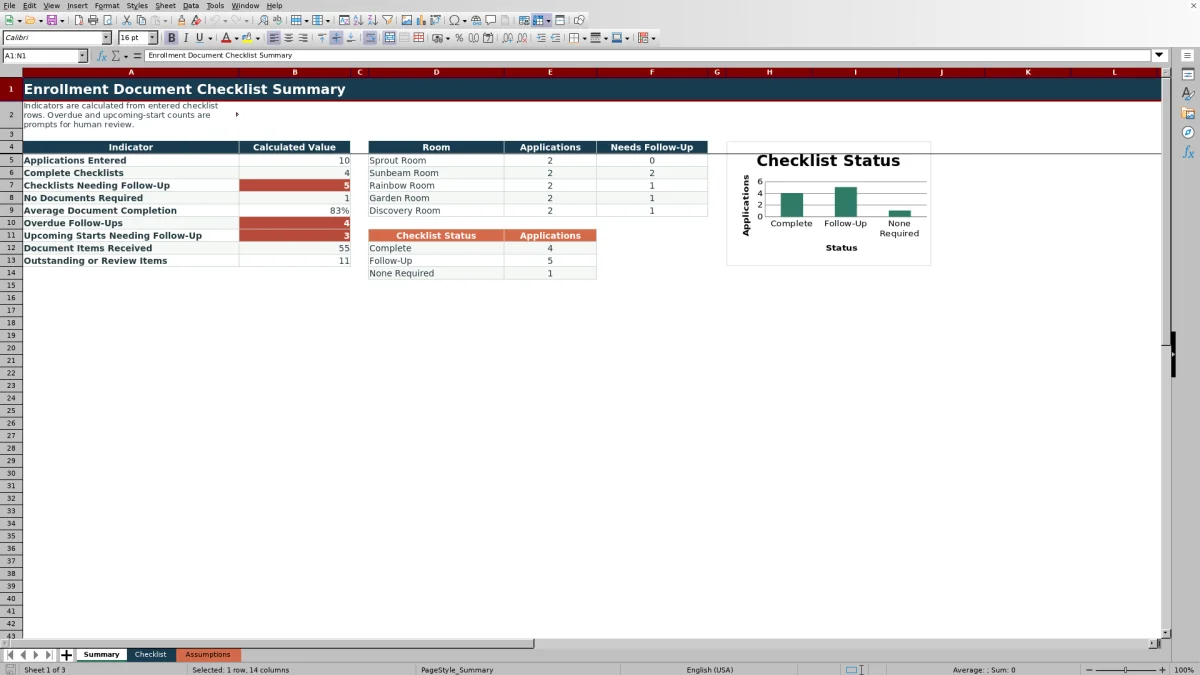
- Summarizes application volume, room-level follow-up needs, overdue reviews, upcoming starts, and checklist status.
What is in the file
How to get started
Step 1: Configure the center’s choices
On the Assumptions sheet, replace the sample room names, staff assignments, enrollment statuses, and eight checklist document names. Review the follow-up period, upcoming-start review period, and allowed date range.
Step 2: Enter each application
On the Checklist sheet, use one row per application. Enter the application ID, child reference, application and desired-start dates, room, assigned staff, and enrollment status in the editable cells.
Step 3: Record each document status
Select from the fixed document statuses: Received, Not Received, Needs Review, or Not Required. Leave these status labels unchanged because the calculations use their exact wording.
Step 4: Review the result and follow up
Read the calculated document counts, completion percentage, and Checklist Result. For a row needing attention, review the Follow-Up By date, add a follow-up note, contact the appropriate party, and update the row when the situation changes.
Situation: Enrollment Records Arrive at Different Times
Childcare enrollment packets often arrive in stages, making it difficult to see whether an application is ready for the next administrative step. The workbook creates one row per application, where staff can record identifying references, dates, room and staff assignments, enrollment status, and the current state of each configured document.
Action: Configure and Maintain the Checklist
The center first defines its eight document headings and operational choices on the Assumptions sheet. Staff then enter applications on the Checklist sheet and choose Received, Not Received, Needs Review, or Not Required for each document. Yellow editable cells distinguish staff inputs from formula-driven results, and filters allow staff to narrow the list by room, enrollment status, checklist result, or follow-up information.
Result: Understand the Calculated Status
For each entered application, the workbook counts configured documents as required unless they are marked Not Required. Only items marked Received contribute to the received count. Blank, Not Received, and Needs Review entries remain outstanding, so a row is labeled Complete only when no required items remain unresolved. A Needs Follow-Up result therefore signals that staff should inspect the row rather than assume every unresolved item is simply missing.
The completion percentage divides received documents by required documents. If every configured document is marked Not Required, the result is No Documents Required rather than a misleading zero-percent completion value.
Practical Example: From Situation to Next Decision
Situation: fictional application APP-FIC-002 is assigned to the Sunbeam Room and has a Pending Review enrollment status. Action: staff record six documents as Received, the Health Record as Not Received, and Photo Permission as Not Required. Result: seven documents count as required, six count as received, and one remains outstanding, producing about 86% completion and a Needs Follow-Up result. Interpretation: the application is not administratively complete even though most required items are present. Next decision: the assigned staff member should follow up on the Health Record, document the contact in the follow-up note, and change its status only after the center receives or reviews it.
Common Errors and Solutions
An empty document cell may look harmless, but it counts as outstanding once an Application ID is entered. The solution is to select the status that accurately reflects the file. Another common error is using Not Received for a document that does not apply; selecting Not Required removes that item from the required count. Staff should also avoid changing the four fixed status labels because the formulas depend on their exact wording.
If a Follow-Up By date appears older than expected, review the source dates. For applications needing follow-up, the formula uses Last Reviewed when that field contains a date; otherwise, it uses Application Date. Entering the current review date after a genuine review allows the configured follow-up interval to calculate from that event.
Comparison With Paper, Blank Spreadsheets, and Childcare Software
This workbook operates as a complete method: the center configures choices on Assumptions, records and reviews applications on Checklist, and monitors aggregate indicators on Summary. Its suitability depends on the center’s volume, existing systems, and need for integration.
| Method | Operating approach | Key limitation | More suitable when |
|---|---|---|---|
| This Excel workbook | Uses configured dropdown choices, a structured 100-row checklist, calculated results, follow-up dates, and summary indicators. | Requires staff to enter updates manually and is limited to eight document columns and 100 prepared application rows. | More suitable when a center wants a reusable local tracking process without implementing a broader management platform. |
| Paper or manual list | Staff mark documents on printed forms or handwritten logs. | Totals, completion percentages, due dates, and room-level summaries are not calculated automatically. | More suitable when application volume is very low and staff cannot use a computer at the point of review. |
| Blank spreadsheet | Staff create columns, status wording, formulas, and review routines from scratch. | Inconsistent entries and formula gaps are more likely unless someone designs and maintains the structure. | More suitable when the center needs a one-time list or a layout that differs substantially from this workbook’s eight-document method. |
| Dedicated childcare software | A hosted platform may connect enrollment records with family communication, billing, signatures, or other workflows. | It may require subscriptions, implementation, user administration, and migration into a larger system. | More suitable when the center needs integrated records, multiuser workflows, online submissions, or automated communication. |
The Excel method provides calculations and a defined review workflow, but it does not replace access controls, record-retention procedures, or any required external system.
Next Decision: Turn the Status Into a Staff Action
After reviewing a row, the next decision is whether to close the checklist, request a missing item, examine an item marked Needs Review, or confirm that a document is Not Required. Managers can use the Summary sheet to prioritize overdue follow-ups and upcoming starts, then return to the underlying application rows before taking action. These indicators are prompts for human review and do not independently verify outside requirements.
Frequently asked questions
Can the center change the document names?
Yes. The Assumptions sheet contains eight editable checklist document names, and those names feed the document headers on the Checklist sheet. The prepared formulas support eight document columns.
Which document statuses can staff select?
The fixed choices are Received, Not Received, Needs Review, and Not Required. These labels should remain unchanged because the workbook formulas use their exact wording.
How does the workbook treat a blank document status?
After an Application ID is entered, a blank status for a configured document counts as outstanding. Staff should select an accurate status rather than leave the cell empty when the document has been assessed.
How is the Follow-Up By date calculated?
The date appears only when the checklist result is Needs Follow-Up. It adds the configured follow-up review period to Last Reviewed when available; otherwise, it adds that period to Application Date.
Does the checklist verify childcare enrollment requirements?
No. It tracks the center-defined documents and staff-entered statuses for administrative review. It does not determine or verify legal, licensing, medical, immunization, or other external requirements.
Editorial responsibility

Lena MoralesEnrollment and classroom workflows

Jordan LeeWorkbook QA and center operations