The Daycare Field Trip Consent Tracker Excel workbook helps childcare-center operators reconcile permission, consent dates, payment, emergency-detail confirmation, staff assignments, and attendance for a specific trip. Its prepared participant area supports up to 100 records, with formula columns calculating amount due, payment status, balance, tracker status, and human-check prompts.
The workbook is designed for one trip at a time. Operators enter trip assumptions and participant records, review calculated exceptions, use the Summary sheet to assess readiness and capacity, and then update attendance after the trip. The file records whether emergency details were confirmed; it does not store the underlying medical or emergency information.
How this workbook can help
- Brings permission, payment, emergency confirmation, staffing, and attendance into one participant-level reconciliation process.
- Surfaces unresolved records through calculated tracker statuses, balances, and human-check messages.
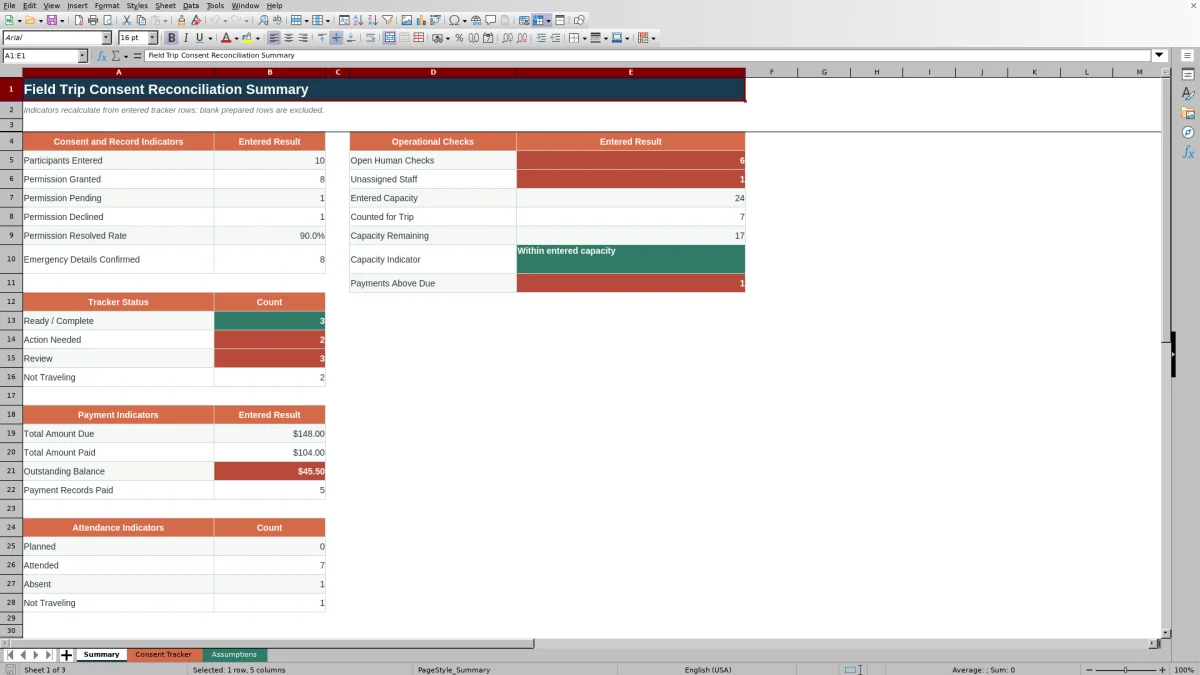
- Summarizes entered participant counts, permission outcomes, payment totals, attendance, staffing gaps, and capacity indicators.
- Supports pre-trip review and post-trip attendance reconciliation without requiring separate worksheets for each participant.
What is in the file
How to get started
1. Configure the trip
Open the Assumptions sheet and replace the fictional trip description, trip date, consent due date, payment due date, default fee, and planned capacity. Edit the compact room and staff lists if the provided choices do not match your center.
2. Enter participant records
On Consent Tracker, replace the fictional examples with each participant ID, display name, room, permission status, consent received date, emergency confirmation, payment requirement, amount paid, attendance status, and staff assignment. Use the supplied dropdowns where available.
3. Review calculated exceptions
Check Amount Due, Payment Status, Tracker Status, Balance, and Human Check without overwriting their formulas. Resolve issues by verifying the source record and correcting the related input rather than changing a calculated result.
4. Reconcile and make the next decision
Use the Summary sheet to review permission, payment, staffing, attendance, open checks, and capacity. Decide which records need follow-up before departure, then update attendance to Attended, Absent, or Not Traveling after the trip.
Set Up the Workbook for One Field Trip
Begin on the Assumptions sheet because its entered values drive calculations and review messages elsewhere in the workbook. The trip description appears near the top of Consent Tracker, the trip date is used to review consent timing, the consent and payment due dates support human checks, the default fee supplies Amount Due when payment is Required, and planned capacity is compared with participants marked Planned or Attended. Because the workbook is trip-specific, create and control a separate working copy when another trip requires a separate reconciliation record.
Reconcile Permission and Emergency Confirmation
Each participant row combines Permission Status, Consent Received, and Emergency Details Confirmed. Granted permission alone does not complete the row: a missing consent date, a date later than the entered trip date, or an emergency confirmation other than Yes can produce a review or action-needed result. Treat the confirmation field as evidence that staff checked the center's authorized source record; do not place medical instructions or sensitive emergency details in this tracker.
Track Payments, Staffing, Attendance, and Capacity
When Payment Requirement is Required, Amount Due uses the default fee from Assumptions. Amount Paid then drives Payment Status and Balance, while an amount above the calculated due can trigger a human check. Attendance distinguishes Planned, Attended, Absent, and Not Traveling, and the Summary counts Planned plus Attended for its trip-capacity comparison. Staff Assignment is also reviewed, so a traveling participant without an entered staff member remains visible for follow-up.
Interpreted Practical Example
Situation: In the fictional sample, the trip date is September 5, 2026, the default fee is $18.50, and participant FT-001 has Granted permission, an August 16 consent date, emergency confirmation of Yes, a Required payment, $18.50 paid, Attended status, and an assigned staff member. Action: The operator enters those source-backed values in the input columns and leaves the formula cells unchanged. Result: Amount Due calculates to $18.50, Payment Status becomes Paid, Balance becomes $0.00, and Tracker Status evaluates to Ready / Complete. Interpretation: The entered fields are internally aligned and show no unpaid amount, but the calculation does not independently verify the consent form, emergency record, supervision plan, or attendance record. Next decision: The operator should confirm the entries against authorized records and retain the row as Attended if the post-trip attendance record agrees; any discrepancy should be investigated and corrected.
Common Errors and Solutions
A blank default fee can leave Amount Due unavailable for participants whose payment requirement is Required; enter the approved fee in Assumptions before reviewing payment results. Typing over Amount Due, Payment Status, Tracker Status, Balance, or Human Check removes the intended calculation; undo the change or restore the corresponding formula from a clean workbook copy. A participant marked Planned or Attended without a staff assignment can remain open for review; choose the verified assignment from the editable staff list. If Amount Paid exceeds Amount Due, confirm whether the amount was entered incorrectly or whether the center needs to document a refund or credit outside this tracker. If permission, consent date, emergency confirmation, and attendance conflict, correct the source-backed input instead of selecting a status merely to clear the warning.
Comparison: Excel Tracker and Other Methods
The workbook is one complete operational method: trip settings feed participant calculations, participant results feed the Summary, and exceptions guide the next review decision. The alternatives below may be more suitable when their stated operating conditions apply.
| Method | How the workflow operates | More suitable when |
|---|---|---|
| This Excel workbook | Uses structured participant inputs, formulas, dropdowns, human-check messages, and a recalculating summary for one trip. | More suitable when a center already uses controlled XLSX files and wants a repeatable trip-level review without implementing a separate system. |
| Paper checklist or manual roster | Staff mark forms, payments, assignments, and attendance by hand and manually total unresolved records. | More suitable when the group is very small, electronic devices are unavailable, or center policy requires a paper working record. |
| Blank spreadsheet | Staff design columns, lists, formulas, and review logic from the beginning for each local process. | More suitable when the center needs a substantially different workflow and has personnel who can build, test, and maintain spreadsheet controls. |
| Dedicated childcare software | Trip information may connect with enrollment records, guardian communications, billing, permissions, and access controls in one managed platform. | More suitable when the center needs integrated guardian responses, role-based access, audit history, or connections to existing billing and enrollment systems. |
Selection should depend on record volume, privacy controls, staff access, integration needs, and the center's approved operating procedures rather than on format alone.
Read the Summary and Choose the Next Action
The Summary excludes blank prepared rows and consolidates entered results for permission, emergency confirmation, tracker status, amounts due and paid, balances, attendance, open human checks, unassigned staff, and capacity. Read counts as prompts for investigation rather than proof of compliance. A high Action Needed count calls for participant-level follow-up; a capacity warning calls for comparison with the approved trip plan; and a remaining balance or open human check calls for source-record review before staff make a travel decision.
Frequently asked questions
How many participant records does the Excel tracker support?
The Consent Tracker contains 100 prepared participant rows, from row 5 through row 104. Blank prepared rows are excluded from the Summary's participant count.
Does the workbook store emergency contact or medical details?
No. It provides an Emergency Details Confirmed field with Yes or No choices, allowing staff to record that authorized emergency information was checked without entering the underlying details in this workbook.
How are payment status and balance calculated?
When Payment Requirement is Required, Amount Due uses the default fee entered on the Assumptions sheet. Amount Paid is compared with that due amount to return a payment status, and Balance calculates the unpaid amount without going below zero.
Can the room and staff dropdown choices be changed?
Yes. The Assumptions sheet contains editable room and staff lists used by the Consent Tracker dropdowns. Keep each list compact and avoid blank entries between choices.
What should staff do when Tracker Status or Human Check shows an issue?
Review the participant's authorized source records and the related input fields, then correct missing or inaccurate entries. Do not overwrite the calculated status or check merely to remove the message, and do not treat the workbook as a substitute for center approval, supervision, transportation, medical, or emergency procedures.
Editorial responsibility

Lena MoralesEnrollment and classroom workflows

Jordan LeeWorkbook QA and center operations