This Daycare Nap Schedule Excel workbook provides an operational record for organizing room-level rest periods. Each schedule row can capture a date, child ID, room, assigned area, scheduled and actual times, staff assignment, status, and routine observation.
Calculated minutes, assignment checks, review prompts, and a date-based Summary help operators identify records that need staff review. The workbook supports administrative planning and documentation; its prompts do not represent outside monitoring or an official childcare status.
How this workbook can help
- Keeps scheduled times, actual times, room assignments, rest areas, staff assignments, statuses, and routine observations together in one row-level schedule.
- Calculates planned minutes, actual minutes, and schedule variance without requiring staff to perform duration math manually.
- Flags missing required inputs, room-to-area mismatches, missing actual times for completed sessions, and durations outside the configured planning range.
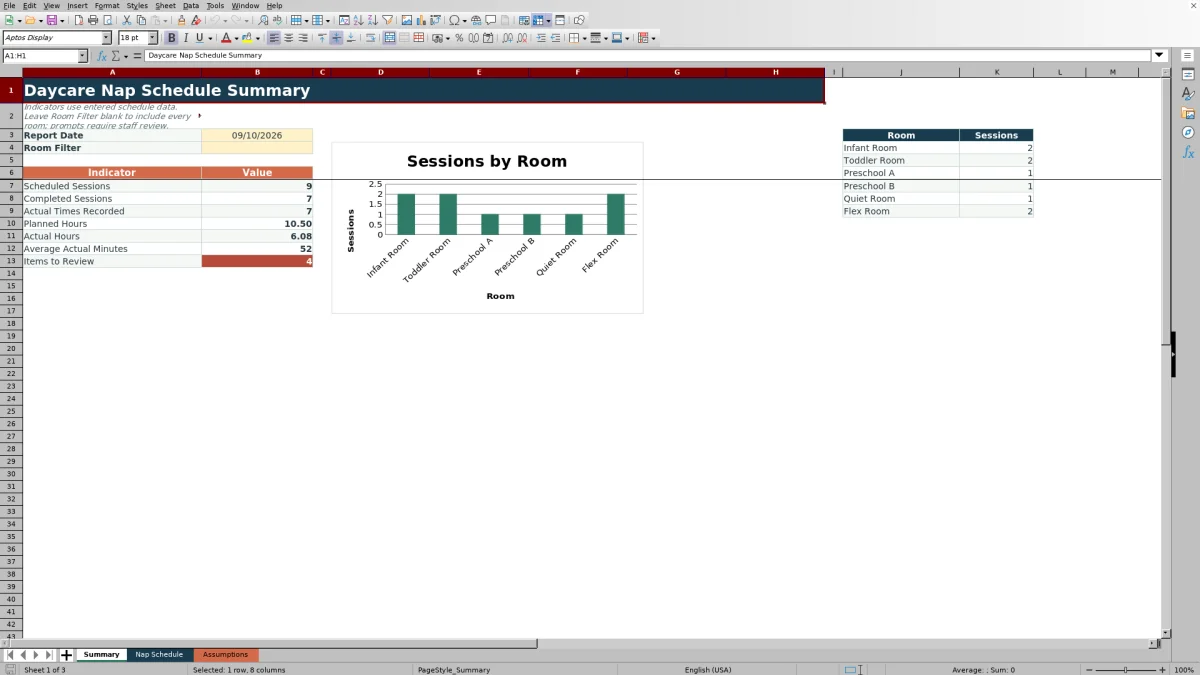
- Summarizes scheduled sessions, completed sessions, recorded actual times, planned hours, actual hours, average actual minutes, and items requiring review by report date and optional room filter.
What is in the file
How to get started
1. Review the planning controls
Confirm the assumptions before entering the daily schedule. The Assumptions sheet contains editable room and default-area pairs, staff labels, status choices, minimum and maximum actual minutes, a variance alert threshold, and the permitted schedule-date range.
2. Enter each planned rest period
Add the schedule details in the yellow input cells on the Nap Schedule sheet. Select the date, enter the child ID, choose the room and assigned area, add scheduled start and end times, select the staff assignment, and choose a status.
3. Record what occurred
Update actual times when they are available and add a concise routine observation when useful. For a session marked Completed, enter both actual start and actual end so the workbook can calculate actual minutes and variance.
4. Review calculations and the daily summary
Check the prompts in the calculated columns before using the Summary sheet. Select a report date, optionally choose a room, and interpret the session counts, hours, average duration, review-item count, and room chart in the context of the center's routine.
Organize the room-level nap schedule
A childcare center may need to coordinate several rest periods across rooms, assigned areas, and staff members while retaining a concise record of what occurred. The Nap Schedule sheet places those details in a consistent row structure, with one entry area for each scheduled session and calculated columns beside the staff-entered information.
Understand the calculated schedule results
Planned Minutes are calculated from Scheduled Start and Scheduled End, while Actual Minutes use Actual Start and Actual End. Variance Minutes subtract planned duration from actual duration, so a negative result indicates a shorter actual session and a positive result indicates a longer one. The Area Check compares the selected room and assigned area with the default pairing on the Assumptions sheet, and the Review Prompt directs attention to incomplete or inconsistent entries.
Practical example with interpretation
Situation: The sample entry for fictional child ID FIC-001 assigns the Infant Room and Crib Area A for a rest period scheduled from 12:30 PM to 2:00 PM. Action: Staff record actual times of 12:35 PM to 1:55 PM and mark the session Completed. Result: the workbook calculates 90 planned minutes, 80 actual minutes, and a variance of -10 minutes, while the room and area pairing returns OK. Interpretation: the session was 10 minutes shorter than planned but remains within the configured 30-to-180-minute actual-duration range and does not cross the 20-minute variance alert threshold. Next decision: retain the routine observation, confirm that no contextual follow-up is needed, and proceed to the next record rather than changing a valid assignment.
Common entry errors and solutions
If a row shows “Complete required inputs,” fill in the missing child ID, room, assigned area, scheduled times, staff assignment, or status. If it shows “Check assignment,” compare the selected room and area with the default pair on the Assumptions sheet, then correct the row or revise the local assumption after staff review. “Add actual times” indicates that a Completed session lacks an actual start or end. “Check duration” indicates that the calculated actual duration falls outside the configured minimum or maximum. When a validation rule rejects an entry, use a listed room, area, staff label, or status and confirm that dates fall within the permitted range.
Comparison with manual and software alternatives
The complete workbook method combines controlled planning assumptions, row-level schedule entries, calculated checks, routine observations, and a date-and-room summary. The appropriate alternative depends on record volume, reporting needs, existing systems, and staff workflow.
| Method | Structure and checks | Reporting approach | More suitable when |
|---|---|---|---|
| Daycare Nap Schedule Excel workbook | Uses validated inputs, configured room-area pairs, calculated durations, variance values, assignment checks, and review prompts. | Provides a report-date summary, optional room filter, operational indicators, room counts, and a chart. | More suitable when a center wants a local XLSX workflow with repeatable inputs and calculations but does not need a connected childcare platform. |
| Paper nap sheet or manual log | Relies on handwritten entries and staff review without automatic duration or assignment calculations. | Requires manual counting and totaling before trends or exceptions can be assessed. | More suitable when the center has very few entries, works away from computers, or requires a temporary physical record. |
| Blank spreadsheet | Allows a custom layout but requires the operator to build lists, formulas, checks, formatting, and summary logic. | Depends on manually created formulas, filters, pivot tables, or charts. | More suitable when the center needs a substantially different data model and has staff who can design and maintain spreadsheet controls. |
| Dedicated childcare software | May connect rest records with attendance, family communication, permissions, and other platform modules, depending on the product. | Uses the reports and dashboards included in the selected service. | More suitable when multiple users need shared, connected records and the center is prepared for vendor setup, subscription costs, and platform procedures. |
Use the Summary to review a selected day
Choose the Report Date on the Summary sheet and leave Room Filter blank to include every listed room, or select one room for a narrower view. The indicators report scheduled and completed sessions, entries with both actual times, planned and actual hours, average actual minutes, and rows containing a review prompt. Room session counts also feed the included chart, helping operators interpret how the selected day's entries are distributed.
Adjust assumptions before the next decision
The Assumptions sheet contains local planning controls rather than external standards. Operators can review the six room and default-area pairs, fictional staff labels, available statuses, duration limits, variance threshold, and date limits before using the workbook for local operations. After reviewing the Summary and row prompts, the next decision may be to correct an incomplete entry, confirm an intentional room-area exception, update a planning control, or leave a record unchanged when the entered information is accurate.
Frequently asked questions
What information can the Daycare Nap Schedule Excel workbook record?
Each schedule row can record the nap date, child ID, room, assigned area, scheduled start and end, actual start and end, staff assignment, status, and routine observation. Formula columns calculate planned minutes, actual minutes, variance, an area check, and a review prompt.
Can the Summary show one room instead of every room?
Yes. Select a Report Date and choose a Room Filter to calculate the indicators for that room. Leave the room filter blank to include all listed rooms for the selected date.
What happens when a completed session has no actual times?
The Review Prompt displays “Add actual times” when a row is marked Completed but the actual start or actual end is missing. Enter both times so Actual Minutes and Variance Minutes can be calculated.
Can the room lists and planning limits be changed?
Yes. The yellow cells on the Assumptions sheet are editable and contain room-area pairs, staff labels, status choices, minimum and maximum actual minutes, a variance alert threshold, and earliest and latest schedule dates. Center staff should review changes before relying on the resulting prompts.
Does this workbook replace required childcare or safety records?
No. It is an administrative scheduling and observation workbook. Its formulas and prompts support local review but do not represent regulatory approval, outside monitoring, medical guidance, or an official determination of compliance.
Editorial responsibility

Lena MoralesEnrollment and classroom workflows

Jordan LeeWorkbook QA and center operations