The Daycare Tour Inquiry Tracker is an Excel workbook for managing prospective-family inquiries from initial contact through tour scheduling, follow-up, and enrollment outcome. The Inquiries sheet includes space for 100 inquiry records, with fields for contact preferences, program interest, desired start date, referral source, assigned staff, tour details, follow-up dates, outcomes, and notes.
The workbook combines an operational inquiry log with a Summary dashboard and editable Assumptions sheet. Formulas calculate days open, identify follow-up status, check tour information, and flag records that may need attention. Dropdown lists, date and time validation, conditional formatting, an outcome chart, filters, and frozen headers support consistent administrative review without replacing staff judgment.
How this workbook can help
- Keeps prospective-family inquiries, tour details, follow-up dates, and enrollment outcomes in one structured record.
- Helps staff identify overdue or upcoming follow-ups and incomplete tour information without manually reviewing every date.
- Provides calculated indicators for inquiry volume, scheduled and completed tours, open records, enrollment outcomes, conversion rate, and average days open.
- Allows childcare-center operators to update administrative settings and dropdown choices as programs, staff assignments, and intake practices change.
What is in the file
How to get started
1. Review the administrative settings
Open the Assumptions sheet and review the follow-up due-soon period, open-age review period, accepted date limits, tour-time limits, and dropdown choices. Update the yellow input cells when the center's practices, programs, staff assignments, or available choices change.
2. Enter each prospective-family inquiry
Use one row on the Inquiries sheet for each inquiry. Assign a unique Inquiry ID and enter the prospect label, inquiry date, preferred contact method, program interest, desired start date, referral source, assigned staff member, and relevant notes.
3. Maintain tour and follow-up details
Update the tour status, date, and time as plans change. Enter the follow-up due date and completed date, then review the formula columns for days open, follow-up alerts, tour checks, and record checks. Resolve prompts by correcting or completing the related input fields.
4. Record the outcome and review the summary
Select Open, Waitlist, Enrolled, Declined, or No Response and enter an outcome date when appropriate. Use the Summary sheet to review current inquiry activity, future scheduled tours, follow-ups due now, outcome counts, decision conversion rate, average days open, and records needing review.
A Structured Inquiry-to-Outcome Workflow
A childcare inquiry can involve several dates, staff handoffs, and family decisions. The workbook creates a single operational record for the inquiry date, desired start date, tour status, tour appointment, follow-up activity, outcome, and notes. Staff can filter the Excel table to focus on a program, assigned employee, tour status, referral source, or outcome while retaining the full history in the same row.
Practical Example: From Tour Request to Enrollment Decision
Situation: A fictional preschool prospect inquires on August 10 and requests an October 5 start date. Action: Staff enter the inquiry, complete the tour on August 13, record the follow-up as completed on August 14, and enter an Enrolled outcome dated August 20. Result: The Days Open formula reports 10 days open, the Follow-Up Alert reports Closed, and the completed record contributes to the enrolled outcome count. Interpretation: The record shows that the family moved from inquiry to a recorded decision within ten days and that the planned follow-up was completed. Next decision: Staff can review similar records to decide whether current tour and follow-up timing is supporting timely decisions or whether open inquiries need earlier attention.
Using Follow-Up and Tour Prompts
The Follow-Up Alert can return Closed, Complete, Set due date, Check date, Overdue, Due today, Due soon, or Upcoming. The due-soon window comes from the Assumptions sheet and is initially set to three days. The Tour Check can prompt staff to add a tour date, add a tour time, check a status, or check a future completion date. These messages are administrative cues; staff should inspect the underlying inquiry before contacting a family or changing a record.
Common Entry Errors and Their Solutions
A duplicate Inquiry ID should be replaced with a unique identifier because column A includes duplicate checking. If a scheduled or completed tour lacks a date, add the date or correct the tour status; if a tour date exists without a time, enter the time. If the follow-up alert says Set due date, add an appropriate due date; if it says Check date, replace text or an invalid value with an accepted Excel date. A Record Check message can indicate a missing prospect label, missing or invalid inquiry date, or a start, tour, follow-up, or outcome date that precedes the inquiry date. Correct the source field rather than overwriting the formula prompt.
Workbook Comparison: Excel Tracker vs Other Methods
This comparison treats the three-sheet workbook as one complete operational method rather than comparing its worksheets with one another.
| Method | Structure and automation | Operational limits | More suitable when |
|---|---|---|---|
| Daycare Tour Inquiry Tracker Excel workbook | Provides a prepared 100-row log, dropdown validation, calculated alerts and checks, summary indicators, filters, and an outcome chart. | Requires staff to enter updates consistently and review prompts inside the workbook; prepared formulas and summary references end at row 104. | More suitable when a center wants a local, structured Excel process without implementing a separate enrollment platform. |
| Paper inquiry log | Supports handwritten notes and can be used without a computer. | Does not automatically calculate days open, flag due follow-ups, validate entries, filter records, or summarize outcomes. | More suitable when inquiry volume is very low and staff need an offline record at the point of contact. |
| Blank spreadsheet | Allows staff to design custom columns and formulas from the beginning. | Requires setup, testing, validation rules, formulas, formatting, and reporting before it offers comparable controls. | More suitable when the center has specialized fields or a staff member who can build and maintain a custom spreadsheet. |
| Dedicated childcare software | May combine inquiry management with communications, applications, billing, or family portals, depending on the product. | Can involve subscription costs, account administration, implementation, and vendor-specific workflows. | More suitable when the center needs multi-user workflows, integrated family communication, or broader enrollment-system functions. |
The choice depends on inquiry volume, staffing, collaboration needs, budget, and whether the center needs only a focused tracker or a larger enrollment system.
Data Handling and Administrative Boundaries
The sample records and staff names are fictional and should be replaced before operational use. Because the workbook may contain prospective-family information, the center should determine what details are appropriate to record, where the XLSX is stored, who can access it, and how long records are retained. The alerts and checks support administration but do not establish licensing, privacy, enrollment, or record-retention requirements.
Turning Summary Indicators Into the Next Decision
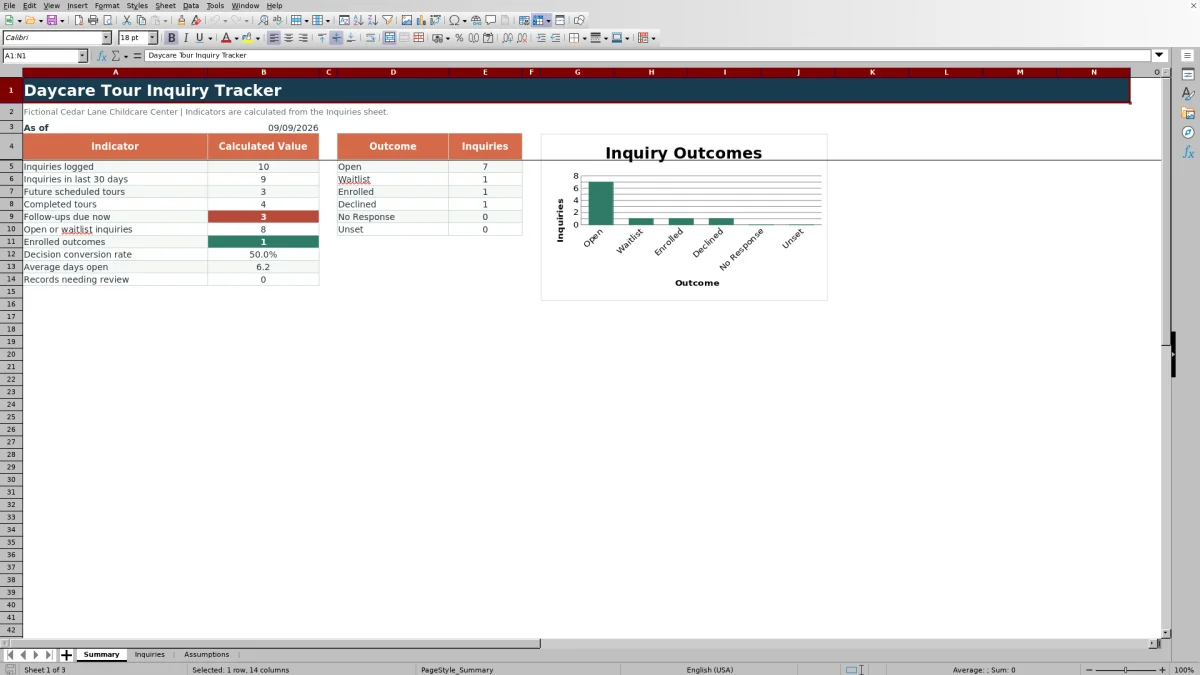
The Summary sheet reports inquiries logged, inquiries from the last 30 days, future scheduled tours, completed tours, follow-ups due now, open or waitlist inquiries, enrolled outcomes, decision conversion rate, average days open, and records needing review. Operators can use these indicators for human review: a rise in due follow-ups may call for reassignment, several records needing review may call for data cleanup, and a large open or waitlist count may call for a capacity or communication review. The conversion rate includes Enrolled, Declined, and No Response decisions while excluding records that remain open, waitlisted, or unset.
Frequently asked questions
How many inquiries can the Excel workbook hold?
The prepared Inquiries table contains 100 record rows, from row 5 through row 104. Adding more rows requires extending the table, formulas, validation, conditional formatting, and Summary references so the additional records are included correctly.
Does the workbook send automatic follow-up reminders?
No. It displays follow-up alerts inside the Excel workbook based on the due date, completion date, outcome, current date, and due-soon setting. Staff must open and review the workbook and use their normal communication process to contact families.
How is the decision conversion rate calculated?
The Summary sheet divides Enrolled outcomes by the total of Enrolled, Declined, and No Response outcomes. Open, Waitlist, and blank outcomes are excluded because they do not represent a recorded final decision in this calculation.
Can the dropdown choices be customized?
Yes. The Assumptions sheet contains editable lists for program interests, contact methods, referral sources, assigned staff, tour statuses, and outcomes. Replace choices within the prepared list ranges carefully because the Inquiries sheet validation refers to those fixed ranges.
What should staff do when a formula column shows an error prompt?
Review the related input cells and correct the source information. For example, add a missing tour date, enter a follow-up due date, correct an invalid date, or align the tour status with the entered appointment details. Formula prompts are intended for administrative review and should not be overwritten with manual text.
Editorial responsibility

Lena MoralesEnrollment and classroom workflows

Jordan LeeWorkbook QA and center operations