This preschool curriculum map Excel workbook provides a weekly planning grid for recording themes, learning goals, activities, rooms, lead staff, duration, status, and follow-up notes. It includes 100 activity rows covering the planning period configured in the file.
The XLSX connects the Curriculum Map to a Summary sheet and an Assumptions sheet. Operators can edit center-defined choices for learning areas, rooms, staff, statuses, and planning limits; these settings support local planning and are not presented as regulatory requirements.
How this workbook can help
- Keeps weekly themes, learning goals, activities, staffing, duration, and progress in one consistent planning grid.
- Helps operators identify missing, duplicate, or out-of-range entries before using the plan for team coordination.
- Summarizes completion, planned minutes, date coverage, status counts, and learning-area distribution.
- Allows each center to replace the fictional sample choices with its own rooms, staff, learning areas, and planning limits.
What is in the file
How to get started
1. Review the center settings
Configure the assumptions before entering a new plan. Update the listed learning areas, rooms, lead staff, status choices, earliest and latest planning dates, and minimum and maximum activity durations.
2. Enter one activity per row
Use rows 5 through 104 on the Curriculum Map. Assign a unique Plan ID, enter the Monday for the applicable week, and complete the theme, learning area, learning goal, activity, staff, duration, status, and follow-up fields.
3. Review the Planning Check column
Resolve every planning flag that begins with Check, Duplicate, or Review. Correct the source entry rather than typing over the formulas in column K.
4. Interpret the Summary
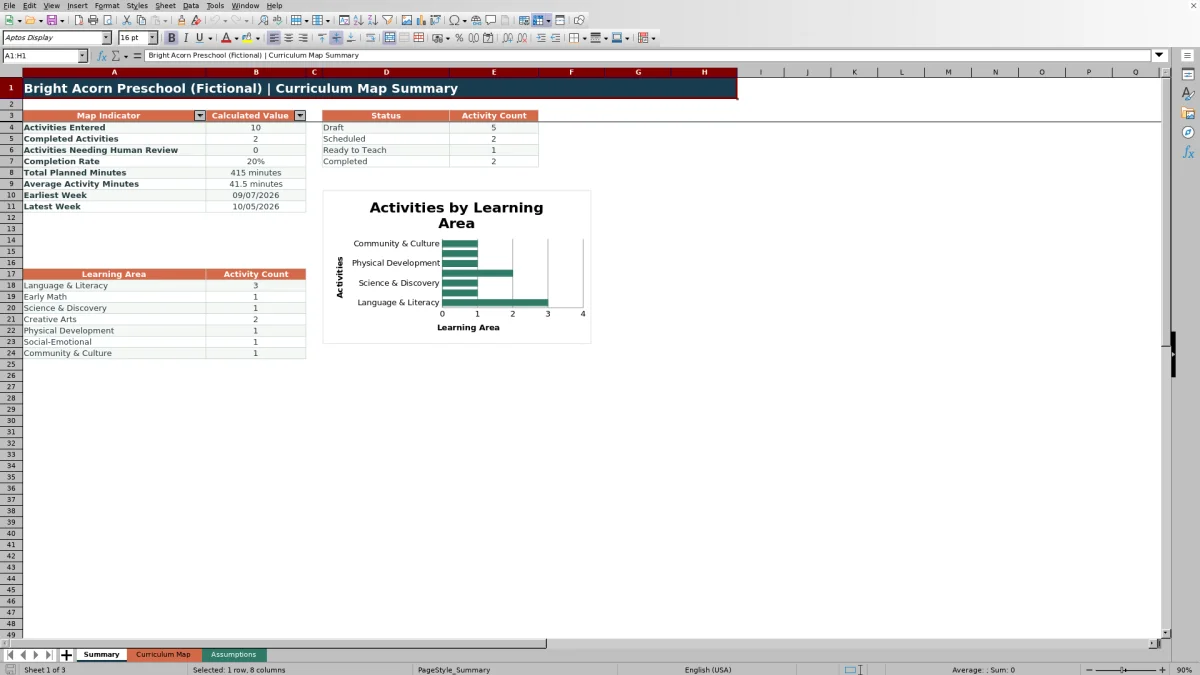
Review activities entered, completed activities, items needing human review, completion rate, planned minutes, earliest and latest weeks, status counts, and the learning-area chart. Use those results to decide what the next planning cycle should address.
What the preschool curriculum map tracks
The main sheet records one center-defined activity per row. Each record connects a Plan ID and Week Of date with a room, theme, learning area, goal, activity, staff member, duration, status, automated planning check, and follow-up note. The workbook uses rows 5 through 104 for up to 100 records, freezes the headings, and applies a filter across all 12 columns.
The Week Of field is intended for a Monday. Dates are validated against the planning period on the Assumptions sheet, while activity duration is limited to whole numbers between the configured minimum and maximum. The included settings use September 1, 2026 through August 31, 2027 and durations from 5 through 180 minutes.
Interpreted practical example
Situation: A center is preparing plans for the weeks of September 7 and September 14, 2026. Three sample rows cover Social-Emotional, Language & Literacy, and Early Math activities. Action: Staff enter unique IDs PCM-001 through PCM-003, select rooms and lead staff, record durations of 30, 25, and 20 minutes, and assign two Completed statuses and one Ready to Teach status. Result: If these are the only populated activity rows, the Summary calculates three activities, two completed activities, 75 total minutes, a 25-minute average, and an approximately 67% completion rate. The earliest week is September 7 and the latest is September 14. Interpretation: The sample has activity coverage in three of the seven configured learning areas, while the remaining four areas have no sample activity. Next decision: The operator can decide whether the next week should add Science & Discovery, Creative Arts, Physical Development, or Community & Culture based on the center's current goals rather than assuming every week requires equal coverage.
Common planning errors and solutions
A “Check plan ID” message indicates that the row needs an ID; enter a unique identifier. A “Duplicate plan ID” message means the same identifier appears more than once; revise one record so each activity can be tracked separately. “Check week” calls for a date, while “Check week value” indicates that Excel does not recognize the entry as a numeric date.
“Review week range” means the date falls outside the earliest and latest dates configured on the Assumptions sheet. Change the date or revise the center's planning limits if the wider range is intentional. “Check week start” means the date is not a Monday. Room, learning area, staff, and status entries should come from their configured lists, and duration should be a whole number within the current 5-to-180-minute limits. After corrections, confirm that the Planning Check no longer begins with Check, Duplicate, or Review.
Comparison with paper, blank spreadsheets, and childcare software
This workbook is a complete operational method consisting of configurable assumptions, a standardized activity map, row-level planning checks, and a calculated summary. The alternatives below may be more suitable when a center has different staffing, access, collaboration, or reporting needs.
| Method | More suitable when | Operational considerations |
|---|---|---|
| This Excel curriculum map | A center wants a locally controlled Excel file with consistent fields, validation, checks, summary metrics, and capacity for 100 activity records. | Staff still need to enter and maintain records, manage the shared file, preserve formulas, and update fixed validation ranges when expanding lists. |
| Paper planner or manual process | A small team plans in one location, has limited device access, or needs a quick handwritten view during meetings. | Paper does not calculate completion, minutes, date coverage, status totals, or learning-area counts and requires manual review for duplicate or incomplete entries. |
| Blank spreadsheet | The center needs a highly customized layout and has someone available to create and maintain formulas, validation, formatting, and reporting. | It offers flexibility, but checks and summaries must be designed and tested by the center before staff can rely on them. |
| Dedicated childcare software | The organization needs multiuser workflows, permissions, mobile access, notifications, or integrations beyond the scope of one XLSX file. | Available functions vary by product and may involve subscription costs, setup work, data migration, and staff training. |
The choice depends on operating conditions. This XLSX is more suitable when an Excel-based, center-managed process is sufficient; software may be more suitable when simultaneous collaboration and broader administrative integration are required.
How the Summary supports curriculum review
The Summary counts activities by looking for populated Activity cells, counts Completed records from the Status column, and identifies rows needing human review when Planning Check begins with Check, Duplicate, or Review. It also calculates completion rate, total and average planned minutes, and the earliest and latest entered weeks.
Status totals are linked to the four choices on the Assumptions sheet: Draft, Scheduled, Ready to Teach, and Completed. A separate area counts activities for seven learning areas and supplies the workbook's chart. These totals can reveal where plans are concentrated, but operators should interpret the pattern using classroom observations, children's interests, and center priorities.
How assumptions control valid entries
The Assumptions sheet supplies seven learning areas, four rooms, six fictional lead-staff names, four status choices, and four planning limits. Those values feed the Curriculum Map dropdowns and validation rules, while status and learning-area values also feed Summary calculations.
Before reuse, replace fictional entries with the center's actual terminology while keeping the source ranges in mind. The current validation references fixed ranges: A4:A10 for learning areas, C4:C7 for rooms, E4:E9 for staff, and G4:G7 for statuses. Adding choices beyond those cells may require updating the corresponding validation formulas.
Capacity, scope, and next-cycle decisions
The workbook is configured for 100 planning rows and does not use an Excel table or defined names. Formulas and validation are already applied through row 104, so extending the map beyond that point requires copying formulas, formats, validation, and relevant Summary ranges with care.
The Planning Check supports human review rather than instructional or regulatory compliance. After examining flagged rows and Summary patterns, operators can decide whether to revise dates, assign staff, prepare activities that remain in Draft or Scheduled status, add follow-up notes, or address learning areas that need attention in the next center-defined plan.
Frequently asked questions
What is included in this preschool curriculum map Excel workbook?
The XLSX includes a Summary sheet, a 100-row Curriculum Map, and an Assumptions sheet. Together they cover weekly activities, themes, learning areas, goals, rooms, staff, duration, status, planning checks, follow-up notes, calculated indicators, and a learning-area chart.
Can a childcare center change the rooms, staff, and learning areas?
Yes. The Assumptions sheet contains the center-defined lists used by the dropdowns. Replace the fictional entries within the existing source ranges, and update validation formulas if a list needs more cells than the workbook currently references.
How many preschool activities can the workbook hold?
The configured entry area contains 100 activity rows, from row 5 through row 104. Adding more rows requires extending formulas, validation, formatting, filters, and Summary formula ranges.
What should staff do when the Planning Check shows an error?
Read the message in column K and correct the related source cell. Common fixes include adding a unique Plan ID, entering a valid Monday date within the configured range, choosing a listed value, or entering a whole-number duration within the allowed limits. Do not replace the Planning Check formula with typed text.
Does the workbook confirm curriculum or licensing compliance?
No. Its choices and planning limits are center-defined, and its formulas identify data-entry issues for human review. Operators should use applicable licensing requirements, program standards, professional judgment, and child observations when making curriculum decisions.
Editorial responsibility

Lena MoralesEnrollment and classroom workflows

Jordan LeeWorkbook QA and center operations