
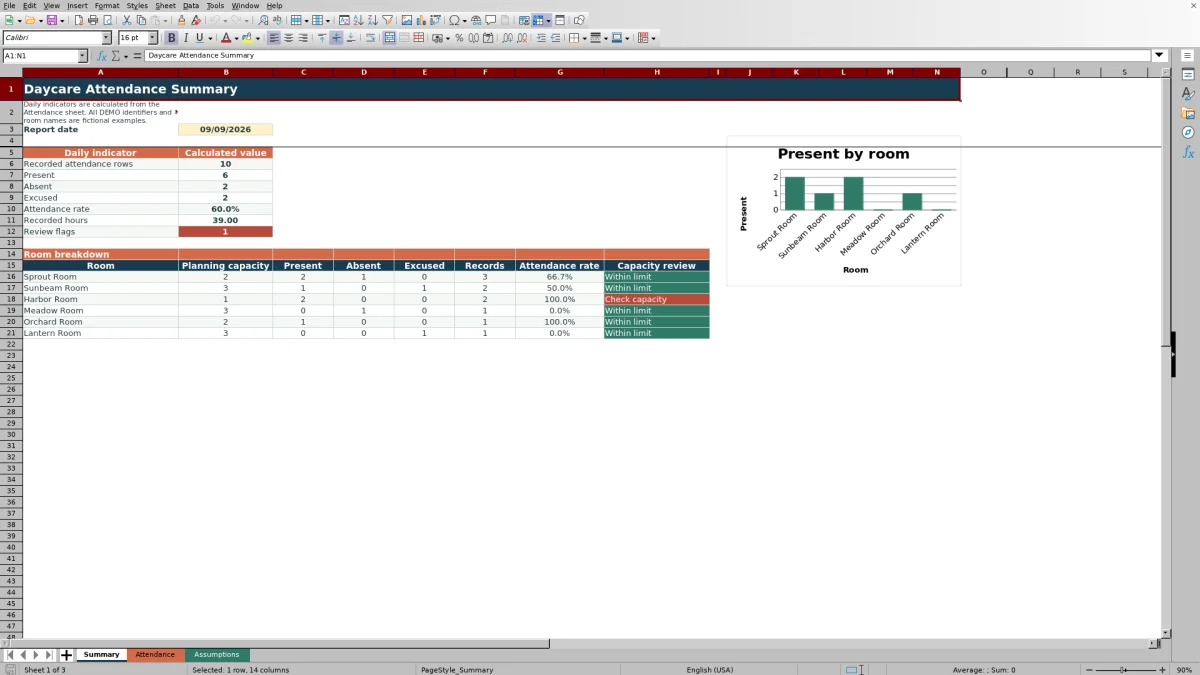
This daycare attendance sheet is an Excel workbook for recording one row per child and date. Childcare-center staff can enter an attendance ID, date, child ID, classroom, status, and, when applicable, check-in and check-out times.
The XLSX then calculates recorded hours, displays data-quality prompts, and summarizes Present, Absent, and Excused records for a selected report date. Its classroom breakdown supports daily headcounts and internal capacity planning without presenting those planning values as regulatory limits.
How this workbook can help
- Keeps daily attendance, classroom assignments, statuses, and times in one structured Excel table.
- Provides date-specific totals for Present, Absent, and Excused records instead of requiring manual counting.
- Calculates recorded hours for complete Present records and identifies entries that need review.
- Compares each classroom's Present count with its editable internal planning capacity.
What is in the file
How to get started
1. Configure the classroom settings
Open the Assumptions sheet and update the six classroom names and daily planning capacities in the yellow input cells. Capacity entries must be whole numbers from 1 through 60 and should reflect internal planning values, not licensing limits.
2. Enter each child's daily attendance
On the Attendance sheet, use one row for each child and date. Complete the Attendance ID, Date, Child ID, Classroom, and Attendance status fields. Select a classroom and a status from the drop-down lists, and enter check-in and check-out times for Present records.
3. Resolve attendance-entry issues
Read the calculated Review column before relying on the totals. Correct missing required fields, dates outside January 1, 2025 through December 31, 2027, and classroom or status values that do not match the workbook's settings.
4. Review the daily result
Choose a report date on the Summary sheet. Review the daily status counts, attendance rate, recorded hours, review-flag count, classroom breakdown, and capacity messages before making the next staffing or room-planning decision.
Situation: Keeping a Consistent Daily Attendance Record
A childcare center may need to confirm who attended, which classroom each child used, and whether the day's records are complete. The Attendance sheet creates a daily attendance record with separate fields for attendance ID, date, child ID, classroom, status, check-in, and check-out. The workbook includes 100 prepared rows and fictional DEMO entries that should be replaced or removed before operational use.
Action: Entering Statuses and Times Correctly
Staff select Present, Absent, or Excused for each child. For a Present record, entering both check-in and check-out allows the Hours column to calculate the elapsed time when check-out is at or after check-in. Absent and Excused records do not need times for the Hours formula, but every used row still needs its attendance ID, date, child ID, classroom, and status.
Result: Reading the Daily Attendance Summary
The Summary sheet counts recorded rows and each attendance status for the chosen date. Its attendance rate is the number of Present records divided by the combined number of Present, Absent, and Excused records. It also sums calculated hours, counts populated review messages other than OK, and shows classroom-level status counts, record totals, attendance rates, and capacity reviews.
Practical Example: Interpreting a Classroom Headcount
Consider the fictional Sprout Room entries dated September 9, 2026. The situation is three recorded children: two Present and one Absent. After staff enter those statuses, the result is a Present count of 2 and an attendance rate of 66.7% for that classroom. Because the example planning capacity is 2, the capacity result is Within limit. The practical interpretation is that the room has reached, but not exceeded, its internal planning capacity; the next decision is to review expected arrivals or room plans before assigning another child, while separately following the center's actual licensing and staffing requirements.
Common Errors and Solutions
A Check required fields message means a used row is missing at least one required value among the attendance ID, date, child ID, classroom, or status; complete those cells. A date-range message calls for a date between January 1, 2025 and December 31, 2027. Classroom or status warnings should be resolved by choosing values from the workbook's configured lists. If Hours is blank on a Present record, verify that both times are entered and that check-out is not earlier than check-in. If the Summary reports Check capacity, confirm the entries and review the internal room plan rather than treating the message as a regulatory determination.
Comparison: Excel Workbook, Paper Log, and Daycare Software
The right attendance method depends on how often the center records entries, who needs access, and which follow-up actions must happen outside the file. This Excel workbook provides a prepared local workflow, while paper and dedicated childcare software involve different tradeoffs.
| Method | Useful when | Built-in help | Important limitation |
|---|---|---|---|
| This Excel workbook | A center wants consistent fields and a date-specific review in Excel | Calculated hours, review prompts, status totals, classroom counts, and internal capacity messages | Requires manual entry and does not send messages or verify licensing compliance |
| Paper attendance log | Staff need a simple offline record at the point of entry | Immediate handwriting without a device | Totals, error checks, and date summaries must be completed manually |
| Dedicated childcare software | A center needs a managed multiuser process or integrations offered by a specific provider | May include check-in workflows, permissions, communications, or other services | Features, setup, data handling, and subscription costs vary and must be checked with the provider |
Use the workbook when a controlled Excel process and manual review fit the center. Choose another method when offline continuity, simultaneous access, communications, or vendor-managed records are the deciding requirement.
Next Decision: Turning the Summary Into an Operational Check
After reviewing the selected date, first address any review flags because incomplete or invalid entries can affect the reported totals. Then compare Present counts with each classroom's planning capacity, consider the recorded status mix and hours, and decide whether records need correction or the center's internal room plan needs attention. Regulatory ratios, licensed capacity, and staffing decisions must still be verified using the center's applicable requirements.
Frequently asked questions
Can the same workbook hold attendance for more than one date?
Yes. Each used row has its own date, and the Summary sheet reports the date selected there. The prepared table holds 100 records and accepts dates from January 1, 2025 through December 31, 2027.
What should staff enter as the Child ID?
Use the center’s existing internal identifier consistently. Avoid adding personal details that are not needed for the attendance task, and follow the center’s own privacy and record-retention procedures because the workbook does not define them.
Does the XLSX notify families about arrivals or departures?
No. The workbook records attendance data and calculates its local summaries; it does not include a messaging or guardian-notification workflow.
Can several staff members edit the file at the same time?
The workbook itself does not provide a managed multiuser workflow. If the file is stored in an external collaboration service, simultaneous editing, permissions, and version recovery depend on that service; otherwise, assign an owner for each editing period to reduce overwritten entries.
What should I do after all 100 prepared rows are used?
Archive the completed period and start a clearly dated copy for the next set of records. If you extend the table instead, verify that formulas, drop-down lists, formatting, and Summary references cover the added rows; the supplied calculations are prepared through row 105.
Editorial responsibility

Lena MoralesEnrollment and classroom workflows

Jordan LeeWorkbook QA and center operations