This Excel workbook provides a planning forecast for expected daycare drop-off and pickup windows during a selected Monday-through-Friday week. Childcare-center operators can organize anticipated arrivals and departures, identify overlapping windows, and review periods that may require additional front-desk attention.
The XLSX includes setup controls, space for 250 schedule entries, formula-based data checks, a five-day summary, and a detailed half-hour coverage forecast. It is not a live attendance log, sign-in or sign-out system, staff schedule, staffing-ratio calculator, capacity tool, compliance tool, or official record.
How this workbook can help
- Anticipate when expected drop-off and pickup windows may concentrate front-desk traffic during the selected workweek.
- Find missing inputs, duplicate date-and-ID combinations, and other schedule-entry issues before using the forecast.
- Adjust operating hours, traffic thresholds, and classroom choices to reflect the center’s planning assumptions.
- Review both a five-day snapshot and detailed half-hour periods without treating forecast traffic as attendance or compliance data.
What is in the file
How to get started
1. Configure the forecast week
On the Setup sheet, enter a Monday as the Forecast Week Start. Confirm that Center Opens and Center Closes use valid half-hour times, with the opening time earlier than the closing time.
2. Set thresholds and classroom choices
Enter the Busy and High-Volume thresholds, keeping the High-Volume threshold greater than the Busy threshold. Review the editable classroom list that supplies the Schedule Entries dropdown.
3. Enter and correct schedule records
Replace the demonstration data in Schedule Entries and complete columns A through I as needed. Use non-identifying schedule IDs, select Expected or Not Expected, enter window times in 15-minute increments within operating hours, and keep planning notes generic. Review column J and correct records that do not return OK.
4. Review the forecast and decide on coverage
Use Summary to review daily records, peaks, and traffic-slot counts. Then use Coverage Forecast to examine half-hour drop-off, pickup, and total-window counts before deciding which periods warrant closer front-desk planning.
What the Daycare Schedule Forecast Does
The workbook forecasts expected front-desk activity from scheduled drop-off and pickup windows rather than recording actual attendance. Its calculations include only Schedule Entries records marked Expected whose Data Check result is OK. This keeps incomplete, excluded, or invalid records from contributing to the displayed traffic forecast.
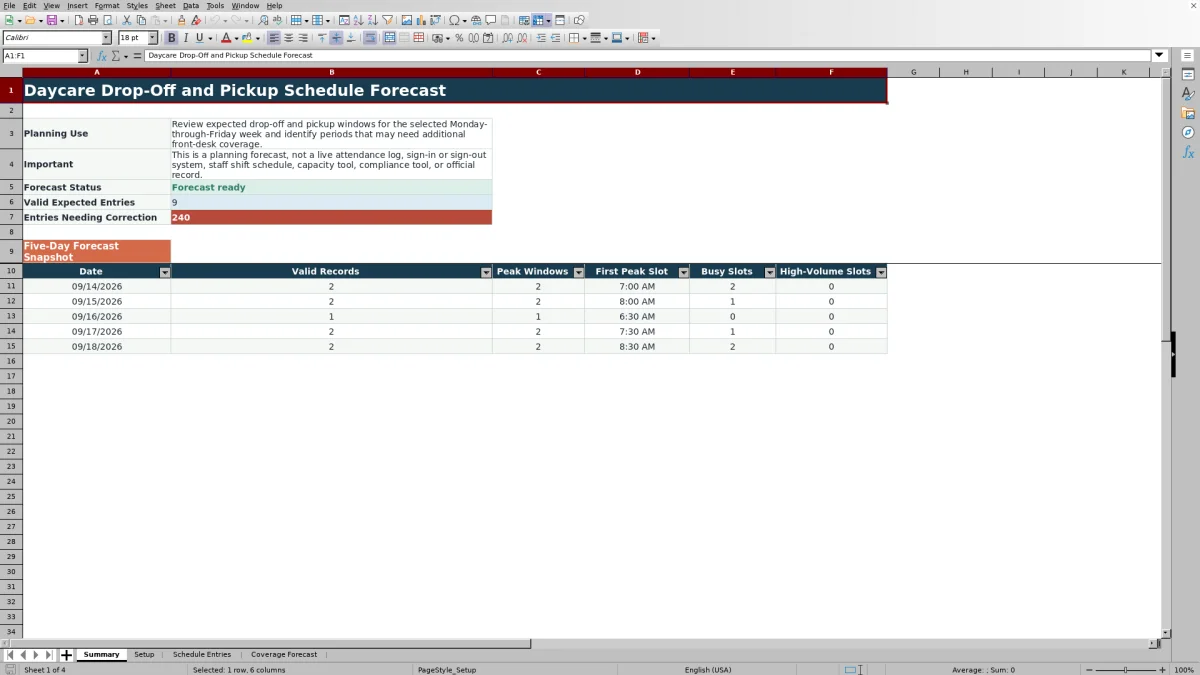
The Summary sheet presents the current forecast status, the number of valid Expected entries, the number of entries needing correction, and a five-day snapshot. The detailed Coverage Forecast separates drop-off and pickup windows and combines them into total overlapping windows for each half-hour period.
Planning Assumptions and Editable Controls
The Setup sheet controls the forecast week, operating hours, traffic thresholds, and classroom dropdown choices. The week-start value must be a Monday, and the resulting forecast covers that date through Friday. Center opening and closing times must use half-hour increments, and the opening time must precede the closing time.
The Busy threshold accepts a whole number from 1 through 99. The High-Volume threshold must be a whole number greater than the Busy threshold and no greater than 100. These labels describe forecast traffic volume only; they do not evaluate staffing ratios, room capacity, safety, certification, or regulatory compliance.
Schedule Entry and Data-Check Workflow
Each schedule row can contain a date, a schedule ID of up to 20 characters, a classroom, an Expected Status, two drop-off times, two pickup times, and a planning note of up to 100 characters. Classroom and status dropdowns draw from the choices maintained through Setup.
Dates are limited to the selected Monday-through-Friday range. Window times are entered in 15-minute increments and must remain within the configured operating hours. The Data Check formula reviews populated rows, including required fields and duplicate date-and-ID combinations. Operators should resolve flagged rows before relying on the forecast totals.
Reading Daily Peaks and Half-Hour Traffic
For each weekday, the forecast reports the number of valid Expected records, the highest number of overlapping windows, and the first half-hour slot at which that peak occurs. When several periods share the same peak, the displayed first peak slot identifies the earliest matching period rather than every tied period.
The detailed section reports drop-off windows, pickup windows, total windows, and a traffic level for each half-hour period. Busy Slots include periods classified as Busy or High Volume, while High-Volume Slots count only periods at the higher threshold. These outputs support front-desk planning but do not prescribe employee shifts.
Interpreted Practical Example
Situation: The demonstration records for Monday, September 14, 2026 include DEMO-001 with a 7:00–7:30 AM drop-off window and DEMO-002 with a 7:15–7:45 AM drop-off window. Their pickup windows also overlap later in the day.
Action: Keep the week start at September 14, confirm that both records are Expected and return OK, and leave the example Busy threshold at 2 and High-Volume threshold at 4. Result: Assuming no other valid Monday records are present, Monday has two valid Expected records, and a period where both windows overlap can reach a total of 2. Interpretation: A total of 2 meets the example Busy threshold but does not meet the High-Volume threshold of 4. Next decision: Review the corresponding morning and afternoon periods for front-desk coverage needs, then verify the entries or adjust operational plans without treating the traffic label as a staffing-ratio or compliance finding.
Common Errors and Solutions
If Forecast Status shows Check assumptions, verify that the week start is a Monday, opening and closing times are present and ordered correctly, and both traffic thresholds are present with High Volume greater than Busy. If the status reports that there are no valid Expected entries, confirm that records fall within the selected week, use Expected status, and return OK in Data Check.
For a missing-required-input result, complete the row’s date, schedule ID, classroom, and Expected Status. For a duplicate date-and-ID issue, assign a distinct non-identifying schedule ID or correct the date. If a date or time is rejected, place the date within the selected Monday-through-Friday range and enter times in 15-minute increments between the configured opening and closing times. Avoid pasting over formula-driven Data Check or helper cells.
Comparison With Manual and Software Alternatives
The workbook operates as one complete method: configure assumptions, enter expected schedules, correct flagged data, review calculated traffic, and make a front-desk planning decision. The comparison below distinguishes that method from realistic alternatives without assuming that one approach fits every center.
| Method | Workflow and controls | Forecast output | More suitable when |
|---|---|---|---|
| This Excel workbook | Combines weekly setup, structured entries, dropdown choices, validation rules, formula-based checks, and review sheets in one XLSX. | Provides a five-day snapshot and half-hour counts for drop-off, pickup, total overlapping windows, peaks, and traffic levels. | More suitable when a center needs a reusable weekly front-desk forecast in Excel and does not need live attendance or system integrations. |
| Paper or manual list | Records expected times by hand and relies on staff to notice overlaps, omissions, and duplicate records. | Requires manual counting and interpretation; calculated half-hour peaks are not built in. | More suitable when the schedule is very small, calculations are unnecessary, or computer access is limited. |
| Blank spreadsheet | Allows unrestricted entry but requires the operator to create validation, formulas, thresholds, and summary logic. | Depends entirely on the formulas and reports the operator builds. | More suitable when the center needs a custom structure that differs substantially from this workbook’s five-day window forecast. |
| Dedicated childcare software | Capabilities vary, but a dedicated platform may connect scheduling with attendance, family communication, billing, or other operational records. | Reporting and forecasting depend on the selected product and configuration. | More suitable when the center needs live workflows, multiple users, integrations, or official operational records beyond an Excel planning forecast. |
The appropriate choice depends on recordkeeping requirements, workflow complexity, available systems, and whether the goal is a weekly planning estimate or a live operational platform.
Frequently asked questions
Which schedule entries are included in the coverage forecast?
Only entries within the selected Monday-through-Friday week that are marked Expected and have an OK result in the Data Check column contribute to the forecast.
Can I change the classroom choices?
Yes. Edit the classroom list on the Setup sheet. The Schedule Entries classroom dropdown uses that list for its available choices.
Why does the workbook show Check assumptions?
This status appears when required setup values are missing or inconsistent. Confirm the Monday week start, valid opening and closing times, and thresholds that place High Volume above Busy.
What do Busy and High Volume mean?
They classify the number of overlapping drop-off and pickup windows for front-desk planning. They do not indicate staffing ratios, capacity, safety, certification, or regulatory compliance.
Can this workbook serve as an attendance or sign-in record?
No. It is a forecast of expected arrival and departure windows, not a live attendance log, sign-in or sign-out system, staff shift schedule, compliance tool, or official record.
Editorial responsibility

Lena MoralesEnrollment and classroom workflows

Jordan LeeWorkbook QA and center operations