This childcare transportation route roster Excel workbook organizes enrolled rider assignments by route, stop, vehicle, assigned staff member, room, weekday, and effective date. It connects each roster entry with the corresponding route and stop records so operators can review the current assignment status without repeatedly copying route details.
The XLSX also summarizes active assignments, routes in service, active stops, authorized weekdays, and entered seat capacity. Its alerts and capacity labels are planning prompts for staff review, not substitutes for attendance checks, transportation policies, required supervision, or final safety decisions.
How this workbook can help
- Keeps rider assignments, route records, ordered stops, vehicles, staff identifiers, and authorized weekdays in one connected workbook.
- Shows which active riders are assigned to each route on Monday through Friday for the selected review date.
- Compares each displayed route’s peak weekday rider count with its entered seat capacity.
- Flags route, stop, status, date, duplicate-record, and capacity conditions that need human review.
What is in the file
How to get started
1. Set the review date and planning limits
Open Assumptions and confirm the roster review date, end-date review window, maximum expected seat capacity, maximum stop sequence, accepted date range, and editable list choices.
2. Enter routes and ordered stops
In Routes & Stops, enter each route’s vehicle, capacity, assigned staff identifier, and service status. Then enter each stop with its matching route ID, stop ID, description, sequence, scheduled time, and status. Resolve every Route Check and Stop Check message before assigning riders.
3. Assign riders and authorized weekdays
In Route Roster, enter the rider ID, room assignment, route ID, stop ID, Monday-through-Friday choices, assignment status, start date, and optional end date. The workbook retrieves the stop description, route sequence, vehicle ID, and staff ID and counts the authorized days.
4. Review alerts and capacity results
Inspect each Review Check result, then use Summary to compare weekday rider counts with entered route capacity. Confirm any operational change with current enrollment records, transportation procedures, and staff responsible for the route.
How the Current Roster Is Determined
The Assumptions sheet supplies a single roster review date. A roster row is treated as current when its assignment status is Active, its start date is on or before that review date, and its end date is blank or on or after the review date. The Summary sheet uses those conditions to count current assignments and total their Monday-through-Friday authorizations.
Changing the review date provides a date-specific planning view without deleting historical assignment rows. Staff should still verify that statuses and effective dates reflect approved enrollment and transportation changes.
Interpreted Practical Example
Situation: The fictional North Loop has an entered capacity of two seats. Three current riders use it: one rides every weekday, one rides Monday, Wednesday, and Friday, and one rides Tuesday and Thursday.
Action: Staff enter each rider’s Yes or No weekday authorization, keep the assignments Active, and use effective dates that include the workbook’s September 10, 2026 review date.
Result: The route has two riders on Monday, Tuesday, Wednesday, Thursday, and Friday. The three records produce 10 authorized weekday entries across the week, while the route’s peak daily count is two and its available-seat result is zero.
Interpretation: The route is at its entered capacity every weekday even though the combination of riders changes. A weekly total of 10 does not mean 10 children ride at once; the peak daily count is the relevant capacity measure.
Next decision: Before adding another rider on any weekday, the operator should consider a route reassignment, a schedule change, or a properly approved vehicle and capacity change. The decision should be confirmed against actual attendance and transportation requirements.
Common Errors and Solutions
A Check route message means the entered Route ID is blank or does not match a route record; correct the ID or create the route record first. A Check route status message means the matching route is not marked In Service; confirm whether the assignment should move or the route status should be updated.
A Check stop message calls for verifying that the Route ID and Stop ID exist together in the stop records. Duplicate-route and duplicate-stop messages are resolved by retaining one authoritative route record and one unique route-and-stop combination. Capacity and sequence warnings require staff to verify the entered number and change an assumption only when the organization’s actual planning limit supports that change.
If a route is labeled At capacity or Check capacity, do not clear the warning merely by increasing the entered capacity. Verify the vehicle’s approved seating, rider schedule, and route assignment before making the next operational decision.
Comparison With Other Roster Methods
The workbook is one complete operational method: staff maintain route and stop records, enter rider assignments, review formula checks, and interpret a date-based capacity summary in the same XLSX. The alternatives below may be more suitable when different operating conditions apply.
| Method | Organization and checks | More suitable when | Tradeoffs |
|---|---|---|---|
| This Excel workbook | Connects rider assignments with route, stop, vehicle, staff, weekday, date, and capacity records; includes validation and review formulas. | More suitable when a center works in Excel and needs a structured roster for up to 100 assignment rows, route rows, and stop rows. | Requires careful data entry and manual review; it does not provide live dispatch, GPS, mobile check-in, or automatic parent communication. |
| Paper or manual roster | Uses printed lists and handwritten updates without automatic lookups or capacity calculations. | More suitable when a very small or temporary operation has no reliable device access and can control one authoritative copy. | Weekday recounts, effective-date reviews, corrections, and version control remain manual. |
| Blank spreadsheet | Starts without linked route records, validation lists, review checks, or a prepared capacity summary. | More suitable when the center needs a one-time layout with entirely custom fields and has staff able to design and test its own controls. | Setup and testing take additional work, and inconsistent IDs or formulas may be harder to detect. |
| Dedicated childcare transportation software | May combine transportation records with mobile attendance, communications, dispatch, GPS, or enrollment systems, depending on the product. | More suitable when real-time operations, system integrations, mobile workflows, or multi-site administration are required. | May involve subscriptions, implementation, training, permissions management, and vendor-specific workflows. |
The choice depends on roster size, available technology, staff workflow, reporting needs, and whether real-time transportation functions are required.
Understanding Weekday Capacity Results
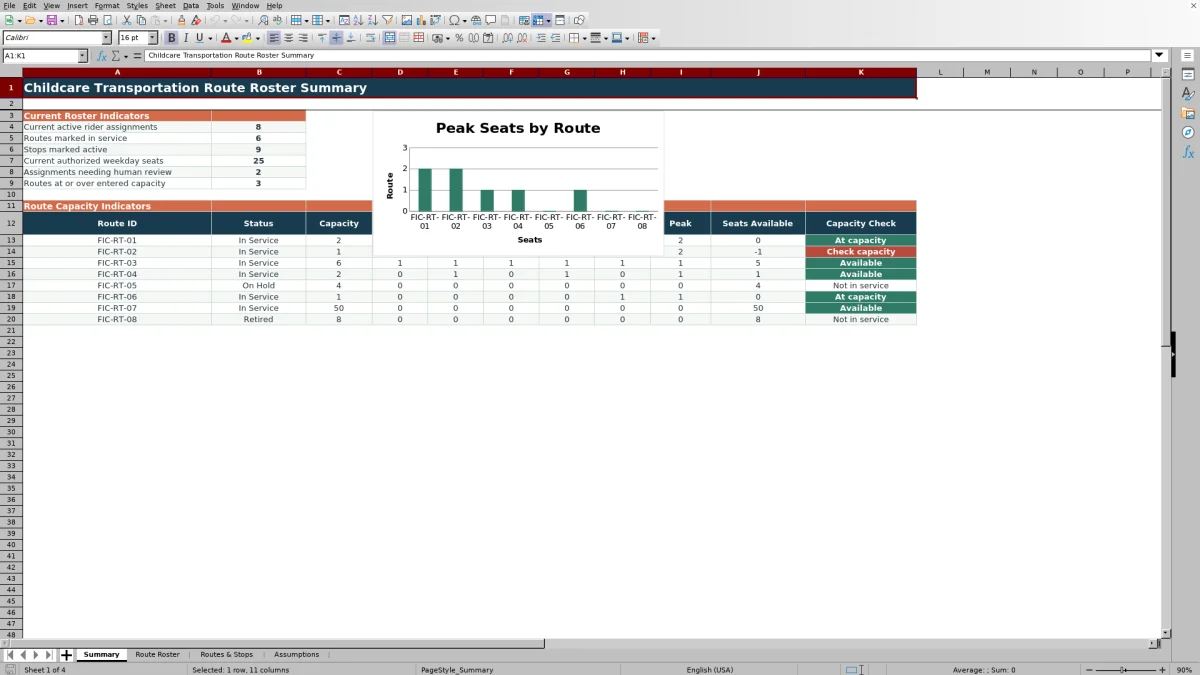
For each of the eight route rows displayed on Summary, the workbook counts current active assignments authorized for each weekday. Peak is the largest Monday-through-Friday count, and Seats Available subtracts that peak from the entered route capacity.
Available indicates remaining entered capacity, At capacity means the peak equals capacity, Check capacity includes missing or over-capacity conditions, and Not in service means the route status is not In Service. These labels describe the entered planning data and should be reconciled with the actual vehicle, staffing, and rider list.
Data Entry and Privacy Practices
The included sample records use fictional rider, route, vehicle, staff, and stop identifiers. Before entering real childcare information, store the file in an approved location, restrict access to authorized personnel, follow applicable retention practices, and share only the information needed for transportation duties.
Route ID and Stop ID fields in Route Roster are typed manually rather than selected from workbook dropdown lists. Consistent identifiers are therefore important, and every formula-generated review message should be investigated instead of treated as an automatic approval.
Workbook Limits and Ongoing Decisions
Route Roster provides 100 assignment rows, while Routes & Stops provides 100 route rows and 100 stop rows. The Summary capacity area and its chart display only the first eight route-record rows, so additional routes can be stored but will not appear in that overview without a deliberate workbook modification.
Update the review date when preparing a new planning period, end or pause assignments instead of deleting useful history, and keep route and stop statuses current. Preserve the formula-driven columns so their lookups and checks remain available for the next review decision.
Frequently asked questions
Is this Excel roster an attendance or vehicle check-in system?
No. It records planned rider assignments and authorized weekdays. Staff should use the center’s required attendance, boarding, release, supervision, and vehicle-check procedures for daily operations.
How does the workbook decide whether an assignment is current?
It checks for an Active status, a start date on or before the Assumptions sheet’s roster review date, and either a blank end date or an end date on or after the review date.
Can the roster record Saturday or Sunday transportation?
No. The validated workbook contains authorization columns for Monday through Friday only.
How are route capacity warnings calculated?
The Summary sheet counts current active riders authorized on each weekday for a displayed route, identifies the largest weekday count as Peak, and compares that number with the route’s entered seat capacity.
Can the workbook store more than eight routes?
Yes. Routes & Stops has 100 route-entry rows, but the Summary capacity section and chart show only the first eight route rows. Routes entered below those eight rows will not appear in that overview unless the workbook is intentionally extended.
Editorial responsibility

Lena MoralesEnrollment and classroom workflows

Jordan LeeWorkbook QA and center operations