This Daycare Meal Planner Excel workbook provides a structured place to record up to 100 meals and snacks. Each row connects the service date and time with the meal type, age group, room, menu, serving estimate, staff lead, status, and notes.
Use it to schedule by day, age group, and service time while monitoring planned servings and costs. Formulas calculate the weekday and planned cost, the Review column identifies entries that need attention, and the Summary sheet consolidates operational totals.
How this workbook can help
- Keep the date, service time, age group, room, menu, servings, staff assignment, and status for each meal or snack in one row.
- Estimate spending before service by multiplying planned servings by the estimated cost per serving.
- Promote consistent entries with validated dates, times, quantities, costs, meal types, age groups, rooms, staff leads, and statuses.
- Identify incomplete, duplicate, or out-of-range entries before relying on the schedule or its summary totals.
What is in the file
How to get started
1. Review the operating limits
Open the Assumptions sheet and confirm the planning dates, permitted service times, serving limits, cost limits, meal types, age groups, rooms, staff leads, and statuses. The supplied planning period runs from August 11, 2026, through September 10, 2027.
2. Enter one service per row
On the Meal Plan sheet, assign a unique Plan ID and enter the service date, meal type, service time, age group, room, menu description, planned servings, estimated cost per serving, staff lead, and status. Use Notes for relevant operational context.
3. Check the calculated fields
Confirm that the Day column displays the expected weekday and that Planned Cost equals planned servings multiplied by estimated cost per serving. Do not type over the formulas in the Day, Planned Cost, or Review columns.
4. Resolve flags and review totals
Use the Review column to find missing fields, duplicate IDs, invalid dates, or other entries requiring attention. After correcting them, open Summary to examine servings, costs, statuses, upcoming active entries, and meal-type totals before making the next scheduling decision.
What the Daycare Meal Planner Tracks
The operating rule is one meal or snack per row. Each entry can connect a unique Plan ID with its date, calculated weekday, meal type, service time, age group, room, menu description, serving estimate, estimated cost, staff lead, status, and notes. This structure helps operators filter the schedule without separating related service details across multiple records.
Schedule Meals by Service Details
The Meal Plan supports Breakfast, AM Snack, Lunch, PM Snack, and Late Snack. Available age-group entries include Infants, Toddlers, Preschool, Pre-K, School Age, and All Groups, while room and staff selections come from the Assumptions sheet. Dates, times, servings, and costs are also subject to configured limits, helping the center maintain consistent scheduling data.
Practical Daycare Breakfast Example
Situation: a fictional Pre-K group in the Meadow Room needs breakfast scheduled for September 14, 2026. Action: the operator records Plan ID MP-003, an 8:00 AM service, 20 planned servings, a $2.20 estimated cost per serving, Casey Quill as the fictional staff lead, and Confirmed status. Result: the workbook displays Mon and calculates a planned cost of $44.00. Interpretation: a Ready review result indicates that the row has the required fields and passes the workbook's configured checks; it does not evaluate nutrition, allergens, or food safety. Next decision: the operator can retain the confirmed plan, revise quantities or cost estimates if attendance expectations change, and update the status to Served after service.
Common Entry Errors and Solutions
A Check missing fields message means one or more required planning fields are blank; complete the row and review it again. Check duplicate ID means the Plan ID appears more than once; assign a unique identifier. Check date means the service date falls outside the configured planning period or is not recognized correctly; enter a valid Excel date within the Assumptions range.
Input validation can also reject a service time outside 6:00 AM to 7:00 PM, servings above 200, or a cost per serving above $25. Correct a typing error or revise the relevant Assumptions value only when the center intentionally changes its operating limit. Serving estimates above the 60-serving guideline and costs above the $4.50 guideline warrant a human review even when they remain below the maximum entry limits.
Comparison With Other Planning Methods
The workbook functions as one operational method: staff enter controlled schedule records, formulas calculate day and cost, review messages identify issues, and Summary consolidates results. The comparison below considers that complete process against realistic alternatives.
| Method | How it operates | More suitable when | Main limitation |
|---|---|---|---|
| Daycare Meal Planner Excel workbook | Combines a 100-row schedule, validated inputs, calculated costs, review messages, assumptions, summary totals, and a meal-type chart. | More suitable when a center already uses Excel and needs a structured meal schedule with basic cost and status monitoring. | It does not provide nutrient analysis, allergen management, inventory purchasing, attendance integration, or compliance verification. |
| Paper or manual log | Staff write plans and changes by hand without automatic calculations or consolidated totals. | More suitable when the schedule is small, device access is limited, and staff need a physical record at the point of service. | Duplicate entries, arithmetic errors, and missing information require manual detection. |
| Blank spreadsheet | Staff create their own columns, formulas, lists, checks, and reports. | More suitable when the center needs an unstructured layout or custom fields that do not fit the supplied planner. | Controls and summaries must be designed, tested, and maintained by the user. |
| Dedicated childcare software | Depending on the product, it can connect menus with attendance, family communication, billing, inventory, or broader center administration. | More suitable when the center needs integrated workflows, multiple user roles, or centralized records across several operational areas. | It may involve subscriptions, implementation work, training, and features that vary by provider. |
Choose according to the center's scale, existing tools, reporting needs, staff workflow, and need for integration rather than treating any method as universally superior.
Interpret the Summary Before Making Changes
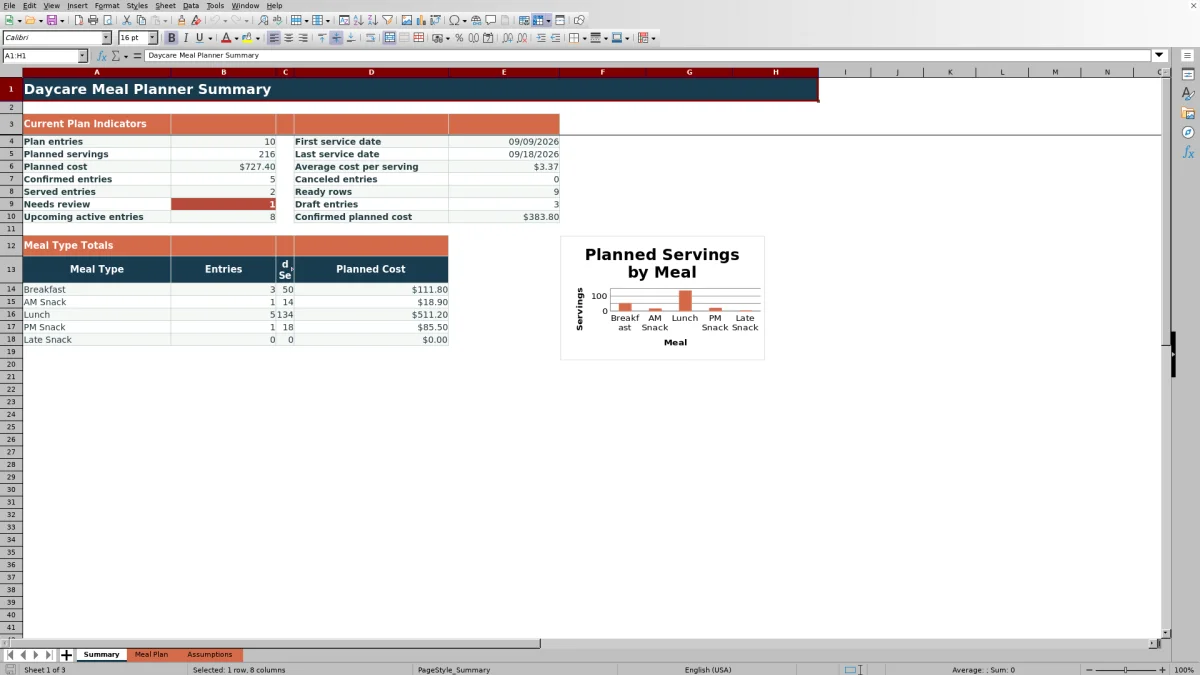
Summary reports total plan entries, planned servings, planned cost, first and last service dates, average cost per serving, status counts, Ready rows, review flags, upcoming active entries, and confirmed planned cost. Its meal-type area also compares entries, servings, and planned cost for the five configured meal types. A rise in planned cost may reflect more servings, a higher estimated unit cost, or both, so operators should inspect the underlying rows before changing a menu or quantity.
Operational Scope and Human Review
This planner supports scheduling and estimated-cost oversight, but the workbook manifest does not show nutrient calculations, allergen fields, food inventory, purchasing, attendance-based forecasting, or regulatory checks. Childcare-center staff should continue using their approved food-safety procedures, dietary records, allergy controls, attendance information, and applicable program requirements alongside the schedule.
Frequently asked questions
How many meals and snacks can the workbook schedule?
The Meal Plan provides 100 entry rows, from row 4 through row 103. Each row is intended for one meal or snack service.
Does the workbook calculate meal costs automatically?
Yes. Planned Cost is calculated by multiplying Planned Servings by Estimated Cost per Serving. Summary totals planned cost and also reports the average cost per serving and confirmed planned cost.
What do the Review messages mean?
The Review formula prompts a human check when required information is missing, a Plan ID is duplicated, a date is invalid, or another configured condition is not met. Correct the underlying entry rather than typing over the Review formula.
Can I change the meal types, age groups, rooms, staff leads, and statuses?
You can replace values within the list areas on the Assumptions sheet. The existing validation ranges are fixed to those cells, so expanding a list beyond the supplied range requires corresponding changes to the workbook validation and, where applicable, summary formulas.
Does this daycare meal planner check nutrition, allergens, or food safety compliance?
No. The workbook schedules services and estimates servings and costs, but it does not analyze nutrients, record allergens in dedicated fields, manage inventory, or verify compliance. Use separate approved records and procedures for those responsibilities.
Editorial responsibility

Lena MoralesEnrollment and classroom workflows

Jordan LeeWorkbook QA and center operations