This Excel daycare holiday closure calendar provides childcare-center operators with a structured way to record full closures and reduced-service days, affected programs, staffing needs, notice dates and notice status. The XLSX includes a detailed calendar, configurable assumptions and a summary of scheduled entries.
Use the workbook as an internal operating record before publishing confirmed dates through the center’s normal family communication channels. The included entries are fictional examples, so operators should replace them and review every date, description, staffing figure and notice status before sharing the schedule.
How this workbook can help
- Maintain one schedule for complete closures and reduced-service days.
- Identify whether each event affects the entire center or a specific room or program while recording staff needed.
- Track whether family notices are Draft, Ready for Review, Posted or Updated and record notice dates when applicable.
- Use calculated indicators and review alerts to monitor upcoming entries, reporting-period activity and records needing human review.
What is in the file
How to get started
1. Confirm the operating assumptions
Open the Assumptions sheet and review the reporting period, as-of date, upcoming horizon, notice lead target, duration review limit, maximum staffing value and allowed date range. Update the yellow input cells to match the center’s planning cycle.
2. Replace the fictional schedule entries
On the Closure Calendar sheet, enter a unique closure ID, start and end dates, description, service level, affected program, staff needed, notice status and notice date when applicable. Use separate records when dates, programs or staffing requirements differ.
3. Resolve validation issues and review prompts
Use the available dropdown choices and check the Review Alert column. Correct missing information, duplicate IDs, invalid date sequences and other flagged conditions before relying on the schedule.
4. Review and communicate the approved calendar
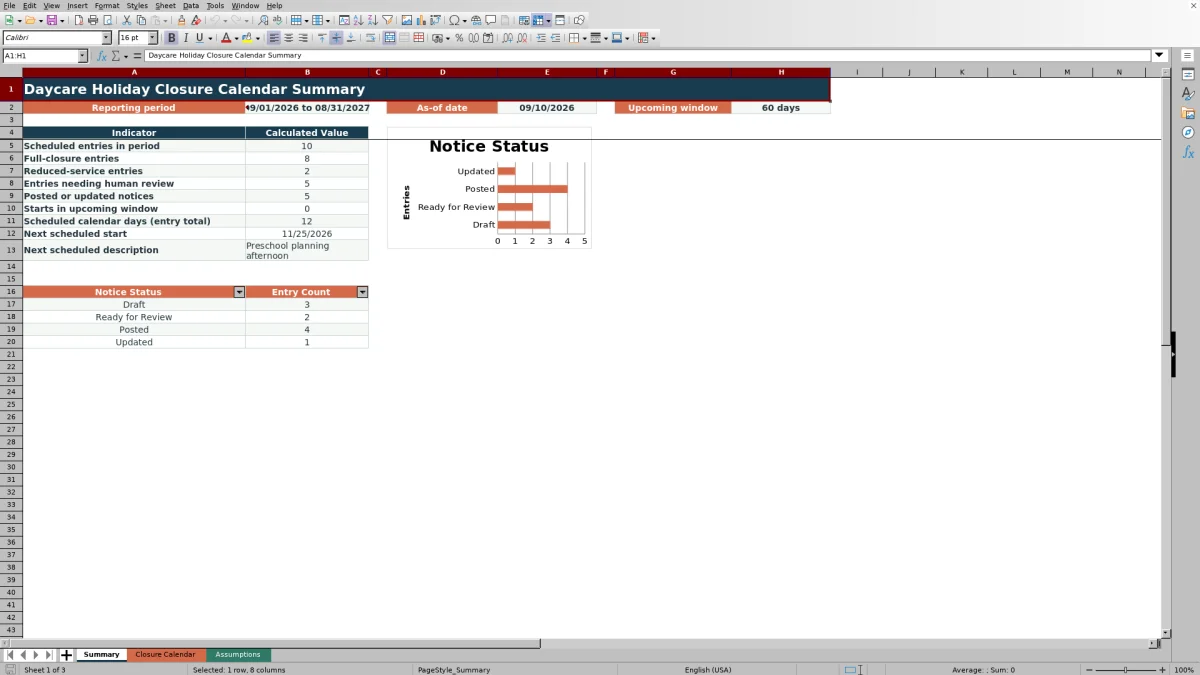
Use the Summary sheet to review closure counts, reduced-service entries, upcoming starts and notice-status totals. After an authorized person confirms the schedule, publish the approved information through the center’s established family communication process and update the notice status in the workbook.
What the Excel closure calendar manages
The workbook creates a single operational record for daycare holidays, planning days and other service changes. Each entry can identify a complete closure or reduced-service day, the affected room or program, the required staff count and the current communication status. This structure helps an operator distinguish an all-center closure from a program-specific adjustment without maintaining separate lists.
Notice tracking and management review
Notice Status choices include Draft, Ready for Review, Posted and Updated. When a notice date is entered, the workbook calculates the number of days between that date and the scheduled start. The Summary sheet counts entries by status and reports posted or updated notices, while the Review Alert column directs staff to records that need a person’s attention. These tools support review; they do not approve dates or send family communications.
Interpreted practical example
Situation: The fictional Preschool planning afternoon begins November 25, 2026, uses Reduced Service, requires four staff members and is marked Ready for Review without a notice date. Action: The operator checks the record against the September 1, 2026–August 31, 2027 reporting period, the September 10 as-of date and the 60-day upcoming horizon. Result: The entry contributes one reporting-period calendar day and appears in the reduced-service and Ready for Review counts, but it is not an upcoming start because November 25 is outside the configured 60-day window; Notice Lead Days also remains blank because no notice date is recorded. Interpretation: The service change belongs in the annual schedule, but it is not yet inside the current short-term planning window and its communication timing is undocumented. Next decision: Confirm the staffing and service plan, decide when the family notice should be issued, and then enter the notice date and advance the status through the center’s review process.
Common errors and practical solutions
A repeated closure ID can make records difficult to distinguish, so assign a unique ID to each entry. If an end date precedes its start date, correct the date sequence before using calculated duration or reporting totals. When service level, program or notice status is missing, choose an approved value from the corresponding dropdown. If Notice Lead Days is blank, confirm whether a notice has actually been issued and enter its date when applicable. For an unusually long entry, compare the dates with the duration review limit and verify that the range is intentional rather than suppressing or ignoring the review prompt.
Comparison with other scheduling methods
This comparison treats the Excel workbook—including its assumptions, calendar entries, formulas, summary and human-review process—as one complete operational method rather than comparing its worksheets as separate options.
| Method | Setup and ongoing work | Checks and visibility | More suitable when |
|---|---|---|---|
| This Excel closure calendar | Provides predefined fields, formulas, lists and a summary, but an operator must maintain the file and distribute approved information. | Includes date and number validation, review alerts, reporting totals, upcoming-start tracking and notice-status counts. | More suitable when a center wants a structured, file-based process without implementing a broader software platform. |
| Paper or manual log | Can be started with little technical setup, but updates, duplicate checks and totals are handled manually. | Offers limited automated checking and requires staff to inspect each record and calculate dates or counts by hand. | More suitable when a very small operation records only a few events or requires a physical log. |
| Blank spreadsheet | Allows a custom layout, but the operator must build and test fields, formulas, validations and reports. | Depends entirely on the checks and summaries created by the person designing the file. | More suitable when the center has unusual requirements and staff time to design and maintain a custom model. |
| Dedicated childcare software | May require subscription costs, account administration, training and data migration, depending on the product. | May combine calendars with permissions, family messaging or multi-site workflows when those functions are offered. | More suitable when integrated communication, access controls or coordination across several locations is a priority. |
The appropriate method depends on schedule volume, communication needs, staff capacity, budget and whether the center needs a local workbook or an integrated platform.
Understanding reporting dates and calculated totals
The reporting-period counts include entries whose start and end dates overlap the configured period. Reporting-day totals count only the days that fall inside that period, even when an entry begins before it or ends afterward. The upcoming count uses the start date and the interval from the as-of date through the configured horizon, while the next scheduled start identifies a valid start date on or after the as-of date. Operators should update the assumptions deliberately because those settings change the Summary results without changing the underlying closure records.
From internal schedule to publication decision
Before publishing, filter or scan the Closure Calendar for unresolved alerts, Draft records and entries marked Ready for Review. Confirm that dates agree with center policy, staffing plans and any applicable enrollment or operating requirements. After approval, communicate the confirmed schedule through the center’s established channel, record the notice date, and change the status to Posted or Updated. The next decision is whether a later as-of date or a different upcoming horizon is needed for the next management review.
Frequently asked questions
What does the Excel daycare holiday closure calendar track?
It tracks closure IDs, start and end dates, descriptions, service levels, affected rooms or programs, staff needed, notice statuses and notice dates. It also calculates calendar days, notice lead days and reporting helpers.
How many schedule entries can the workbook hold?
The Closure Calendar provides 100 prepared entry rows, from row 5 through row 104.
Can the workbook track reduced-service days as well as full closures?
Yes. The Service Level list includes Closed and Reduced Service, and the Summary sheet reports counts for both types.
How should operators use the notice statuses?
Use Draft while preparing the communication, Ready for Review while awaiting approval, Posted after sharing the notice, and Updated when a previously posted notice has been revised. Enter the notice date when applicable so the lead-day calculation can be used.
Does the workbook replace a family communication system?
No. The workbook records schedule and notice information for operational tracking. After review, the center should communicate approved dates through its established email, portal, messaging or printed-notice process.
Editorial responsibility

Lena MoralesEnrollment and classroom workflows

Jordan LeeWorkbook QA and center operations