This Excel workbook provides a structured conference discussion record for preschool teams. Staff can index conference dates, rooms, facilitators, attendance, discussion topics, family questions, and agreed actions without mixing those details into an unstructured notes page.
The tracker also turns each agreement into an operational follow-up with an owner, due date, status, completion date, and next check-in. Its Summary, Conference Notes, and Assumptions worksheets work together to surface overdue items, approaching deadlines, incomplete records, attendance figures, and follow-up status counts.
How this workbook can help
- Keeps discussion topics and family questions connected to the relevant conference record.
- Clarifies responsibility by recording the owner, due date, status, completion date, and next check-in for each agreed follow-up.
- Uses an editable as-of date and review windows to distinguish overdue, due-soon, scheduled, completed, and missing-date situations.
- Gives classroom leaders a summary of attendance, open work, completed work, review flags, and upcoming check-ins.
What is in the file
How to get started
1. Review the timing settings and choice lists
Open Assumptions and confirm the as-of date, 14-day due-soon window, permitted date range, and 30-day check-in horizon. Update the visible room, facilitator, owner, status, and attendance choices when local labels differ.
2. Enter the conference record
Use one conference per row on Conference Notes. Add the conference ID, child record ID, date, room, facilitator, attendance result, discussion topics, and family questions.
3. Document the agreed action
If the discussion produces a follow-up, enter the action, responsible owner, due date, and status. Add a completion date when the status becomes Complete and record a next check-in when another review is planned.
4. Review alerts and decide what happens next
Check Days to Due, Timing Alert, and Record Review before using the Summary sheet. Correct incomplete or inconsistent entries, contact owners about overdue work, and use the status counts and chart to plan the next operational review.
What the preschool conference tracker organizes
The Conference Notes worksheet keeps identifying information, meeting context, discussion content, and operational actions in one row. Its fields cover Conference ID, Child Record ID, Conference Date, Room, Facilitator, Family Attended, Discussion Topics, Family Questions, Agreed Follow-Up, Follow-Up Owner, Due Date, Status, Completion Date, Next Check-In, Days to Due, Timing Alert, and Record Review. This arrangement helps staff move from what was discussed to who is responsible for the next action.
Practical example: interpreting an overdue follow-up
Situation through result: In the fictional sample record PC-2026-001, a family attended an August 20 conference and asked how the morning choice routine is introduced. The recorded action is for Educator A to share the classroom arrival sequence, with an August 27 due date and an Open status. Against the September 10 as-of date, the workbook calculates negative 14 days to due and labels the item Overdue. Interpretation and next decision: This result indicates that an operational commitment remains open after its recorded deadline; it is not a judgment about the child or family. The next decision is to ask the owner whether the action occurred, enter a completion date and Complete status if it did, or revise the plan and due date if further work remains before the October 1 check-in.
Common entry errors and their solutions
If the child record ID, conference date, room, facilitator, or attendance field is missing, Record Review can display Check core fields; the solution is to complete those administrative fields. If a due, completion, or next check-in date precedes the conference date, Check date order prompts staff to verify and correct the dates. When an agreed follow-up lacks an owner, due date, or status, Check follow-up details identifies the incomplete action record. A Complete status without a completion date produces a completion-date review prompt, while an open follow-up without a due date produces Check due date in the timing column. These messages call for human review rather than silently changing an entry.
Comparison with paper, blank spreadsheets, and childcare software
The tracker is one complete operational method: structured conference entry, controlled choices, action ownership, timing calculations, review prompts, and summary reporting are already connected. The alternatives below may be more suitable when different operating conditions apply.
| Method | How follow-up is managed | Practical strengths | Limitations | More suitable when |
|---|---|---|---|---|
| This Excel workbook | Conference details and actions are entered by row; formulas calculate timing and review messages; Summary reports current indicators. | Configured fields, dropdowns, date validation, alerts, filters, and a status chart are included. | It is configured for 100 records, and staff still need to review alerts and maintain entries. | More suitable when a center wants a structured XLSX process without adopting a separate platform. |
| Paper or manual notes | Staff write notes and use calendars, folders, or separate lists to remember actions. | Works without a device and can fit an established in-person filing routine. | Searching, counting statuses, and spotting approaching due dates require manual review. | More suitable when conferences occur where computer access is limited and the record volume is small. |
| Blank spreadsheet | Staff design columns, lists, formulas, and review rules themselves. | Offers unrestricted layout choices for teams able to build and maintain spreadsheet logic. | Controls and summary calculations are absent until someone creates and tests them. | More suitable when the center needs a substantially different data structure and has spreadsheet expertise. |
| Dedicated childcare software | Conference records may connect with broader child, family, staff, messaging, or permission systems, depending on the product. | Can support centralized workflows and multiuser controls beyond a standalone file. | May require subscriptions, setup, training, and adaptation to the vendor's workflow. | More suitable when integrated records, role-based access, or platform-wide communication are required. |
The appropriate choice depends on record volume, access requirements, staff capacity, existing systems, and whether the center needs a standalone tracker or an integrated service.
How timing alerts use editable assumptions
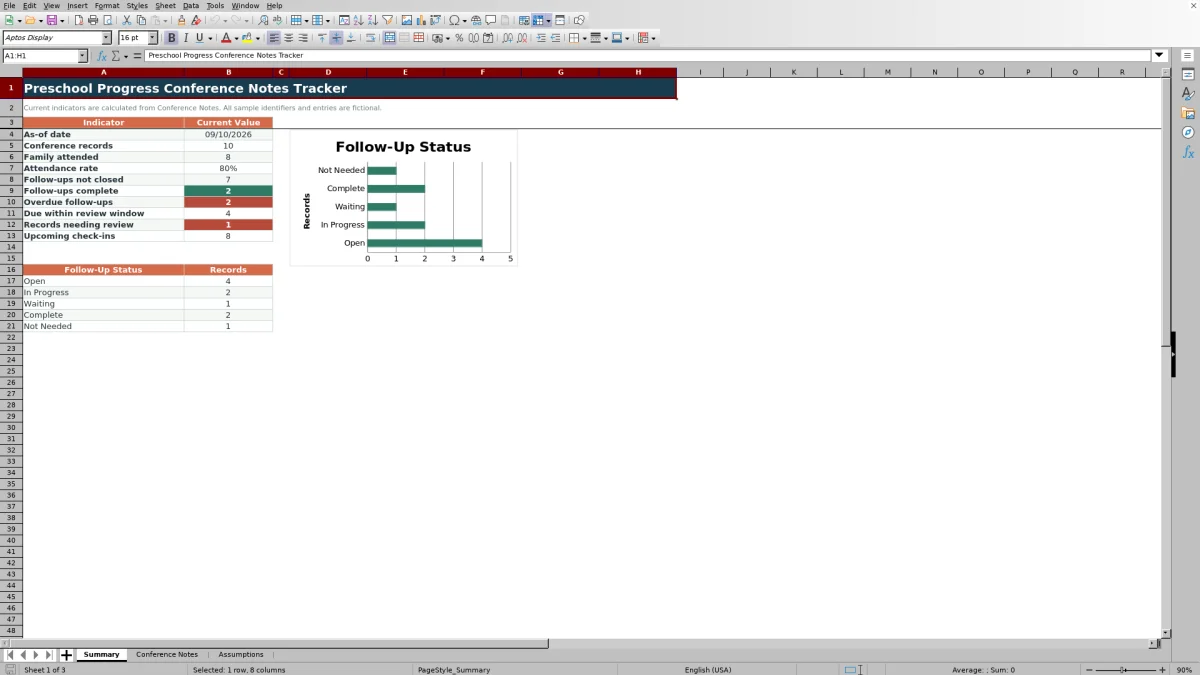
The workbook does not rely on an unstated current date. Days to Due and timing labels use the editable as-of date on Assumptions, which is September 10, 2026 in the supplied file. An unfinished action is Overdue when its due date is earlier than that date, Due soon when it falls within the configured 14-day window, and Scheduled when it falls later. Complete items and records without follow-ups receive their corresponding labels. The 30-day check-in horizon controls the Summary count for upcoming check-ins.
Using the summary for an operational review
The Summary worksheet counts conference records, family attendance, attendance rate, follow-ups not closed, completed follow-ups, overdue items, items due within the review window, records needing review, and upcoming check-ins. It also counts Open, In Progress, Waiting, Complete, and Not Needed records and displays those status counts in a chart. A useful review order is to resolve record-quality prompts first, address overdue and due-soon actions second, and then prepare for upcoming check-ins.
Maintaining consistent records
The Assumptions worksheet holds visible choices for five rooms, five facilitators, six possible follow-up owners, five statuses, and Yes or No attendance. Keeping these labels consistent supports filtering and summary counts. The Conference Notes sheet includes an autofilter across all 17 columns and freezes the heading area, while editable and calculated fields are visually distinguished. Because the workbook describes its content as administrative discussion notes, staff should use it for conference operations and apply their center's normal privacy, access, and record-retention practices.
Frequently asked questions
What information can staff record for each preschool conference?
Staff can record a conference ID, child record ID, date, room, facilitator, family attendance, discussion topics, family questions, agreed follow-up, owner, due date, status, completion date, and next check-in. The final three columns calculate days to due, a timing alert, and a record-review message.
How does the Excel tracker determine whether a follow-up is overdue?
An unfinished follow-up is labeled Overdue when its due date is earlier than the editable as-of date on the Assumptions worksheet. The workbook uses the same setting with the due-soon window to classify approaching and later deadlines.
Can a center change the rooms, staff names, and status choices?
Yes. The Assumptions worksheet contains visible lists for rooms, facilitators, follow-up owners, statuses, and attendance choices. The Conference Notes dropdowns use those list areas.
How many conference records is the workbook configured to hold?
The Conference Notes entry area is configured for 100 records, from row 5 through row 104. Extending it would require corresponding updates to formulas, validation, formatting, filters, and Summary ranges.
Does the workbook replace staff review of conference notes and follow-ups?
No. Its formulas identify timing conditions and possible record problems, but the worksheet states that review alerts prompt a human check. Staff remain responsible for confirming dates, action status, completion, and the appropriate next decision.
Editorial responsibility

Lena MoralesEnrollment and classroom workflows

Jordan LeeWorkbook QA and center operations