This Child Enrollment Tracker Excel workbook maintains one operational roster for up to 100 child enrollment records. Each row can capture an enrollment ID, fictional or approved child display label, program, room assignment, start date, optional end date, and Active, Upcoming, or Inactive status.
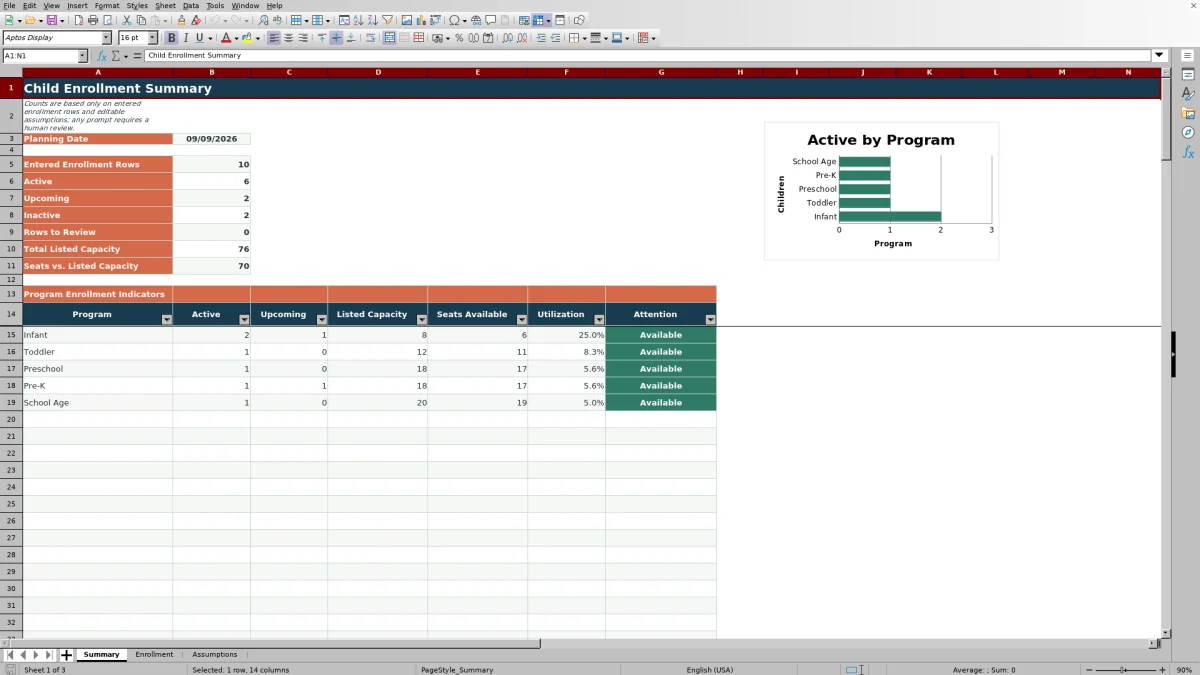
The XLSX also provides administrative review prompts and a Summary sheet with status counts, listed capacity, available seats, utilization, and program attention indicators. Its prompts and capacity calculations support staff review; they do not make enrollment decisions or replace center policies.
How this workbook can help
- Keeps program, room, enrollment dates, and current status together in one filterable roster.
- Separates Active, Upcoming, and Inactive records for clearer operational planning.
- Flags incomplete fields and apparent date or status conflicts for human review.
- Compares active enrollment with editable listed capacity by program.
What is in the file
How to get started
1. Configure the planning assumptions
Open the Assumptions sheet and review the planning controls: Planning Date, Earliest Accepted Date, Latest Accepted Date, Minimum Listed Capacity, and Maximum Listed Capacity. Replace the fictional program names and capacities in rows 9 through 108 with locally approved planning values.
2. Build the operational roster
On the Enrollment sheet, replace the fictional demonstration entries and enter one record per row in columns A through G. Use a unique Enrollment ID, an appropriate display label, the selected program and room, the start date, an optional end date, and an Active, Upcoming, or Inactive status.
3. Resolve administrative prompts
Read the calculated Review Prompt in column H. Correct missing required fields, an end date earlier than the start date, or a status that appears inconsistent with the planning date. Staff must make the final decision rather than treating a prompt as an automatic determination.
4. Review counts and capacity
Use the Summary sheet to review entered rows, status totals, rows needing attention, listed capacity, seats available, utilization, and program attention messages. Filter the roster when staff need to investigate the records behind a result.
A Practical Enrollment Roster for Daily Operations
The workbook acts as a single source for enrollment status by keeping each child's operational enrollment details on one row. Staff can filter the Enrollment sheet by program, room, start date, end date, or status instead of reconciling separate active, future-start, and departed-child lists. The prepared range covers rows 5 through 104, while column H calculates review messages without replacing the staff member's judgment.
How Dates and Statuses Work Together
The Planning Date on the Assumptions sheet supplies the reference date used by summary counts and status checks. Active, Upcoming, and Inactive remain staff-entered categories, but the formula in the Review Prompt column provides a human review cue when an Active record starts after the planning date, an Active record has already ended, an Upcoming record has reached its start date, required information is missing, or an end date precedes its start date. Accepted date limits are also editable on the Assumptions sheet.
Interpreted Practical Example
Situation: On the workbook's September 9, 2026 planning date, the fictional sample roster contains six entered rows: four marked Active, one marked Upcoming with a September 23 start date, and one marked Inactive with an August 20 end date.
Action: The operator reviews the Enrollment rows, confirms that each displayed status agrees with its dates, and then checks the Summary sheet.
Result: The status formulas report four active, one upcoming, and one inactive. With the five fictional listed capacities totaling 76, the workbook calculates 72 seats versus listed capacity because it subtracts the four Active records from that total.
Interpretation: The result describes the entered records and editable capacity assumptions; it does not establish whether every seat can legally or operationally be filled. Room staffing, age grouping, licensing requirements, and local policies are outside the workbook's calculations.
Next decision: The operator can investigate the upcoming Infant record, confirm its room and start plan, and decide whether local capacity assumptions need review before offering or confirming another placement.
Common Errors and Solutions
A duplicate Enrollment ID conflicts with the custom uniqueness validation; use a distinct identifier or correct the existing record. A “Check required fields” message means one or more required cells in columns A through G is blank, excluding the optional End Date. “Check end date” indicates that the end date is earlier than the start date. Start/status or end/status messages indicate that the selected status appears inconsistent with the Planning Date. In each case, correct the source entry after checking the center's records; change an assumption only when the center intentionally needs a different planning date or accepted date range.
Comparison with Manual and Software Alternatives
This complete workbook method combines roster entry, controlled selections, date checks, status counts, program capacity calculations, and review prompts. The comparison below considers that full method against realistic external alternatives rather than comparing its worksheets with one another.
| Method | Roster and status control | Checks and reporting | Best fit and trade-off |
|---|---|---|---|
| Child Enrollment Tracker Excel workbook | One prepared roster with Active, Upcoming, and Inactive options, program selection, room assignment, and enrollment dates. | Formula-driven prompts, summary counts, editable capacity indicators, filters, conditional formatting, and one chart. | Useful for a center that wants a structured local Excel process; staff must maintain the file, control access, and make all decisions. |
| Paper roster or manual list | Flexible for quick notes but status and date conventions may vary between staff members or copies. | Counts, conflict checks, and capacity comparisons must be performed manually. | May suit a very small or temporary workflow, but duplicate copies and slow reconciliation can create extra work. |
| Blank spreadsheet | Can be customized freely, but fields, allowed values, and formulas must be designed and tested by the operator. | No checks or reporting exist until someone builds them. | Best when a center needs a highly specific design and has spreadsheet expertise; setup and quality control take more time. |
| Dedicated childcare software | May provide shared records, role-based access, family workflows, billing, attendance, or integrations, depending on the product. | May offer broader automation and reporting than this workbook. | Better when multiple users need connected workflows; it can involve subscription costs, implementation, training, and vendor dependence. |
The Excel workbook is more structured than paper or a blank sheet, but it is not a substitute for a multiuser childcare management platform when permissions, integrations, audit history, or family-facing services are required.
Reading Capacity and Utilization Responsibly
For each listed program, the Summary sheet counts Active and Upcoming records, looks up listed capacity, subtracts Active enrollment to calculate seats available, and divides Active enrollment by capacity to calculate utilization. Attention labels can show Available, At capacity, Review capacity, or Set capacity. Each output is a planning indicator, not authorization to enroll a child. Operators should confirm staffing, room configuration, age-group rules, and applicable licensing requirements before acting on an apparent opening.
Privacy, Maintenance, and Next Decisions
The sample records use fictional display labels and should be replaced before operational use. A center should decide what child identifier or display label is appropriate, who can access the file, where it is stored, how backups are handled, and how long records are retained. The workbook has no defined names or Excel tables, and its prepared roster and program ranges each contain 100 rows. If the center exceeds those limits or needs simultaneous access, permissions, audit trails, billing, attendance, or family communication, the next decision should be whether to extend the workbook carefully or move to dedicated childcare software.
Frequently asked questions
How many child enrollment records can this Excel workbook hold?
The prepared Enrollment range contains 100 record rows, from row 5 through row 104. Expanding it requires careful extension of formulas, validation, formatting, filters, and Summary references.
Which enrollment statuses are available?
The Status field provides three choices: Active, Upcoming, and Inactive. Staff select the status, while the workbook checks for apparent conflicts between that selection, the enrollment dates, and the editable Planning Date.
Does the workbook automatically decide whether a child can enroll?
No. It calculates counts, capacity indicators, and administrative prompts from entered data and assumptions. A qualified staff member must consider center policy, staffing, room conditions, licensing requirements, and the underlying record before making an enrollment decision.
Can programs and capacities be customized?
Yes. The Assumptions sheet provides 100 program-list rows and editable listed capacities. Capacity entries must be whole numbers within the configured minimum and maximum values, which initially appear as 0 and 500.
What should staff do when a Review Prompt appears?
Check the source record for missing required information, incorrect date order, or a status that does not align with the Planning Date. Correct the roster entry when appropriate, or revise an assumption only if the center intentionally needs a different planning rule.
Editorial responsibility

Lena MoralesEnrollment and classroom workflows

Jordan LeeWorkbook QA and center operations