This Childcare Registration Checklist Excel workbook helps childcare-center operators track center-defined registration tasks for up to 100 child records. Each row organizes a registration ID, child display name, requested start date, room, assigned staff, checklist target date, six task statuses, and a follow-up note.
Formula-driven fields calculate completed and applicable tasks, completion percentage, and an overall status. A separate Summary sheet reports aggregate counts and upcoming dates, while the Assumptions sheet stores editable choices and date limits. The XLSX supports administrative review but does not determine legal sufficiency, licensing compliance, eligibility, or authorization to begin care.
How this workbook can help
- Keeps child registration details, task statuses, dates, assignments, and follow-up notes in one structured checklist.
- Identifies records that are complete, in progress, past due, or assigned for human review according to the entered task statuses and dates.
- Provides summary counts, average task completion, upcoming starts, and incomplete targets due soon without requiring manual totals.
- Allows centers to edit room choices, staff choices, accepted date limits, and summary windows to reflect their administrative process.
What is in the file
How to get started
1. Review the workbook settings
Review the Assumptions sheet first. Confirm the five task-status choices, six room choices, six staff choices, accepted date range, and summary windows. The initial date range is January 1, 2025 through December 31, 2030, with windows of 30 days for upcoming starts and 7 days for targets due soon.
2. Enter one registration record per row
Use one row for each record. On the Registration Checklist sheet, enter a unique registration ID, child display name, requested start date, room, assigned staff, and checklist target date. Rows 5 through 104 support 100 records.
3. Update the six task statuses
Select a status for Registration Form, Emergency Contacts, Authorized Pickup, Health Records, Enrollment Agreement, and Orientation. Use Needs Review when a person must evaluate an item, and use Not Required only when the center has determined that the task does not apply.
4. Interpret results and decide what to do next
Review Completed Tasks, Applicable Tasks, Completion %, Overall Checklist Status, and the follow-up note. Use the Summary sheet to identify workload patterns, then return to the checklist row and source records before contacting a family, clearing an item, or making another administrative decision.
What the Childcare Registration Checklist Tracks
The main worksheet treats task statuses as administrative inputs. It tracks Registration Form, Emergency Contacts, Authorized Pickup, Health Records, Enrollment Agreement, and Orientation alongside identifying and scheduling fields. The workbook also provides a follow-up note field so staff can record the next administrative step without changing a calculated result.
Room and staff fields use lists drawn from the Assumptions sheet. Requested start dates and checklist target dates are checked against editable minimum and maximum dates. Registration IDs have a custom validation rule intended to keep nonblank values unique across the 100 available rows.
How Completion and Overall Status Are Calculated
A task contributes to Completed Tasks only when its status is Complete. A task marked Not Required is excluded from Applicable Tasks, while Received, Needs Review, and Not Started remain applicable without counting as completed. Completion % divides completed tasks by applicable tasks.
Overall Checklist Status follows a defined order. Any Needs Review entry produces Human Review. A row with no applicable tasks also produces Human Review. If all applicable tasks are complete, the result is Checklist Complete. Otherwise, an incomplete row is Past Due when its checklist target date is earlier than the current date, or In Progress when that condition does not apply.
Practical Example: Interpreting a Registration Row
Situation: A child record has Complete for Registration Form, Authorized Pickup, and Enrollment Agreement; Received for Emergency Contacts; Needs Review for Health Records; and Not Started for Orientation.
Action: Staff enter those six statuses in the checklist and retain the checklist target date and follow-up note for context.
Result: The workbook calculates 3 completed tasks out of 6 applicable tasks, producing 50% completion and an Overall Checklist Status of Human Review.
Interpretation: Human Review appears because Health Records is marked Needs Review. That status takes priority over Past Due, even if the target date has passed. The percentage indicates task progress only; it does not mean the registration is half approved or half compliant.
Next decision: The assigned staff member should examine the relevant source record, resolve the health-record question, follow up on Orientation and Emergency Contacts, and then update the task cells. After those entries change, the formulas recalculate the row and the Summary sheet.
Common Errors and Solutions
One common error is reusing a registration ID. Enter a distinct nonblank ID for each row and investigate any validation warning before continuing. Another error is typing or pasting a status that does not match the configured list. Select statuses from the drop-down choices and inspect pasted records for spelling differences.
Changing task-status labels after records have been entered can break the formula logic because the calculations refer to specific cells on the Assumptions sheet. Revise labels before data entry when possible; if a label changes later, update and review every affected checklist row.
Dates outside the accepted range may be rejected. Confirm the date first, and change the limits in Assumptions only when the center intentionally wants a different range. Staff should also avoid overwriting calculated cells in Completed Tasks, Applicable Tasks, Completion %, Overall Checklist Status, or the helper area. If a formula is replaced, restore it from an intact formula row or a clean copy of the workbook.
Finally, do not treat Checklist Complete as legal approval. Resolve this error by checking source documents, center policies, and applicable requirements before making an enrollment or start-of-care decision.
Comparison with Paper, Blank Spreadsheets, and Childcare Software
The workbook operates as one complete tracking method: staff configure lists, enter one record per row, update six task statuses, review calculated results, and use the Summary sheet to prioritize follow-up. The alternatives below may be more suitable when different operating conditions apply.
| Method | More suitable when | Operational considerations |
|---|---|---|
| This Excel workbook | A center needs a local, structured checklist for up to 100 records with validated choices, formulas, filters, and summary counts. | Requires Microsoft Excel or compatible XLSX handling, careful formula protection, controlled file access, and manual verification of source records. |
| Paper checklist or manual log | A very small program works offline, has limited computer access, and needs a simple record that staff can carry between work areas. | Totals, due-date checks, status consistency, duplication control, and aggregate reporting require manual work. |
| Blank spreadsheet | A center needs completely custom columns and has staff who can design validation, formulas, formatting, and reporting from the beginning. | Offers flexibility but does not initially include the task logic, controlled lists, calculated statuses, or summary indicators provided here. |
| Dedicated childcare software | A larger or multi-site provider needs integrated family portals, permissions, document workflows, communications, or connections to billing and attendance. | May involve subscription costs, implementation work, vendor-defined workflows, data migration, and staff training. |
The choice should reflect record volume, privacy controls, collaboration needs, available systems, and the level of workflow integration the center requires.
Using the Summary for Daily Follow-Up
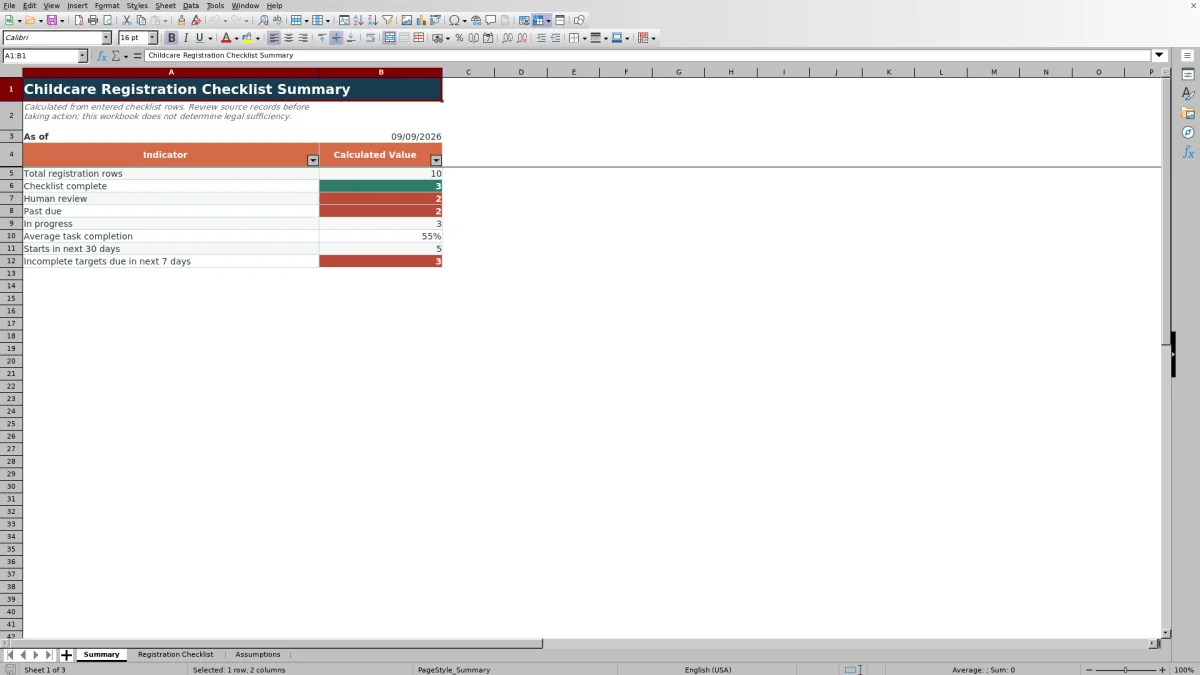
The Summary sheet reports total registration rows and counts for Checklist Complete, Human Review, Past Due, and In Progress. It also calculates average task completion, requested starts within the configured upcoming-start window, and incomplete checklist targets within the configured due-soon window.
A high Human Review count indicates that staff should open the underlying rows and inspect the flagged task cells. A Past Due count indicates incomplete rows whose target dates have passed, except where Human Review takes priority. These indicators support prioritization, but the next decision should come from the checklist row and its source records rather than the aggregate count alone.
Administrative and Privacy Limits
The workbook records completion of center-defined tasks; it does not establish that a document is authentic, current, legally sufficient, or accepted by an authority. Checklist Complete means only that every applicable task cell in that row is marked Complete under the workbook's configured logic.
Centers should define their own required tasks, verify underlying records, follow applicable policies and legal requirements, and obtain qualified guidance where needed. Because the worksheet can contain child information, use appropriate access restrictions, storage practices, retention procedures, and file-sharing controls.
Frequently asked questions
What counts as a completed task in the Excel checklist?
Only a task marked Complete is included in Completed Tasks. Received, Needs Review, and Not Started remain incomplete, while Not Required is excluded from the applicable-task count.
How many registration records can the workbook track?
The Registration Checklist provides 100 formula-supported rows, from row 5 through row 104. The Summary formulas use that same range.
Can a childcare center customize the room, staff, and status choices?
Yes. The Assumptions sheet contains editable room choices, staff choices, and task-status labels. Because the status labels drive formulas, revise them before entering records when possible and review existing rows after any later change.
Why does a row show Human Review instead of Past Due?
Human Review takes priority when any task is marked Needs Review or when all tasks are marked Not Required. A row can therefore have a past target date and still show Human Review rather than Past Due.
Does Checklist Complete confirm that registration requirements are legally satisfied?
No. Checklist Complete indicates only that all applicable task cells are marked Complete according to the workbook's formulas. Staff must still verify source records and apply the center's policies and applicable requirements before making a decision.
Editorial responsibility

Lena MoralesEnrollment and classroom workflows

Jordan LeeWorkbook QA and center operations